
View your backups
AI Overview
Use the Backups page in Backup & Restore Tipo to find any backup, check its status and trigger, and see what each run added, changed or deleted. Open it from Home by selecting Restore from a backup in the Store data card. Backups are kept for 30 days, and your most recent one is always kept.
View moreView less
- Open the page from Home with Restore from a backup in the Store data card.
- Each row shows the backup date, Trigger (Scheduled, Manual or Pre-restore), Status, item changes and a Download link.
- Search by backup number or date, filter by Status and Trigger, and sort by Created, Trigger or Items.
- Select the number in Changes/Deletions Items to see added, changed and deleted items per data type.
- Backups are incremental, so a backup with 0 items is still a complete restore point.
Summary generated by AI. It can make mistakes, so check the full guide below.
Find any backup, check its status and trigger, and see what changed in each run.
The Backups page lists every backup of your store. Use it to check that backups ran, see what each one changed, start a restore, or download a copy.
Open the Backups page
Section titled “Open the Backups page”Go to Home
Section titled “Go to Home”In your Shopify admin, select Apps, then open Backup & Restore Tipo.
Select Restore from a backup
Section titled “Select Restore from a backup”In the Store data card, select Restore from a backup. This link opens the Backups page.
The page header has two buttons: Restore from a file (see Restore from an exported file) and Restore history (see Restore history and details).

The two buttons in the page header open the file restore and the restore history.
Read the list
Section titled “Read the list”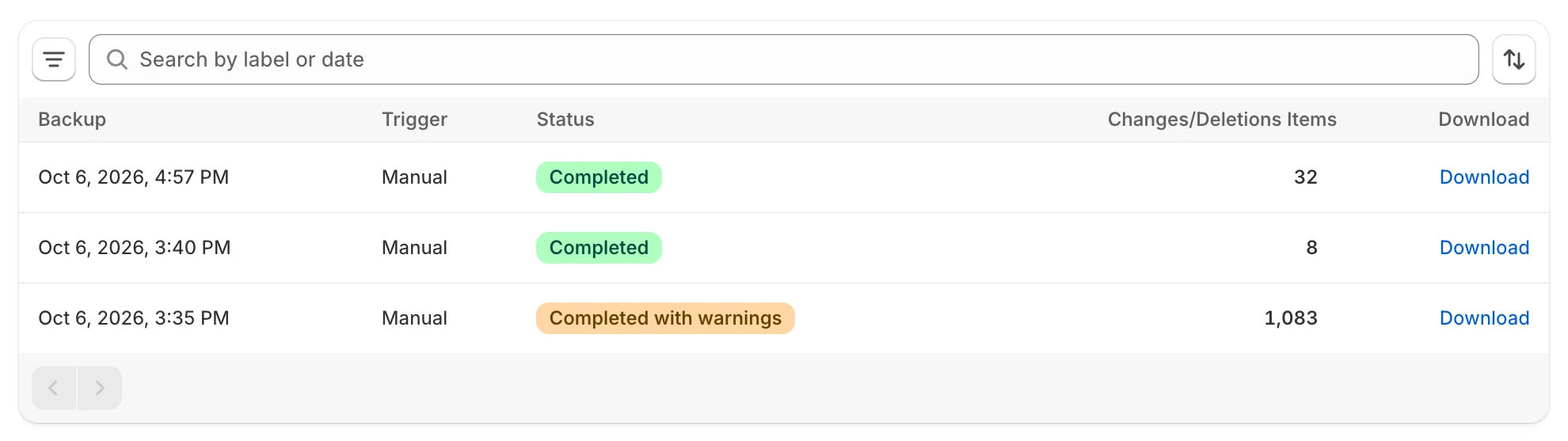
Each row is one backup, newest first.
| Column | What it shows |
|---|---|
| Backup | The date and time the backup was taken. For a Completed or Completed with warnings backup, the date is a link that opens the restore wizard for that backup. |
| Trigger | What started the backup: Scheduled, Manual or Pre-restore. |
| Status | Where the backup is in its life. See the table below. |
| Changes/Deletions Items | How many items were added or changed in that run. Select the number to see the breakdown. |
| Download | A Download link for completed backups. It opens the export page. See Download a backup. |
The list shows 25 backups per page. Use the page arrows on the list to move between pages.
Statuses
Section titled “Statuses”| Status | Meaning |
|---|---|
| Pending | The backup was created and is about to start. |
| Running | Data is being copied from Shopify. |
| Finalizing | Data is copied and the backup is being completed. |
| Completed | Everything was backed up. You can restore from it and download it. |
| Completed with warnings | The backup finished, but some non-critical parts failed or some items were skipped. You can still restore from it and download it. |
| Failed | A required part of the backup failed. You cannot download it. Start a new backup. |
| Cancelled | The backup was stopped before it finished. |
Triggers
Section titled “Triggers”| Trigger | When you see it |
|---|---|
| Scheduled | An automatic backup from your schedule in Backup schedule. |
| Manual | A backup you started with Back up now or Take a snapshot. See Back up now. |
| Pre-restore | A safety backup the app took right before a restore. See Safety backups and undoing a restore. |
Search, filter and sort
Section titled “Search, filter and sort”- Search. Type in Search by label or date. You can search by the backup number (for example, 42) or by a date such as 2026-10-01.
- Filter. Select the filter button, then choose one or more Status values and Trigger values. Active filters show as chips above the list. Select Clear all filters to remove them.
- Sort. Select the Sort button. Under Sort by, choose Created, Trigger or Items. Under Order by, choose Newest first or Oldest first. The default is newest first.
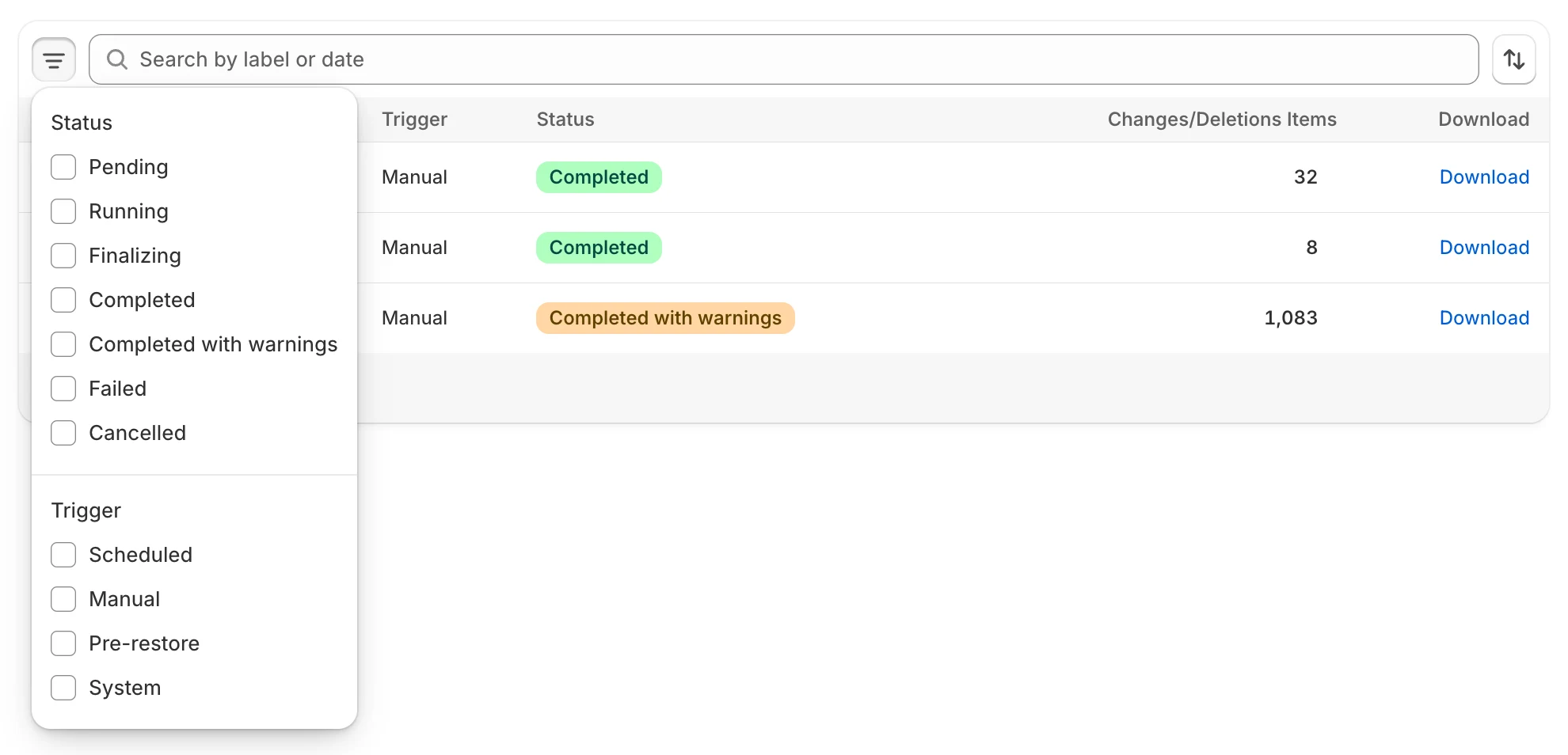
Use the filter popover to show only the statuses and triggers you care about.
If nothing matches, you see No backups match. Change the search or clear the filters.
See what changed in a backup
Section titled “See what changed in a backup”Select the number in the Changes/Deletions Items column. A window opens titled Items in followed by the backup name, for example Items in Backup #42.
- The table lists each data type with the columns Resource, Added, Changed and Deleted. Data types with no changes are greyed out. The busiest data types are first.
- The last line, All resources, gives the totals, for example “12 added · 3 changed · 1 deleted”.
- Theme files appear on their own Theme files row, separate from Themes.
- An orange line such as “2 item(s) were skipped in Theme files.” (or “…in this run.”) means the backup could not copy those items. The warning names the data type when it can.
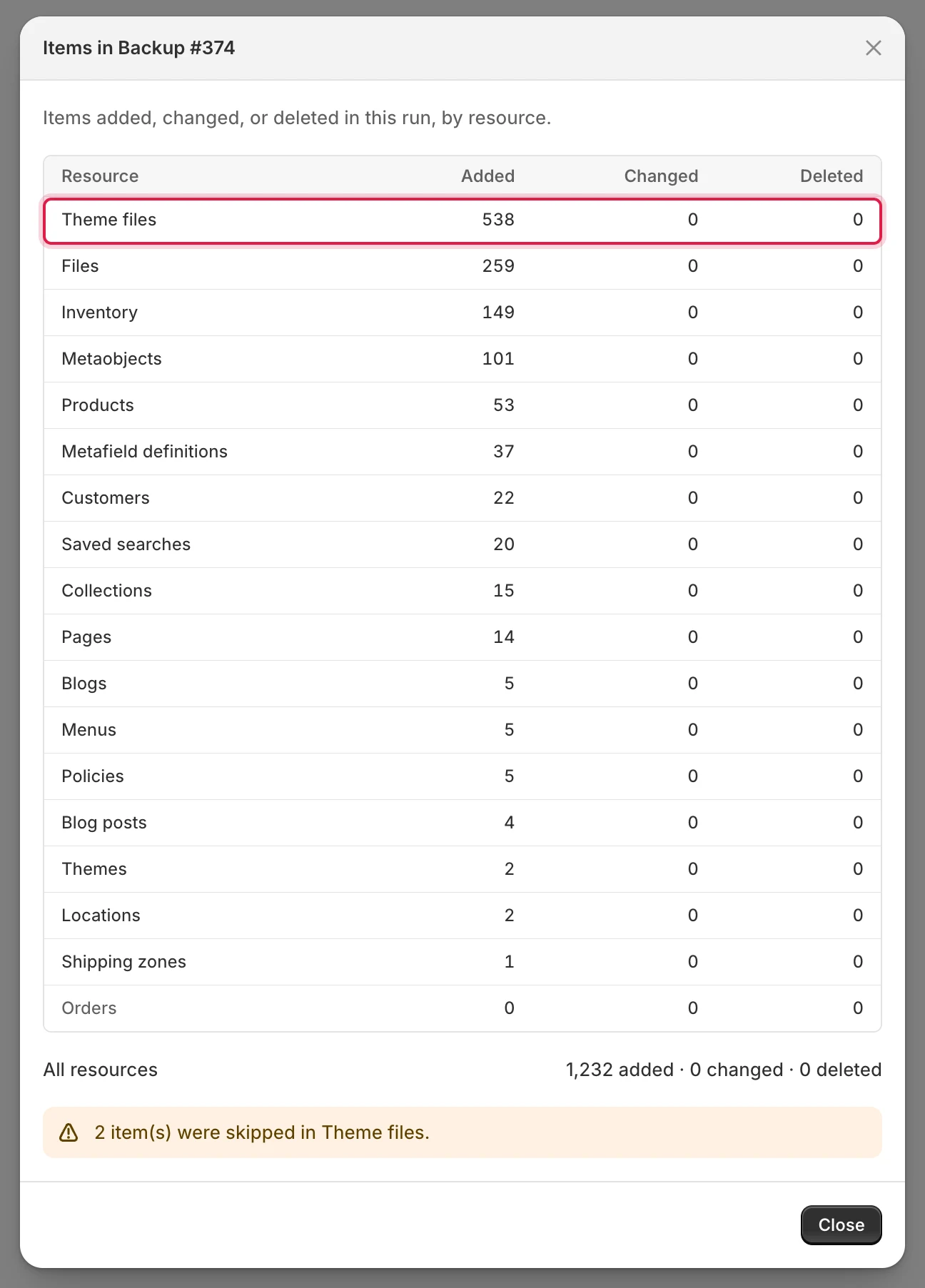
The breakdown shows what each backup added, changed and deleted, by data type, with an orange skipped-items line when something was skipped.
Why the number is small or zero
Section titled “Why the number is small or zero”Backups are incremental. After the first backup, each one stores only what is new or changed since the previous backup. The Items number counts those changes, not everything in your store. A backup where nothing changed shows 0. It is still a complete restore point. The number counts items added or changed. Deleted items appear in the breakdown window, not in the number.
Learn more in How backups work.
Why an older backup is missing
Section titled “Why an older backup is missing”Backups are kept for 30 days. Older backups are removed, so they no longer appear in the list and cannot be downloaded. Your most recent backup is always kept, even after it expires. See Storage and retention.
If the list is empty or does not load
Section titled “If the list is empty or does not load”| What you see | What to do |
|---|---|
| No backups yet | Backups appear here as soon as one finishes. See Back up now. |
| Couldn’t load backups | Select Try again. If it keeps failing, see App and page loading problems. |
| Couldn’t load the breakdown | Select Try again in the breakdown window. |