
Collection sync
AI Overview
Explains how to turn on Collection Sync so Destination stores receive collections from your Source store in the Tipo app. It syncs the collections themselves, not the products inside them; products are included only if they are synced or matched. A Matching & Imports option decides whether collections are created, updated or both.
View moreView less
- In the Source store, open Settings, turn on Share collections, choose All collections or Specific collections, and click Save.
- Create the connection in the Destination store.
- Create & Update creates missing collections and updates ones with the same handle.
- Update Only updates matching collections but creates none; Create Only syncs only collections added after the connection.
Summary generated by AI. It can make mistakes, so check the full guide below.
This guide explains how to enable Collection Sync so your Destination store(s) can receive collections from your Source store.
✅ What Collection Sync does
Section titled “✅ What Collection Sync does”Note: this setting syncs the collection, not the products in the collection
- create collections that don’t exist in the Destination store
- update collections to match the Source store
⚙️ Enable collection sync in app Settings
Section titled “⚙️ Enable collection sync in app Settings”1. Open the app in Source store > click Settings
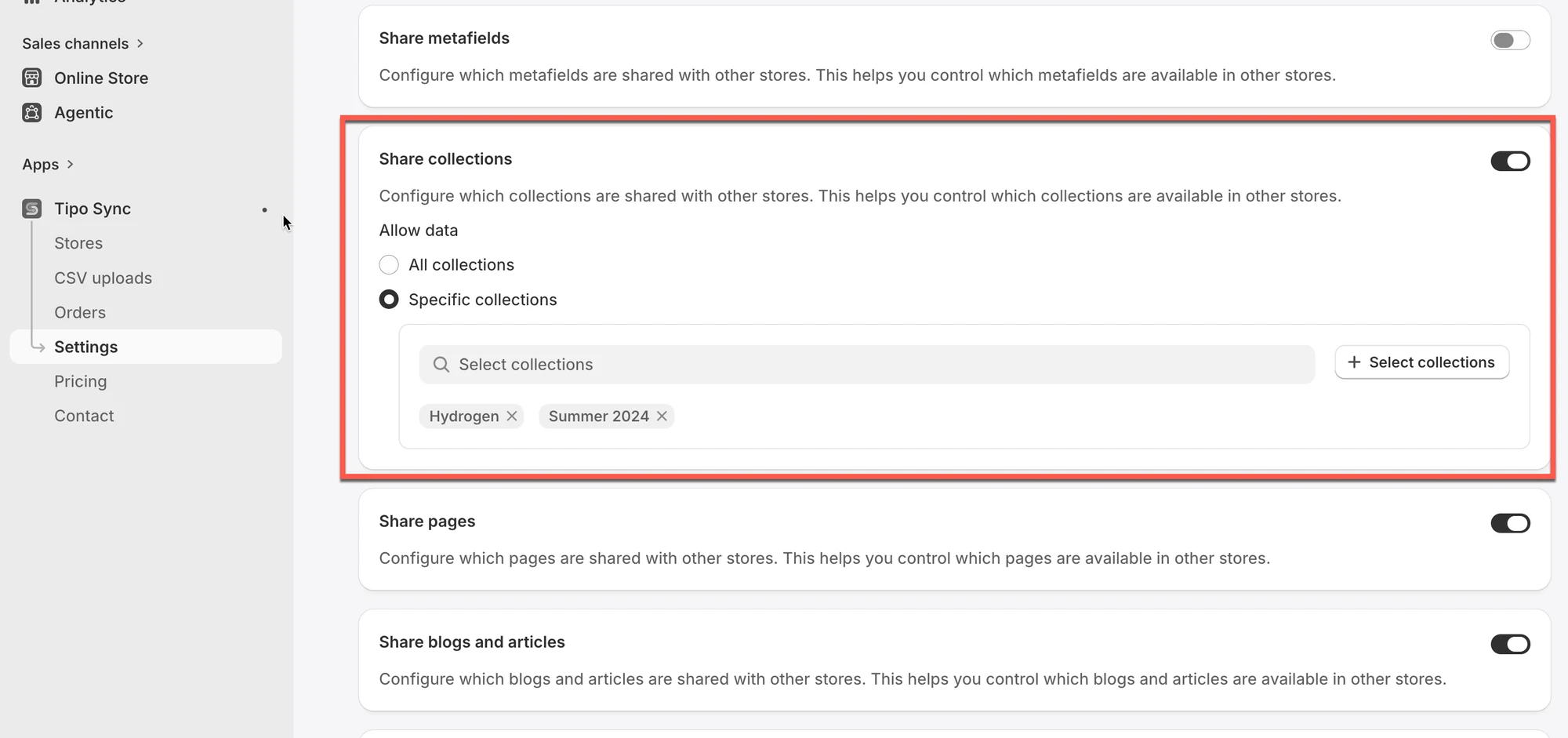
2. Turn on Share collections
3. Select collections you want to sync
- All collections: all products of all collections in your store will be synced with Destination store
- Specific collections: only products of selected collection(s) will be synced with Destination store
4. Click Save
⚙️ Create connection in Destination store
Section titled “⚙️ Create connection in Destination store”Guide here
✅ How the sync works?
Section titled “✅ How the sync works?”Collection Sync follows the same logic as product sync:
- The app checks collections in the Source store
- It syncs those collections to the Destination store(s)
- It includes products in the collection only if those products are synced/matched (based on your connection settings)
Matching & Imports
Section titled “Matching & Imports”This setting controls how collections are synced between the Source Store and the Destination Store.
| Option | Create New Collections | Update Existing Collections |
|---|---|---|
| Create & Update | ✅ | ✅ |
| Update Only | ❌ | ✅ |
| Create Only | ✅ (new collections only) | ❌ |
Option 1: Create & Update
Section titled “Option 1: Create & Update”The app will:
- Create collections on the Destination store if they don’t already exist.
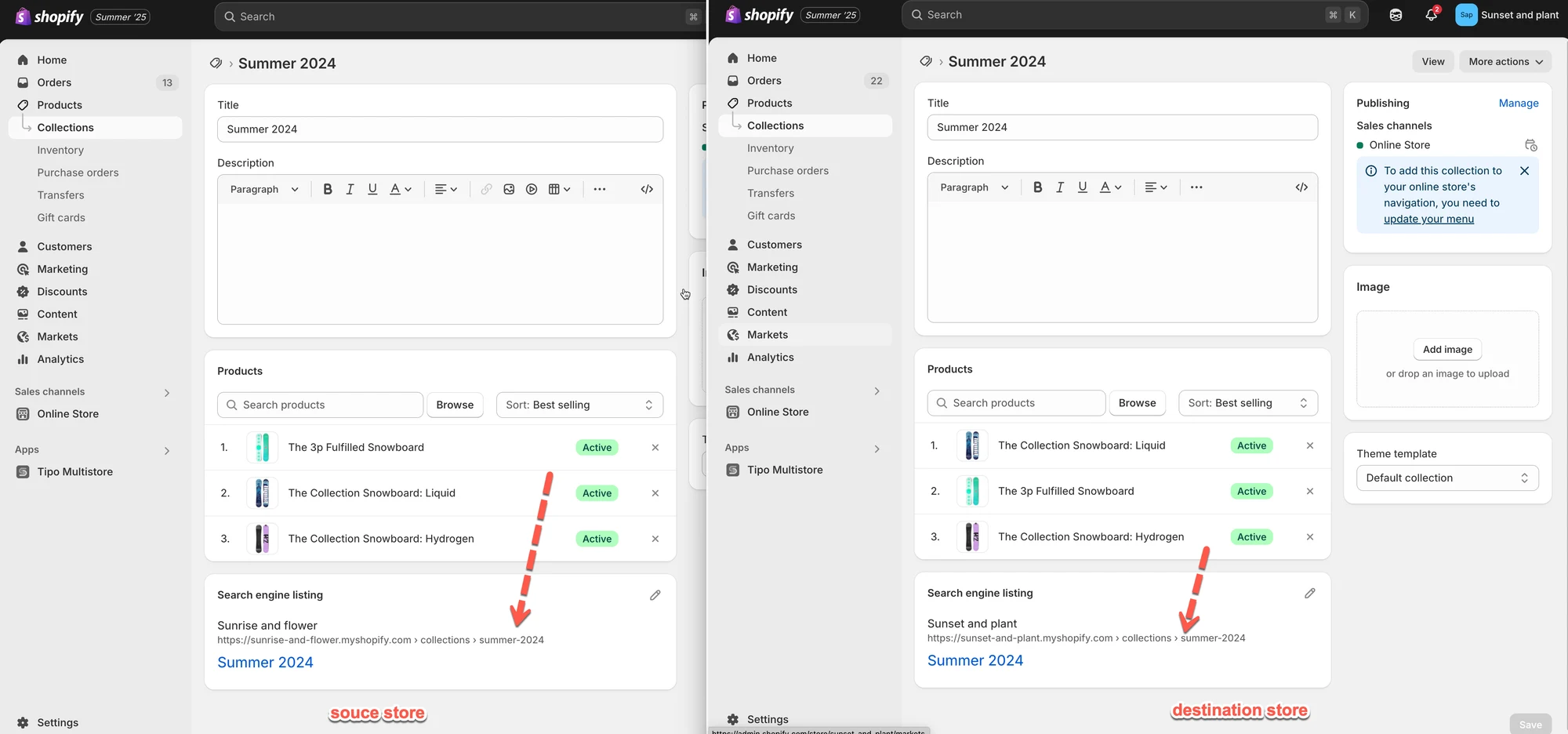
- Automatically update existing collections that share the same handle (URL path) as the Source.
Example
- Source collection: Summer 2024
Handle:/collections/summer-2024 - The app will:
- Create the Summer 2024 collection on the Destination store.
- Keep syncing changes (e.g., title, description, products inside) from Source to Destination automatically.
Note: Any future updates you make to the “Summer 2024” collection in the Source store will also appear in the Destination store.
Option 2: Update Only
Section titled “Option 2: Update Only”The app will:
- Not create new collections.
- Only update collections in the Destination store that already share the same handle with the Source.
Example
- Source collection:
/collections/summer-2024 - Destination also has
/collections/summer-2024
→ Updates will sync. - Source has
/collections/spring-2025, but Destination does not
→ No collection will be created or synced.
Option 3: Create Only
Section titled “Option 3: Create Only”The app will:
- Only create and sync new collections that are added to the Source after the store connection was established.
- Existing collections in the destination store store will not be synced.
Example
| Collection | Exists in Destination Store | Sync Result |
|---|---|---|
| Summer Collection | Yes | Ignored |
🙋 Still need support?
If you still need help, please feel free to contact us at hi@tipo.io. We’ll be happy to assist you further.