# Collection sync
This guide explains how to enable **Collection Sync** so your **Destination store(s)** can receive collections from your **Source store**.
### ✅ What Collection Sync does
Note: this setting syncs the collection, not the products in the collection
* create collections that don’t exist in the Destination store
* update collections to match the Source store
***
### ⚙️ Enable collection sync in app Settings
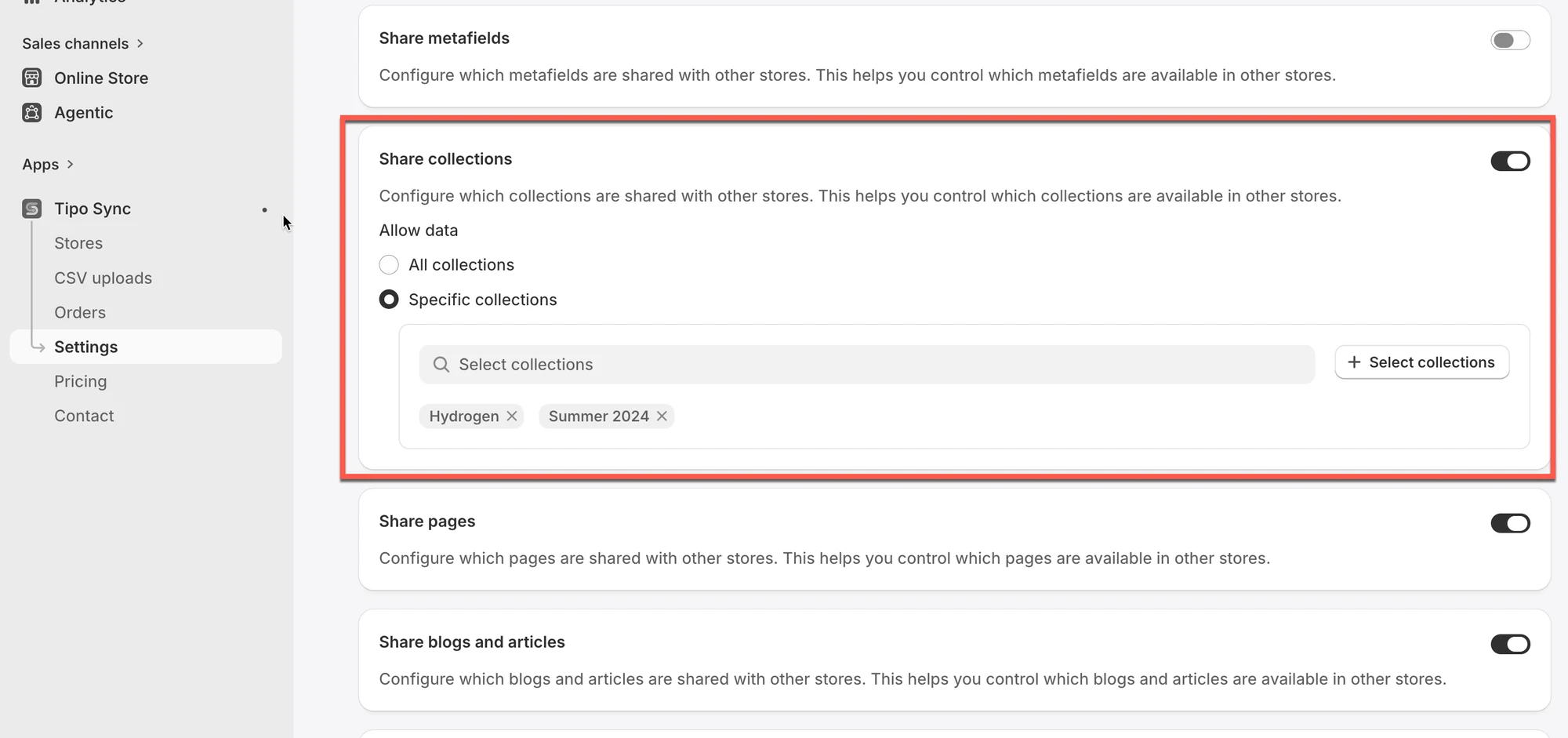
1\. Open the app in Source store > click **Settings**
2\. Turn on **Share collections**
3\. Select collections you want to sync
* **All collections**: all products of all collections in your store will be synced with Destination store
* **Specific collections**: only products of selected collection(s) will be synced with Destination store
4\. Click **Save**
***
### ⚙️ Create connection in Destination store
Guide [here](/overview/connect-stores)
***
### ✅ How the sync works?
Collection Sync follows the same logic as product sync:
1. The app checks collections in the Source store
2. It syncs those collections to the Destination store(s)
3. It includes products in the collection only if those products are synced/matched (based on your connection settings)
#### Matching & Imports
This setting controls how collections are synced between the Source Store and the Destination Store.
| Option | Create New Collections | Update Existing Collections |
| --------------- | ------------------------ | --------------------------- |
| Create & Update | ✅ | ✅ |
| Update Only | ❌ | ✅ |
| Create Only | ✅ (new collections only) | ❌ |
#### Option 1: Create & Update
The app will:
* Create collections on the Destination store if they don’t already exist.
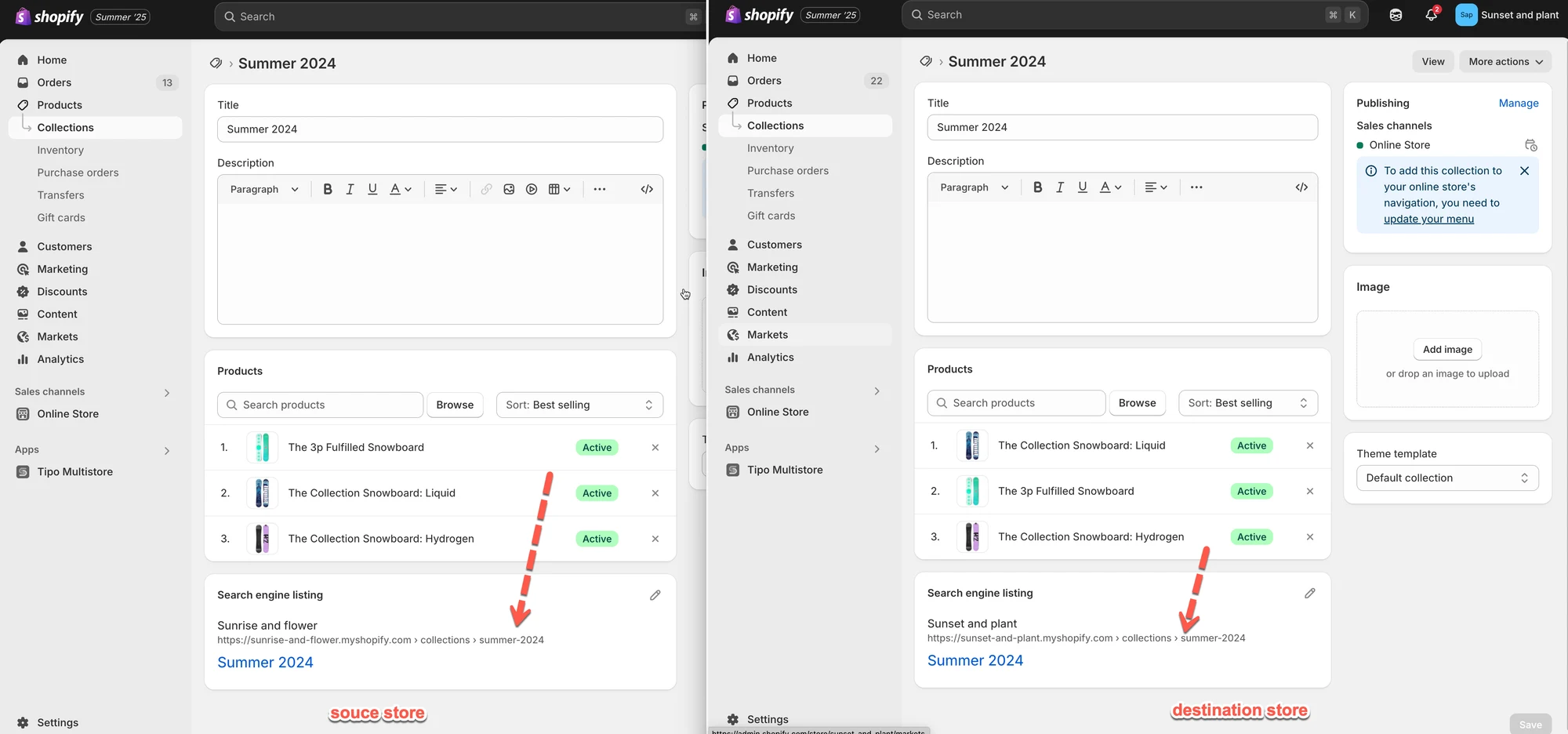
* Automatically update existing collections that share the same **handle** (URL path) as the Source.
**Example**
* Source collection: **Summer 2024**\
Handle: `/collections/summer-2024`
* The app will:
* Create the **Summer 2024** collection on the Destination store.
* Keep syncing changes (e.g., title, description, products inside) from Source to Destination automatically.
Note: Any future updates you make to the "Summer 2024" collection in the Source store will also appear in the Destination store.
#### Option 2: Update Only
The app will:
* Not create new collections.
* Only update collections in the Destination store that already share the same handle with the Source.
**Example**
* Source collection: `/collections/summer-2024`
* Destination also has `/collections/summer-2024`\
→ Updates will sync.
* Source has `/collections/spring-2025`, but Destination does **not**\
→ No collection will be created or synced.
#### Option 3: Create Only
The app will:
* Only create and sync new collections that are added to the Source after the store connection was established.
* Existing collections in the destination store store will not be synced.
**Example**
| Collection | Exists in Destination Store | Sync Result |
| ----------------- | --------------------------- | ----------- |
| Summer Collection | Yes | Ignored |
***
This screenshot is unavailable in the original documentation.
**🙋 Still need support?**
If you still need help, please feel free to contact us at . We’ll be happy to assist you further.