
Sell Shirt Red and Blue (Inventory Sync Group for different SKUs)
AI Overview
This sample case shows how to make two products with different SKUs, Blue Shirt (30 in stock) and Red Shirt (20 in stock), share one inventory pool using an Inventory Sync Group. When either sells, the shared stock drops for both, which helps avoid overselling. The example sets the initial synced stock to 50.
View moreView less
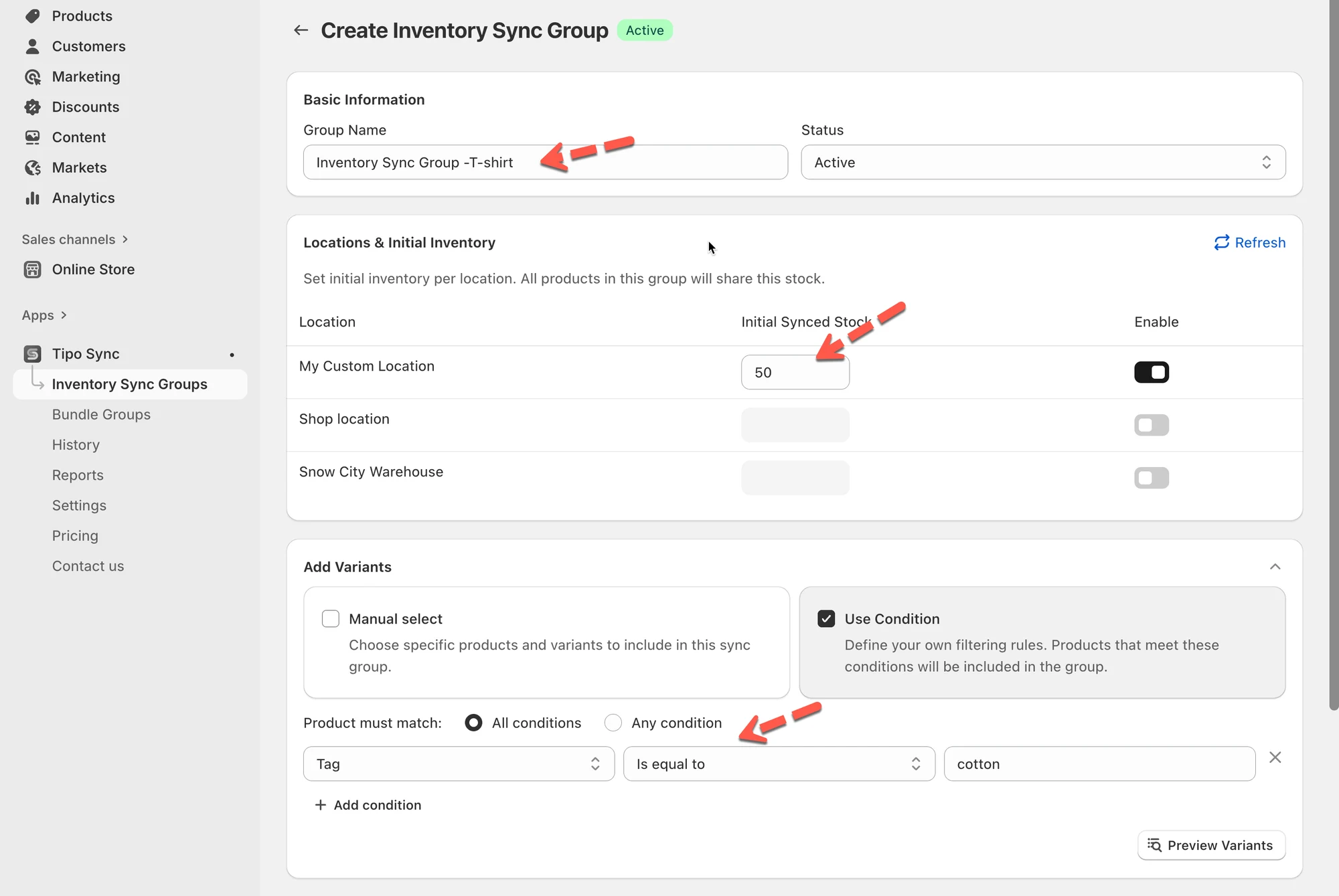
- Open Inventory Sync Groups and click New Inventory Sync Groups; name the group and set it to Active.
- Set Initial Synced Stock to 50, the sum of 30 and 20.
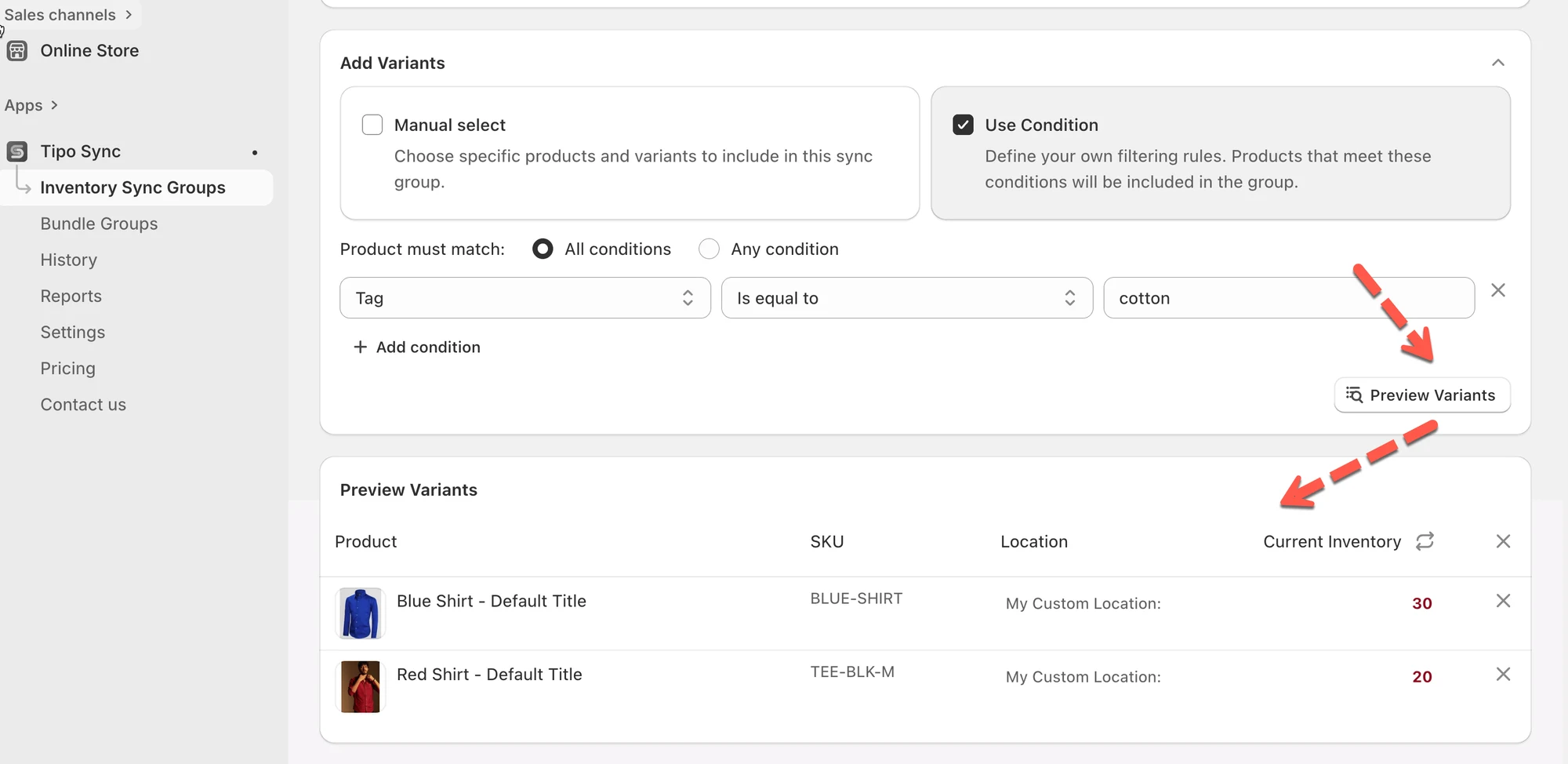
- Add both shirts (here filtered by tag), check with Preview variants, then Save.
- Result: buying 1 Blue Shirt takes stock to 49 for both; buying 2 Red Shirts then takes it to 47.
Summary generated by AI. It can make mistakes, so check the full guide below.
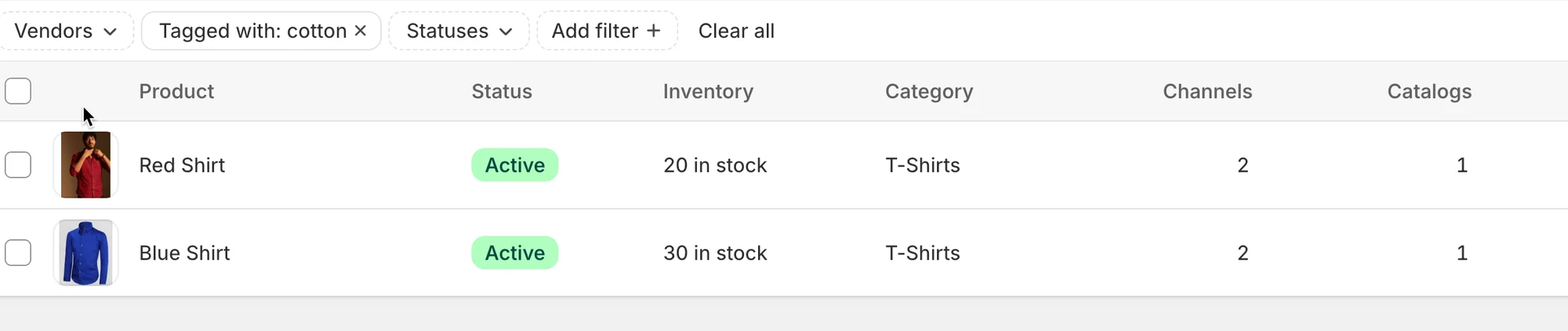
I have two products in my store:
| Product Name | SKU | Inventory Quantity | Track Quantity Enabled |
|---|---|---|---|
| Blue Shirt | BLUE-SHIRT | 30 | Yes |
| Red Shirt | RED-SHIRT | 20 | Yes |
I want these two products to share the same inventory pool so when one sells, the stock reduces for both. This helps me avoid overselling and manage stock centrally.
Solution: Create an Inventory Sync Group
Section titled “Solution: Create an Inventory Sync Group”Steps:
-
Open the sync app > click on Inventory Sync Groups section on the left menu > click New Inventory Sync Groups button
-
Enter a name for the group, e.g., Inventory Sync Group -T-shirt and Set the group status to Active.
-
Set Initial Synced Stock to 50 (which is the sum of 30 + 20)
-
Add the two products: Blue Shirt and Red Shirt. I filter them by tag. Click Preview variants button to see that products will be added to the group
-
Save the Inventory Sync Group.
Once saved, all included products will share the same inventory: when one sells, others update automatically.
Result
Section titled “Result ”The Blue Shirt and Red Shirt now share a combined stock of 50 units.
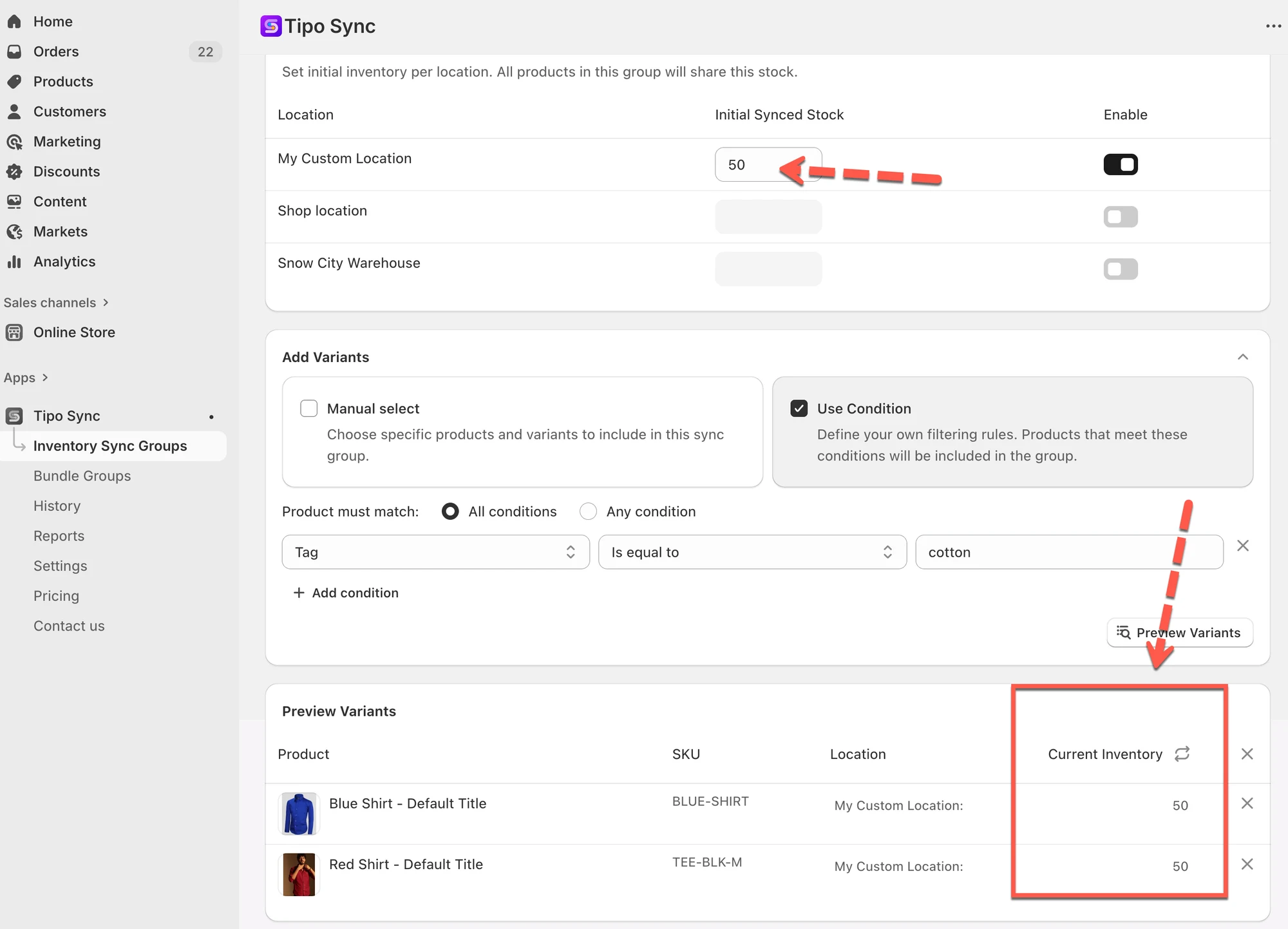
- When a customer buys 1 Blue Shirt, the shared stock reduces from 50 to 49.
- This updated stock is reflected for both products, so the inventory shown for Blue Shirt and Red Shirt becomes 49.
- If a customer buys 2 Red Shirts, the stock reduces from 49 to 47, and this update is visible for both products.
Summarizing the inventory changes after purchases:
| Action | Shared Stock | Blue Shirt Stock | Red Shirt Stock |
|---|---|---|---|
| Initial stock | 50 | 50 | 50 |
| Buy 1 Blue Shirt | 49 | 49 | 49 |
| Buy 2 Red Shirts | 47 | 47 | 47 |
🙋 Still need support?
If you still need help, please feel free to contact us at hi@tipo.io. We’ll be happy to assist you further.