
Find your way around
AI Overview
Shows where each screen lives in Backup & Restore Tipo. The app adds only a few entries to your Shopify admin sidebar, and everything else opens from a link or button inside a page. The article lists the sidebar entries and how to reach Backups, Restore history, restore wizards and more.
View moreView less
- Sidebar entries: the app name (opens Home), Settings and Contact us.
- Open the Backups list from Home > Store data > Restore from a backup.
- Restore history and Restore from a file are buttons in the Backups page header.
- Open a data type list by selecting a row in Store data on Home.
- Emails from the app link straight to the right screen when you are signed in to Shopify admin.
Summary generated by AI. It can make mistakes, so check the full guide below.
Where every screen lives, from the sidebar entries to the in-page links that open Backups, Restore history and your backed-up data.
The app adds only a few entries to your Shopify admin sidebar. Everything else opens from a link or button inside a page. This page shows where to click to reach each screen.
The sidebar
Section titled “The sidebar”In your Shopify admin, open Apps and select Backup & Restore Tipo. The app name opens Home, your dashboard, and two entries appear under it:
| Entry | What it opens |
|---|---|
| Backup & Restore Tipo (the app name) | Home, your dashboard. |
| Settings | Backup schedule, data types, emails, download links, storage and deletion. |
| Contact us | The support request form. |
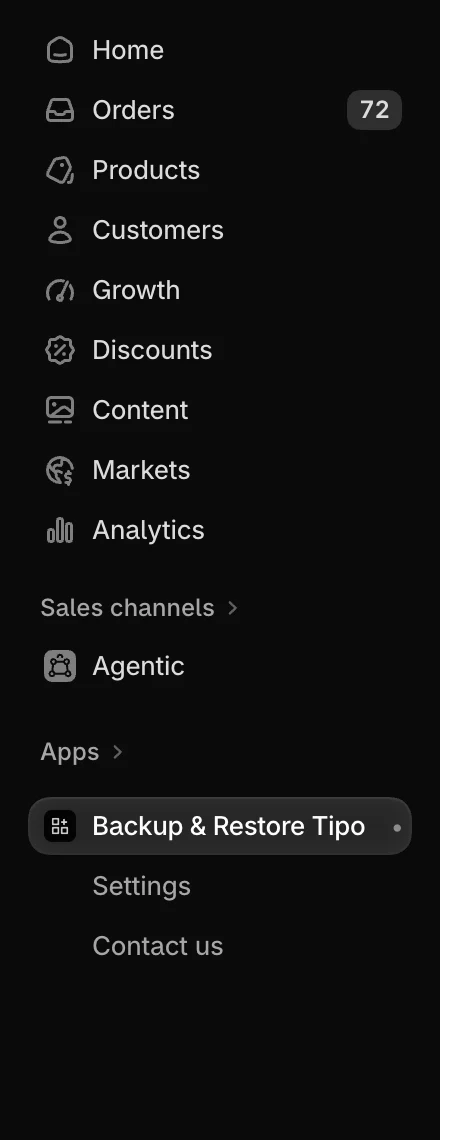
Selecting the app name opens Home. Settings and Contact us sit below it.
Where to find each screen
Section titled “Where to find each screen”| Screen | How to open it |
|---|---|
| Backups list | Home > Store data > Restore from a backup |
| Export a backup | Backups > Download on a completed backup row. See Download a backup |
| Restore wizard | Backups > select the date of a Completed backup. See Restore from a backup |
| Restore history | Backups > Restore history |
| Restore details | Restore history > select a restore |
| Restore from a file | Backups > Restore from a file |
| Your usage and limits | Home > Plan & usage. See Usage and limits |
| A data type list, such as Products | Home > select a row in Store data |
| An item’s detail page | Open a data type list, then select the item |
| Theme files and translations | Home > Store data > Themes > select a theme |
| Get started wizard | Opens by itself on a new install, in place of Home until you finish it. See Set up the app |
| Change language | The language button at the top of Home. See Change the app language |
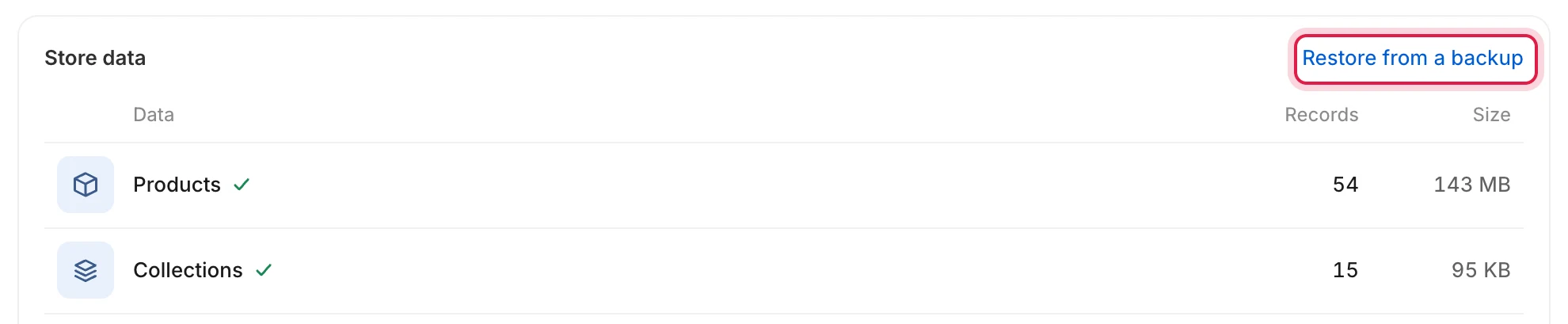
Select Restore from a backup in the Store data card to open your Backups list.
On the Backups page, the header has two buttons: Restore from a file and Restore history.

The Backups header links to restoring from a file and to your restore history.
Breadcrumbs
Section titled “Breadcrumbs”Pages that sit inside other pages, such as an item’s detail page, show a breadcrumb trail at the top. Select an earlier entry to go back up one level.
Links in emails
Section titled “Links in emails”Emails from the app link straight to the right screen: your Backups list, Settings, Contact us, the details of a restore, a theme or a data list. Select the button in the email while you are signed in to your Shopify admin.