# Find your way around

Where every screen lives, from the sidebar entries to the in-page links that open Backups, Restore history and your backed-up data.

The app adds only a few entries to your Shopify admin sidebar. Everything else opens from a link or button inside a page. This page shows where to click to reach each screen.

## The sidebar

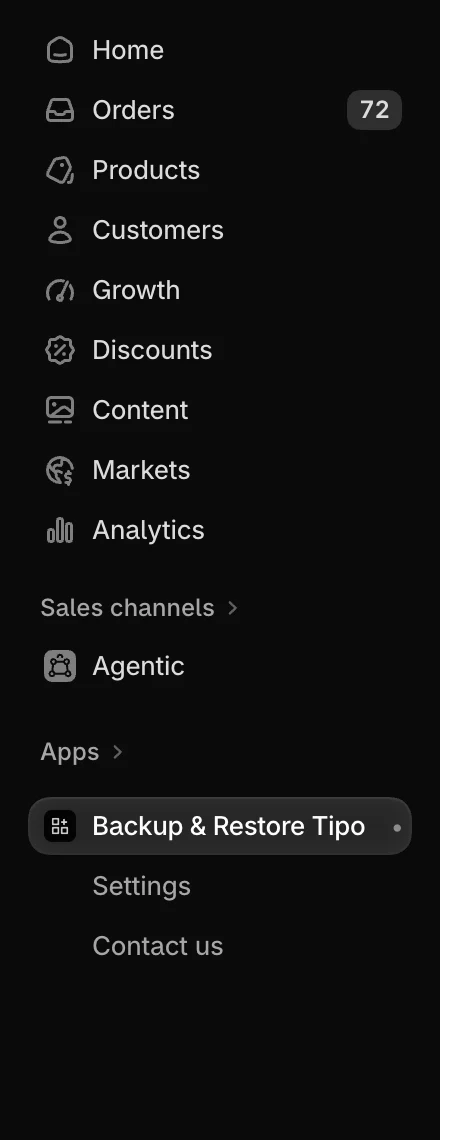
In your Shopify admin, open **Apps** and select **Backup & Restore Tipo**. The app name opens **Home**, your dashboard, and two entries appear under it:

| Entry                                    | What it opens                                                              |
| ---------------------------------------- | -------------------------------------------------------------------------- |
| **Backup & Restore Tipo** (the app name) | **Home**, your dashboard.                                                  |
| **Settings**                             | Backup schedule, data types, emails, download links, storage and deletion. |
| **Contact us**                           | The support request form.                                                  |

<figure><img src="/media/8994d91c6f0340b1ee1b.webp" alt="The Shopify admin sidebar with Backup &#x26; Restore Tipo selected under Apps, and Settings and Contact us listed below it" loading="lazy" decoding="async"><figcaption><p>Selecting the app name opens Home. Settings and Contact us sit below it.</p></figcaption></figure>


:::note

The app is currently free for stores that install it during this period, so there is no **Pricing** page. Where you need more storage or higher limits, the app shows a **Contact us** link. See [Pricing](/backup-and-restore-tipo/pricing/plans).

:::


## Where to find each screen

| Screen                             | How to open it                                                                                                                                               |
| ---------------------------------- | ------------------------------------------------------------------------------------------------------------------------------------------------------------ |
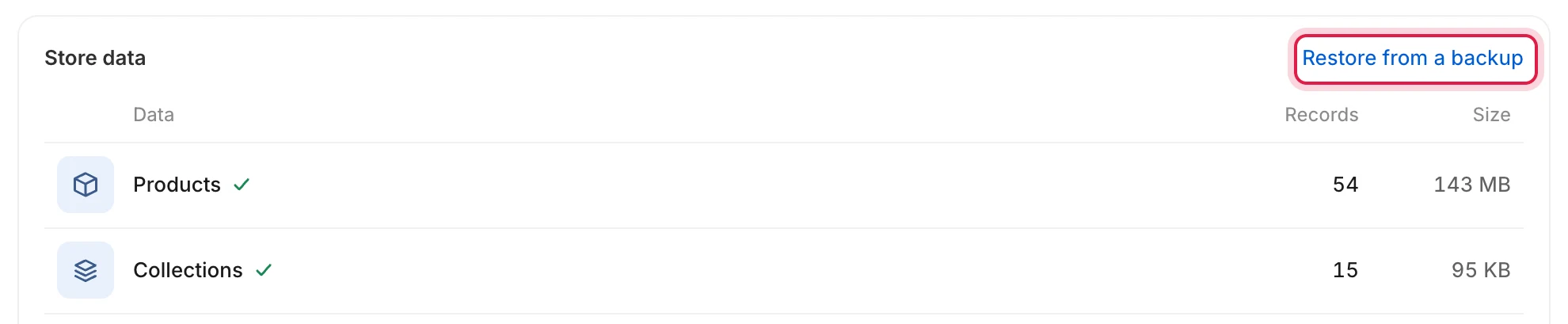
| **Backups** list                   | **Home** > **Store data** > **Restore from a backup**                                                                                                        |
| Export a backup                    | **Backups** > **Download** on a completed backup row. See [Download a backup](/backup-and-restore-tipo/backups/backups/download/export-a-backup)          |
| Restore wizard                     | **Backups** > select the date of a **Completed** backup. See [Restore from a backup](/backup-and-restore-tipo/restore/restore/restore-from-a-backup)      |
| **Restore history**                | **Backups** > **Restore history**                                                                                                                            |
| Restore details                    | **Restore history** > select a restore                                                                                                                       |
| Restore from a file                | **Backups** > **Restore from a file**                                                                                                                        |
| Your usage and limits              | **Home** > **Plan & usage**. See [Usage and limits](/backup-and-restore-tipo/pricing/plans/usage-and-limits)                                              |
| A data type list, such as Products | **Home** > select a row in **Store data**                                                                                                                    |
| An item's detail page              | Open a data type list, then select the item                                                                                                                  |
| Theme files and translations       | **Home** > **Store data** > **Themes** > select a theme                                                                                                      |
| **Get started** wizard             | Opens by itself on a new install, in place of **Home** until you finish it. See [Set up the app](/backup-and-restore-tipo/getting-started/set-up-the-app) |
| Change language                    | The language button at the top of **Home**. See [Change the app language](/backup-and-restore-tipo/getting-started/change-the-app-language)               |

<figure><img src="/media/4d215b0bd36e5b8246b5.webp" alt="The Store data card with the Restore from a backup link highlighted" loading="lazy" decoding="async"><figcaption><p>Select Restore from a backup in the Store data card to open your Backups list.</p></figcaption></figure>

On the **Backups** page, the header has two buttons: **Restore from a file** and **Restore history**.

<figure><img src="/media/f096e60c4e53a6655dd1.webp" alt="The Backups page header with the Restore from a file and Restore history buttons" loading="lazy" decoding="async"><figcaption><p>The Backups header links to restoring from a file and to your restore history.</p></figcaption></figure>

## Breadcrumbs

Pages that sit inside other pages, such as an item's detail page, show a breadcrumb trail at the top. Select an earlier entry to go back up one level.

## Links in emails

Emails from the app link straight to the right screen: your **Backups** list, **Settings**, **Contact us**, the details of a restore, a theme or a data list. Select the button in the email while you are signed in to your Shopify admin.

## Next steps

* [Home dashboard](/backup-and-restore-tipo/home/home)
* [Back up now](/backup-and-restore-tipo/backups/backups/back-up-now)
* [Restore data](/backup-and-restore-tipo/restore/restore)