
Use a download link
AI Overview
Open a backup download link from your email or the app, save the file, and fix a link that has stopped working. Each link opens a download page first, and the file starts only after you confirm. By default a link lasts 24 hours and allows 3 downloads, and you can change both in Settings.
View moreView less
- Links come from the export email, from Get download link in the app, or, for inventory CSV, only by email.
- Open the link to the Backup ready page and select Download Backup once.
- Each click uses one allowed download, so click once and wait for Download started.
- If a link expired, ran out of downloads or is unavailable, start a new export. For an invalid link, reuse the original.
Summary generated by AI. It can make mistakes, so check the full guide below.
Open a download link from your email or the app, save the file, and fix a link that has stopped working.
When an export is ready, you get a download link. This page shows how to use it and what to do when a link stops working.
Where the links come from
Section titled “Where the links come from”- Email. When an export finishes, the app emails the address in Send to under Notifications. The subject is “Your export of Backup #N is ready”. The email has a button, or a table with one row per file (File, Size, Download).
- In the app. On the export page, each file has a Get download link button. See Download a backup.
- Inventory CSV email. An inventory CSV export is delivered only by email, with a Download CSV button. See Export inventory as CSV.
Each link opens a download page first. The file does not start downloading until you confirm there.
Download the file
Section titled “Download the file”Open the link
Section titled “Open the link”Select the button in the email, or Get download link in the app. A page titled Backup ready opens in your browser. It shows the File name, its Size, and when the link expires (Link expires).
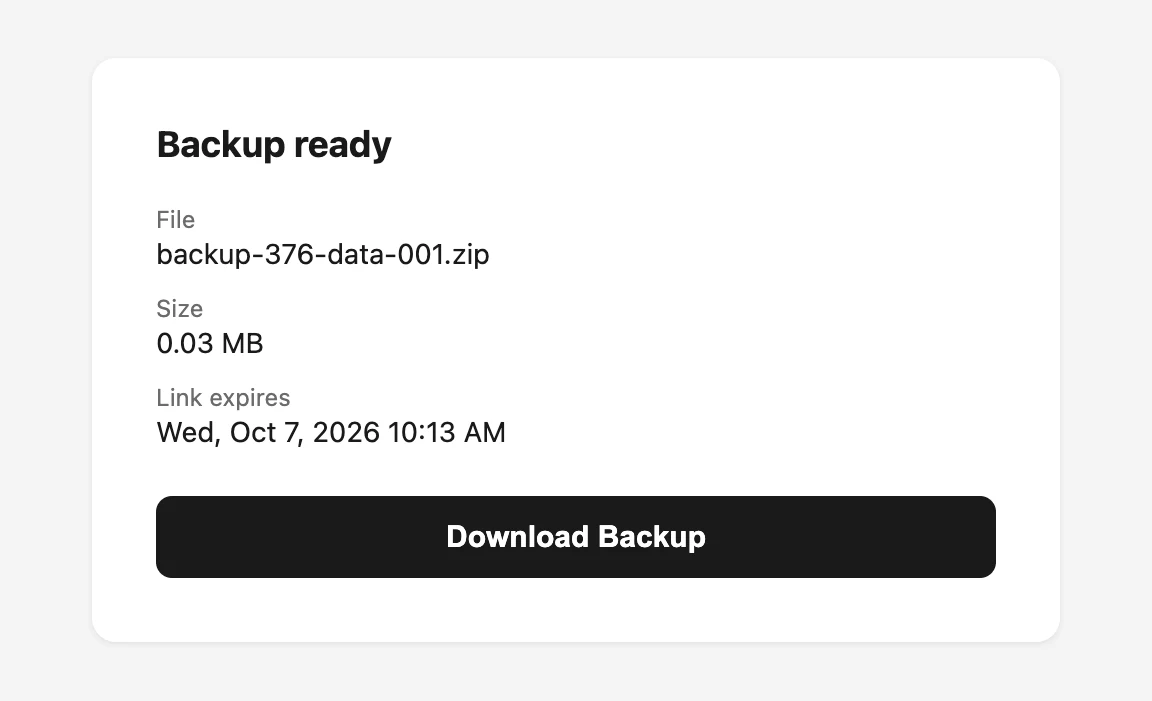
The Backup ready page shows the file details before you download.
Select Download Backup
Section titled “Select Download Backup”Select Download Backup once. The button changes to Starting download… and the page says “Starting your download. Please wait — clicking again uses another download.”
Save the file
Section titled “Save the file”The page changes to Download started: “Your backup is downloading. You can close this tab once the file appears in your downloads.”
When a link stops working
Section titled “When a link stops working”You may see one of these pages. For most of them, start a new export from Backups in the app and use the new link.
| Page heading | What it means | What to do |
|---|---|---|
| Download link expired | The link is older than its expiry time. | Start a new export. See Download a backup. |
| Download limit reached | The link was used the maximum number of times. | Start a new export. |
| Download link unavailable | The link was turned off. | Start a new export. |
| Backup unavailable | The file is no longer available. | Start a new export. If the backup is past your retention period, pick a newer one. |
| Download link invalid | The link is incomplete or was changed, for example when copied. | Use the original link from the email, or select Get download link in the app again. |
Change how long links last
Section titled “Change how long links last”The default is 24 hours and 3 downloads per link. You can change both in Settings. The new values apply to links created afterwards. See Download link settings.