
Out-of-stock Handling - Inventory Groups
AI Overview
Out-of-stock handling controls what Tipo does when one item in an Inventory Sync Group runs out of stock. Use it when grouped products represent the same stock, such as duplicate listings. If grouped products should not go out of stock together, keep the setting off.
View moreView less
- Open Settings and find Inventory Groups > When products in the group are out of stock.
- Choose Continue syncing to keep syncing even at zero stock (recommended for consistent levels).
- Or choose Pause sync & notify by email to stop syncing at 0 and get an email so you can restock.
- Click Save.
Summary generated by AI. It can make mistakes, so check the full guide below.
Out-of-stock handling controls what Tipo app should do when one item in an Inventory Sync Group becomes out of stock.
✅ When to use this setting
Section titled “✅ When to use this setting”Use out-of-stock handling if your group contains products that represent the same stock (examples):
- same product listed multiple times (different titles, languages, marketplaces)
- duplicate listings that must always have the same available quantity
If your grouped products should not go out of stock together, keep this setting off.
⚙️ Where to configure it
Section titled “⚙️ Where to configure it”- Open the app > click Settings
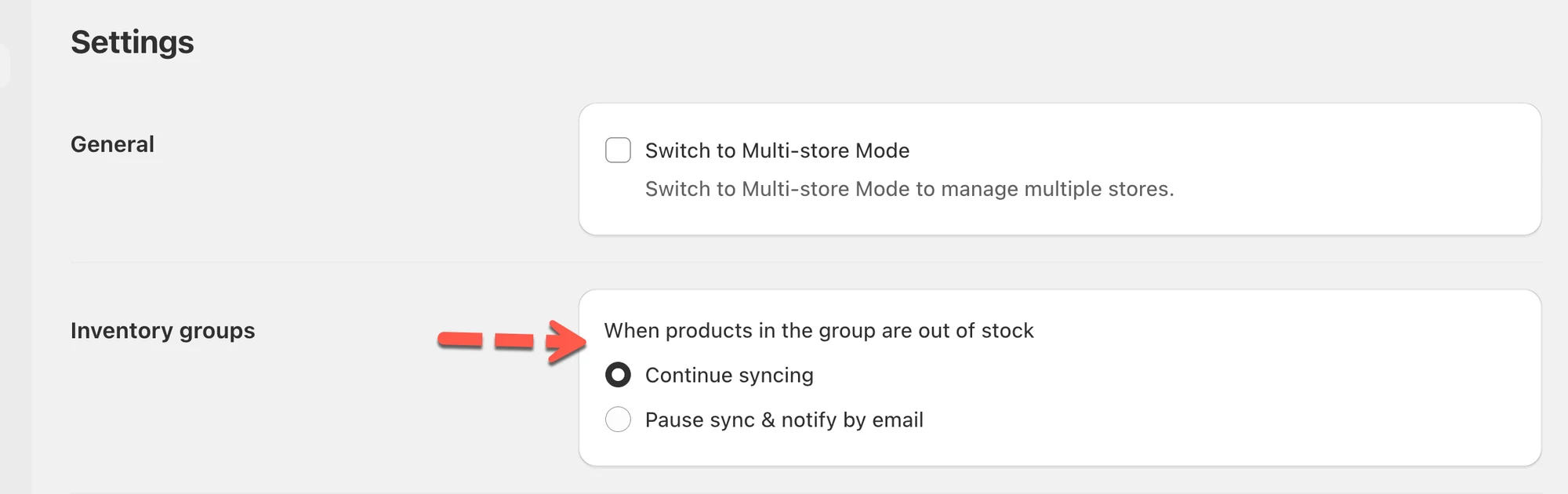
- Find Inventory Groups > When products in the group are out of stock > choose your preferred behavior
- Option 1: Continue syncing:
The app will keep syncing inventory data even if a product in the group is out of stock.
(Recommended if you want inventory levels to stay consistent across stores or variants.) - Option 2: Pause sync & notify by email:
Syncing will pause automatically when a product in the group runs out of stock.
You’ll receive an email notification so you can restock or take action before resuming syncing.
- Click Save.
.
🧪 Example
Section titled “🧪 Example”You group T-shirt Red and T-shirt Blue (shared stock).
- If Continue syncing is selected: when you restock, both products will update again automatically.
- If Pause sync & notify by email is selected: syncing stops at 0, and you’ll get an email so you can fix stock before it syncs further.
🙋 Still need support?
If you still need help, please feel free to contact us at hi@tipo.io. We’ll be happy to assist you further.