
Unsync products
AI Overview
Explains how to unsync products between a Source and Destination store in the Tipo app. Unsyncing removes the mapping, so the product stops receiving updates from the Source store, but the product itself stays in the Destination store unless you delete it manually.
View moreView less
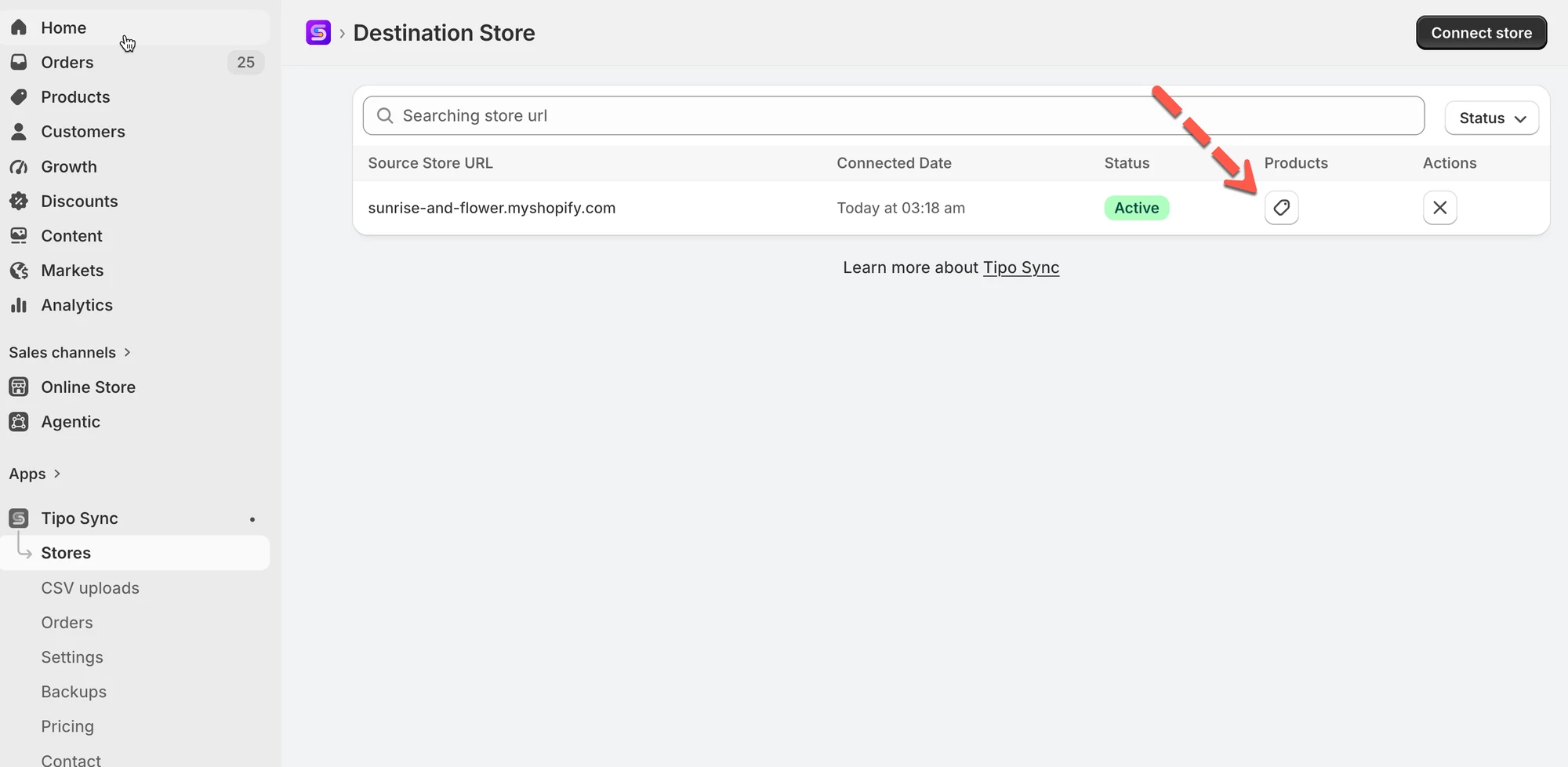
- On the Destination store, open the app Dashboard, click Stores, then Products to see the connection's synced products.
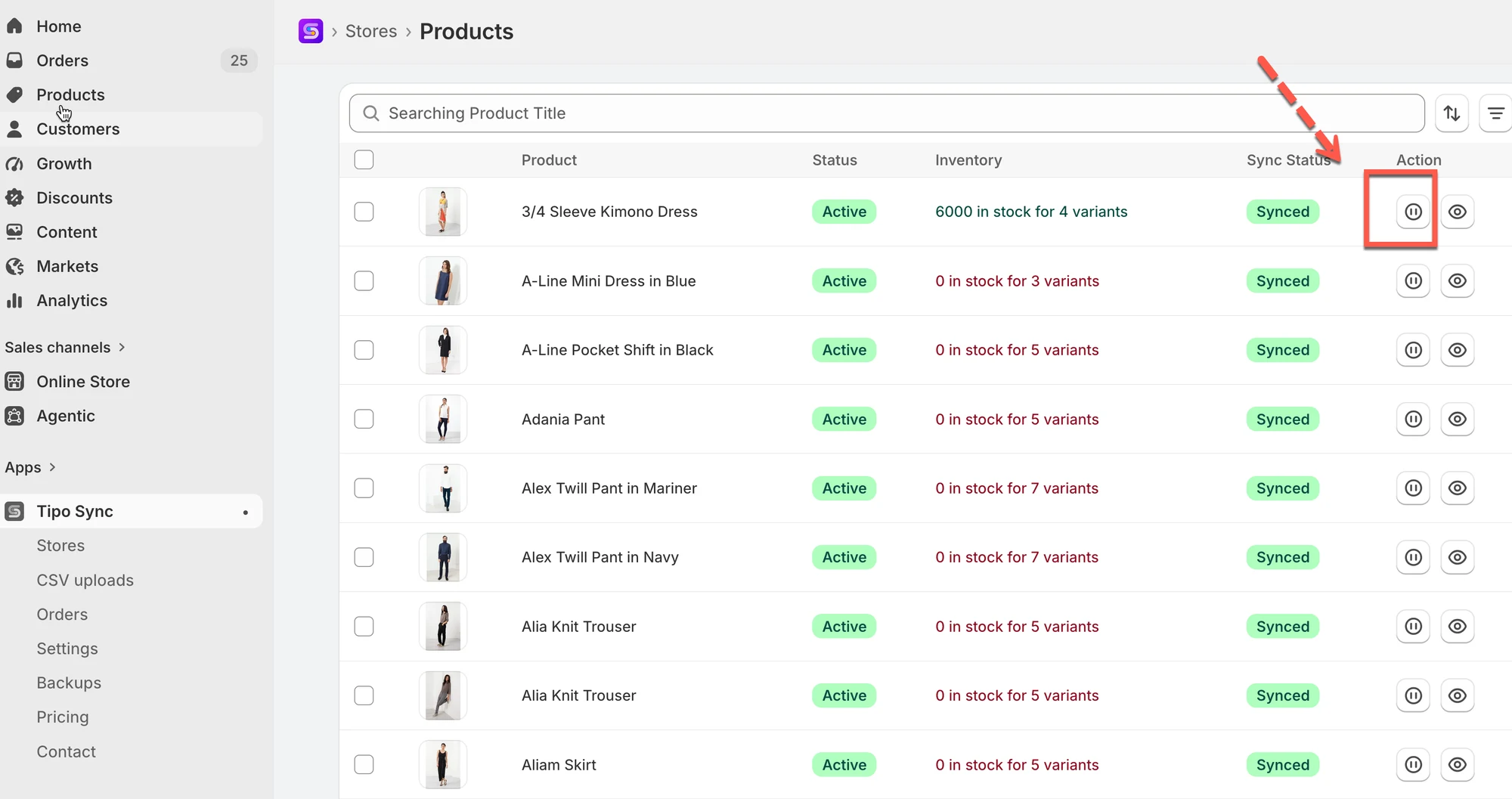
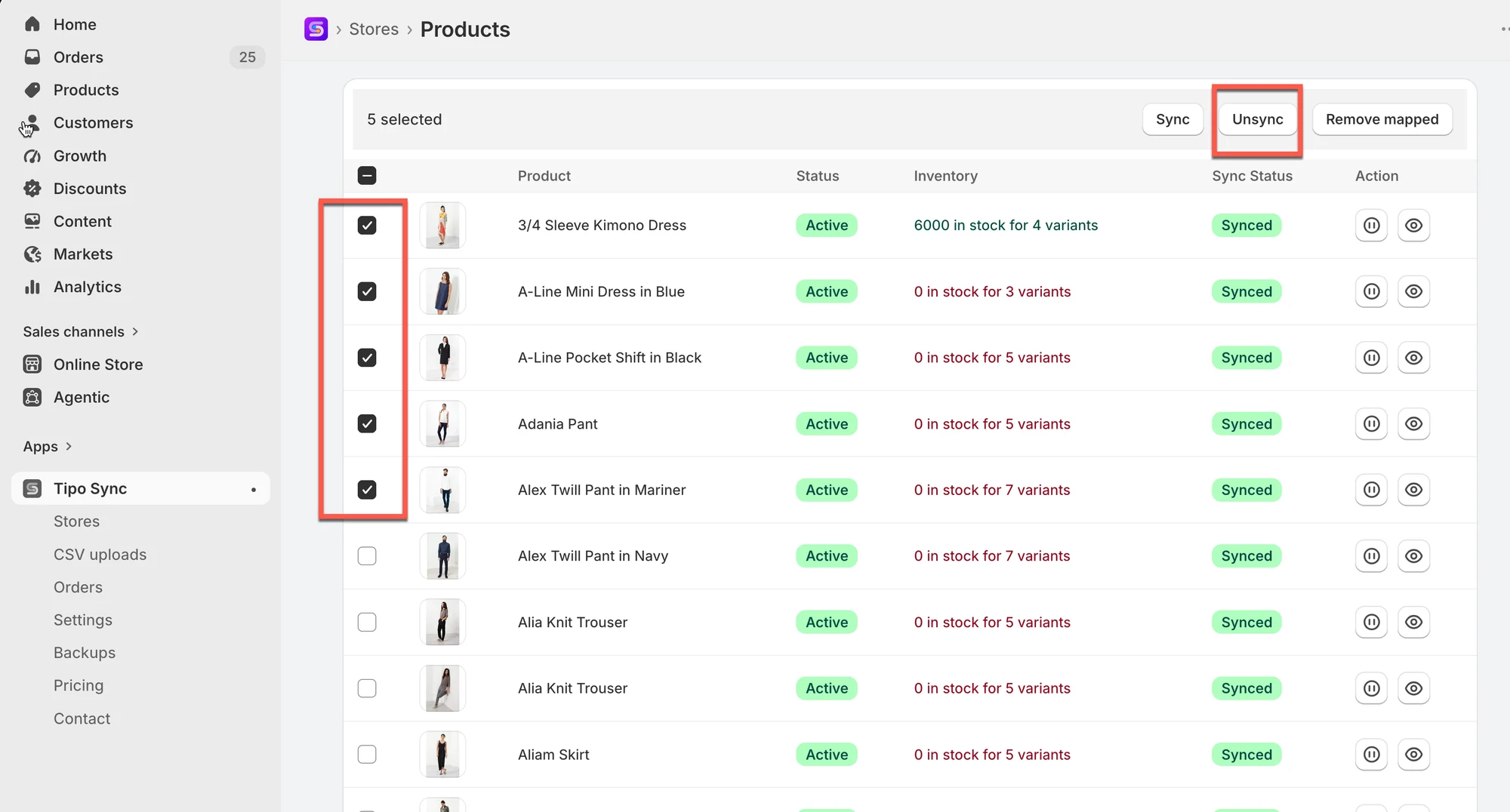
- Click the icon next to a product to stop its sync, or select several and click Unsync.
- Unsynced products are marked Manually Excluded.
- To resume, select the products again and click Sync.
- Unsyncing does not delete the product.
Summary generated by AI. It can make mistakes, so check the full guide below.
This guide explains how to unsync products between your Source store and Destination store. Unsyncing removes the link (mapping) so the product will no longer receive updates from the Source store.
❓ What happens when you unsync?
Section titled “❓ What happens when you unsync?”When you unsync a product:
- The mapping between Source and Destination is removed
- Future updates from Source will no longer apply to that product in Destination
- The product may remain in the Destination store
🛠️ Steps to unsync specific product
Section titled “🛠️ Steps to unsync specific product ”1. Go to the Destinations store, open the app Dashboard > click Stores > click Products to see the synced product list of the connection
2. Click this icon to stop sync for each product
3. For bulk action: select the products you want to sync. Select Select all 25+ products if you want to select all products in the list > click Unsync button on the right side
After unsyncing, these products will be marked as Manually Excluded, indicating they are no longer synchronized with the Source Store.
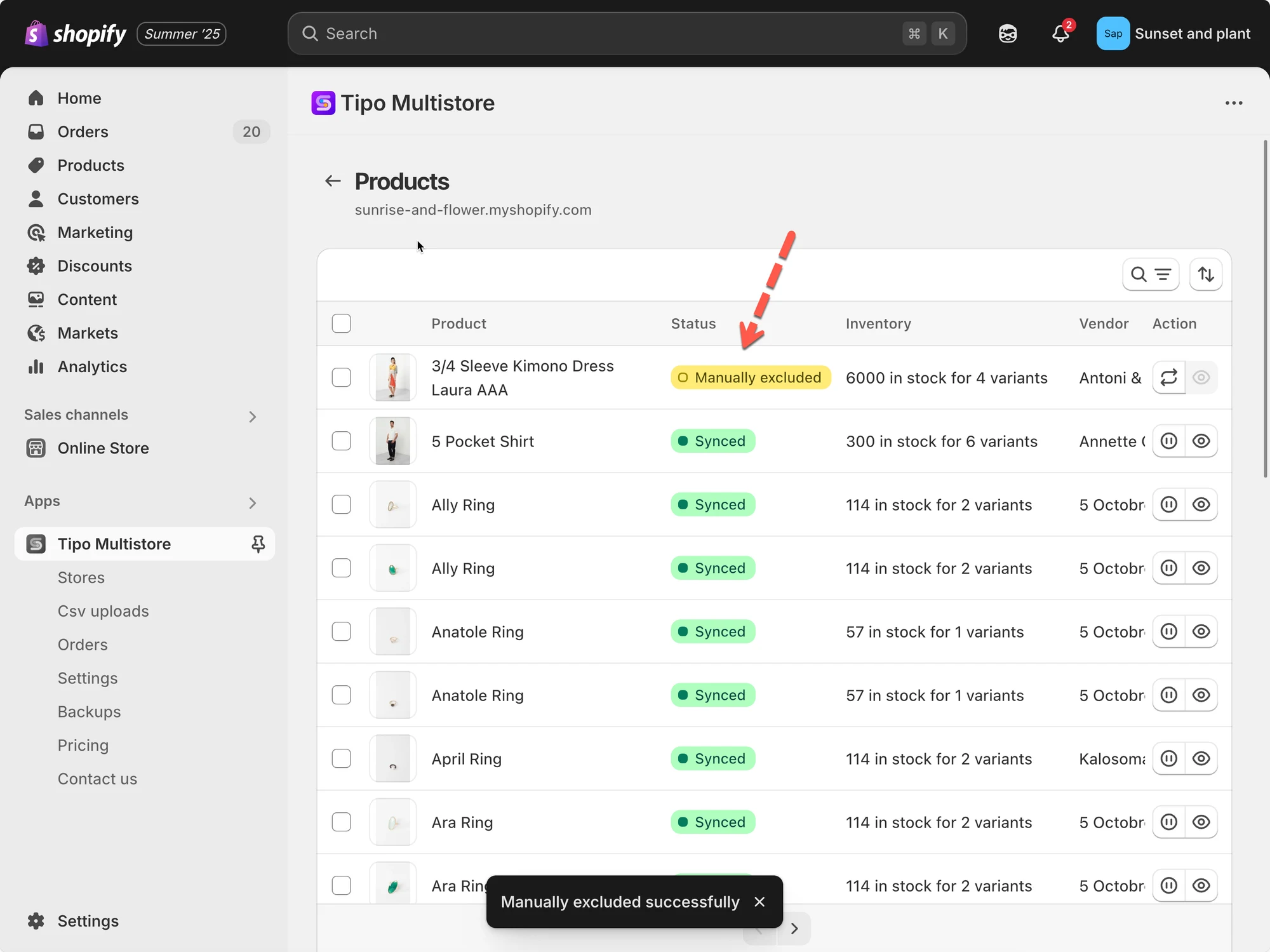
If you want to continue the sync again, select the products again and click Sync button instead of Unsync button.
📝 Note
Unsyncing does not delete the product.
It only stops future updates from the Source store from syncing to the Destination store. The product will still remain in your Destination store unless you manually delete it.
🙋 Still need support?
Section titled “🙋 Still need support?”If you still need help, please feel free to contact us at [your support email or link]. We’ll be happy to assist you further.