
Manually push sync
AI Overview
Covers when and how to run a manual push sync in Tipo Sync. The app syncs in 30-minute blocks, so changes can take up to 30 minutes to appear. Manual push lets you sync selected products immediately, for example to test, after editing products, or after changing settings.
View moreView less
- Automatic sync runs in 30-minute blocks; updated products are included in the next run.
- In the Destination store, open the Dashboard, click Stores, then the Products icon of the connection.
- Select the products to sync and click Sync.
- Check the Destination store to confirm the changes arrived.
- After changing app settings, contact support to help push the sync or confirm the setting applied.
Summary generated by AI. It can make mistakes, so check the full guide below.
Manual push is helpful when you don’t want to wait for the next automatic sync or when you just changed settings and want to test immediately.
✅ When should you use “Manual push”?
Section titled “✅ When should you use “Manual push”?”- want to test sync with a few products right away
- just edited product data in the Source store and want updates immediately
- just changed sync settings (price rules, metafields, product selection…)
- need to re-run sync after fixing an issue
⏱️ How long does sync take?
Tipo app doesn’t sync instantly. It runs on a schedule:
- The app syncs in 30-minute blocks
- Any products created or updated during that time will be included in the next sync run
Example
Section titled “Example”If you update a product title in the Source store:
- Save the change in Shopify
- Wait up to 30 minutes
- Check the same product in the Destination store to see the updated title
✅ Tip: If you need changes to appear sooner, use Manual push sync to run sync immediately.
🛠️ Steps to manually sync again
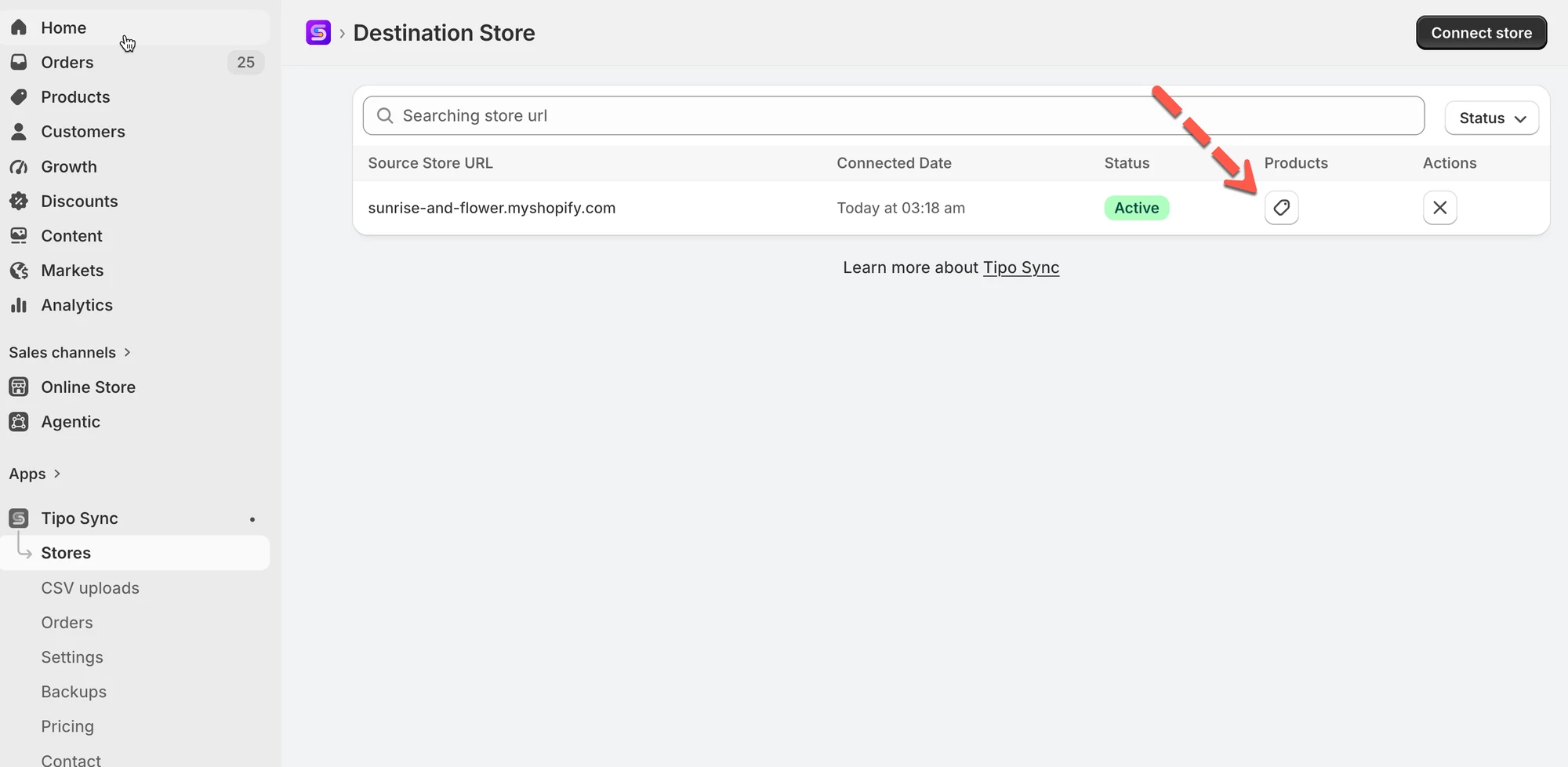
Section titled “🛠️ Steps to manually sync again”1. Go to the Destinations store, open the app Dashboard > click Stores > click Products icon to see the synced product list of the connection
2. Select the products you want to sync
3. Click Sync button on the right side
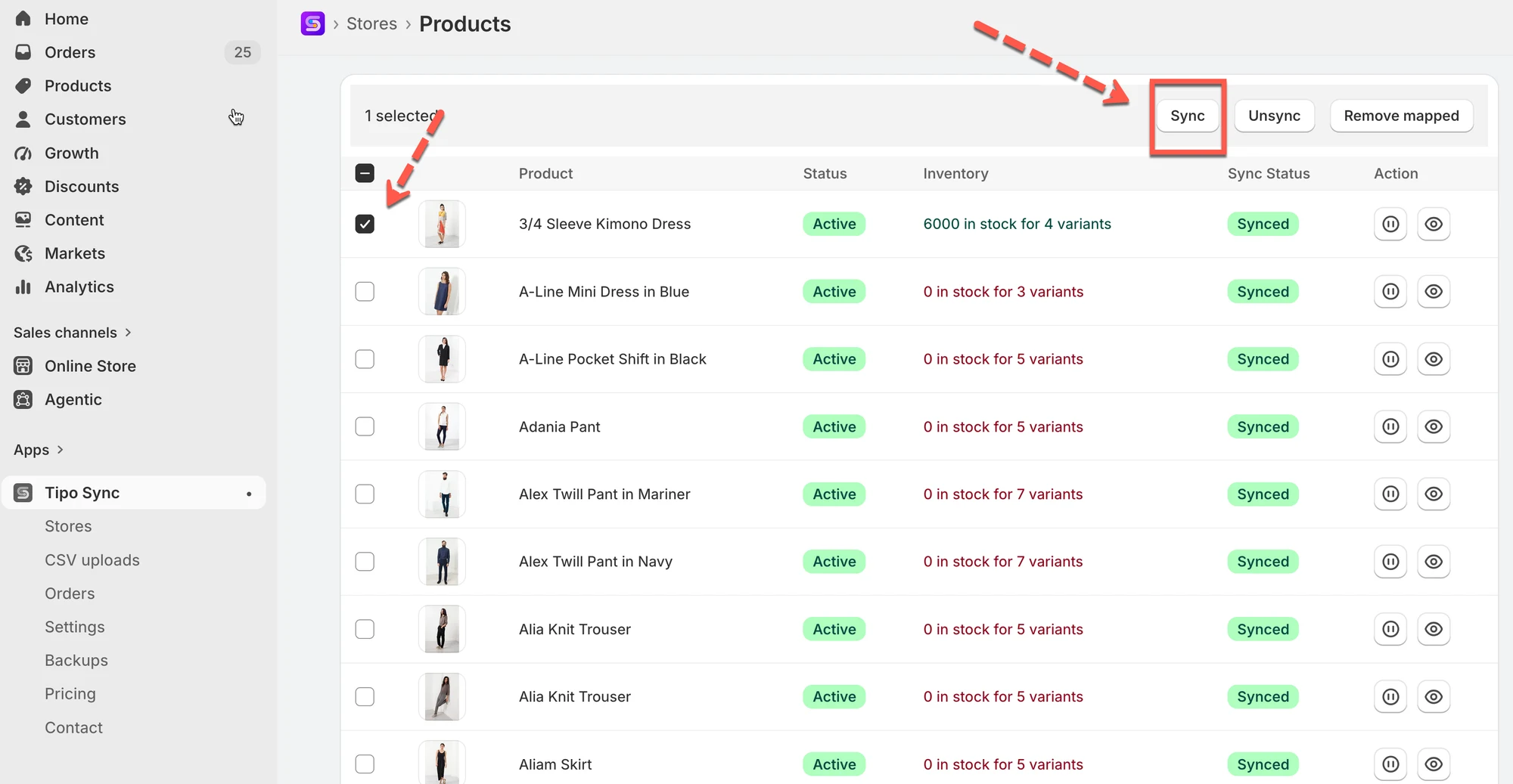
Then the sync is running again. Check again if the changes you made is updated on the Destination store.
Note: if you make any change to the app settings (like change to another setting option in the app settings), please contact the support team and we will help you push sync or make sure the setting is applied correctly
🙋 Still need support?
If you still need help, please feel free to contact us at hi@tipo.io. We’ll be happy to assist you further.