
How product sync settings work together
AI Overview
This reference explains the four settings that together decide how a product syncs between stores. If a product is not created, updated or synced as expected, review them first. They cover which products are selected, the matching identifier, the sync mode, and which product information syncs.
View moreView less
- Products selected for sync: unselected products are ignored completely.
- Matching identifier (Handle, SKU or Barcode) decides whether two products are the same.
- Sync mode (Create & Update, Update Only, Create Only) decides what happens when a match is or is not found.
- Product information to sync sets which fields update; a field set to Don't Sync stays unchanged even when the product matches.
Summary generated by AI. It can make mistakes, so check the full guide below.
When products are synchronized between stores, the result is affected by several settings working together.
If a product is not created, updated, or synchronized as expected, reviewing these settings is a good place to start.
⚙️ The 4 Settings That Control Product Sync
Section titled “⚙️ The 4 Settings That Control Product Sync”Product synchronization is affected by:
- Products Selected for Sync
- Product Matching Identifier
- Product Sync Mode
- Product Information to Sync
Each setting controls a different part of the synchronization process.
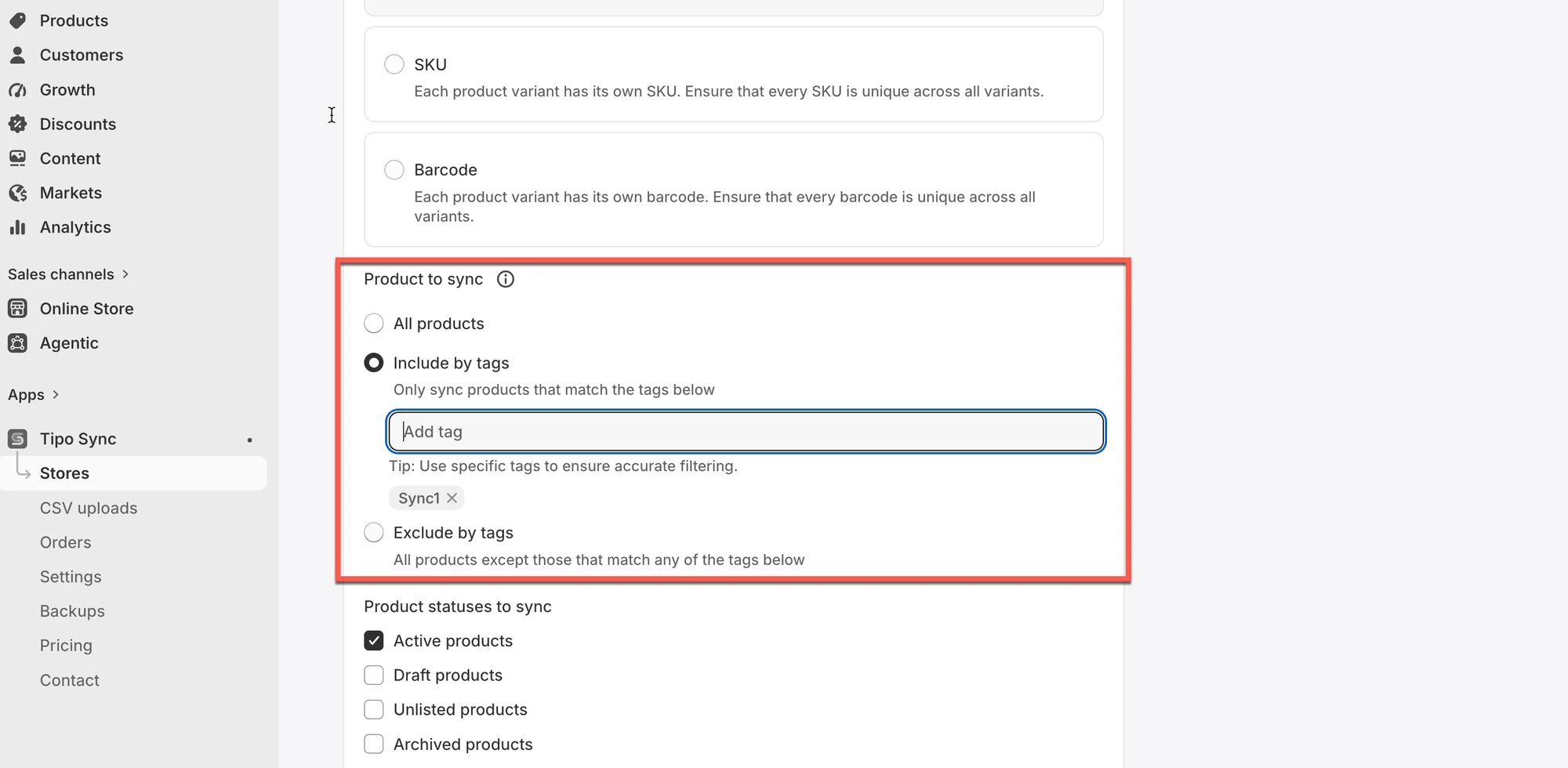
🎯 Products Selected for Sync
Section titled “🎯 Products Selected for Sync”This setting determines which products are eligible for synchronization.
If a product is not selected, Tipo Sync will ignore it completely.
Example
Section titled “Example”Selected products:
✅ Product A
✅ Product B
Not selected:
❌ Product C
Result
Section titled “Result”Only Product A and Product B can be synchronized.
🔗 Product Matching Identifier
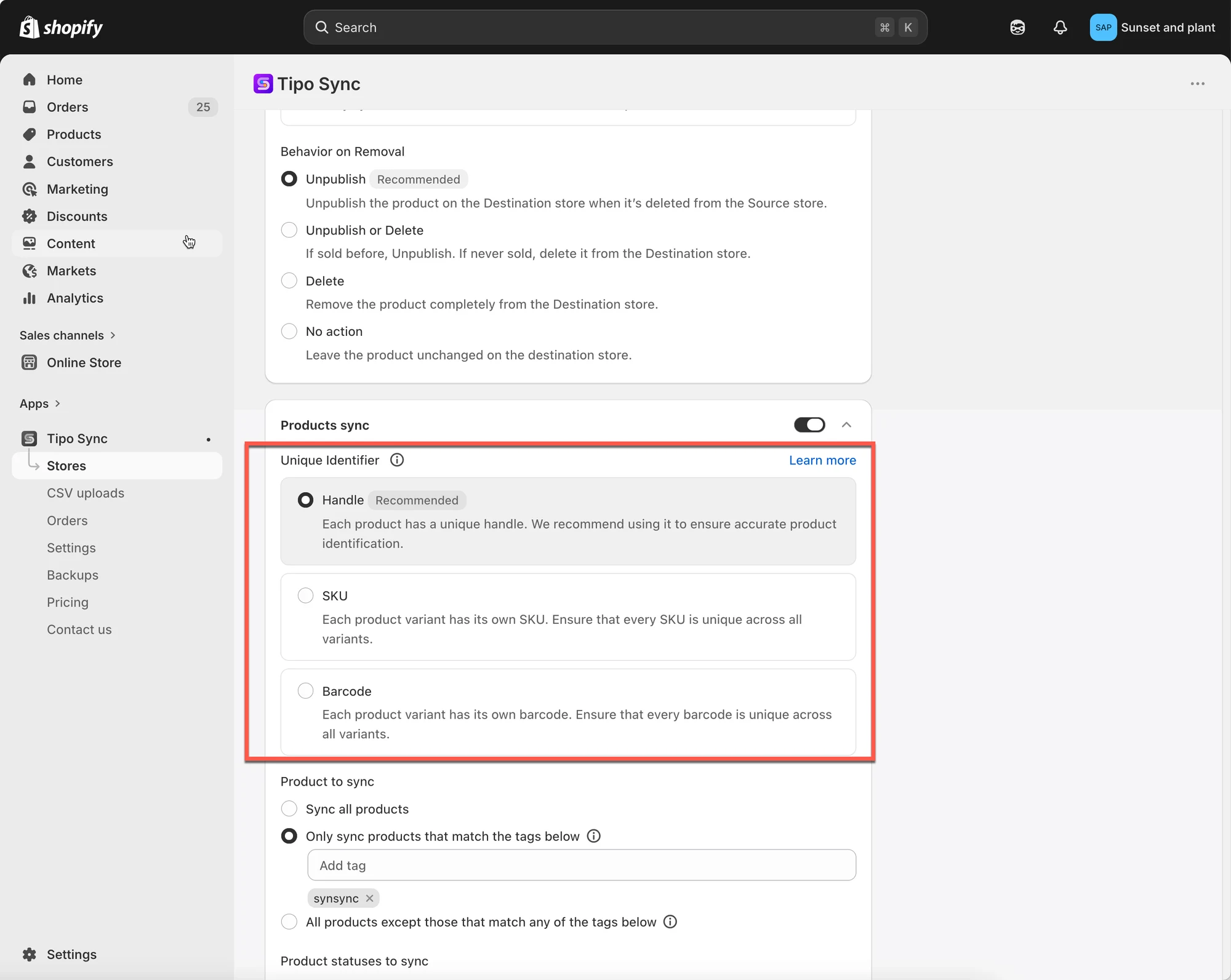
Section titled “🔗 Product Matching Identifier”Tipo Sync uses a matching identifier to determine whether products in two stores are the same product.
Available identifiers:
| Identifier | Example |
|---|---|
| Handle (Recommended) | /summer-shirt |
| SKU | SKU-12345 |
| Barcode | 8850123456789 |
Example
Section titled “Example”Source Store:
Handle: summer-shirt
Destination Store:
Handle: summer-shirt
Result
Section titled “Result”✅ Product match found
Tipo Sync recognizes both products as the same product.
🔄 Product Sync Mode
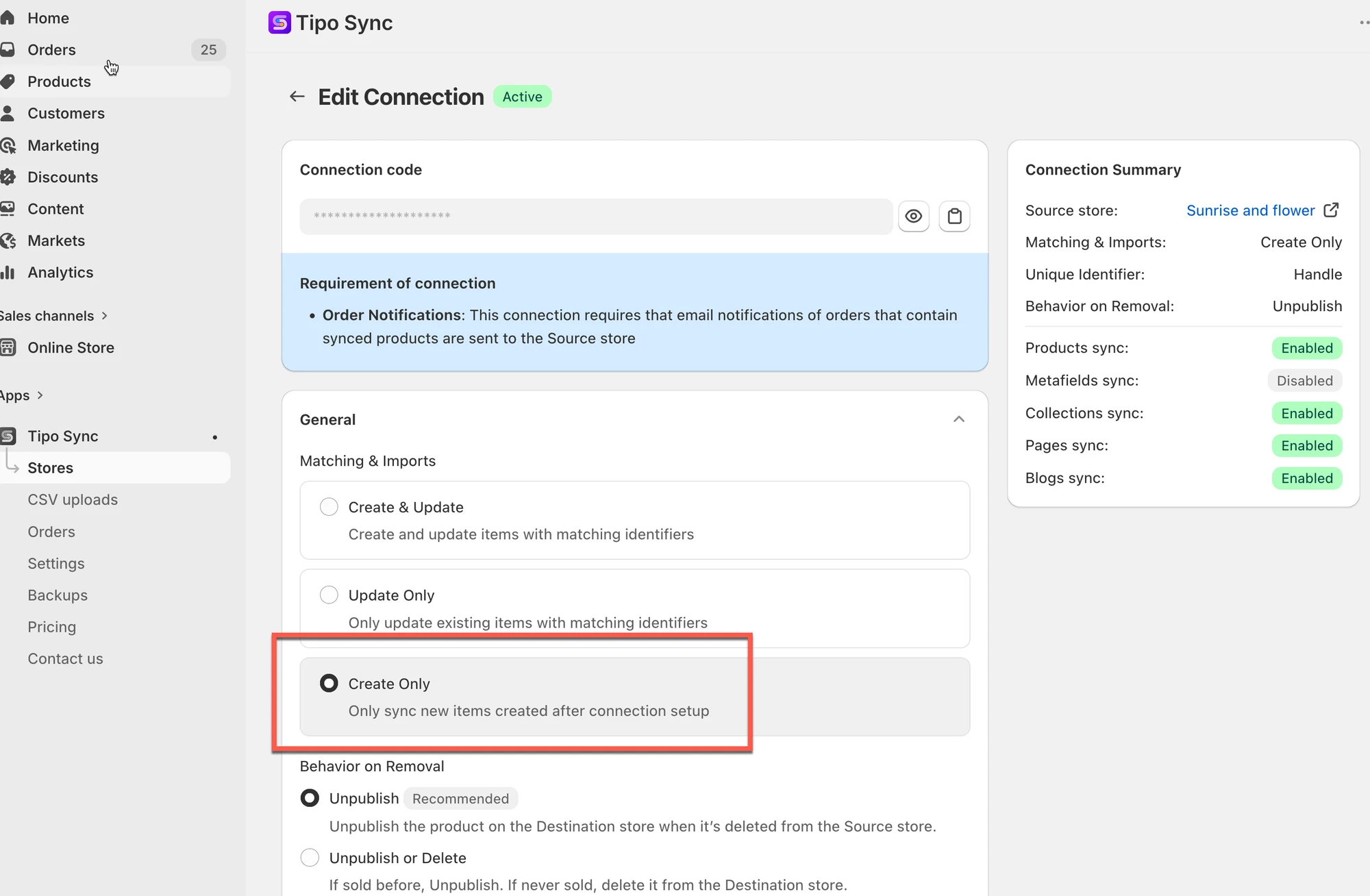
Section titled “🔄 Product Sync Mode”The selected sync mode determines what happens when a matching product is found (or not found).
| Sync Mode | Matching Product Found | No Matching Product Found |
|---|---|---|
| Create & Update | Update Product | Create Product |
| Update Only | Update Product | Ignore Product |
| Create Only | Ignore Product | Create Product |
Example
Section titled “Example”If Product A does not exist in the Destination store:
- Create & Update → Product is created
- Update Only → Product is ignored
- Create Only → Product is created
📝 Product Information to Sync
Section titled “📝 Product Information to Sync”You can choose which product fields should be synchronized.
Common fields include:
- Title
- Description
- Images
- Price
- Inventory
- Collections
- Tags
Example
Section titled “Example”| Field | Sync Setting |
|---|---|
| Title | Sync |
| Price | Don’t Sync |
| Images | Sync |
Result
Section titled “Result”✅ Title updated
✅ Images updated
❌ Price not updated
🛍 Example: How All Settings Work Together
Section titled “🛍 Example: How All Settings Work Together”Source Store
Section titled “Source Store”| Field | Value |
|---|---|
| Handle | summer-shirt |
| Title | Summer Linen Shirt |
| Price | $20 |
Destination Store
Section titled “Destination Store”| Field | Value |
|---|---|
| Handle | summer-shirt |
| Title | Old Shirt |
| Price | $25 |
Configuration
Section titled “Configuration”| Setting | Value |
|---|---|
| Product Selected | Yes |
| Matching Identifier | Handle |
| Sync Mode | Create & Update |
| Title | Sync |
| Price | Don’t Sync |
Result
Section titled “Result”| Field | Final Value |
|---|---|
| Title | Summer Linen Shirt |
| Price | $25 |
The product was matched successfully and updated.
However, the price remained unchanged because the Price field was configured as Don’t Sync.
📚 Learn More
Section titled “📚 Learn More ”For detailed setup instructions and examples:
- Create & Update Products
- Update Products Only
- Create Products Only
- Select products to sync
- Select which product information to sync
🙋 Still need support?
If you still need help, please feel free to contact us at hi@tipo.io. We’ll be happy to assist you further.