
Bulk update Inventory Sync Groups
AI Overview
Bulk Update lets you change several Inventory Sync Groups at once, including their status, quantities, and active locations. This saves time compared with editing each group. After you save, Tipo creates a Sync Event and recalculates inventory for the affected groups.
View moreView less
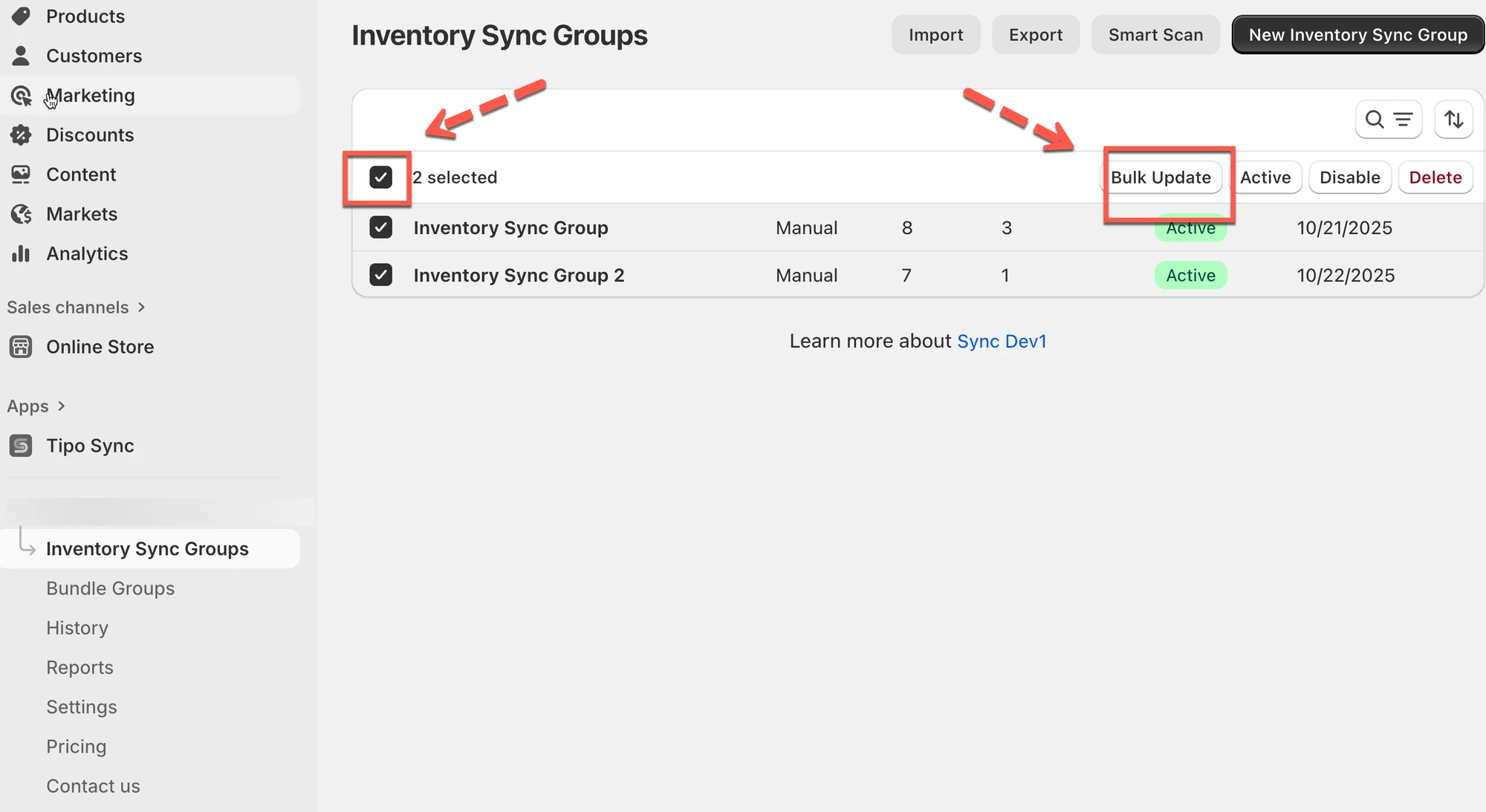
- Open Inventory Sync Groups and tick the checkbox for each group to update.
- Click Bulk Update at the top right.
- Set the status to Active or Disabled, adjust quantities per location, and select which locations are included in syncing.
- Click Save to update all selected groups at once.
Summary generated by AI. It can make mistakes, so check the full guide below.
The Bulk Update feature allows you to manage multiple inventory sync groups at once, saving time when updating statuses, quantities, or active locations.
✅ What you can do with Bulk Update
Section titled “✅ What you can do with Bulk Update”With Bulk Update, you can quickly:
- Update group settings for many groups at the same time
- Rename or organize groups faster
- Trigger syncing for many updated groups after saving
💡 After a bulk update, Tipo creates a Sync Event and recalculates inventory for affected groups
🛠️ Steps
Section titled “🛠️ Steps”- Open the app > go to Inventory Sync Groups
- Select the groups you want to update by ticking on the checkbox
- Click Bulk Update at the top right
- Edit Group details
In the Bulk Update Inventory Sync Groups view, you can:
- Update Status: Choose whether the group is Active or Disabled.
- Adjust Inventory Quantities: set new quantities for each location.
- Activate or Deactivate Locations: Use the checkbox to select which locations are included in syncing.
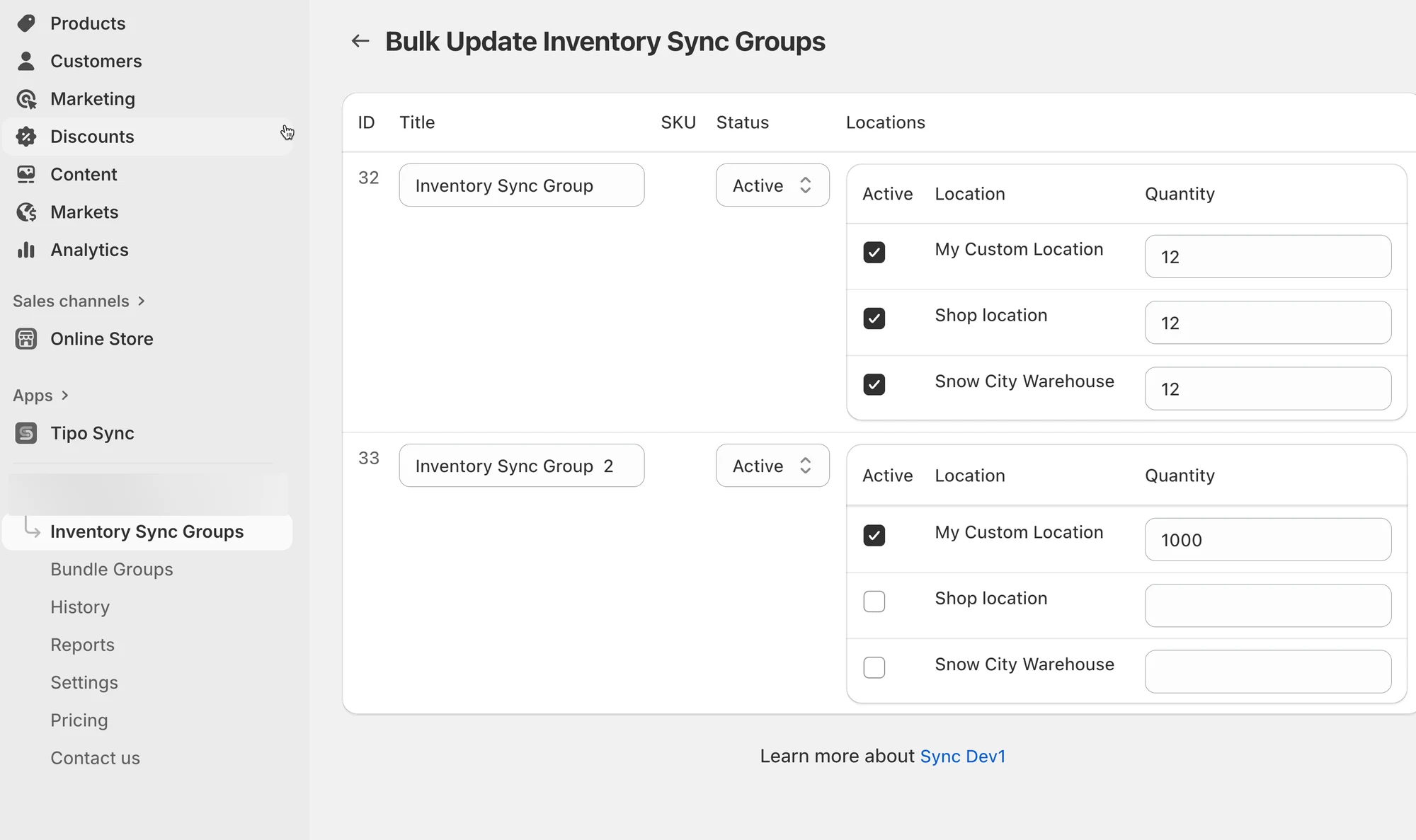
- Once you’ve made all updates, simply click Save.
The app will update all selected groups at once.
🙋 Still need support?
If you still need help, please feel free to contact us at hi@tipo.io. We’ll be happy to assist you further.