
Email notification (Source store)
AI Overview
Shows how to set up email notifications for the Source store in the Tipo app, so you or your team get alerts about sync activity and important events. You choose which notifications to receive by ticking checkboxes in the app settings.
View moreView less
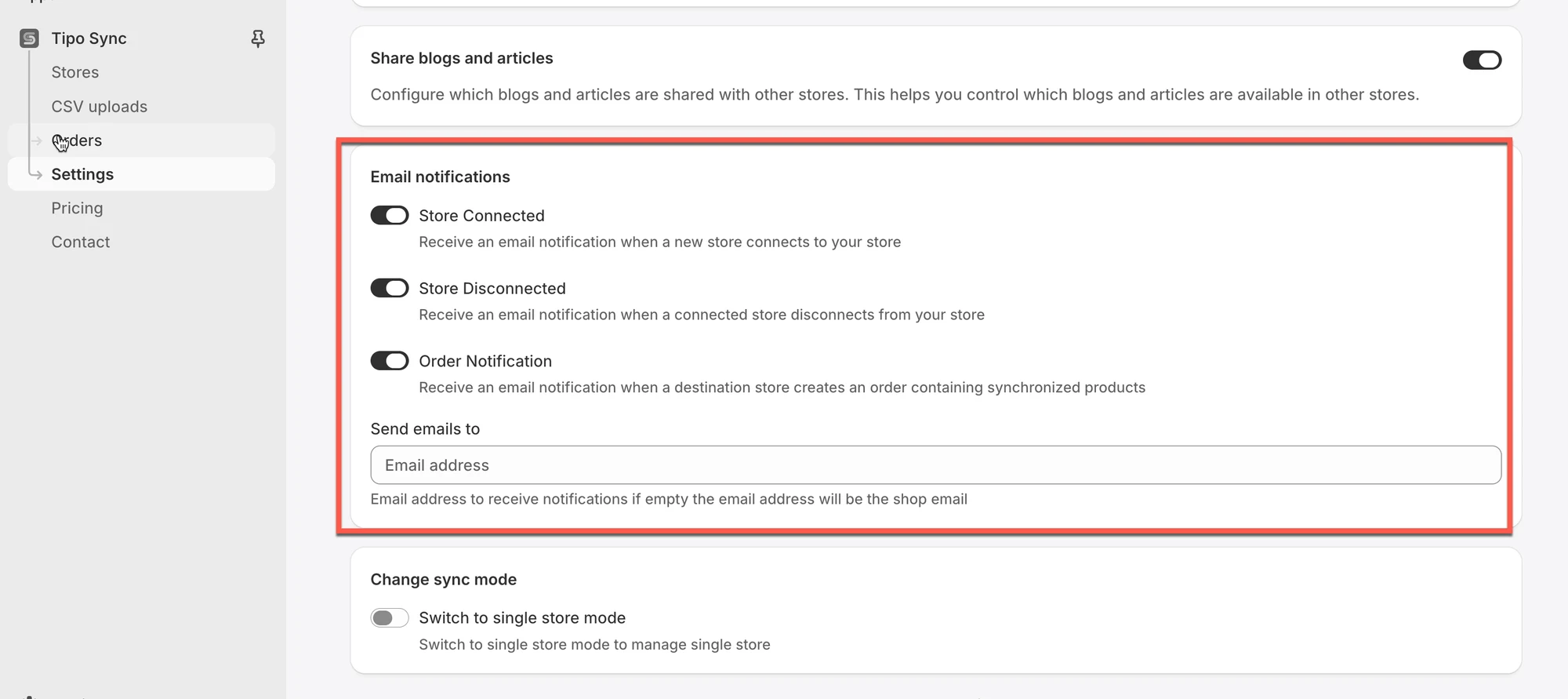
- Open the app in the Source store, click Settings and scroll to Email Notifications.
- Tick Store Connected to be emailed when a new store connects.
- Tick Store Disconnected to be emailed when a connected store disconnects.
- Tick Order Notification to be emailed when a Destination store creates an order with synchronized products, then click Save.
Summary generated by AI. It can make mistakes, so check the full guide below.
This guide explains how to set up email notifications for the Source store, so you (or your team) can receive alerts about sync activity and important events.
Steps to manage
1. Open the app in Source store > click Settings
2. Scroll down to Email Notifications > tick checkbox to set up email notification
- Store Connected: Receive an email notification when a new store connects to your store
- Store Disconnected: Receive an email notification when a connected store disconnects from your store
- Order Notification: Receive an email notification when a destination store creates an order containing synchronized products
3. Click Save
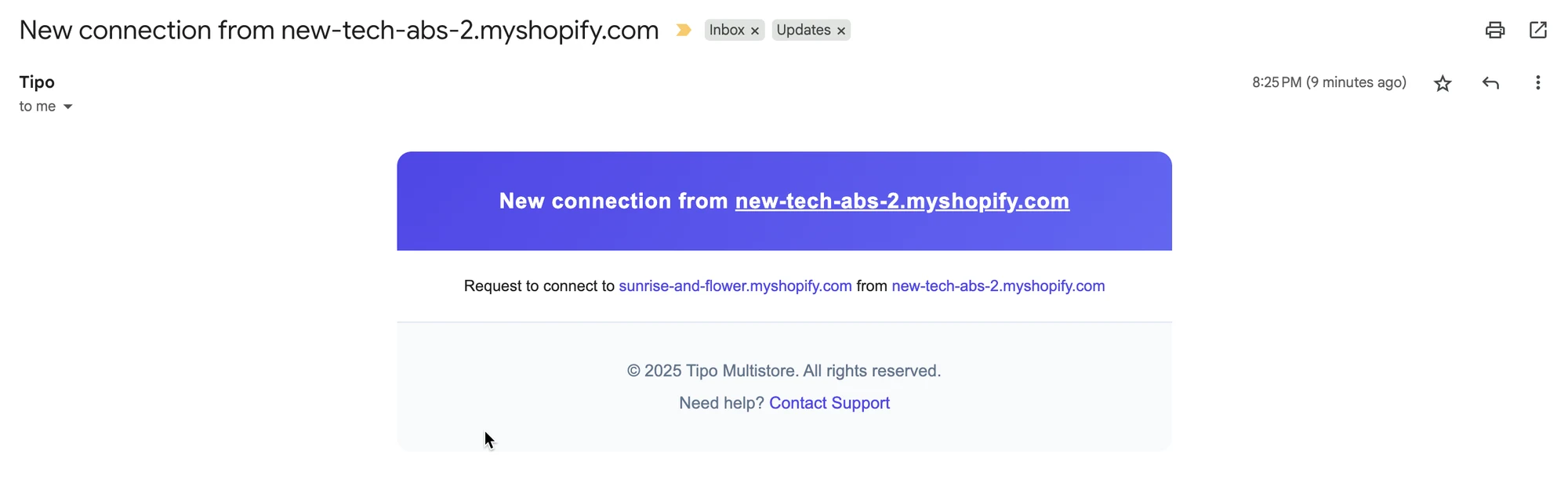
Below is an example of a email sent from the app.
🙋 Still need support?
If you still need help, please feel free to contact us at hi@tipo.io. We’ll be happy to assist you further.