
Home dashboard
AI Overview
Describes the Home dashboard in Backup & Restore Tipo, the first page you see when opening the app. It shows whether your store is protected, what your latest backup contains and how close you are to your storage limit. The article maps each card to the guide that covers it.
View moreView less
- On a new install, Home shows the Get started wizard until you finish it.
- Finish setting up is a checklist; the status card shows whether you are backed up.
- Store data and Changes show records per data type and 30 days of changes.
- Plan & usage shows storage; the bar turns yellow above 80% and red at 100%.
- Need help with backups? offers Documentation and Chat with us.
Summary generated by AI. It can make mistakes, so check the full guide below.
What each card on Home tells you and where to go next.
Home is the first page you see when you open Backup & Restore Tipo. It shows whether your store is protected, what your latest backup contains and how close you are to your storage limit.
On a new install, Home shows the Get started wizard until you finish it. See Set up the app.
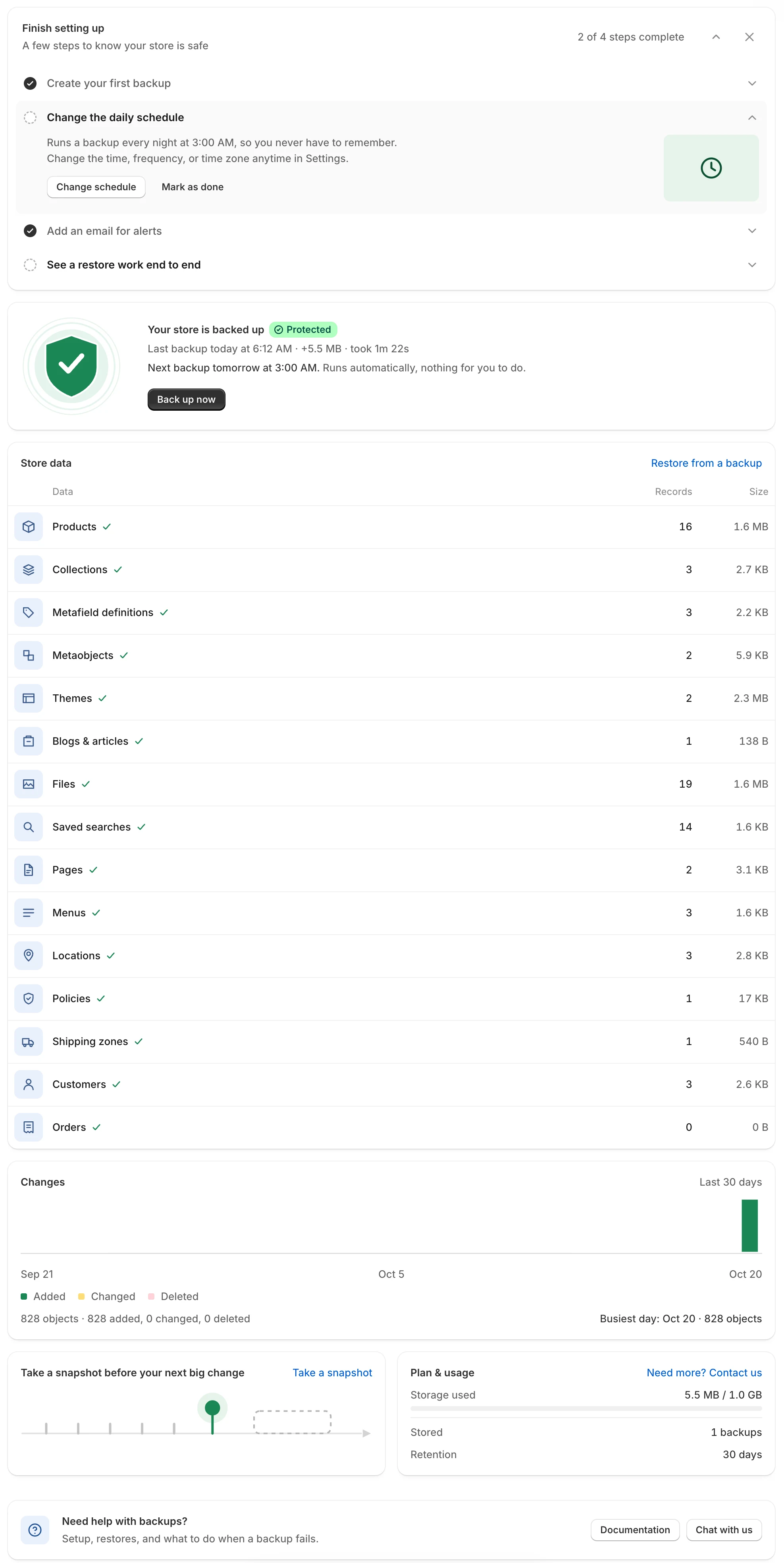
Home shows these cards from top to bottom.
The cards on Home
Section titled “The cards on Home”| Card | Use this when… | Guide |
|---|---|---|
| Finish setting up | You are new and want a short checklist to confirm your store is protected. | Finish setting up (setup guide) |
| Status card (for example Your store is backed up) and Take a snapshot before your next big change | You want to know if you are backed up, when the next backup runs, or you want to back up now. | Check your protection status |
| Store data and Changes | You want to see how many records are backed up per data type, browse them, or see what changed over 30 days. | Store data and Changes chart |
| Plan & usage | You want to check storage and retention. The storage bar turns yellow above 80% and red at 100% of your limit. | Usage and limits |
| Need help with backups? | You want to read this documentation (Documentation) or chat with the team (Chat with us). If chat isn’t available, Chat with us opens the Contact us form. | Contact support |
| Language button (top right) | You want to use the app in another language. | Change the app language |