
Create Only
AI Overview
Covers the Create Only product sync mode. Tipo Sync creates products that do not exist in the Destination store and automatically imports new Source products, but never updates existing ones. Products already in the Destination store before connecting stay unchanged.
View moreView less
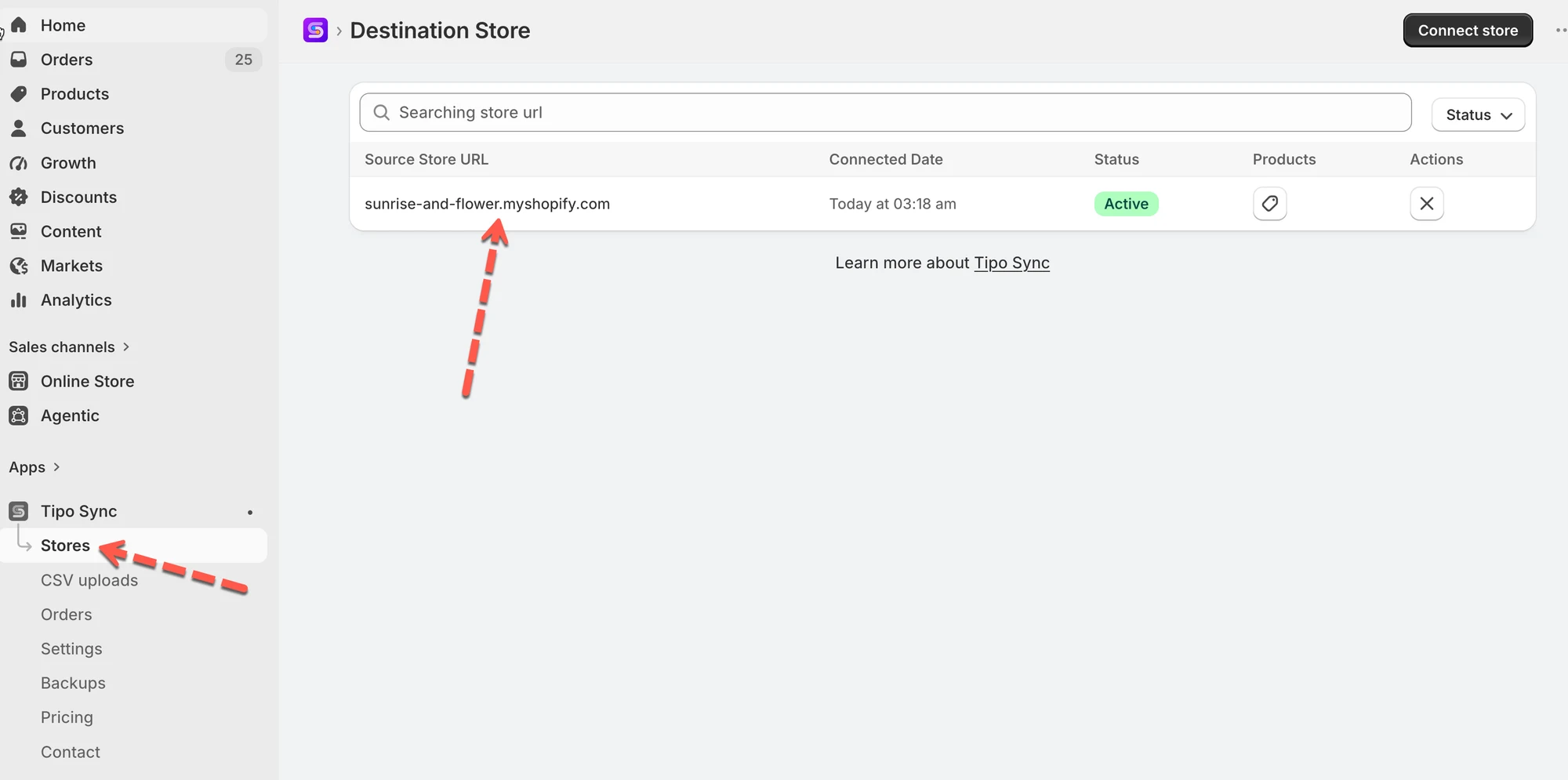
- Open the Destination store, click Stores, then Connect store or the existing connection detail.
- Under General > Matching & Imports, select Create Only, then click Save.
- Matching product found means it is ignored; no match means a new product is created.
- Products that existed in the Destination store before connecting are not updated.
Summary generated by AI. It can make mistakes, so check the full guide below.
The Create Only option imports new products from the Source store into the Destination store without updating existing products.
When enabled, Tipo Sync will:
✅ Create products that do not exist in the Destination store
✅ Automatically sync new products added to the Source store
❌ Not update existing products
❌ Ignore products that already exist in the Destination store
This option is useful when you want to import new products while keeping existing products in the Destination store unchanged.
⚙️ How to Enable Create Only
Section titled “⚙️ How to Enable Create Only”For a new connection
Section titled “For a new connection”- Open the app in Destination store > click Stores > click Connect store button
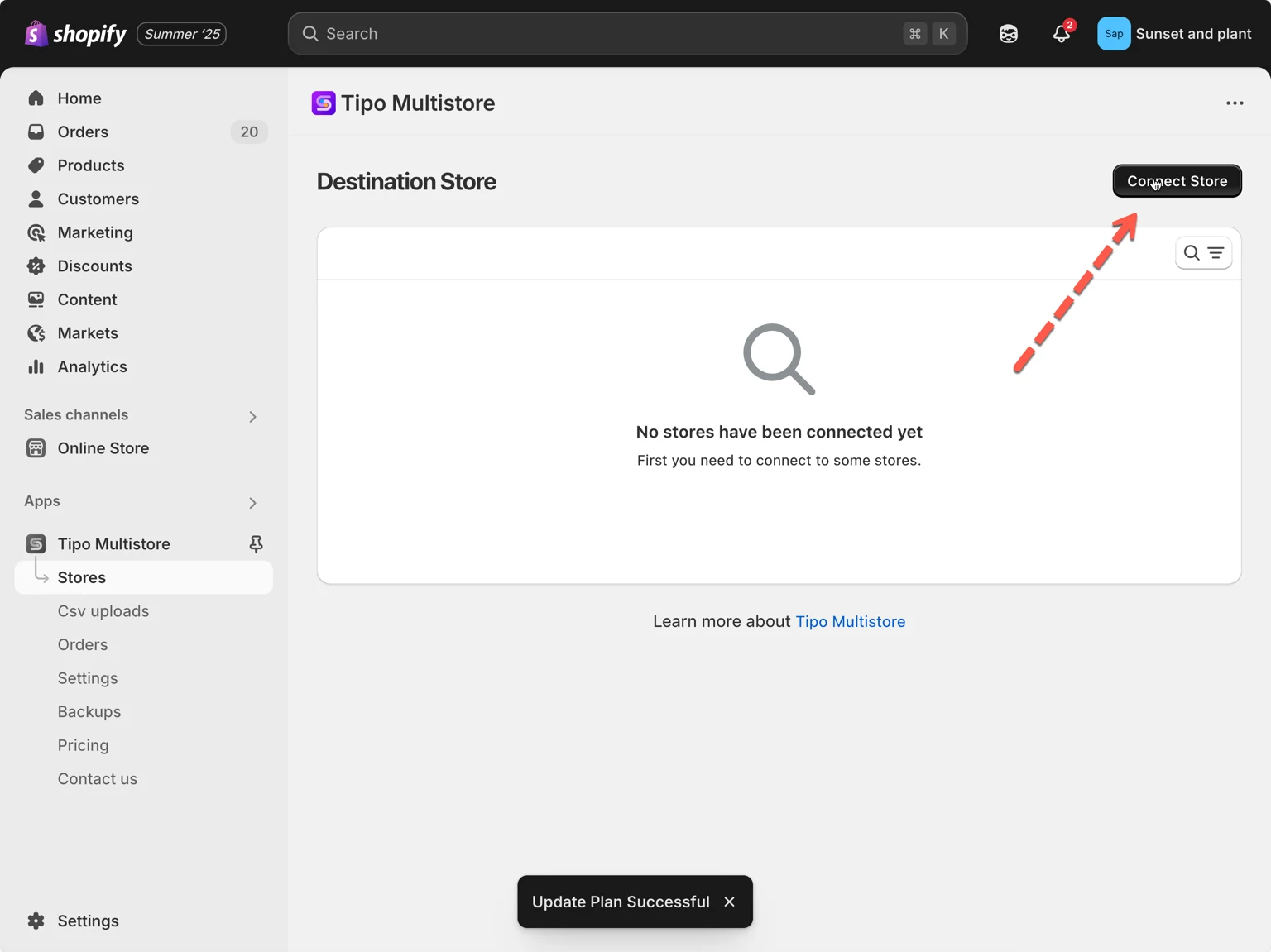
- Enter the Connection Code obtained from the Source Store (found under the app’s Settings in the Source Store).
- In the General section, locate Matching & Imports > select Create Only
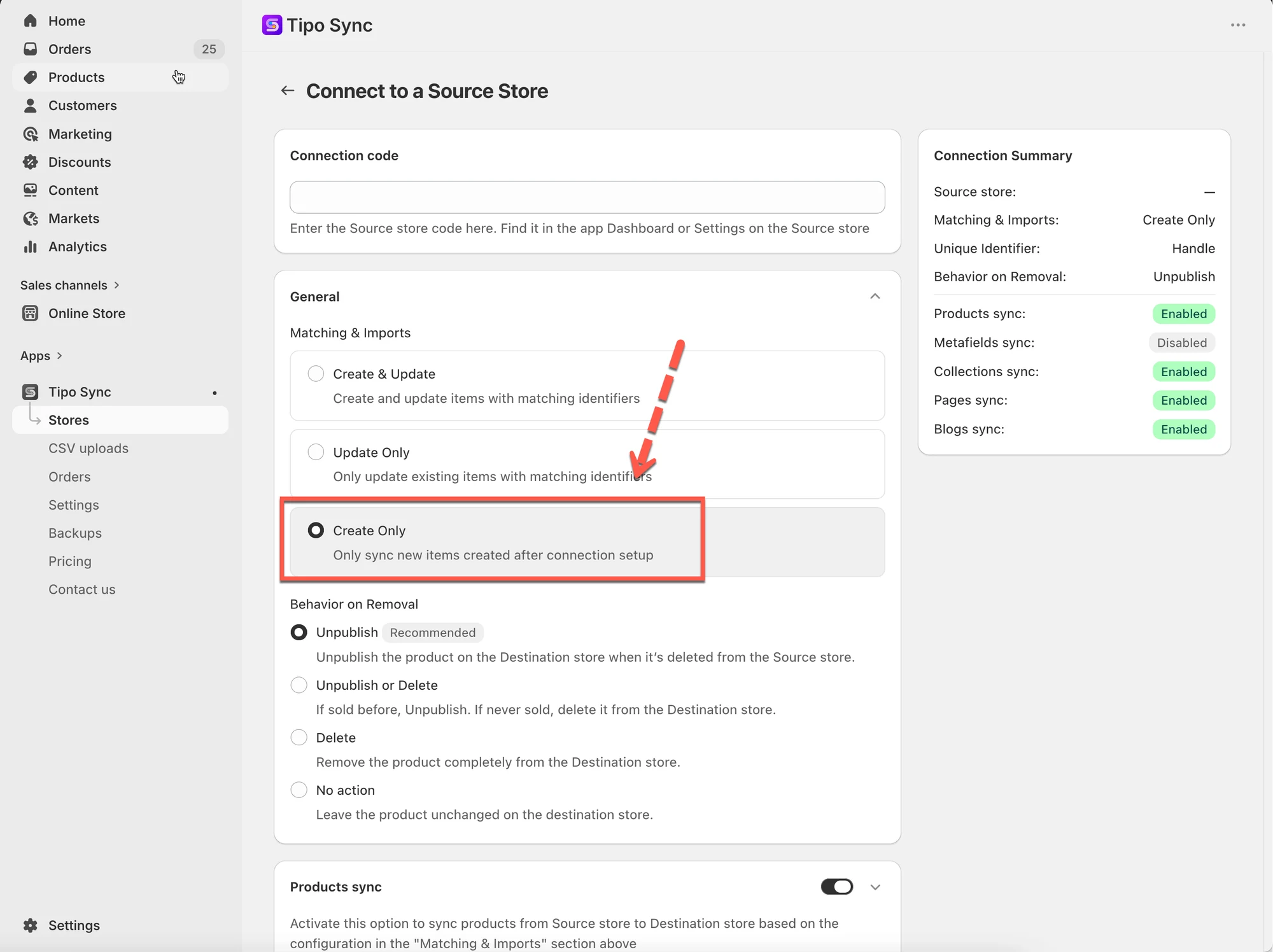
- Click Save
For an running connection
Section titled “For an running connection”1. Go to the Destinations store > click Stores > click on the store URL of source store to view the connection detail
- In General > Matching & Imports part > select Create only
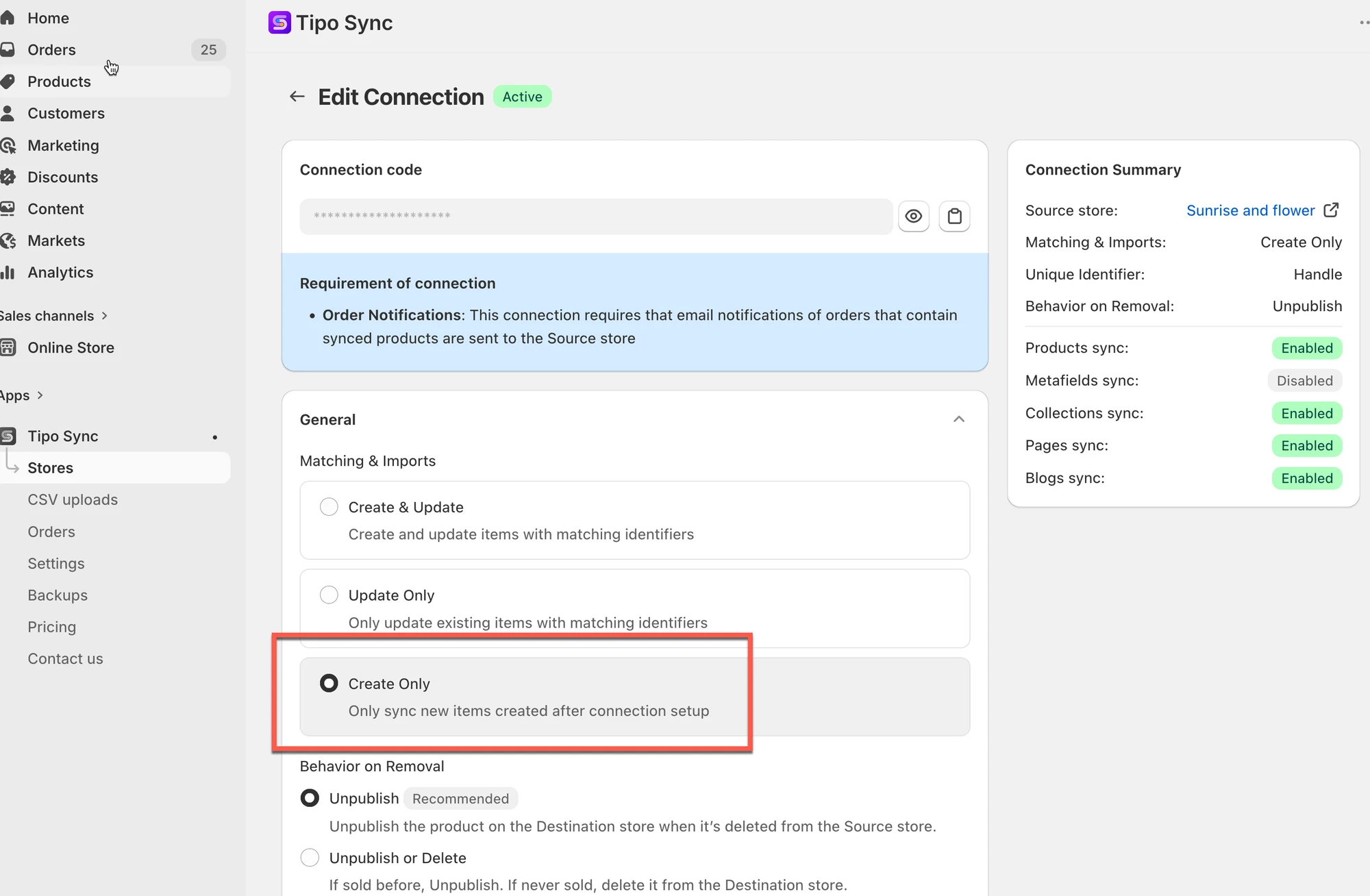
- Click Save
🔗 How Tipo Sync Identifies Products
Section titled “🔗 How Tipo Sync Identifies Products”Before creating a product, Tipo Sync checks whether the product already exists in the Destination store.
The app compares products using a Matching Identifier.
A Matching Identifier is the value used to determine whether two products are the same product across stores.
| Identifier | Description | Example |
|---|---|---|
| Handle (Recommended) | Unique part of the product URL | /kimono-dress-coral |
| SKU | Unique code assigned to a product variant | SKU-12345-CORAL |
| Barcode | Global inventory code | 8850123456789 |
➕ How Create Only Works
Section titled “➕ How Create Only Works”When a product is synced, Tipo Sync first checks the selected Matching Identifier.
| Result | Action |
|---|---|
| Matching product found | Ignore the product |
| No matching product found | Create a new product |
🛍 Example 1: Product Already Exists
Section titled “🛍 Example 1: Product Already Exists”Source Store
| Product | Handle |
|---|---|
| Kimono Dress Coral | kimono-dress-coral |
Destination Store
| Product | Handle |
|---|---|
| Kimono Dress Coral | kimono-dress-coral |
The Handles match.
Result
❌ Product is not updated
❌ No duplicate product is created
The product is ignored because it already exists in the Destination store.
➕ Example 2: Product Does Not Exist
Section titled “➕ Example 2: Product Does Not Exist”Source Store
| Product | Handle |
|---|---|
| Linen Shirt Beige | linen-shirt-beige |
Destination Store
| Product | Handle |
|---|---|
| Summer Dress Blue | summer-dress-blue |
No matching Handle is found.
Result
Section titled “Result”✅ A new product is created in the Destination store
🛍 Example 3: Create Only in Action
Section titled “🛍 Example 3: Create Only in Action”Before Sync
Source Store
- Product A
- Product B
- Product C
Destination Store
(No products)
After Sync
| Product | Result |
|---|---|
| Product A | Created |
| Product B | Created |
| Product C | Created |
Because these products do not exist in the Destination store, Tipo Sync creates all of them.
🚀 New Products Are Synced Automatically
Section titled “🚀 New Products Are Synced Automatically”Initial Setup
Source Store:
- Product A
- Product B
- Product C
Destination Store:
- Product A
- Product B
- Product C
The connection is configured with Create Only.
Later
You add:
- Product D
- Product E
- Product F
to the Source store.
Result
Section titled “Result”✅ Product D is created
✅ Product E is created
✅ Product F is created
Because these products do not already exist in the Destination store, Tipo Sync imports them automatically.
⚠️ Important Note
Section titled “⚠️ Important Note”If a product already exists in the Destination store before the connection is created, it will not be updated.
For example:
Source Store
Section titled “Source Store”- Product A
- Product B
- Product C
Destination Store
Section titled “Destination Store”- Product A
- Product B
Result
Section titled “Result”| Product | Action |
|---|---|
| Product A | Ignored |
| Product B | Ignored |
| Product C | Created |
Only products that are missing from the Destination store will be created.
Existing products remain unchanged.
🎯 When Should I Use Create Only?
Section titled “🎯 When Should I Use Create Only?”Use Create Only when:
- You want to import new products automatically.
- You do not want existing products to be modified.
- You manage product information separately in each store.
- You want full control over updates in the Destination store.
Common use cases:
- Expanding a catalog without affecting existing products.
- Importing new arrivals automatically.
- Maintaining independent product data between stores.
⚖️ Compare Sync Options
Section titled “⚖️ Compare Sync Options”| Option | Create New Products | Update Existing Products |
|---|---|---|
| 🔄 Create & Update | ✅ Yes | ✅ Yes |
| 🔁 Update Only | ❌ No | ✅ Yes |
| ➕ Create Only | ✅ Yes | ❌ No |