
Draft order sync
AI Overview
Explains Draft Order Sync in the Tipo app, which syncs draft order information from a Destination store to the Source store so your team can review orders centrally. Products must be mapped between the stores, and the option must be enabled in the app settings.
View moreView less
- Requires mapped products between the Source and Destination stores and Draft order sync enabled in settings.
- In the Source store, open Settings and turn on Sync Inventory and Orders.
- Select Draft Order Sync and One-Way Inventory Sync.
- Optionally choose Yes to send an invoice of the draft order, then click Save.
- Synced data typically includes customer information, products and quantities, and notes or tags.
Summary generated by AI. It can make mistakes, so check the full guide below.
Draft Order Sync helps you keep draft orders aligned between stores. When enabled, draft order information created in a Destination store can be synced to the Source store (based on your settings), so your team can review/manage orders centrally.
🔄 How Draft Order Sync works
Section titled “🔄 How Draft Order Sync works”When Draft Order Sync is enabled:
- A draft order is created/updated in the Destination store
- Tipo app syncs the draft order information to the Source store
- The synced record may include a tag showing where it came from (so you can identify the origin store)
This helps you keep Source store updated without manually copying draft order details.
✅ What information is synced
Section titled “✅ What information is synced”Typically synced draft order data includes:
- Customer information
- Products and quantities
- Draft order notes / tags (origin tag if enabled)
Requirements
Section titled “Requirements”- Products must be mapped between the source and destination stores.
- Draft order sync option must be enabled in app settings.
⚙️ How to enable Draft Order Sync
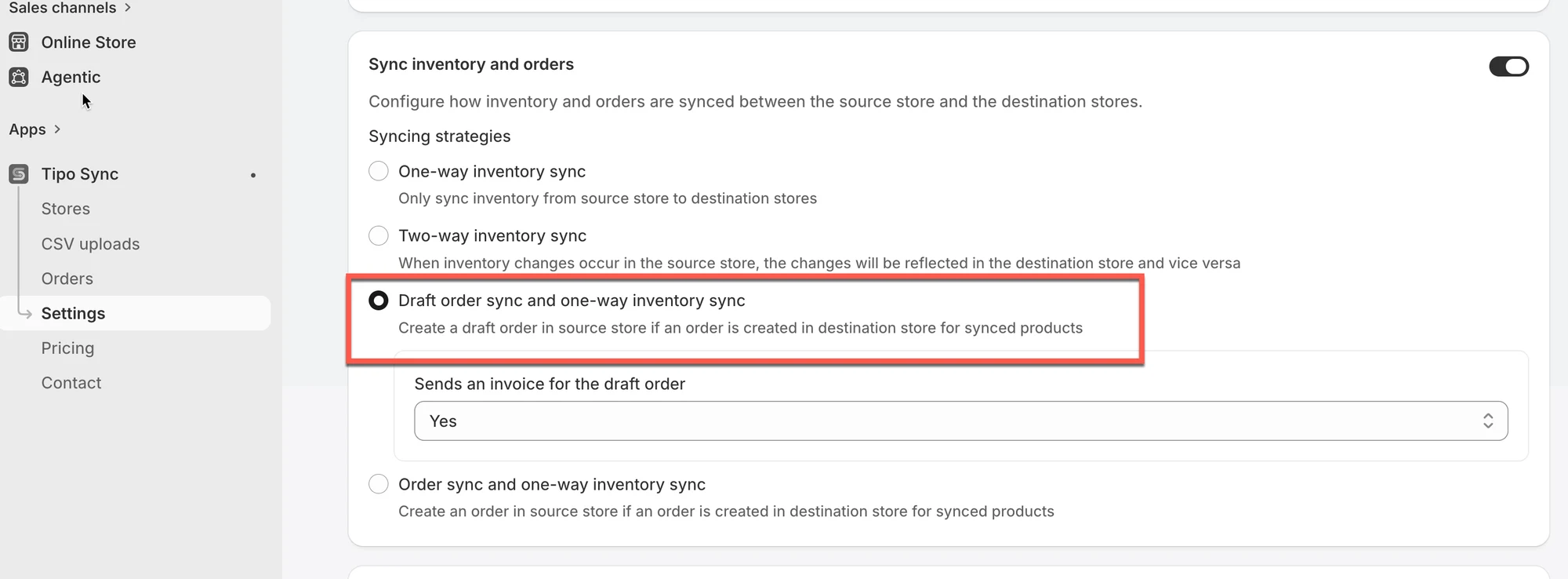
Section titled “⚙️ How to enable Draft Order Sync”- Open the app in Source store > click Settings > turn on Sync Inventory and Orders
- Select Draft Order Sync and One-Way Inventory Sync
- Select Yes to send an invoice of the draft order (optional)
- Click Save
🧪 Example
Section titled “🧪 Example”You have two stores:
- Source store:
mainbrand.myshopify.com - Destination store:
eu-brand.myshopify.com
A customer orders in store eu-brand.myshopify.com:
- 1x “Red T-Shirt”
- 2x “Blue Hoodie”
If both products exist and are mapped in the source store, the app will:
- Create a draft order in
mainbrand.myshopify.com - Include “Red T-Shirt” and “Blue Hoodie” with the correct quantities
🙋 Still need support?
If you still need help, please feel free to contact us at hi@tipo.io. We’ll be happy to assist you further.