
One-Way Inventory Sync
AI Overview
Describes One-Way Inventory Sync in Tipo, where the Source store controls inventory and Destination stores follow. It is the safest choice when one main store manages stock. Changes made in a Destination store never update the Source store.
View moreView less
- Use it when you manage stock in one main store and want Destinations to always match it.
- In the Source store, open Settings and turn on Sync inventory and orders.
- Select One-Way Inventory Sync and click Save.
- The app finds the same product in the Destination by handle, SKU or barcode and updates the mapped location.
- Sales or adjustments in the Destination do not sync back to the Source.
Summary generated by AI. It can make mistakes, so check the full guide below.
One-Way Inventory Sync keeps inventory updated in one direction only:
Source store controls inventory → Destination store follows
This is the safest option if you want one “master” store to manage stock.
✅ When should you use One-Way Sync?
Section titled “✅ When should you use One-Way Sync?”Use this mode if:
- you manage inventory in one main store (Source)
- you want Destination stores to always match Source stock
- you don’t want Destination store sales/adjustments to change Source inventory
⚙️ Steps to Set Up One-Way Inventory Sync
Section titled “⚙️ Steps to Set Up One-Way Inventory Sync”In Source store
Section titled “In Source store”1. Open the app in Source store > click Settings > turn on Sync inventory and orders
- Select One-Way Inventory Sync
3. Click Save
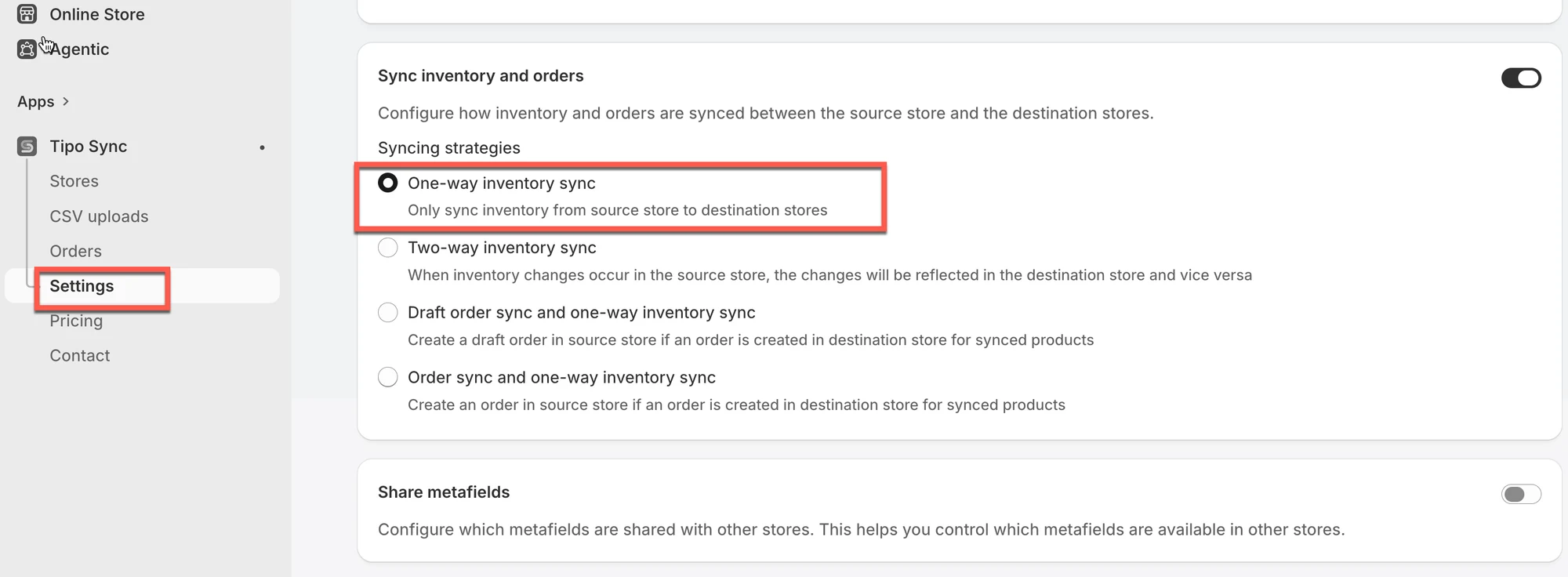
✅ How One-Way Inventory Sync works
Section titled “✅ How One-Way Inventory Sync works”When inventory changes in the Source store (sale, restock, manual adjustment), the app will:
- Find the same product in Destination (matched by handle or SKU or barcode)
- Apply the inventory update to the mapped Destination location
- Update inventory in Destination to match Source
⇒ Destination can receive updates
⇒ Destination changes do not update Source
🧪 Example: Source updates Destination
Section titled “🧪 Example: Source updates Destination”One-Way Inventory Sync (Based on Product Handle)
Let’s say you have two Shopify stores connected:
-
Source Store: https://furniture-eu.myshopify.com
-
Destination Store: https://furniture-us.myshopify.com
You are syncing a product called:
Product Name: Modern Oak Bookshelf
Handle: modern-oak-bookshelf
| Store | Inventory Before | Inventory After |
|---|---|---|
| Source Store | 20 | 15 |
| Destination Store | 20 | 15 ✅ |
When someone buys 5 units in the Source Store, the inventory in the Destination Store is automatically updated to match (15 left).
✅ This works because both products have the same handle: modern-oak-bookshelf.
What Happens if Inventory Changes in the Destination Store?
Let’s say a customer buys 2 units from the Destination Store.
| Store | Inventory Before | Inventory After |
|---|---|---|
| Destination Store | 15 | 13 |
| Source Store | 15 | 15 ❌ |
In One-Way Sync, the Source Store is not affected. Inventory changes in the Destination Store do not sync back.
🙋 Still need support?
If you still need help, please feel free to contact us at hi@tipo.io. We’ll be happy to assist you further.