
Sync pages and blogs
AI Overview
Explains how to let Destination stores sync pages, blogs and blog posts from your Source store in the Tipo app, keeping storefront content consistent across stores. Content is usually matched by handle, and a Matching & Imports option controls whether items are created, updated or both.
View moreView less
- In the Source store, open Settings, scroll to the bottom, turn on Pages sync and Blogs sync, then save.
- Create & Update adds new items and updates matching ones.
- Update Only changes only items that already exist in the Destination.
- Create Only syncs only items created after the connection and leaves existing content unchanged.
- Theme layout and styling may not sync, and a same-handle item in the Destination may be updated; keep handles consistent.
Summary generated by AI. It can make mistakes, so check the full guide below.
This guide explains how to allow Destination stores to sync content from your Source store, including:
- 📄 Pages
- ✍️ Blog posts (Articles)
- 🗂️ Blogs
✅ What this setting does
Section titled “✅ What this setting does”When enabled, Destination stores can pull content from the Source store so your storefront content stays consistent across stores.
Examples of content you may want to sync:
- About Us page
- Shipping / Returns pages
- Blog posts and announcements
⚙️ Enable sync setting in Source store
Section titled “⚙️ Enable sync setting in Source store”- Open the app in Source store > click Settings
- Scroll down to the bottom > turn on Pages sync and Blogs sync
- Click save
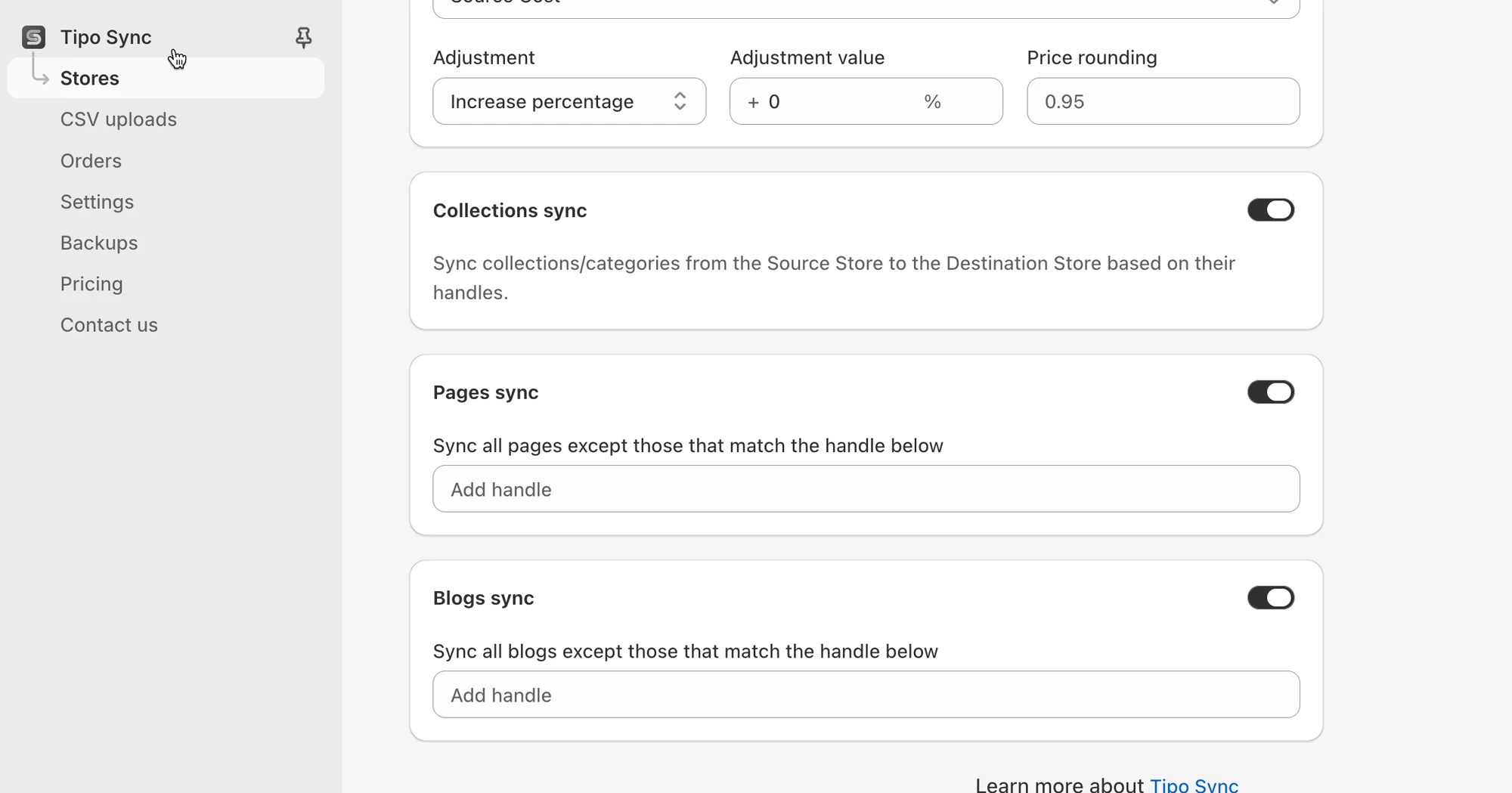
After saving, Destination stores can start syncing the selected content types (based on your connection/setup).
🔄 How it works
Section titled “🔄 How it works ”- The app copies the selected content from the Source store to the Destination store(s)
- Synced content is usually matched by a unique identifier (such as handle) so updates can be applied correctly
- If the Destination store doesn’t have the content yet, it may be created automatically (depending on the sync rules)
Matching & Imports
Section titled “Matching & Imports”This setting controls how pages, blogs, and articles are imported and updated between connected stores.
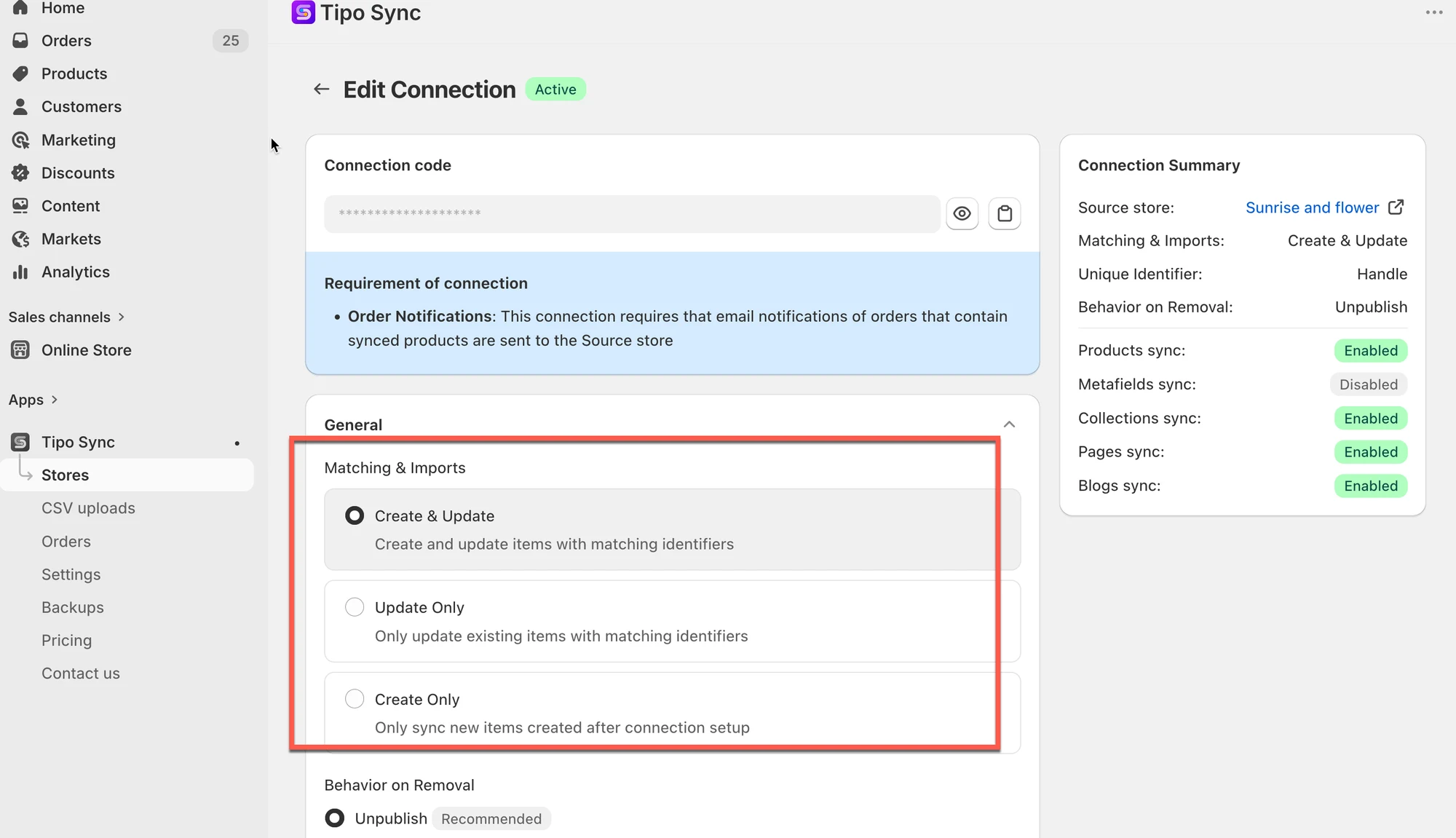
Option 1: Create & Update
Section titled “Option 1: Create & Update”Create new items and update existing items with matching identifiers.
Use this option when you want to:
- Sync new pages, blogs, and articles to the destination store.
- Keep previously synced items up to date.
Example
Source Store:
- About Us
- Contact Us
Destination Store:
- About Us
Result:
- About Us is updated.
- Contact Us is created.
Option2: Update Only
Section titled “Option2: Update Only”Only update existing items with matching identifiers.
Use this option when you want to:
- Update content that already exists in the destination store.
- Prevent new pages, blogs, or articles from being created.
Example
Source Store:
- About Us
- Contact Us
Destination Store:
- About Us
Result:
- About Us is updated.
- Contact Us is ignored because it does not already exist in the destination store.
Create Only
Section titled “Create Only”Only sync new items created after the connection setup.
Use this option when you want to:
- Automatically sync newly created pages, blogs, and articles.
- Leave existing content unchanged.
Example
Connection created on January 1.
Source Store:
- About Us (created before January 1)
- Summer Collection (created after January 1)
Result:
- Summer Collection is synced.
- About Us is ignored.
- Existing synced items are not updated.
⚠️ Important notes
Section titled “⚠️ Important notes”- Content sync does not always include theme layout or styling, this depends on Shopify theme setup.
- If the Destination store already has a page/blog/article with the same handle, the app may update it to match Source (depending on sync settings).
- For best results, keep handles consistent across stores.
🙋 Still need support?
If you still need help, please feel free to contact us at hi@tipo.io. We’ll be happy to assist you further.