
Order sync
AI Overview
Shows how Order Sync in the Tipo app copies orders placed in Destination stores into your Source store. Only products that are already synced are included, and an order is synced once when created. Payments and discounts stay in the Destination store.
View moreView less
- Products should have consistent handles across stores, and only synced products are included.
- In the Source store, open Settings, turn on Sync inventory and orders and select Order Sync and One-Way Inventory Sync.
- Choose how order data displays, optionally turn on Order Notification, then click Save.
- Create the connection in the Destination store.
- Later fulfillment or status changes are not synced, and the Source order carries a tag showing its origin store.
Summary generated by AI. It can make mistakes, so check the full guide below.
The Inventory Sync, Multi store TP app enables seamless synchronization of orders from your Destination Stores to your Source Store.
When Order Sync is enabled:
- A customer places an order in the Destination store
- Tipo app creates a matching order in the Source store
✅ What information is synced to the Source order
Section titled “✅ What information is synced to the Source order”The order created in the Source store includes:
- Order number
- Customer information
- Product details (only for products that are already synced/mapped)
- Order tag showing where it came from (example:
From: urbanwear-us)
📌 Note: The tag helps you quickly identify which Destination store created the order.
⚠️ Important considerations
Section titled “⚠️ Important considerations”Product matching (required)
For accurate order sync:
- Products should have consistent handles across stores
- Only synced products in the order will be synced
Inventory behavior
- Orders are synced to the Source store
- Inventory is typically synced one-way: Source → Destination
(So Destination sales may not reduce Source inventory automatically unless your inventory setup supports it.)
Fulfillment & order updates (one-time sync)
The app syncs the order only when it’s newly created.
After the first sync:
- changes like fulfillment status or order status updates are not synced
- example: if you update the order status in Destination, it won’t update in Source
Payments & discounts (not synced)
- Payment/charge stays in the Destination store
- Discount information is not currently synced
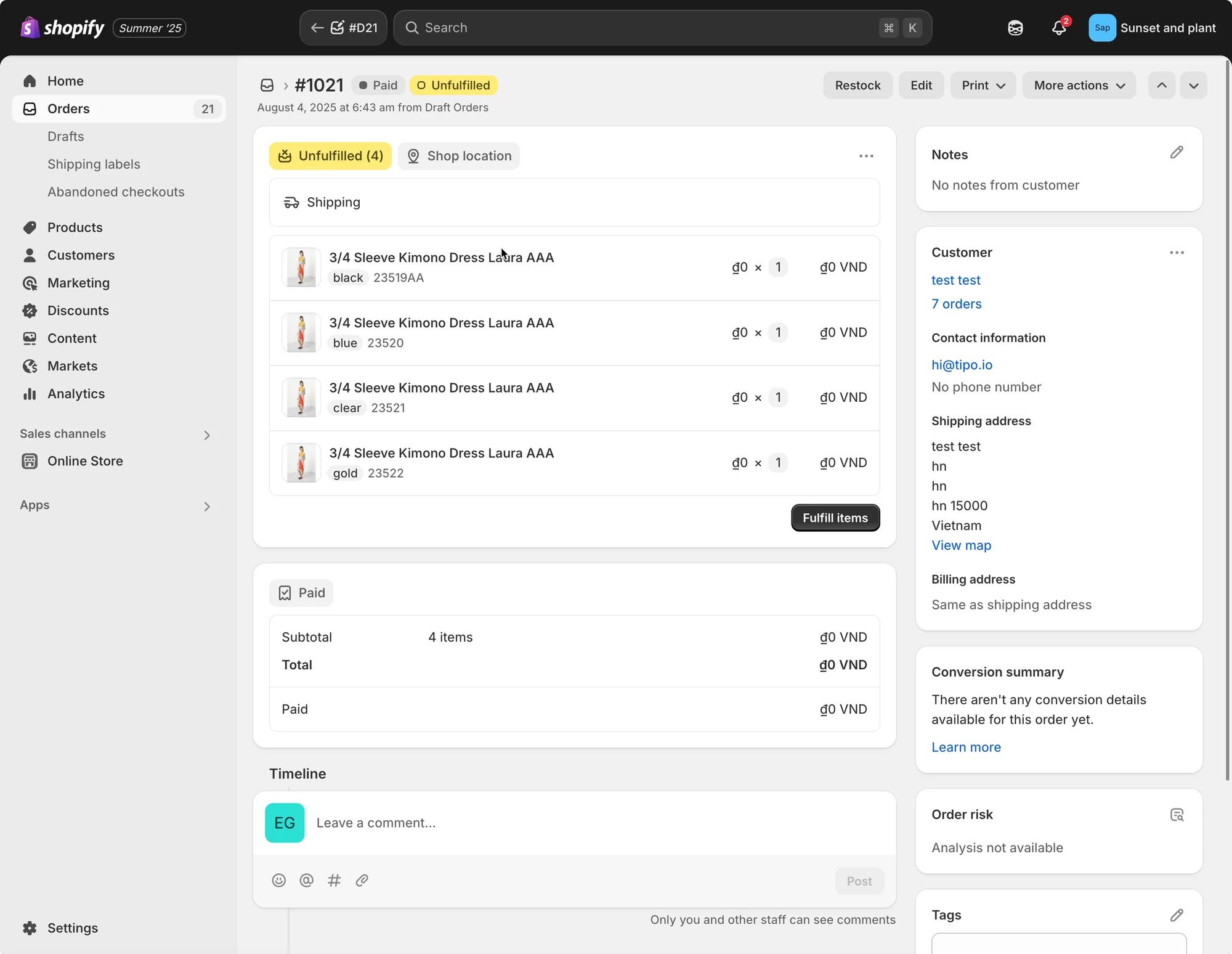
Destination store:
Order is created
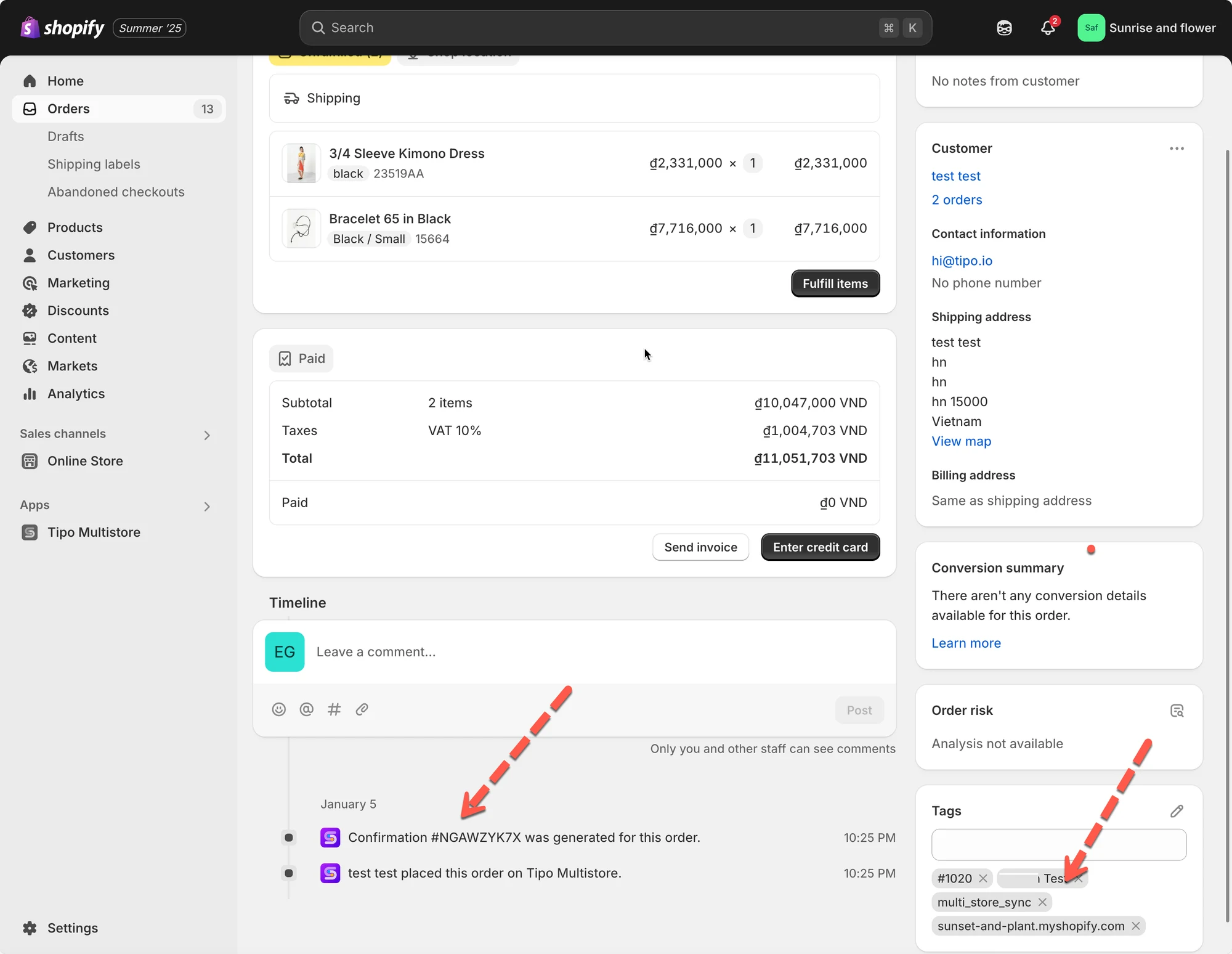
Source store
A new order with the same information (customer, product) is automatically created too. Our app adds custom tag to the synced order that includes: order ID from Destination store, app name (multi_store_sync), destination store URL (xxx.myshopify.com)
Email notification is sent to admin of Source store.
🛠️ Setting up Order sync in Source store
Section titled “🛠️ Setting up Order sync in Source store”1. In Source stores, open the app > click Settings > turn on Sync inventory and orders
2. Select Order Sync and One-Way Inventory Sync
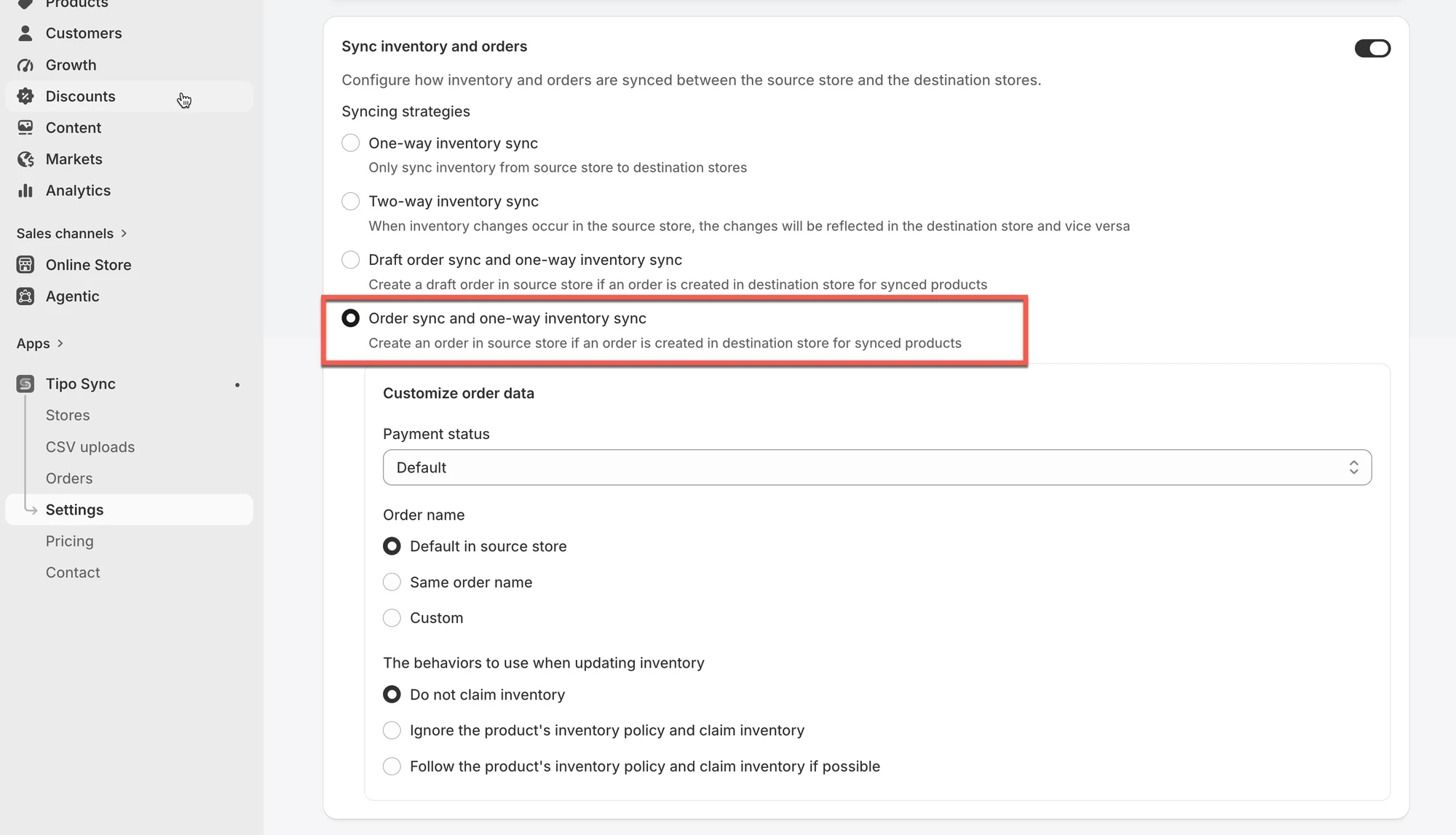
3. Control how the order data display in Source store: select Payment status, edit Order name, The behaviors to use when updating inventory
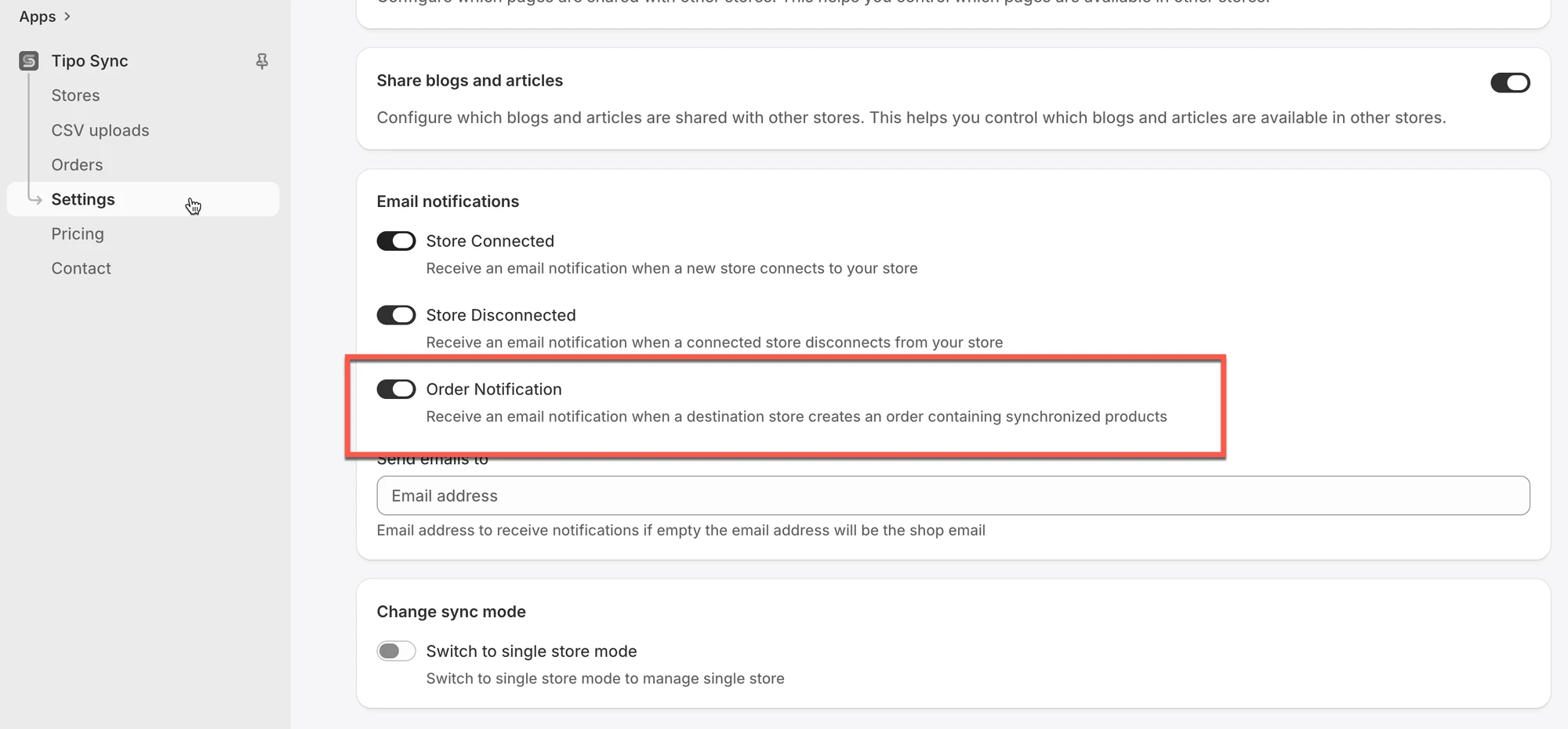
4. Scroll to Email notifications part > turn on Order Notification (optional)
5. Click Save
🛠️ Create connection in Destination store
Section titled “🛠️ Create connection in Destination store”Guide here
🧪 Example Scenario
Section titled “🧪 Example Scenario”Stores:
- Source Store:
https://urbanwear-eu.myshopify.com - Destination Store:
https://urbanwear-us.myshopify.com
Process:
- A customer places an order for a “Slim Fit Denim Jacket” in the Destination Store.
- Tipo automatically creates a corresponding order in the Source Store, tagged as “From: urbanwear-us”.
🙋 Still need support?
If you still need help, please feel free to contact us at hi@tipo.io. We’ll be happy to assist you further.