🕘 History (Sync Activity Log)
AI Overview
The Report feature in Tipo Sync helps you analyze and export inventory data as CSV files for tracking, planning, or updating inventory. Open the app, click Report, and pick one of six report types. When the export completes, an email with a download link is sent to your Shopify account.
View moreView less
- Product Report exports variant data for all or specific products, filtered by Title, Vendor, Tag, Product Type, or Collection.
- Location Report exports locations to build CSV templates for location-based sync setup.
- Threshold, Out of Stock, and No Recent Inventory Updates reports flag products needing restocking or attention.
- Dead Stock Report finds unsold products over 7, 14, 30, or 60 days, grouped by Product or Variant.
- Click Generate report to export a CSV.
Summary generated by AI. It can make mistakes, so check the full guide below.
The Report feature in Tipo Sync helps you analyze and export inventory data, so you can make better stock management decisions. You can export reports as CSV files and use them for tracking, planning, or updating your inventory.
Open the app > click Report > You’ll see a list of available report types.
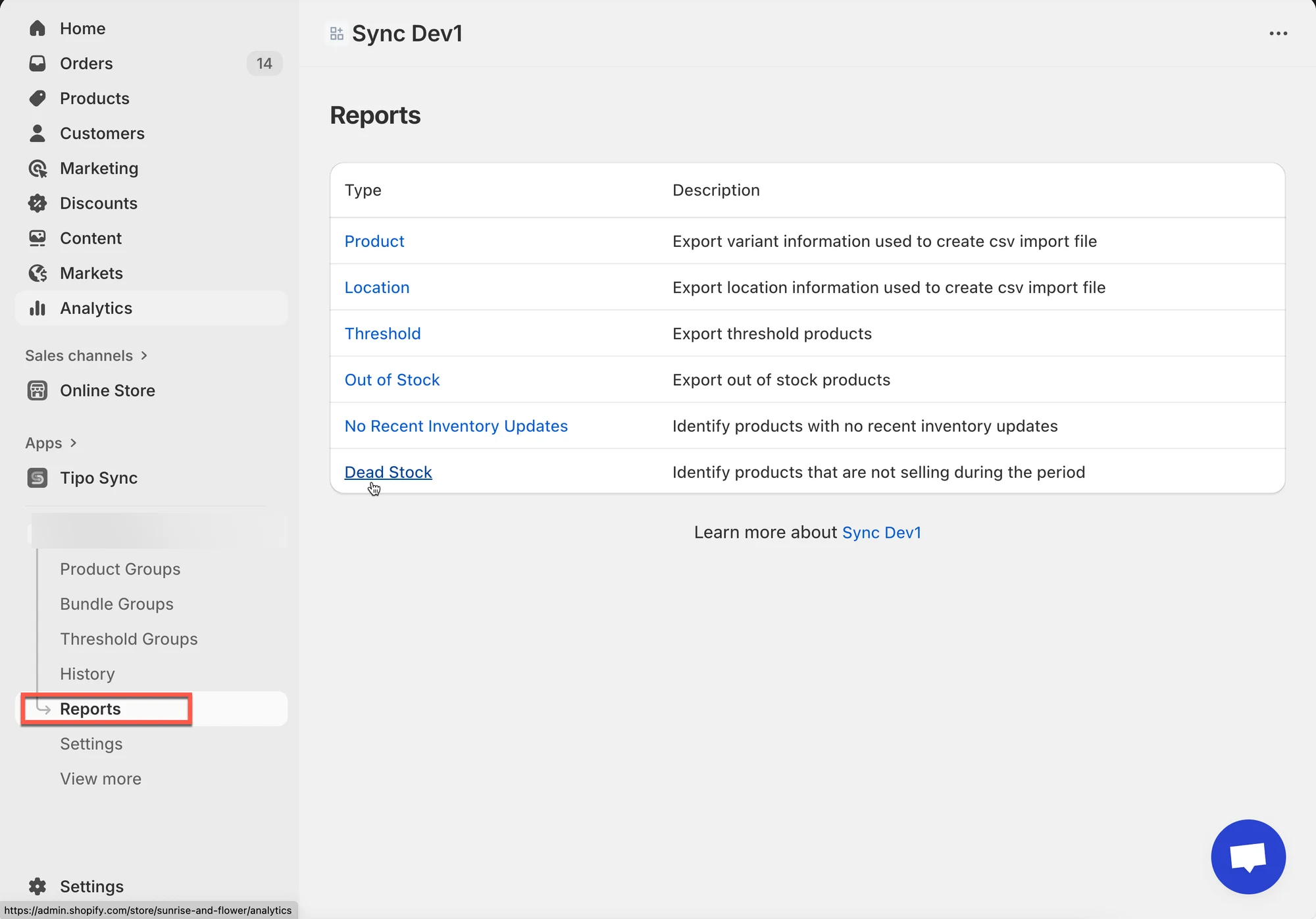
Report Types
Section titled “Report Types”1. Product Report
Section titled “1. Product Report”Export product variant data used for import or analysis.
How to use:
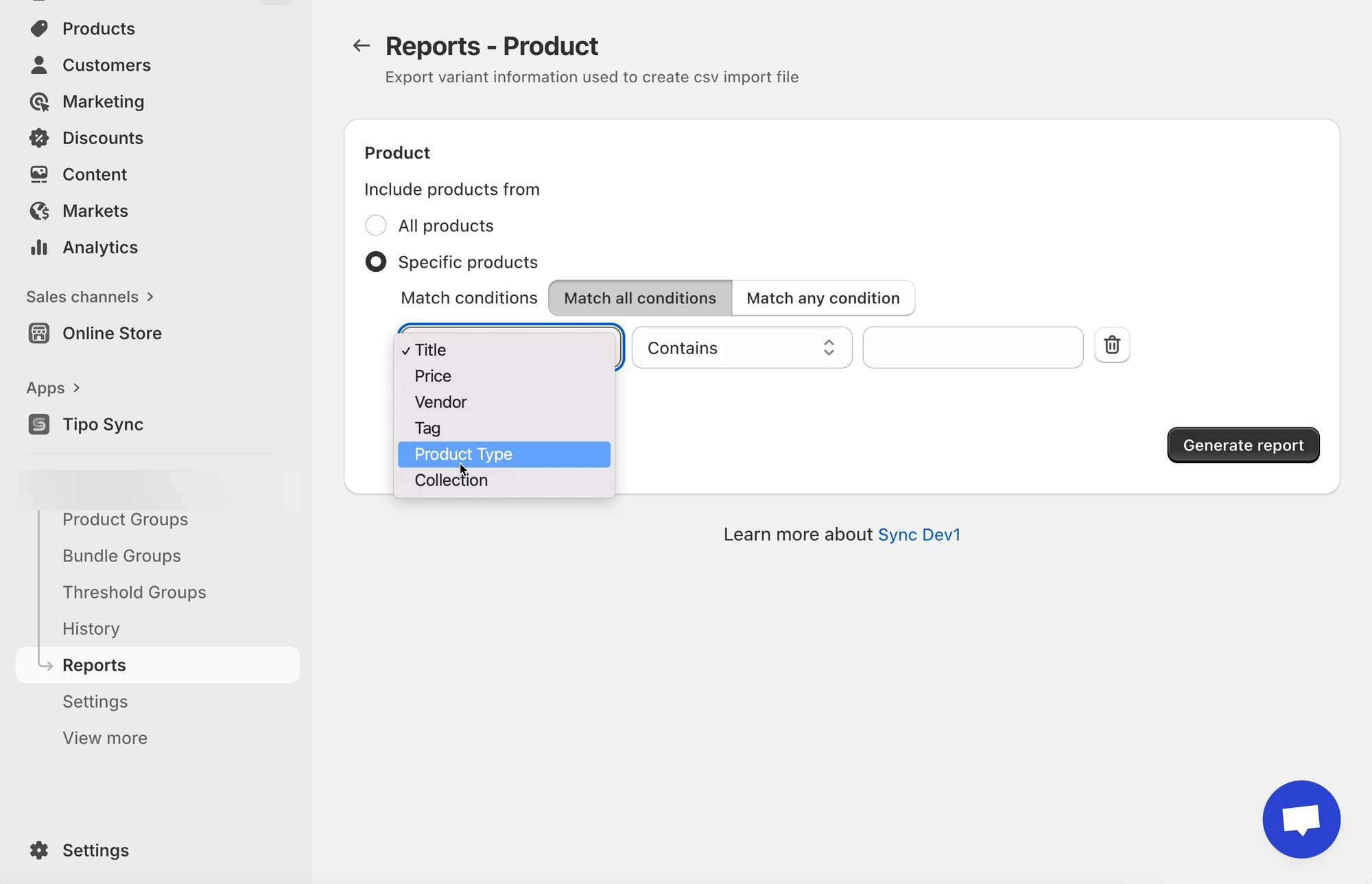
- Choose whether to include All products or Specific products.
- If specific, set filter conditions (e.g., Title, Vendor, Tag, Product Type, or Collection).
- Click Generate report to export a CSV file.
Example:
Export all products tagged with “Summer Collection” to update prices in bulk.
2. Location Report
Section titled “ 2. Location Report”Export location data to create CSV import templates for location-based sync setup.
Use case:
Useful when setting up new sync locations or verifying stock distribution across multiple warehouses.
3. Threshold Report
Section titled “3. Threshold Report”Export products that have reached your defined threshold levels.
How to use:
- Choose All products or Specific products.
- Select one of the following:
- Using Threshold Groups configuration – export based on your predefined threshold group settings.
- Single Level – set one threshold value.
- Multiple Level – set multiple alert levels.
Example:
Generate a report of products with stock below 10 units to plan restocking.
4. Out of Stock Report
Section titled “4. Out of Stock Report”Export a CSV file of products that are currently out of stock.
Use case:
Identify which products to restock immediately to avoid lost sales.
5. No Recent Inventory Updates
Section titled “5. No Recent Inventory Updates”Export products that haven’t had inventory changes within a certain period.
Use case:
Detect slow-moving products and consider promotions or delisting them.
6. Dead Stock Report
Section titled “6. Dead Stock Report”Identify products that haven’t sold within a selected period.
How to use:
- Choose All products or Specific products.
- Select a time range: 7, 14, 30, or 60 days.
- Choose to group results by Product or Variant.
- Click Generate report to export.
Example:
Find products that haven’t sold in 30 days to decide whether to discount or discontinue them.
After export
Section titled “After export”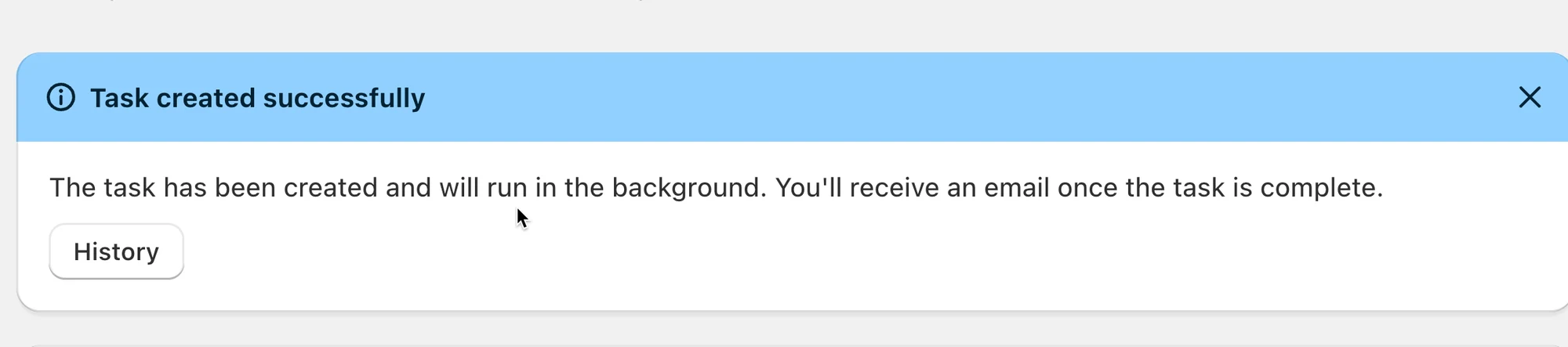
All reports are exported in CSV format, which can be opened in Excel or Google Sheets.
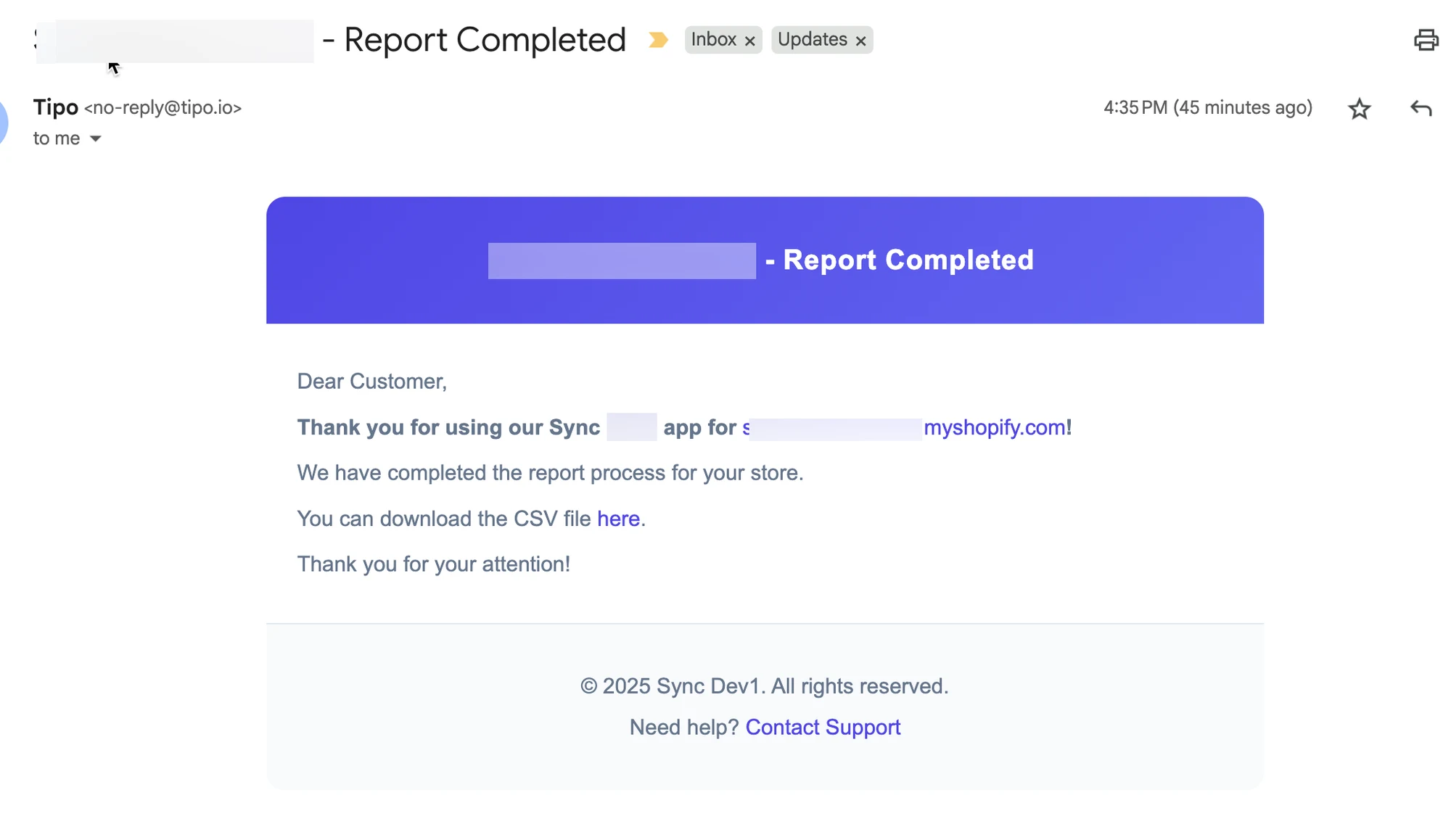
When you export data from Tipo Sync, the system will automatically send an email to your Shopify account once the export process is complete.
The email will include a download link for the exported CSV file.
Example email: