
Two-way inventory sync
AI Overview
Explains how Two-way Inventory Sync works in the Tipo app, so an inventory change in either store updates the other. Use it when you sell the same products in several stores and both can create sales or stock adjustments. If you want one master store controlling stock, use One-way sync instead.
View moreView less
- In the Source store, open Settings and turn on Sync inventory and orders.
- Select Two-Way Inventory Sync and click Save.
- Syncs are triggered by sales, refunds or cancellations, and restocks or manual adjustments.
- Examples show a sale in the Destination store and a restock in the Source store both reflected in the other store.
Summary generated by AI. It can make mistakes, so check the full guide below.
This guide explains how Two-way Inventory Sync works in Tipo app so inventory changes in either store can update the other store.
✅ What is Two-way Inventory Sync?
Section titled “✅ What is Two-way Inventory Sync?”With Two-way sync, inventory can flow in both directions:
- If inventory changes in the Source store → it updates the Destination store
- If inventory changes in the Destination store → it updates the Source store
This helps keep stock consistent when you sell the same products in multiple stores.
🎯 When should you use it?
Section titled “🎯 When should you use it?”Use Two-way Inventory Sync if:
- you sell the same products in multiple stores
- both stores can create sales (or stock adjustments)
- you want inventory to stay aligned automatically
⚠️ If you want only one “master” store controlling inventory, use One-way Inventory Sync instead.
🛠️ Steps to Set Up Two-Way Inventory Sync
Section titled “🛠️ Steps to Set Up Two-Way Inventory Sync”1. Open the app in Source store > click Settings > turn on Sync inventory and orders
- Select Two-Way Inventory Sync
3. Click Save
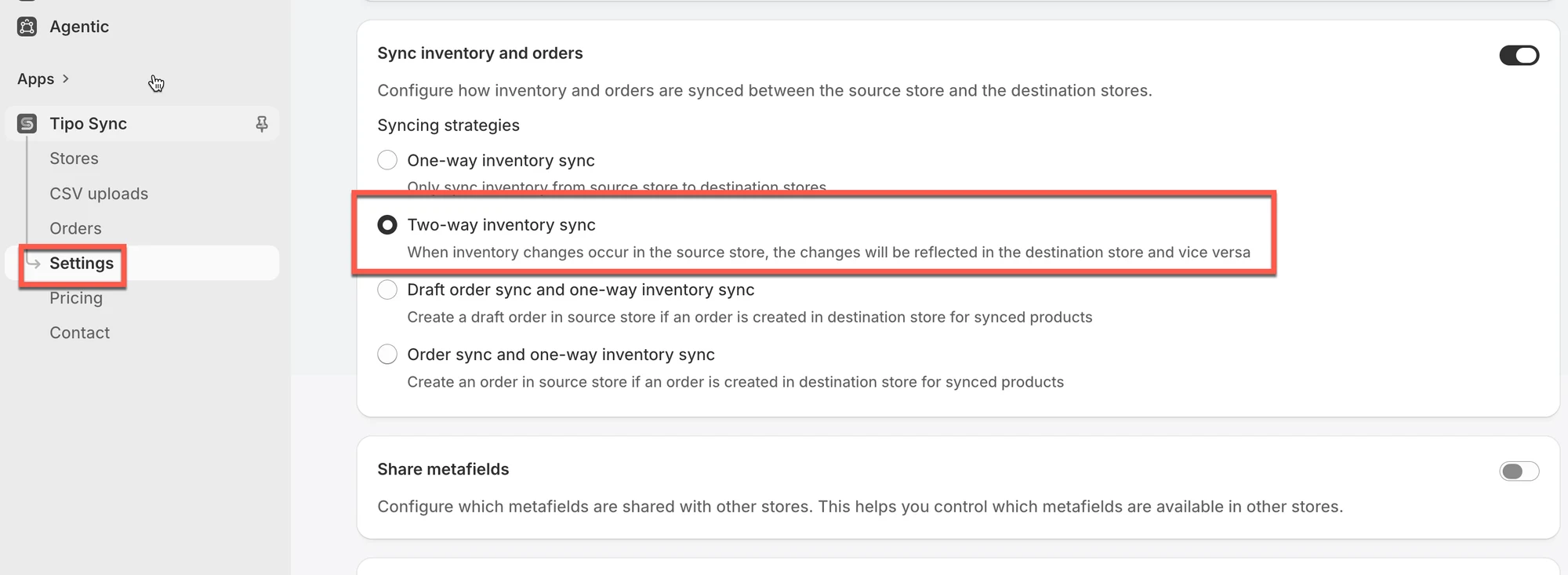
✅ How “Two-Way Inventory Sync” Works
Section titled “✅ How “Two-Way Inventory Sync” Works”✅ What triggers a sync?
Section titled “✅ What triggers a sync?”- Sale (order created)
- Refund / cancellation
- Restock or manual adjustment
A sync is triggered when inventory changes due to:
🔗 How products are matched
Section titled “🔗 How products are matched”Stores
- Source:
urbanwear-eu.myshopify.com - Destination:
urbanwear-us.myshopify.com
Product
- Name: Slim Fit Denim Jacket
- Handle:
slim-fit-denim-jacket
Scenario 1: Sale in Destination store
Section titled “Scenario 1: Sale in Destination store”Before sale
- Source: 50 units
- Destination: 50 units
Customer buys 5 units in Destination.
After sync
- Source: ✅ 45 units
- Destination: ✅ 45 units
➡️ The decrease in Destination is reflected in Source.
Scenario 2: Restock in Source store
Section titled “Scenario 2: Restock in Source store”You restock 10 units in Source.
After sync
- Source: ✅ 55 units
- Destination: ✅ 55 units
➡️ The increase in Source is reflected in Destination.
🎬 Tutorial video
Section titled “🎬 Tutorial video”How to set:
How it works:
🙋 Still need support?
If you still need help, please feel free to contact us at hi@tipo.io. We’ll be happy to assist you further.