
What is a product handle?
AI Overview
Explains what a product handle is in Shopify and why Tipo uses it. A handle is a unique text identifier in the product URL, generated from the title. When the handle is the same in both Source and Destination stores, Tipo can match and sync the product. It also covers editing handles.
View moreView less
- A handle is generated from the product title, for example blue-cotton-t-shirt, and appears in the URL.
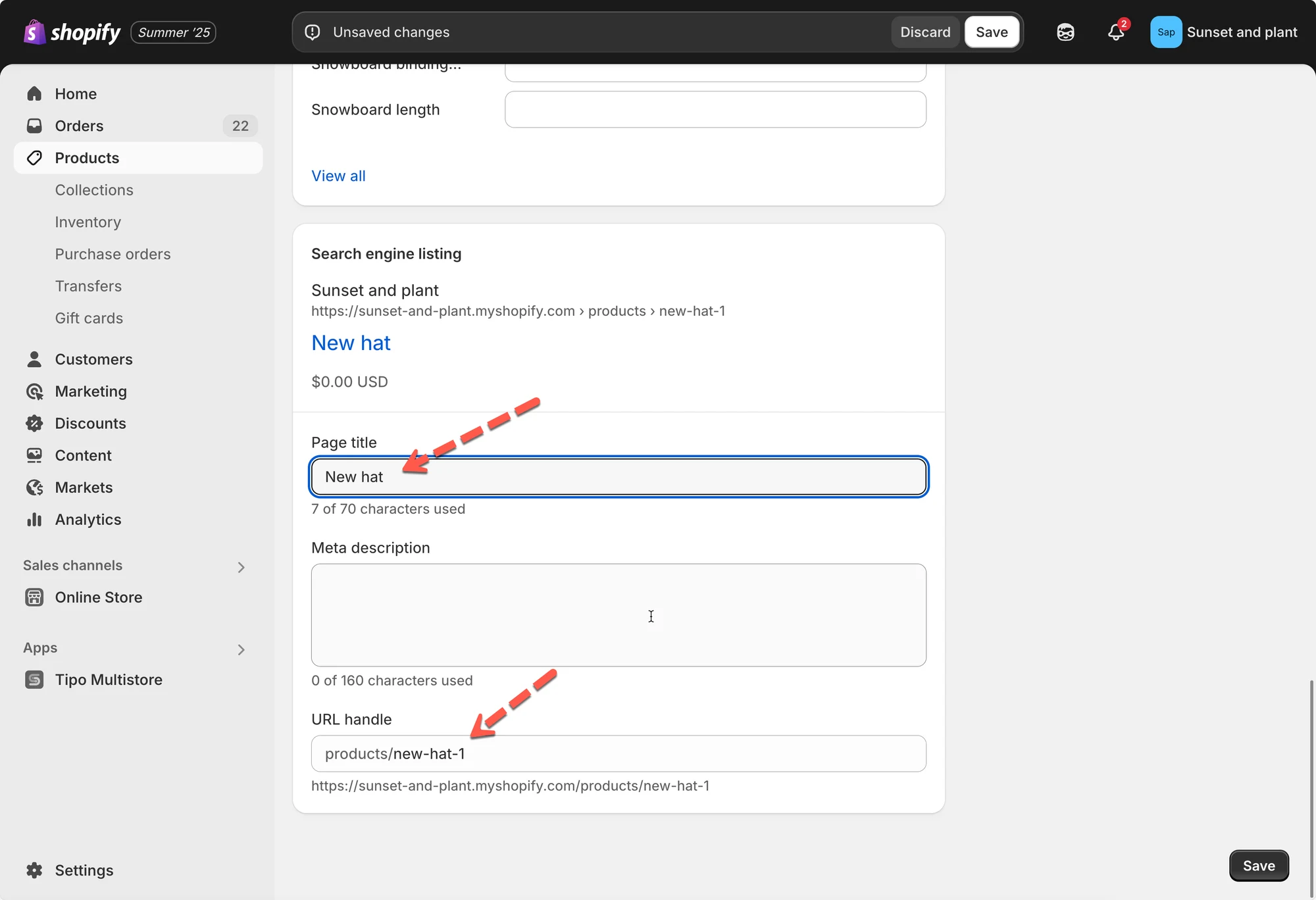
- To edit it, open the product, scroll to Search engine listing, click the edit icon, change the handle and save.
- Matching handles let Tipo sync a product correctly between stores.
- Changing the handle of a published product changes its URL and may affect SEO or existing links.
Summary generated by AI. It can make mistakes, so check the full guide below.
What Is Product Handle in Shopify?
Section titled “What Is Product Handle in Shopify?”A product handle in Shopify is a unique text identifier used in your store’s URLs.
It’s automatically generated from the product title when you create a product.
- It helps Shopify identify and link to the product page.
- It’s used in the product URL (e.g.,
yourstore.com/products/handle). - In sync apps like Tipo, handles are used to match products between Source and Destination stores.
Example
Section titled “Example”If your product is called:
“Blue Cotton T-Shirt”
Then Shopify will generate a handle like:
blue-cotton-t-shirt
Your product URL will be:
https://yourstore.com/products/blue-cotton-t-shirt
If this handle is the same in both Source and Destination stores, Tipo can match and sync the product correctly.
Where can we find and edit product handle in Shopify?
Section titled “Where can we find and edit product handle in Shopify?”Edit Products Handles In Shopify Admin
1. From your store backend, go to Products > open the product you want to edit
2. Edit product title
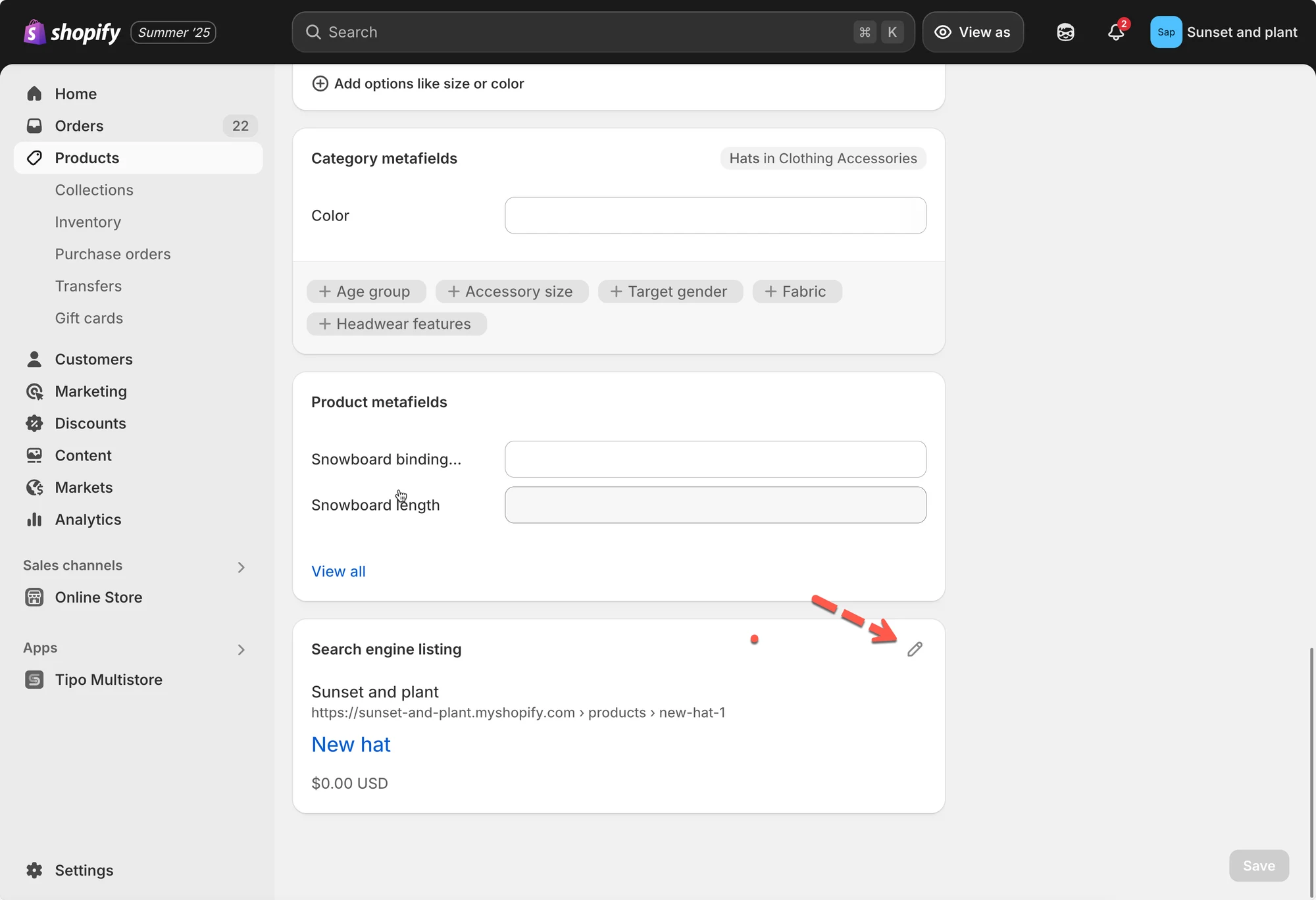
3. Scroll down to Search engine listing, click edit icon and change the name here
4. Save the product
To confirm the update, click the “View” button and look for the product URL in your web browser’s address bar. The handle should now appear in the URL.
Note:
Be careful when changing handles — if the product is already published, changing the handle will change the product’s URL and may affect SEO or existing links.
🙋 Still need support?
If you still need help, please feel free to contact us at hi@tipo.io. We’ll be happy to assist you further.