
Switch Sync Mode
AI Overview
Explains Tipo Sync's two modes, Single store sync and Between stores (Multi-store) sync, and how to switch between them. Choose by whether you manage one store or several. Switching resets settings and cannot be undone, so read the confirmation warning first.
View moreView less
- Single store sync automates inventory and bundles inside one store; Multi-store sync connects Source and Destination stores.
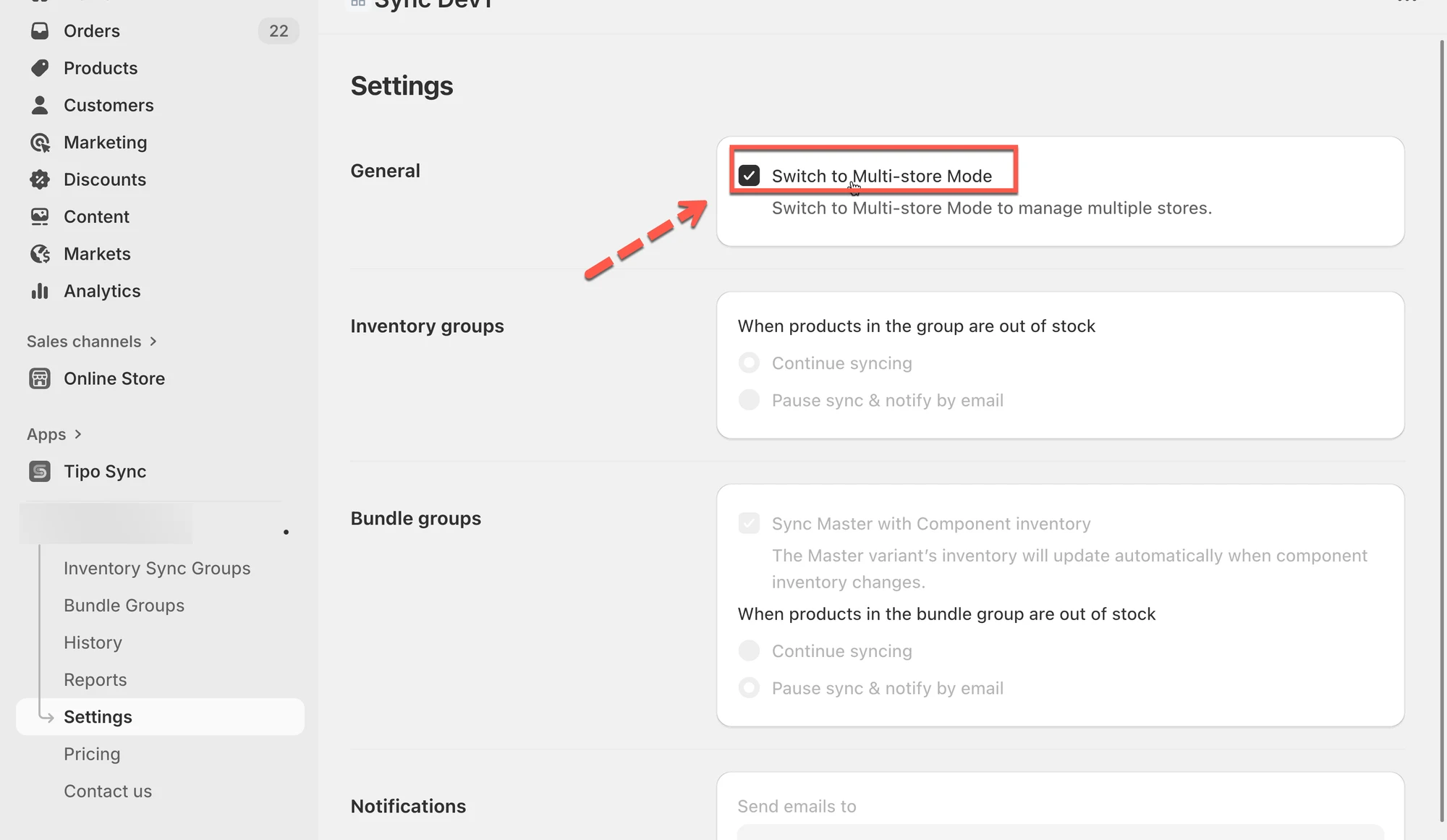
- To go multi-store, open Settings > General, turn on Switch to Multi-store Mode and click Confirm.
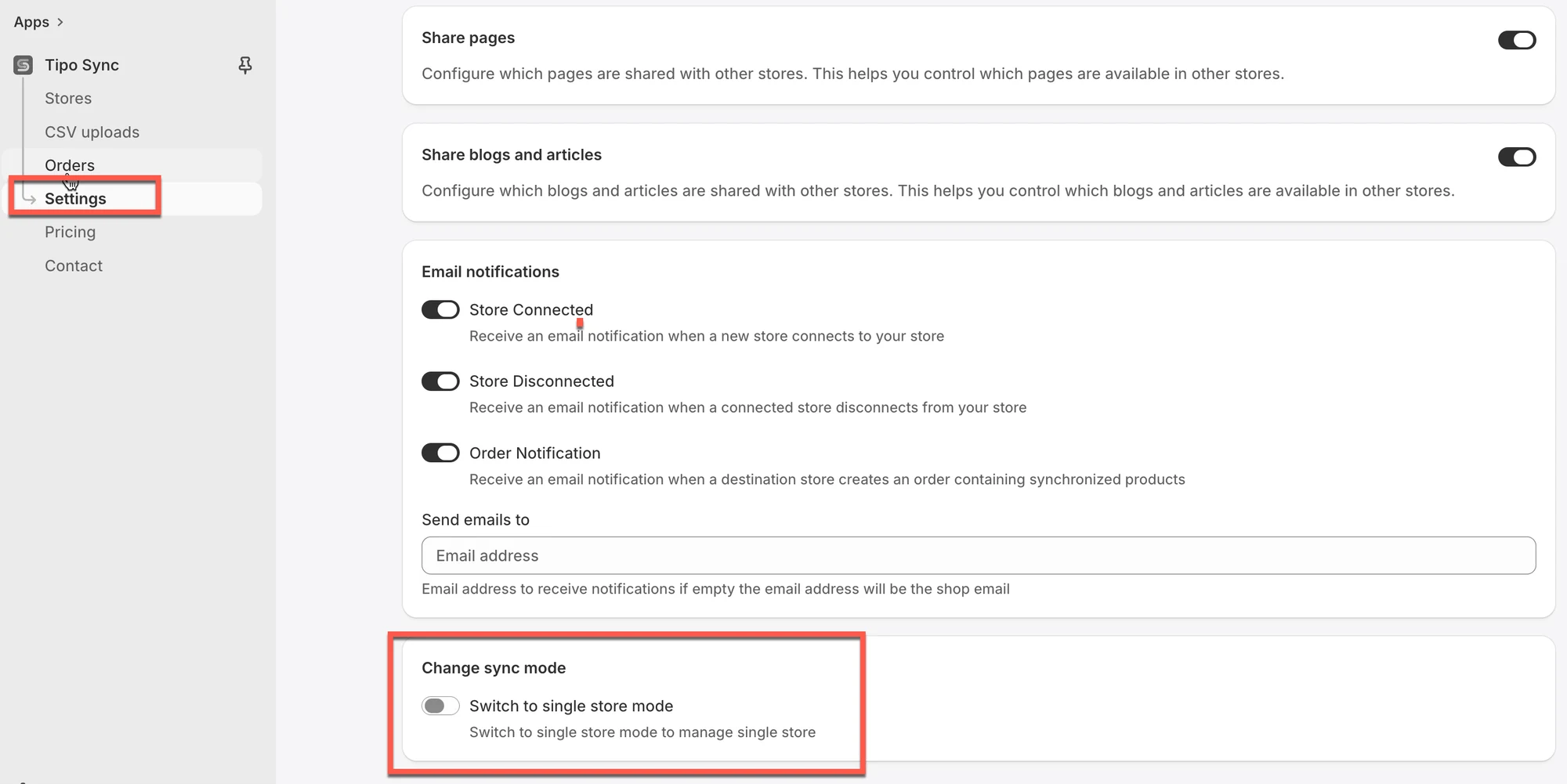
- To go single-store, under General enable Switch to Single-store Mode and click Confirm.
- Switching resets all settings to default and cannot be undone; going single-store disconnects all connections.
Summary generated by AI. It can make mistakes, so check the full guide below.
Tipo Sync offers two sync modes. Choosing the right one depends on whether you manage one Shopify store or multiple stores.
ℹ️ Quick definition
Section titled “ℹ️ Quick definition ”🏪 Single store sync
Sync happens inside one Shopify store to automate how products/inventory are managed within that store.
Typical features in this mode include:
- Inventory Sync Groups
- Bundle Groups
- Reports / analytics for syncing activity
Use it when you have only one store and want to keep inventory or bundles organized automatically.
🔁 Between stores sync (Multi-store sync)
Sync happens between two or more Shopify stores.
In this mode you will usually have:
- Source store = the main store where you manage products
- Destination store(s) = stores that receive synced products/inventory.
Typical features in this mode include:
- Connect stores (Source ↔ Destination)
- Product sync (import new products, sync existing ones, mapping)
- Inventory sync between stores (one-way or two-way)
- Order sync (depending on your setup)
- Email notifications
Use it when you have multiple Shopify stores and need to copy/update data across them.
🕹️ When should I use each mode?
Section titled “🕹️ When should I use each mode? ”Choose Single store sync if you:
- have one Shopify store
- want to automate inventory updates and bundle behaviors inside the same store
- don’t need to connect to another store
Choose Between stores sync if you:
- run multiple Shopify stores (regional stores, wholesale + retail, multiple brands)
- want to push products from one store to another
- want inventory or orders to stay aligned across stores
🔀 Key differences
Section titled “🔀 Key differences ”TopicSingle store syncBetween stores sync
Number of stores
1 store
2+ stores
Setup
No store connection needed
Must connect Source + Destination
Main goal
Automate inventory/bundles within one store
Keep products/inventory/orders synced across stores
Product creation
Not focused on cross-store import
Can import/sync products between stores
Inventory
Groups & automation in the same store
Location mapping + one-way/two-way sync
Best for
One-store merchants
Multi-store merchants, wholesalers
🔄 Switch from Single-store to Multi-store Mode
Section titled “🔄 Switch from Single-store to Multi-store Mode”Use this mode if you want to sync data across multiple stores.
- Go to Settings in your app sidebar > General > turn on Switch to Multi-store Mode
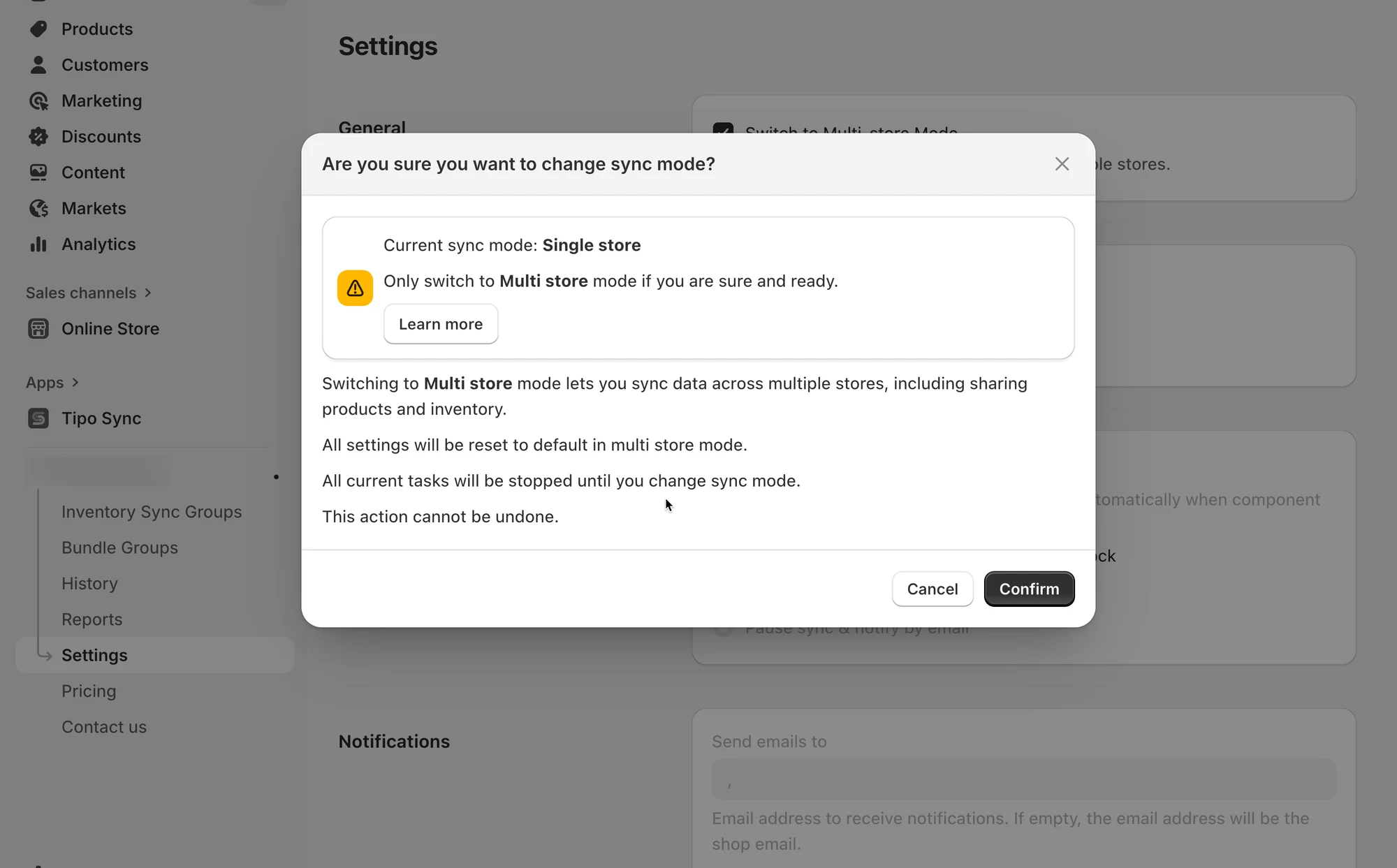
→ You’ll see a confirmation popup. - Review the warning message carefully:
- All current settings will be reset to default
- Any ongoing sync tasks will stop
- This action cannot be undone
- Click Confirm to complete the change.
🔄 Switch from Multi-store to Single-store Mode
Section titled “🔄 Switch from Multi-store to Single-store Mode”Use this mode if you only want to sync one store (no connections to others).
- Go to Settings in your app sidebar > Under General, enable Switch to Single-store Mode
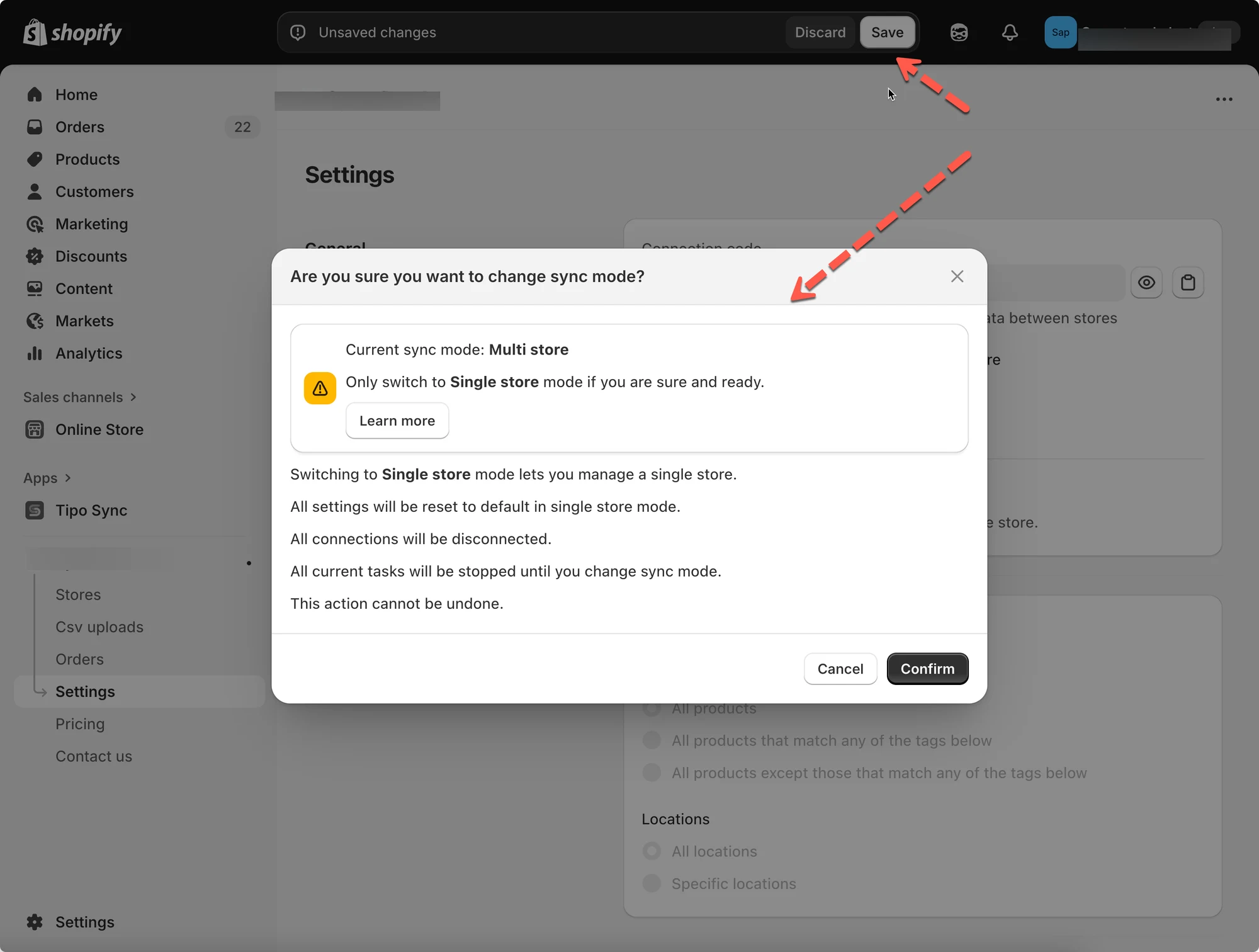
→ You’ll see a confirmation popup. - Review the message:
- All connections will be disconnected
- All settings reset to default
- This action cannot be undone
- Click Confirm to finalize the change.
🙋 Still need support?
If you still need help, please feel free to contact us at hi@tipo.io. We’ll be happy to assist you further.