
Getting Started with Single-store Sync
AI Overview
Introduces Single-store sync in Tipo, which keeps inventory accurate inside one Shopify store by linking related products, such as bundles and their components or duplicate listings. It does not connect two stores. It works through Groups and Rules, and Smart scan can group products with matching SKUs.
View moreView less
- Needs the Tipo app installed and the products you want to link already created in your store.
- Install the app and select Single Store mode.
- Choose how inventory should behave: bundle from components, shared stock across listings, or rule-based syncing.
- Create your first Sync Group manually, or run a smart scan for products with the same SKUs.
- Test by adjusting inventory on one product in the group before using it for the whole catalog.
Summary generated by AI. It can make mistakes, so check the full guide below.
Single-store sync helps you keep inventory accurate inside one Shopify store by linking related products together (for example: bundle ↔ components, duplicate listings, or product sets).
When stock changes for one item, Tipo can update the others automatically so you don’t need manual edits.
✅ Before you start
Section titled “✅ Before you start”Make sure you have:
- Tipo app installed on your Shopify store
- Products already created in your store (the items you want to link together)
- A clear idea of your use case:
- Bundle product and component products
- Multiple listings that share the same stock
- Variants or separate products that should stay in sync
💡 Tip: Single-store sync does not connect two Shopify stores. Everything happens within the same store.
🧭 Key Concepts
Section titled “🧭 Key Concepts ”Single-store sync typically works through Groups + Rules.
- Group: A set of related products/variants that should follow the same inventory logic.
- Master product (or main item): The product that drives inventory.
- Component products: Items that get updated when the master changes.
🔑 Key Features
Section titled “🔑 Key Features ”-
Sync inventory between related products
Keep stock aligned for products that should move together (for example, bundle items and their component items).
-
Automate inventory updates with Sync Groups
Put products/variants into a group so the app updates inventory automatically when sales/restocks happen.
-
Bundle inventory automation (Master ↔ Component)
- When a bundle sells, the app can reduce inventory for the component items.
- When you restock components, the available bundle quantity can update accordingly.
-
Real-time inventory consistency
When inventory changes (sale, refund/cancel, manual adjustment), the app updates the connected items to keep your store consistent.
-
Smart scan: automatically detects and groups products that share matching SKUs.
🛠️ Quick steps with Single store sync
Section titled “🛠️ Quick steps with Single store sync”1) Install the app and select Single-store mode
Section titled “1) Install the app and select Single-store mode”Install here
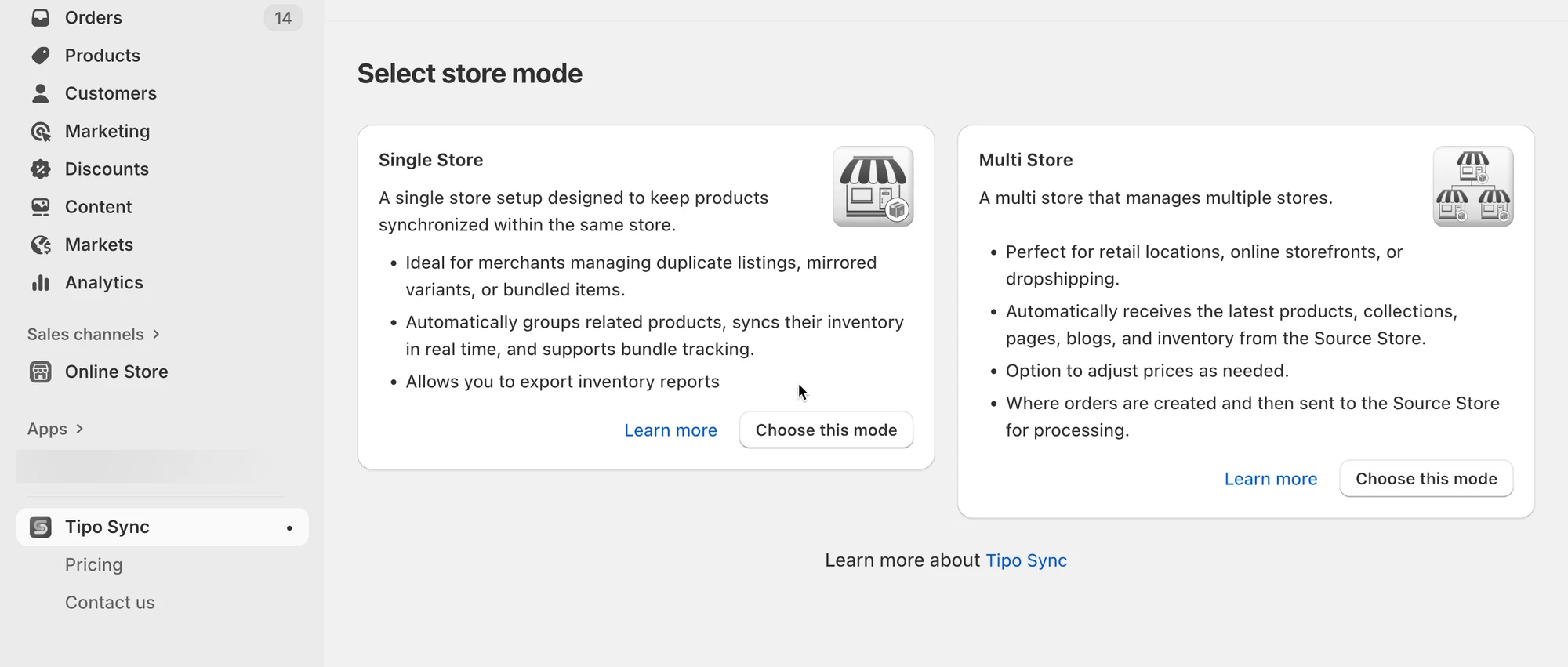
Select one of store mode you need:
- Single Store: A single store setup designed to keep products synchronized within the same store. Learn more
- Multi Store: A multi store that manages multiple stores.
2) Choose how you want inventory to behave
Section titled “2) Choose how you want inventory to behave”Common single-store scenarios:
Scenario A: Bundle stock depends on components
Section titled “Scenario A: Bundle stock depends on components”Example: “Gift Set” uses 1 mug + 1 box
→ Bundle stock should be the minimum available among components.
Scenario B: Multiple listings share the same stock
Section titled “Scenario B: Multiple listings share the same stock”Example: same product listed in different collections/pages
→ All listings should always show the same inventory.
Scenario C: Rule-based syncing
Section titled “Scenario C: Rule-based syncing”Example: product A should always match product B, or apply a multiplier rule.
You’ll use the group setup to apply the right logic.
3) Create your first Sync Group
Section titled “3) Create your first Sync Group”- You can manually group products to share inventory.
- If your inventory Sync groups include products with the same SKUs, you should run a smart scan to automatically detect and group products.
4) Test sync (Recommended)
Section titled “4) Test sync (Recommended)”Do a quick test before using it for your whole catalog:
- Choose one product in the group and adjust inventory in Shopify
- Wait for Tipo to process the inventory change
📚 Additional Resources
Section titled “📚 Additional Resources ”- Create inventory group with smart scan
- Create inventory group with manually
- Create a new bundle group
- Contact support team via email hi@tipo.io