
Show auctions by collection
AI Overview
Fix the Tipo Product Auction widget not appearing on collection pages after you enable it in app settings. The extra step is creating a new Liquid template file in your theme, search.tipoAuctionsJson.liquid, and pasting in the provided code. If it still doesn't work, contact support.
View moreView less
- First enable the collection page option in the app Settings.
- Go to Online store > Themes > Edit code.
- Under the Template folder, create a new Search template file named tipoAuctionsJson, giving search.tipoAuctionsJson.liquid.
- Paste the provided code into the file and click Save.
- If it still fails, email hi@tipo.io.
Summary generated by AI. It can make mistakes, so check the full guide below.
The app provides a built-in option to display the auction widget on your collection page. You can enable this directly in the app Settings.
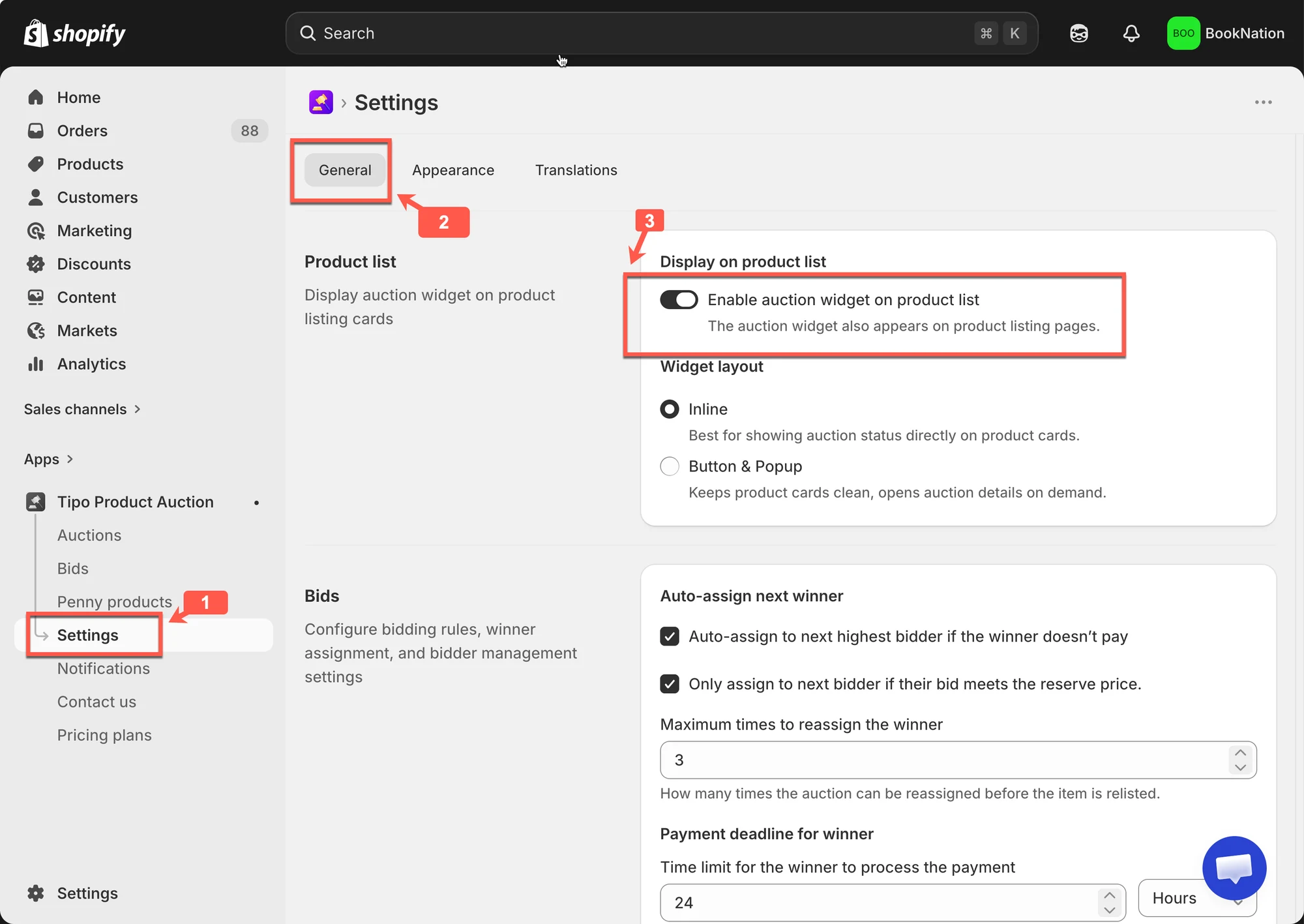
However, if the widget still doesn’t appear after enabling it, you’ll need to follow these additional steps to ensure it works properly.
The required step is to create a new file in your theme to enable this condition.
🛠️ Step-by-step: Enable collection condition
Section titled “🛠️ Step-by-step: Enable collection condition”1. From store backend > Online store > click Themes > click Edit code
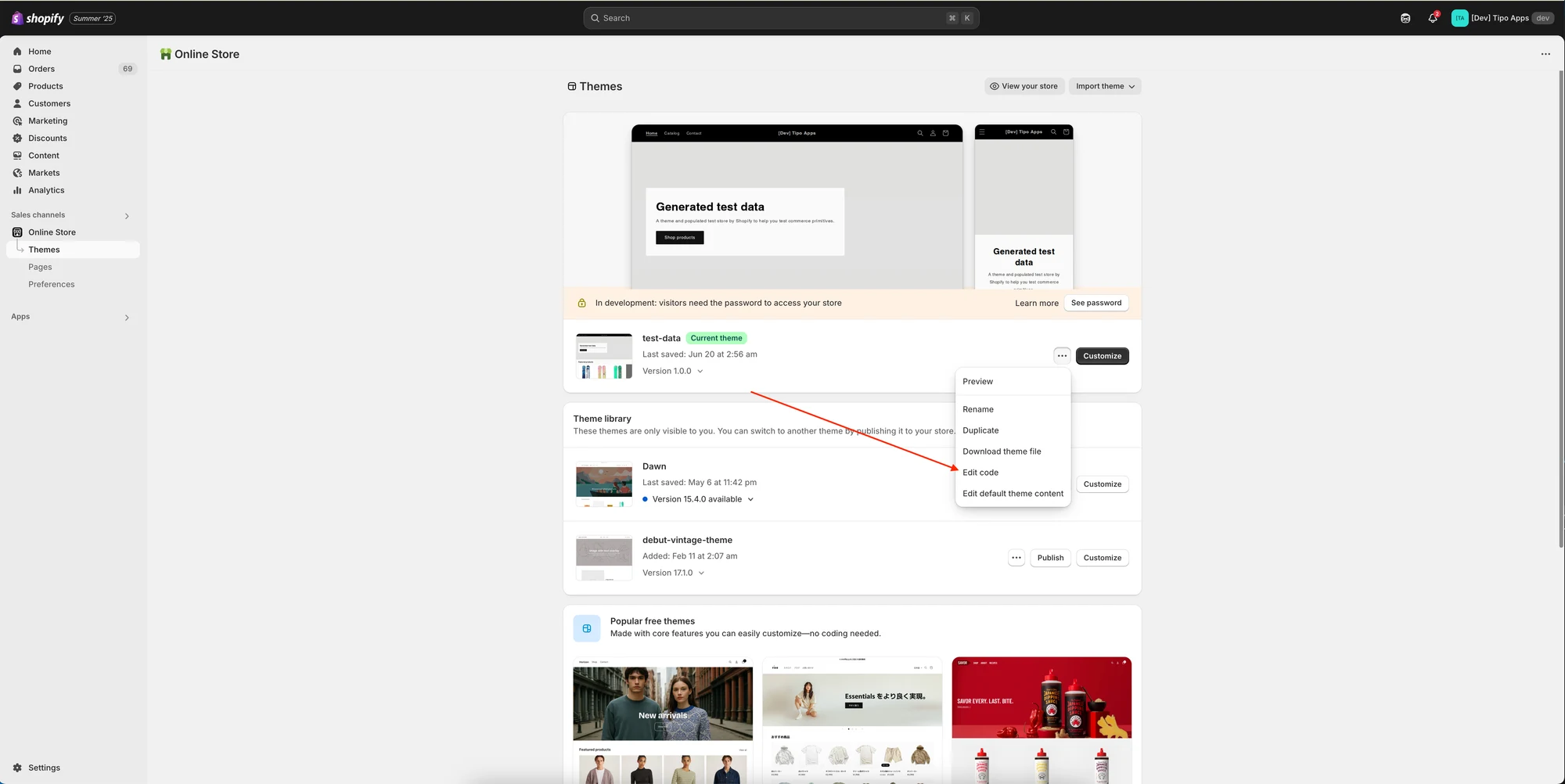
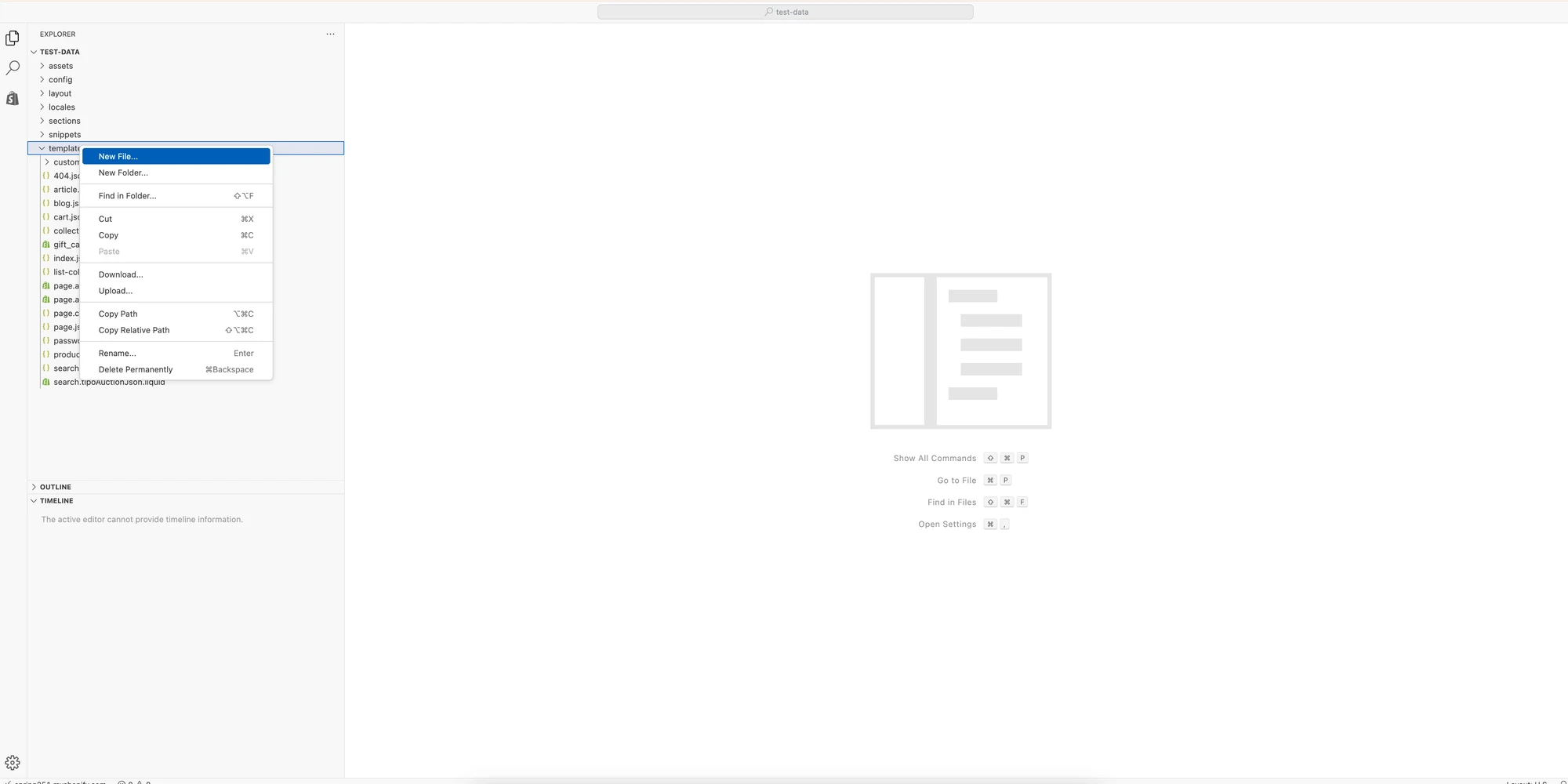
2. Under the Template folder, create a new file with the Search template
3. Create a new liquid file > enter name tipoAuctionsJson so the full file name will be search.tipoAuctionsJson.liquid
4. Copy the codes below and paste into search.tipoAuctionsJson.liquid file
{%- layout none -%}{%- paginate search.results by 100 -%}[{%- for product in search.results -%}{%- unless forloop.first -%},{%- endunless -%}{"id":{{-product.id-}},"title":{{-product.title | json-}},"handle":"{{-product.handle-}}","price":"{{-product.price-}}","featured_image":"{{-product.featured_image-}}","url":"{{-product.url-}}","collections":{{-product.collections | map: 'id' | json-}},"images":[{%- for image in product.images -%}{%- unless forloop.first -%},{%- endunless -%}{"id":{{-image.id-}},"src":{{-image.src | json-}}}{%- endfor -%}],"first_available_variant":{"id":{{product.selected_or_first_available_variant.id}}},"available":{{-product.available-}},"variants":[{%- for variant in product.variants -%}{%- unless forloop.first -%},{%- endunless -%}{"id":{{-variant.id-}},"value":{{-variant.id-}},"title":{{-variant.title | json}},"name":"{{-variant.name | json}}","price":{{-variant.price-}},"available":{{-variant.available-}},"sku":"{{-variant.sku-}}","inventory_quantity":{{-variant.inventory_quantity-}}}{%- endfor -%}]}{%- endfor -%}]{%- endpaginate -%}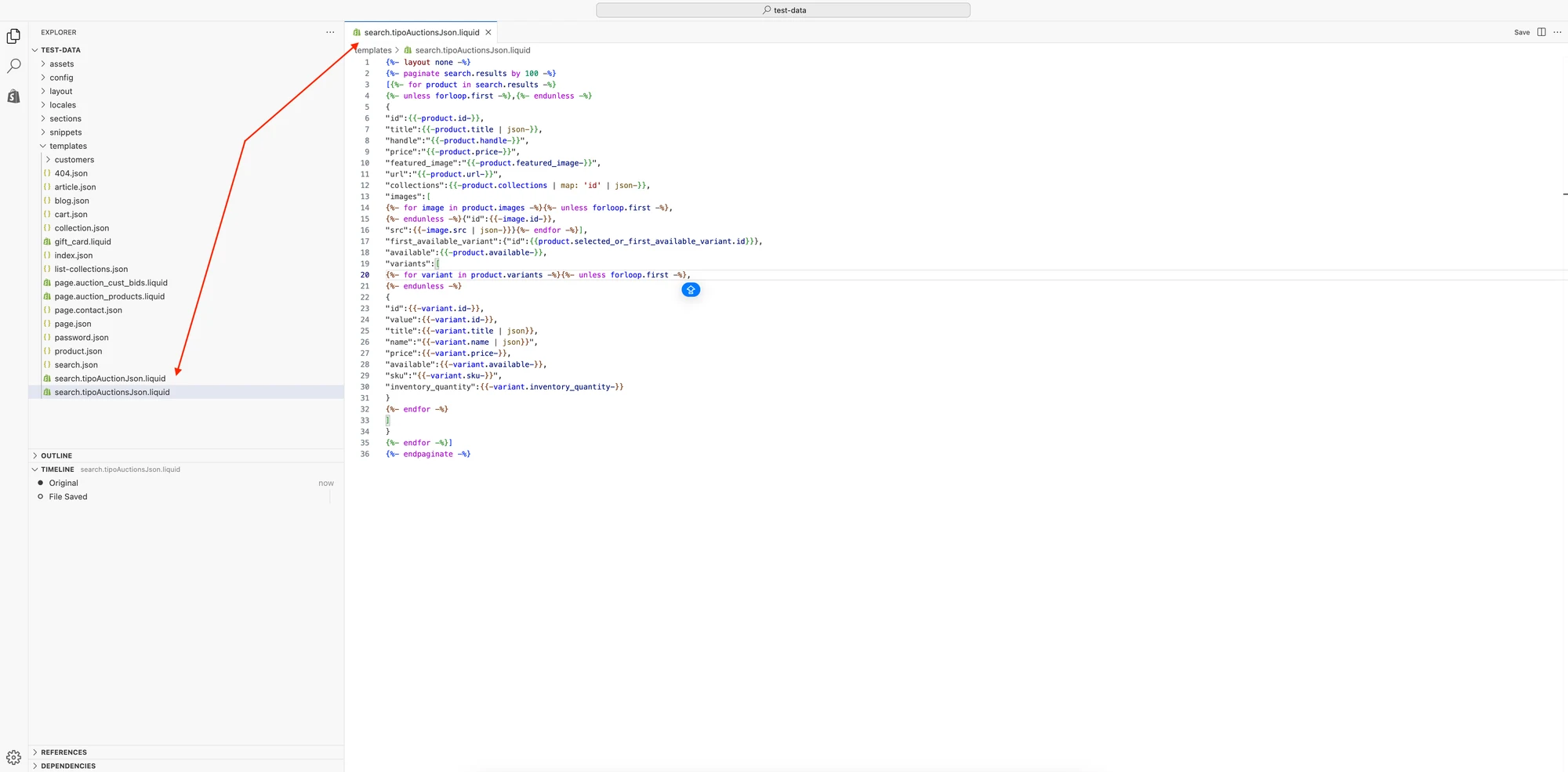
5. Click Save to finish creating this new file
If it still doesn’t work after following the guide, please contact us at hi@tipo.io. We’re happy to help troubleshoot and make sure everything is working as expected.
🙋 Still need support?
If you still need help, please feel free to contact us at hi@tipo.io. We’ll be happy to assist you further.