> For the complete documentation index, see [llms.txt](https://docs.tipo.io/llms.txt). Markdown versions of documentation pages are available by appending `.md` to page URLs; this page is available as [Markdown](https://docs.tipo.io/tipo-auction/auction-rules-and-bidding-features/export-and-import-auctions.md).
# Export & Import auctions
The **Export & Import** feature lets you quickly back up auctions, move auctions between stores, or create multiple auctions in bulk using a file.
This is useful when you want to reuse auction settings or manage many auctions at once.
With this feature, you can:
* Export existing auctions to a file
* Edit auction settings in bulk
* Import auctions back into the app
* Duplicate auctions without re-creating them manually
***
### ⬆️ Export auctions
Exporting allows you to download your auction data as a file.
#### Steps to export auctions
1\. Open the app > click **Auctions**
2\. Tick to auction you want to delete
3\. Click **Export auction** button > The auction will be immediately export to json file
#### Edit the export file (optional)
After exporting, you can open the file to make changes.
Common use cases:
* Update auction start or end times
* Adjust starting prices or bid increments
* Duplicate auctions by copying rows
* Prepare auctions for future campaigns
⚠️ **Important:**
* Do not change column names
* Keep required fields filled
* Follow the original format exactly
***
### ⬇️ Import auctions
Importing lets you upload auctions from a file into Tipo Auction.
#### Steps to import auctions
1\. Open the app > click **Auctions**
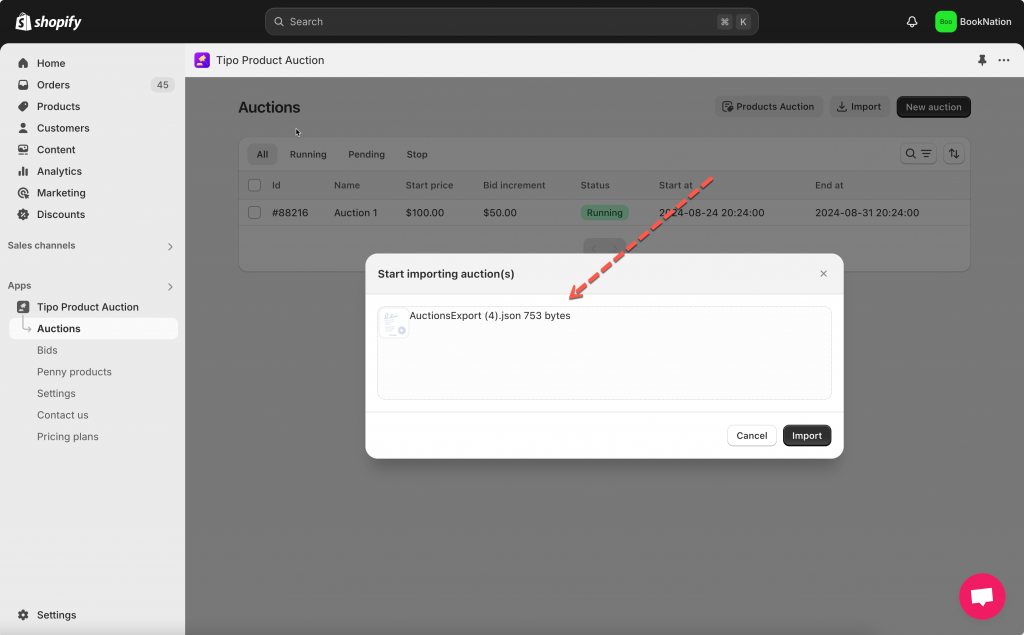
2\. Click **Import** at the right corner > a popup will show up and let you add the auction JSON file
3\. After uploading the file, click **Import** button
Please note that only the json file exported from our app is allowed to be added here
Once completed, the auctions will appear in your auction list.
***
**🙋 Still need support?**
If you still need help, please feel free to contact us at . We’ll be happy to assist you further.