
Archive ended auctions
AI Overview
Archive ended auctions in Tipo Product Auction to hide the widget from your storefront and return the product to normal Shopify purchasing. After an auction ends, the widget stays visible with results until you archive it, either automatically after a set number of days or manually. Archived auctions stay in the app and are not deleted.
View moreView less
- Automatic: open Settings > General, go to Advanced > Archive auction, enter 1 to 30 days, and click Save.
- Manual: open Auctions, select auctions, click Archive auction, and confirm.
- Archiving hides the widget, and customers can no longer see auction details or bid.
- Archived auctions move to the Archived tab and keep their history in the app.
Summary generated by AI. It can make mistakes, so check the full guide below.
After an auction ends, the auction widget remains visible on the product page so customers can view the auction results and bidding history. If you no longer want to display completed auctions, you can archive them manually or automatically after a specified period.
Archiving an auction hides the auction widget from your storefront, disables auction-specific functionality, and returns the product to normal Shopify purchasing behavior.
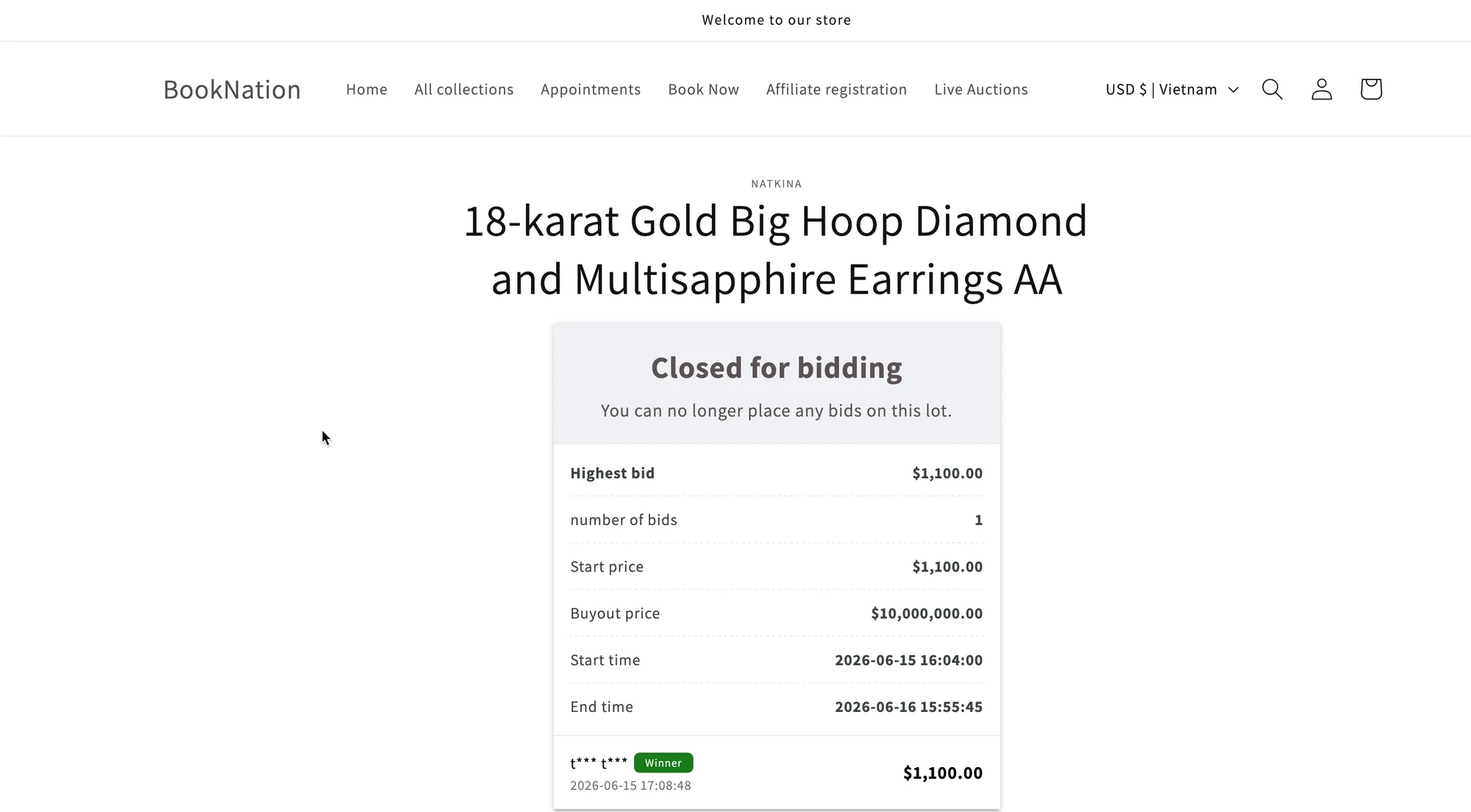
Automatically archive ended auctions
Section titled “Automatically archive ended auctions”The Archive auction setting allows you to automatically hide completed auctions after a specified number of days.
⚙️ How to set
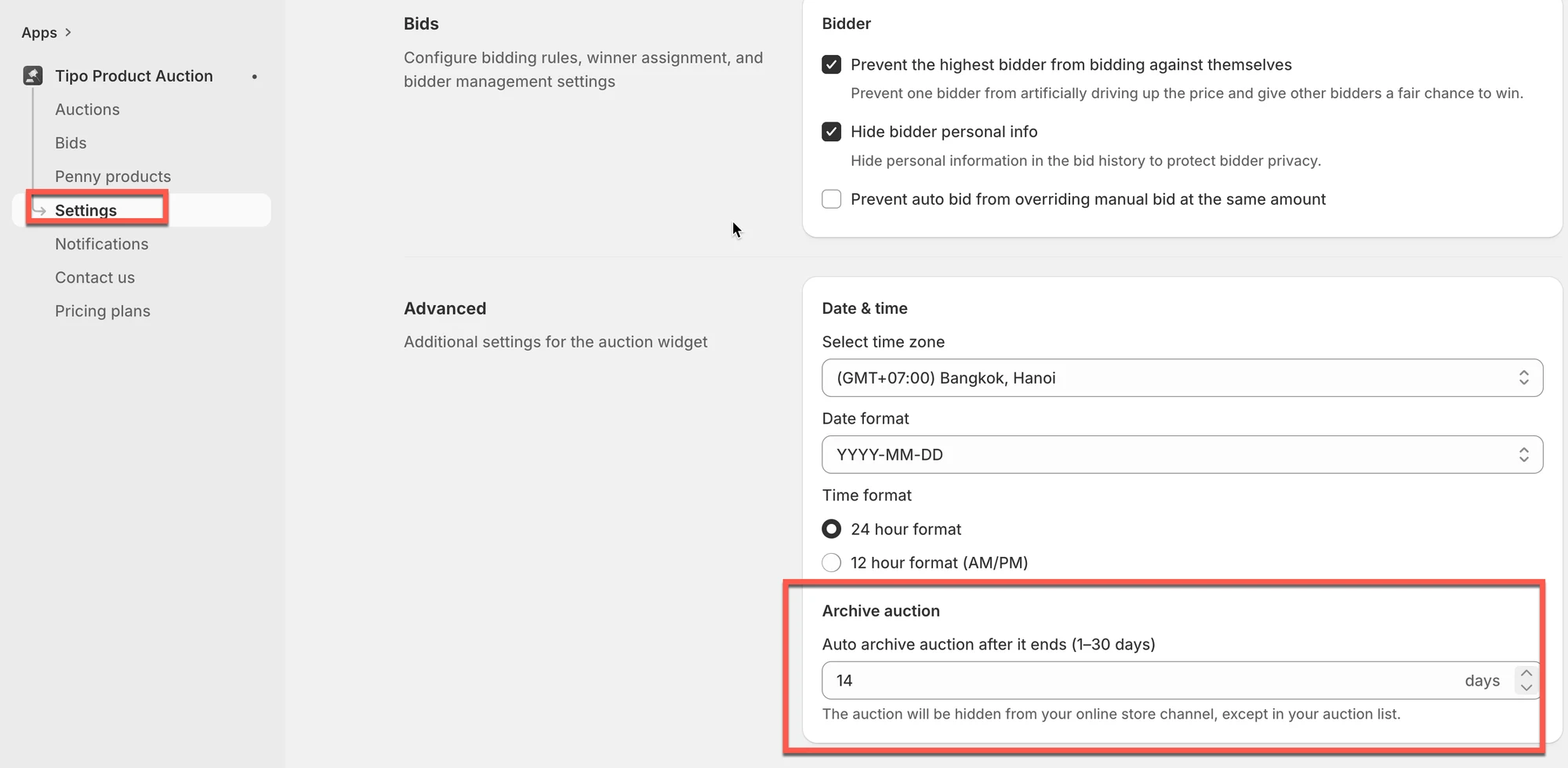
Section titled “⚙️ How to set”- Go to the app > open Settings > General
- Scroll to the Advanced section > locate Archive auction
- Enter the number of days after an auction ends before it is automatically archived.
You can choose any value between 1 and 30 days.
- Click Save
✅ How It Works
Section titled “✅ How It Works”When an auction reaches its archive date:
- The auction is automatically archived. The auction widget is removed from the Online Store channel.
- Customers can no longer interact with the auction on the storefront.
- The auction remains available in your auction list in the app for reference and management.
Archived auctions are hidden from customers but are not deleted from the app.
💡 Example
Section titled “💡 Example”You set Archive auction = 14 days.
- An auction ends on June 1st.
- The auction remains visible on your storefront for 14 days.
- On June 15th, the auction is automatically archived.
After being archived:
- The auction widget is no longer displayed on the product page.
- Customers can no longer place bids or view auction details.
- The product page returns to its normal storefront experience.
Manually archive auctions
Section titled “Manually archive auctions”You can also archive auctions at any time directly from the Auctions page.
⚙️ How to set
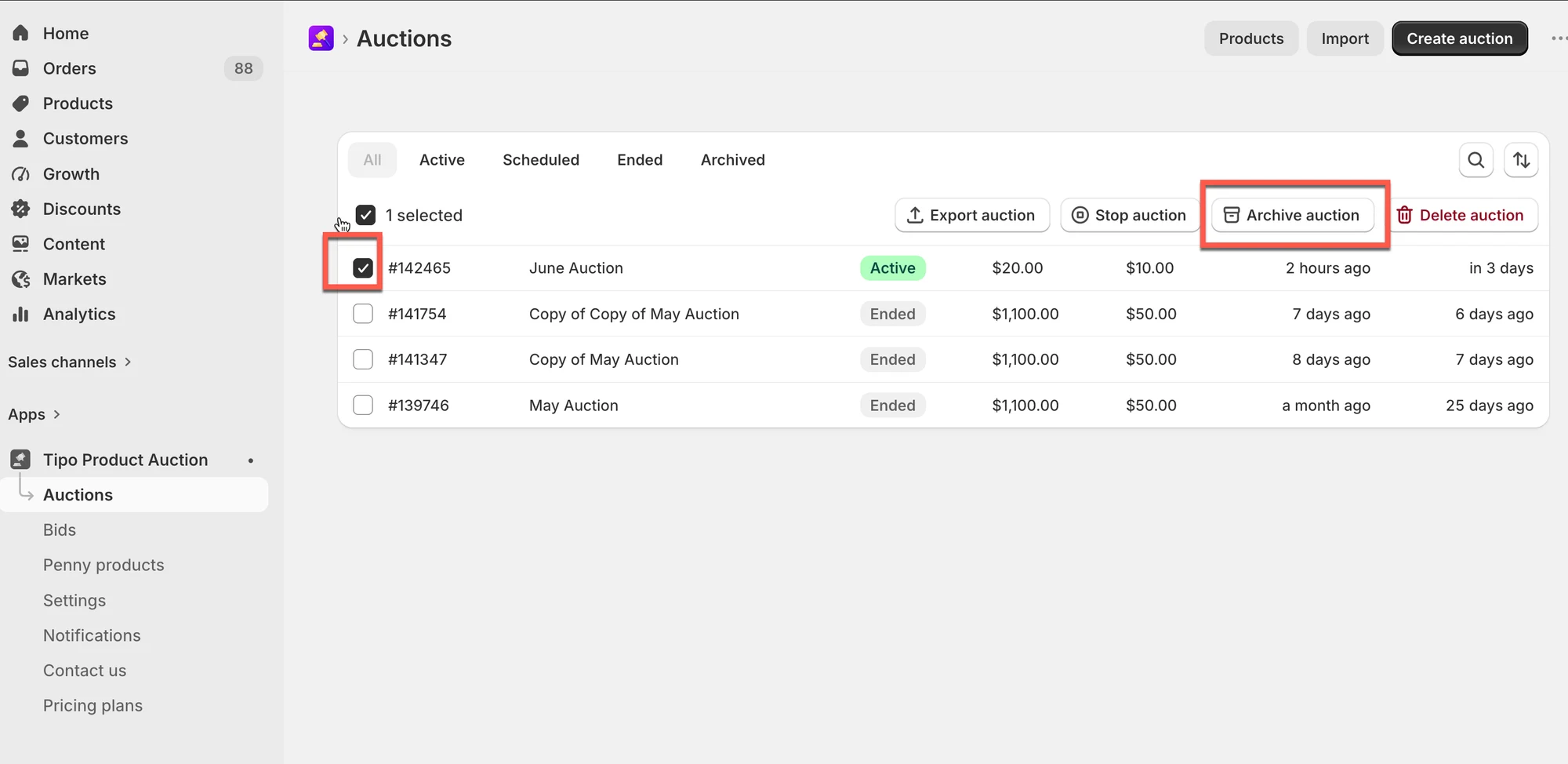
Section titled “⚙️ How to set”- Go to the app > click Auctions
- Select one or more auctions
- Click Archive auction
- Confirm the action
After an auction is archived:
- The auction widget is hidden from your storefront. Customers can purchase the product normally.
- Auction history is preserved in the app
- The auction is moved to the Archived tab for future reference
🙋 Still need support?
If you still need help, please feel free to contact us at hi@tipo.io. We’ll be happy to assist you further.