
自訂電子郵件內容
AI 概覽
自訂 Tipo 預約電子郵件的主旨與內容並插入變數,變數是寄送電子郵件時會被替換成實際預約、顧客與服務詳細資料的佔位符。顧客與人員只會看到最終的值,不會看到變數程式碼。
查看更多收合
- 開啟應用程式,點選 Notifications,並選擇 Customer、Team member 或 Merchant。
- 點選要編輯的電子郵件範本,更新 Subject 與 Content,然後點選 Save。
- 變數以雙大括號包住,例如 `{{ customer.name }}` 或 `{{ booking.start_at }}`。
- 複製變數並貼到 Subject 或 Content 中。
由 AI 產生的摘要,可能有錯誤,請參閱下方的完整指南。
您可以自訂電子郵件的 Subject 和 Content,並插入變數(預留位置),讓實際寄出的電子郵件自動顯示預約、顧客或服務資訊。
🛠️ 編輯電子郵件範本的步驟
Section titled “🛠️ 編輯電子郵件範本的步驟”- 開啟應用程式 > 點選 Notifications
- 選擇 Customer、Team member 或 Merchant
- 點選您要編輯的電子郵件範本
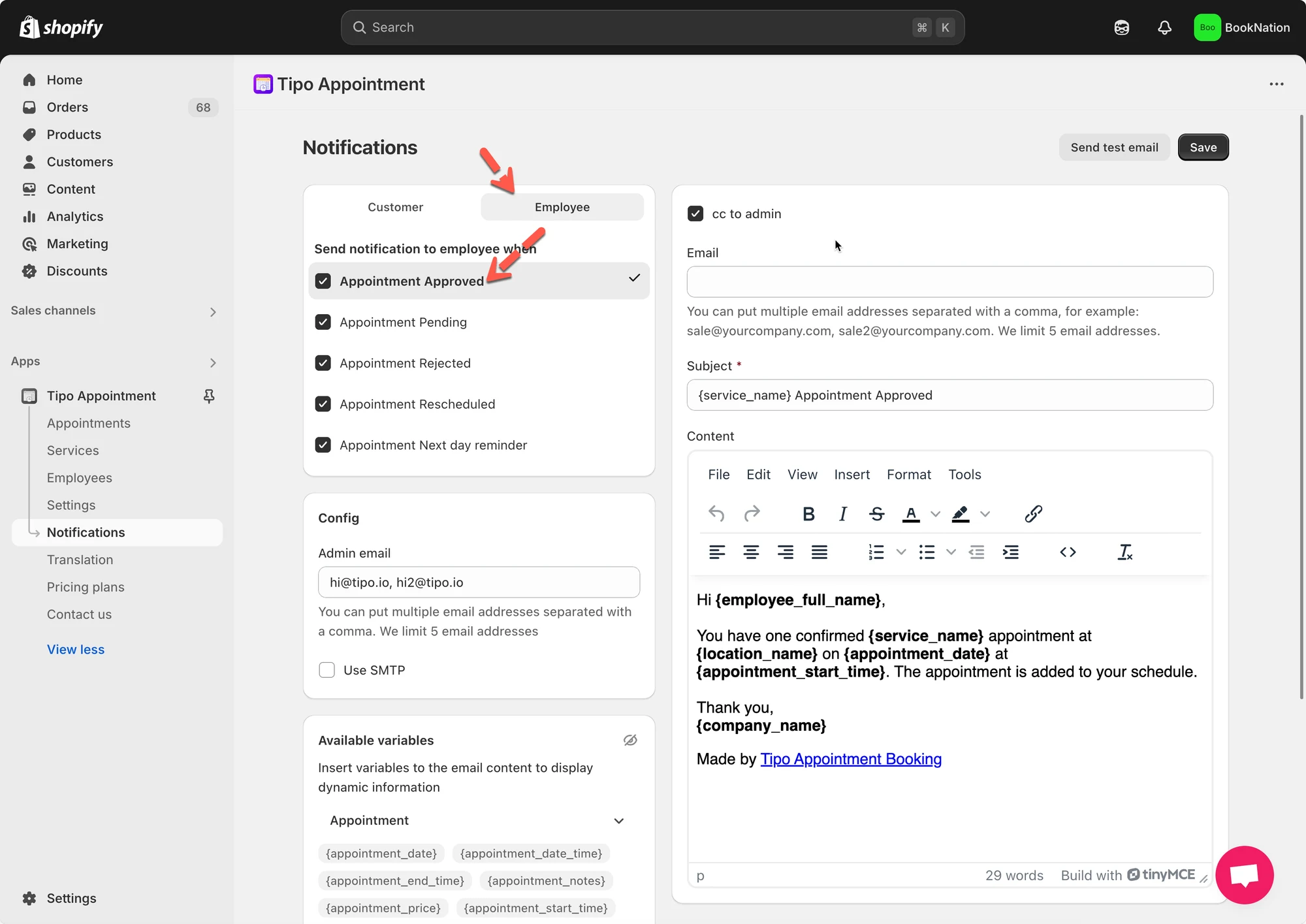
- 在範本編輯器中:
- 更新 Subject
- 更新 Content(郵件內文)
- 點選 Save
🧩 插入變數(動態資料)
Section titled “🧩 插入變數(動態資料)”變數可讓您在電子郵件中自動顯示真實的預約資訊,例如顧客姓名、服務名稱、日期、時間和地點。
寄出電子郵件時,Tipo 會將每個變數替換為預約中的實際資料。
📌 什麼是變數?
Section titled “📌 什麼是變數?”變數是以雙大括號包住的預留位置,例如:
{{ customer.name }}{{ variant.name }}{{ booking.start_at }}
⇒ 顧客和員工永遠不會看到變數代碼,只會看到最終的值。
➕ 如何插入變數
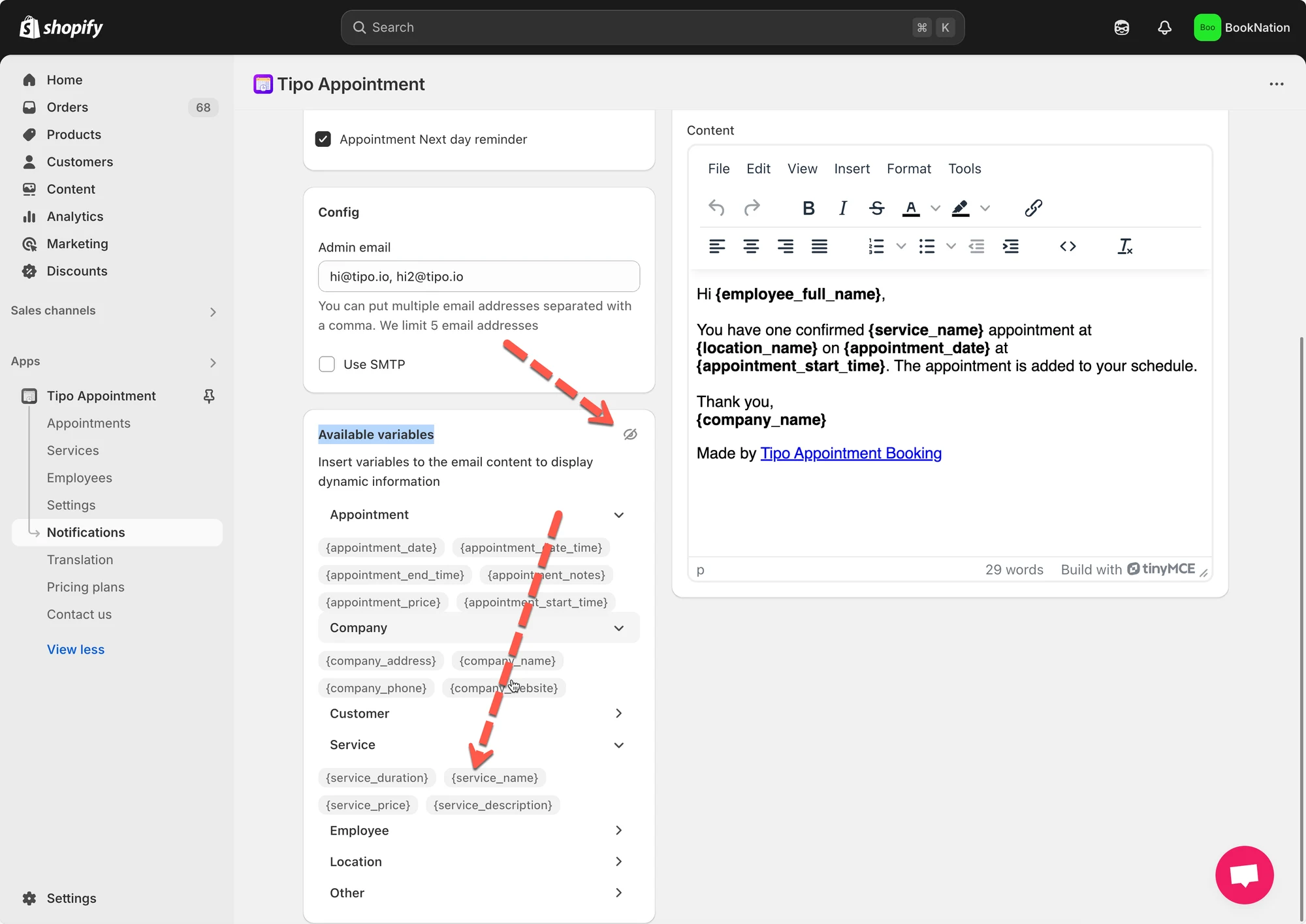
Section titled “➕ 如何插入變數”- 複製變數(範例:
{{ booking.start_time }}) - 貼到 Subject 或 Content 中
✉️ 範例:顧客確認電子郵件
Section titled “✉️ 範例:顧客確認電子郵件”Subject
Your booking for {{ variant.name }} is confirmedEmail content
Hi {{ customer.name }},
Your booking has been confirmed. Here are the details:
Service: {{ variant.name }}Date: {{ booking.start_date }}Time: {{ booking.start_time }} – {{ booking.end_time }}Location: {{ booking.location }}
We look forward to seeing you!
📌 顧客看到的結果:
Hi Anna,
Your booking for Yoga Class is confirmed
Date: Dec 17, 2025
Time: 08:00 – 09:00
Location: Hanoi Studio
🙋 還需要協助嗎?
如果您仍需要協助,歡迎隨時寄信至 hi@tipo.io 與我們聯繫,我們很樂意為您提供進一步的協助。