
解除安裝應用程式
AI 概覽
從您的 Shopify 商店移除 Tipo Appointment Booking,包括應用程式新增的任何佈景主題檔案。您可以從應用程式自動解除安裝,這是最快且最安全的方式,或手動刪除應用程式的佈景主題檔案與程式碼片段。
查看更多收合
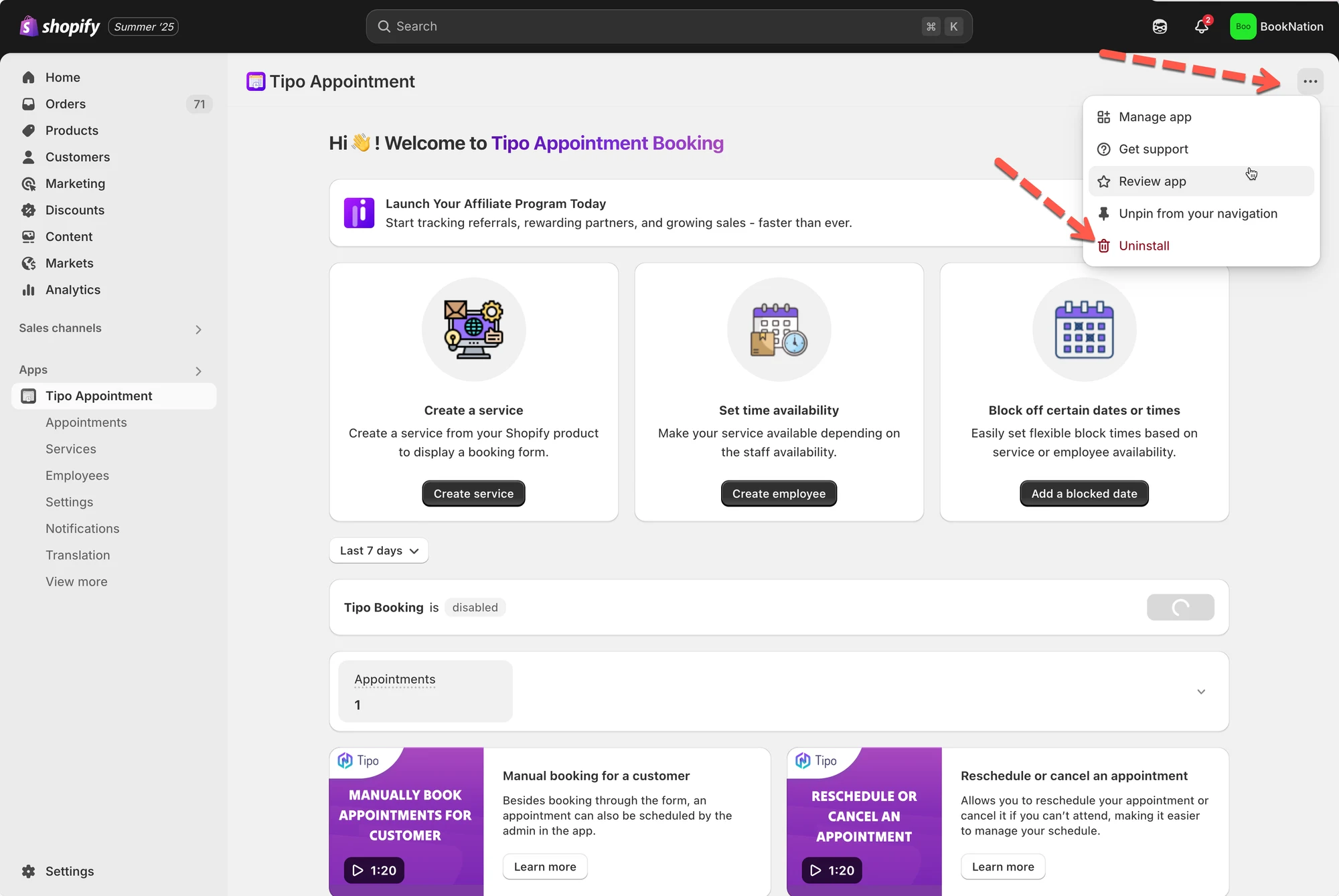
- 自動:開啟應用程式,點選 Uninstall 以從已整合的佈景主題中移除,然後從您的 Shopify 應用程式清單中移除應用程式。
- 手動:在 Edit code 中,刪除 `Tipo.booking.js`、`Tipo.booking.scss.liquid`、`Tipo.booking.script.liquid` 與 `Tipo-booking-form.liquid`。
- 移除 `theme.liquid` 中的 snippet include,以及 `customers/account.liquid` 中的 booking history 區塊。
- 刪除您手動新增的任何預約表單容器。
- 可選擇將意見回饋寄至 hi@tipo.io。
由 AI 產生的摘要,可能有錯誤,請參閱下方的完整指南。
本指南說明從您的 Shopify 商店移除 Tipo Appointment Booking 最乾淨的方式,包括移除應用程式新增的任何佈景主題檔案。
🧹 自動解除安裝
Section titled “🧹 自動解除安裝”如果您想要最快速、最安全的解除安裝方式,請使用此選項。
- 開啟應用程式
- 點擊 Uninstall,將應用程式從已整合的佈景主題中移除
- 從您的 Shopify 應用程式清單中移除應用程式
🧰 手動解除安裝
Section titled “🧰 手動解除安裝”如果您想從佈景主題中完全移除應用程式的檔案/程式碼片段,請使用此方式(進階)。
1) 刪除這些佈景主題檔案
Section titled “1) 刪除這些佈景主題檔案”在 Shopify Admin → Online Store → Themes → Edit code 中,刪除:
Assets/Tipo.booking.jsAssets/Tipo.booking.scss.liquidSnippets/Tipo.booking.script.liquidSections/Tipo-booking-form.liquid
2) 移除 theme.liquid 中引入的程式碼片段
Section titled “2) 移除 theme.liquid 中引入的程式碼片段”前往 Layout/theme.liquid 並刪除:
{% include 'tipo.booking.script' %}
3) 移除顧客帳號範本中的預約紀錄區塊
Section titled “3) 移除顧客帳號範本中的預約紀錄區塊”前往 Templates/customers/account.liquid 並刪除:
<div id="tpb-history-booking"></div>
4) 移除預約表單容器(如果您曾新增)
Section titled “4) 移除預約表單容器(如果您曾新增)”如果您曾在任何頁面手動加入預約程式碼,請刪除:
<div class="tpb-booking-form page"></div>
✉️ 選填:分享意見回饋
Section titled “✉️ 選填:分享意見回饋”Tipo 也歡迎您將意見回饋寄到 hi@tipo.io