
Widget Overview
AI Overview
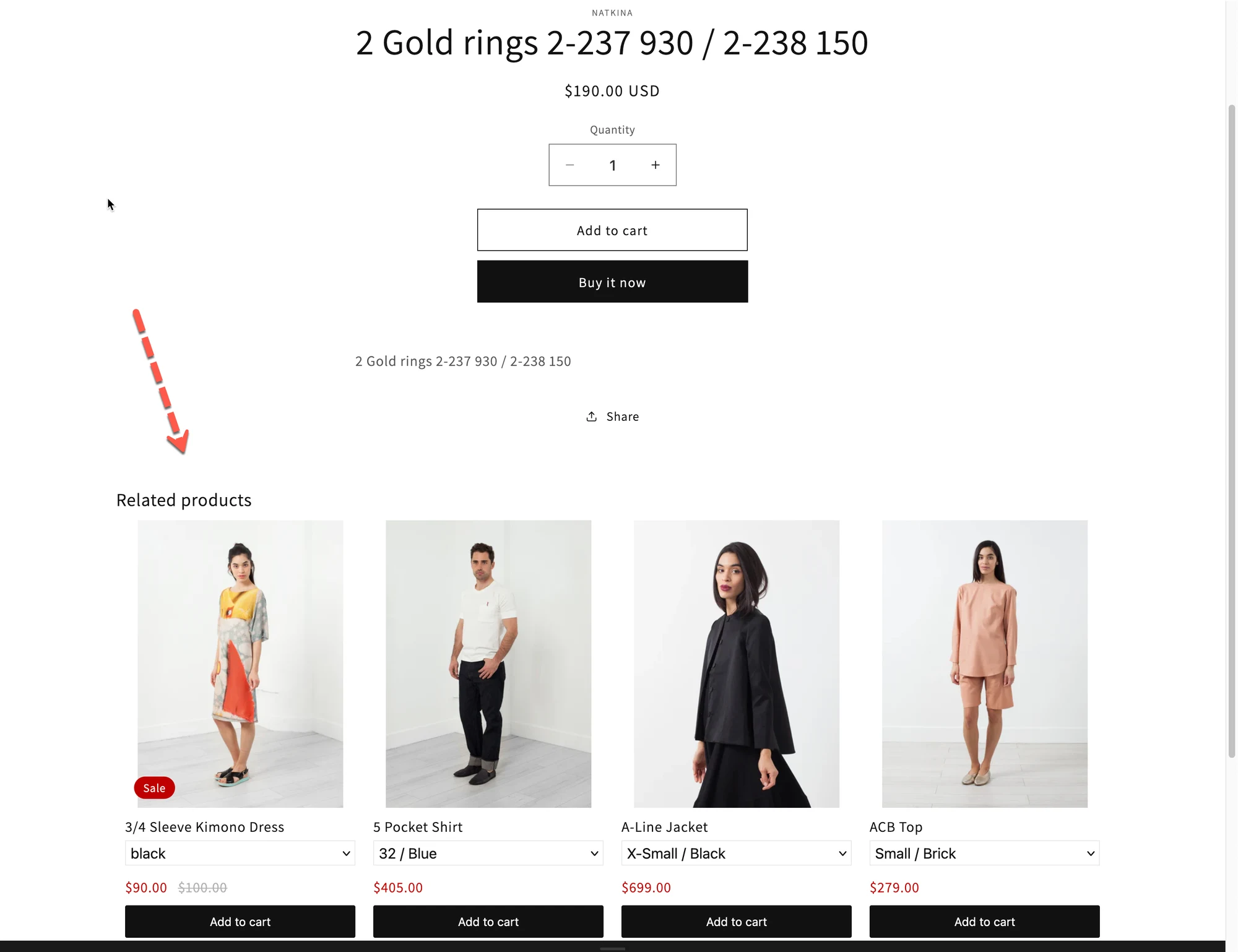
A widget is a block in Tipo Related Products that shows product recommendations on your store. Each widget controls where recommendations appear, which products show and how they look. This overview explains the setup flow, placements, how to manage multiple widgets and when a widget appears on your store.
View moreView less
- Setup flow: create, choose placement and layout, pick products, customize design, then activate and add to your theme.
- Each widget has one placement only.
- On the Widgets page you can create, edit, duplicate, delete, enable or disable widgets.
- It shows when Active, the placement matches the page, and it is added to the theme.
Summary generated by AI. It can make mistakes, so check the full guide below.
ℹ️ What is a widget?
Section titled “ℹ️ What is a widget?”A widget is a block that shows product recommendations on your store.
Each widget controls:
- Where recommendations appear (Product page, Cart page, etc.)
- What products are shown
- How they look (layout, design, style)
⚙️ How to set a widget
Section titled “⚙️ How to set a widget”Every widget follows the same simple flow:
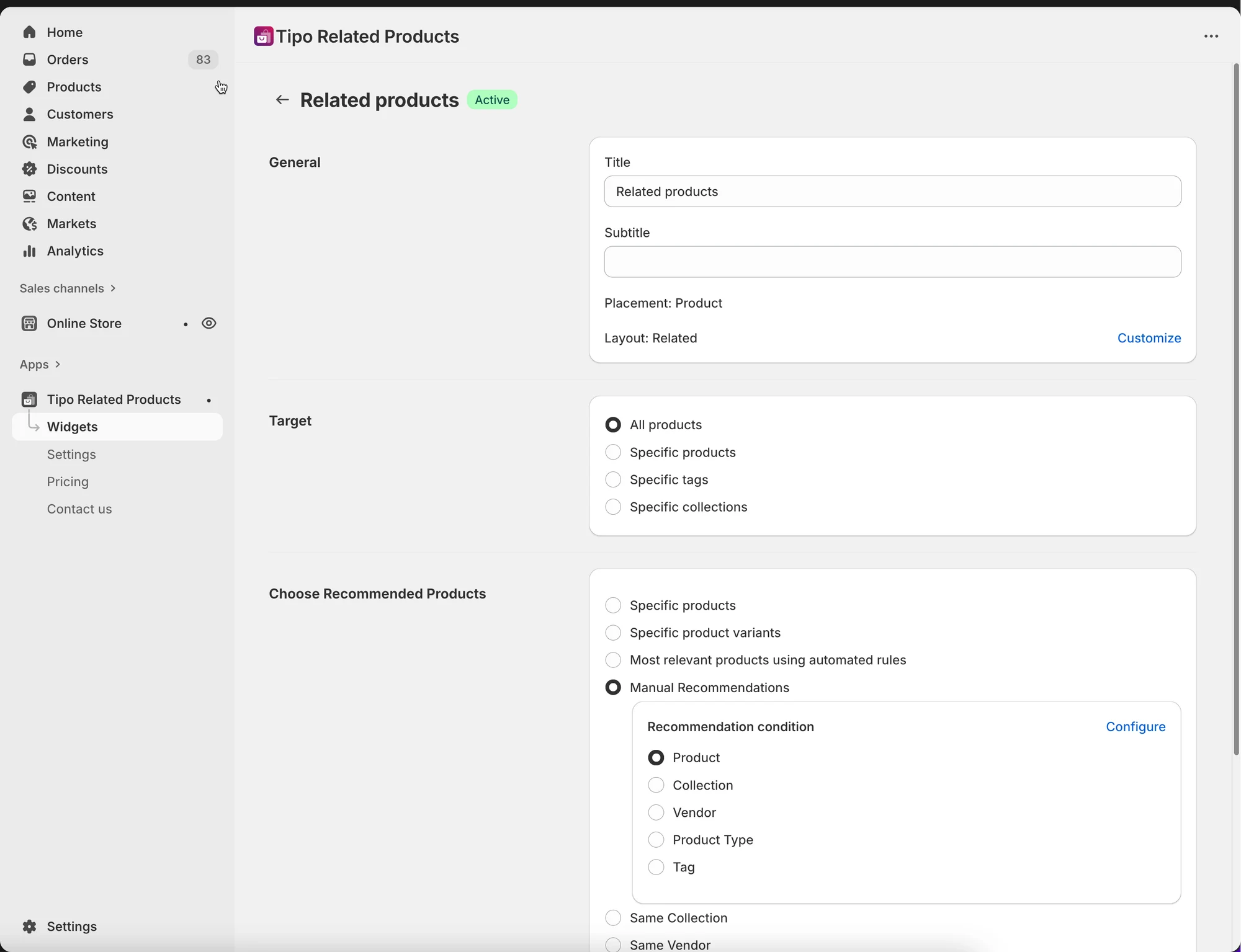
- Create a widget in the app
- Choose a placement
- Product page
- Collection page
- Cart page
- Home page
- Search page
- Thank you page
- Select a layout
- Related products
- Frequently Bought Together
- Add-ons
- Recently viewed
- Choose which products to recommend
- Automatically (same collection, tags, etc.)
- Manually (you pick the products)
- Customize the design
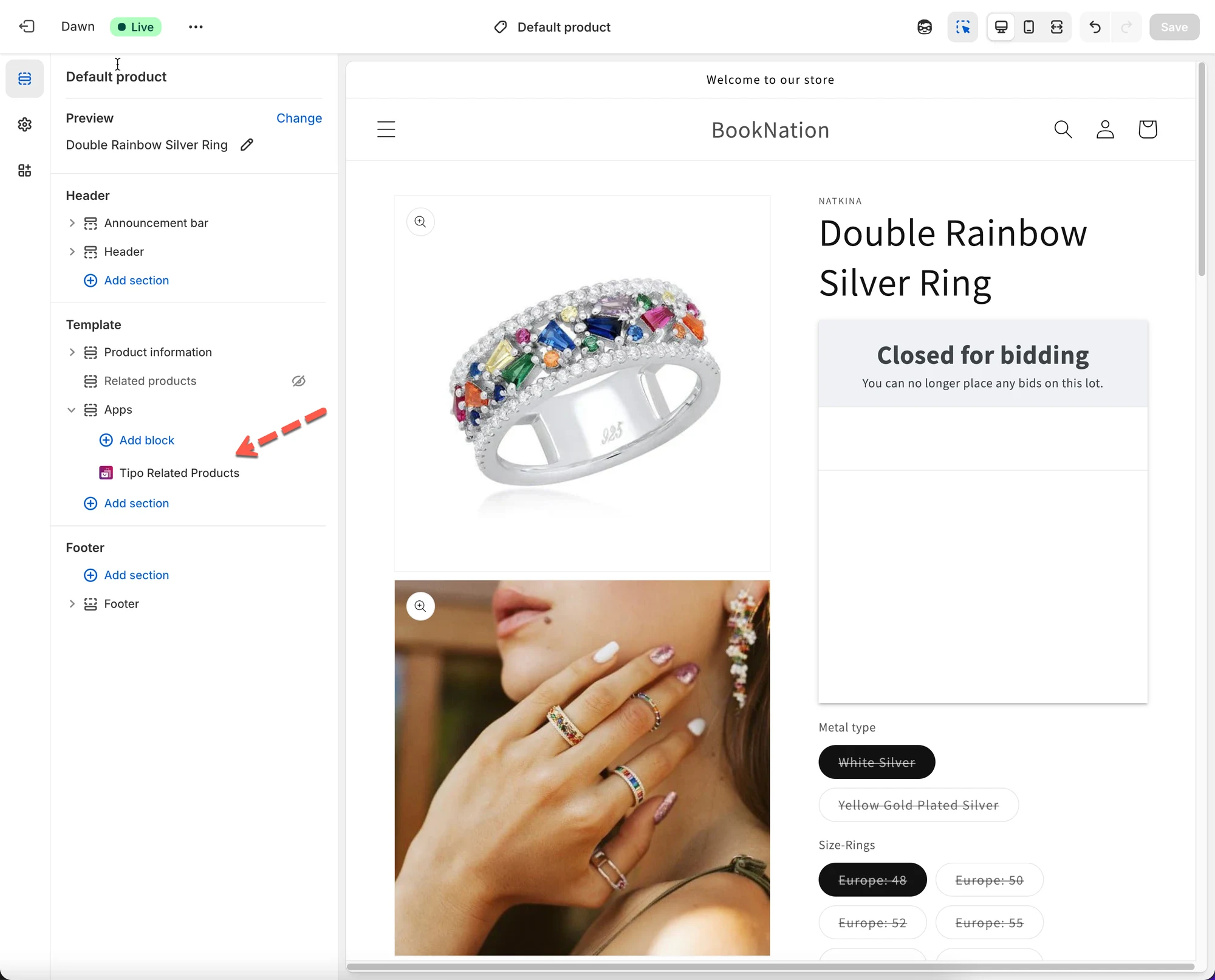
- Activate the widget and add it to your theme
📍 Where widgets appear
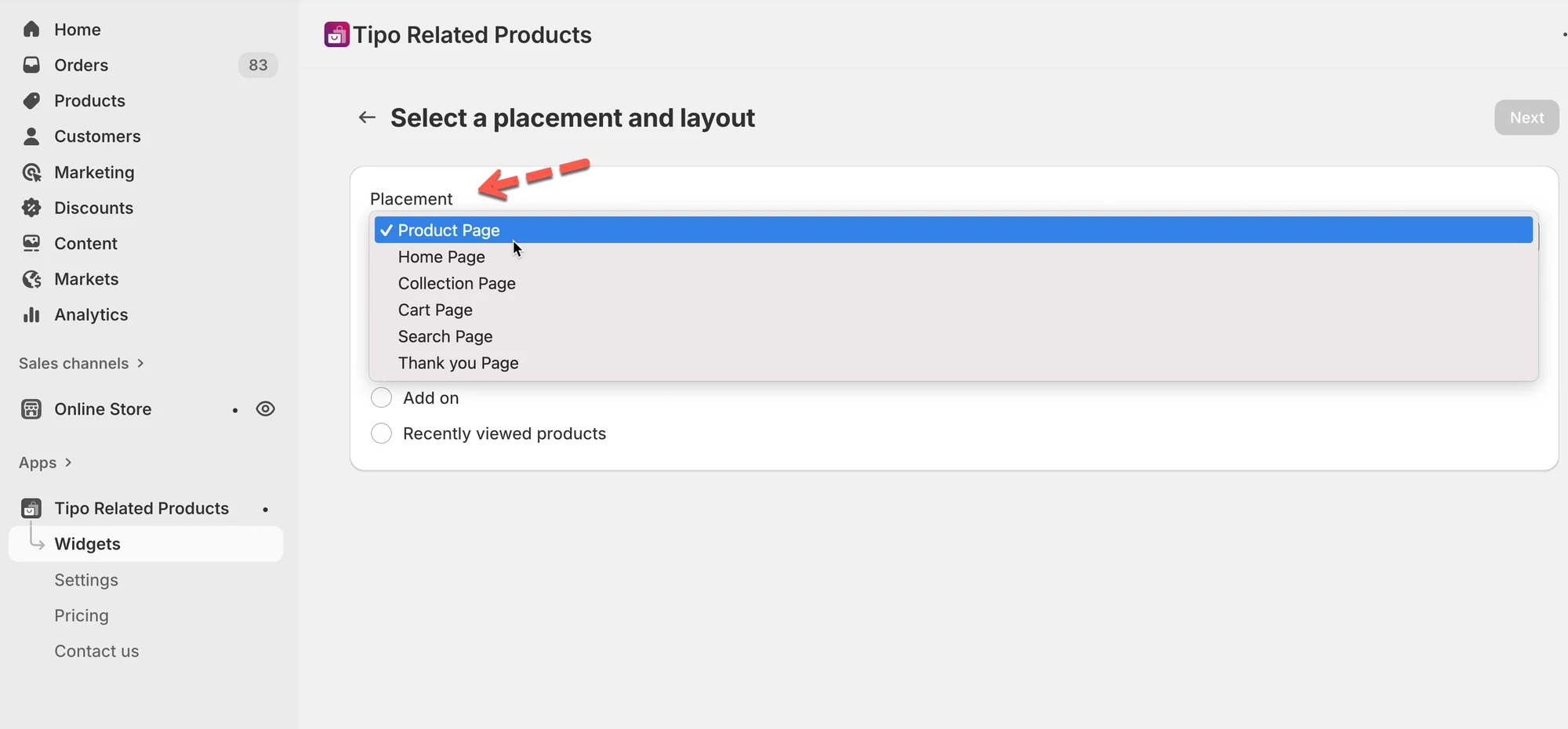
Section titled “📍 Where widgets appear”Widgets can appear on different pages of your store.
Each widget can be used on one placement only.
Examples:
- Product page → Show “You may also like”
- Cart page → Show “Frequently bought together”
- Thank you page → Show post-purchase upsells
🗂️ Manage multiple widgets
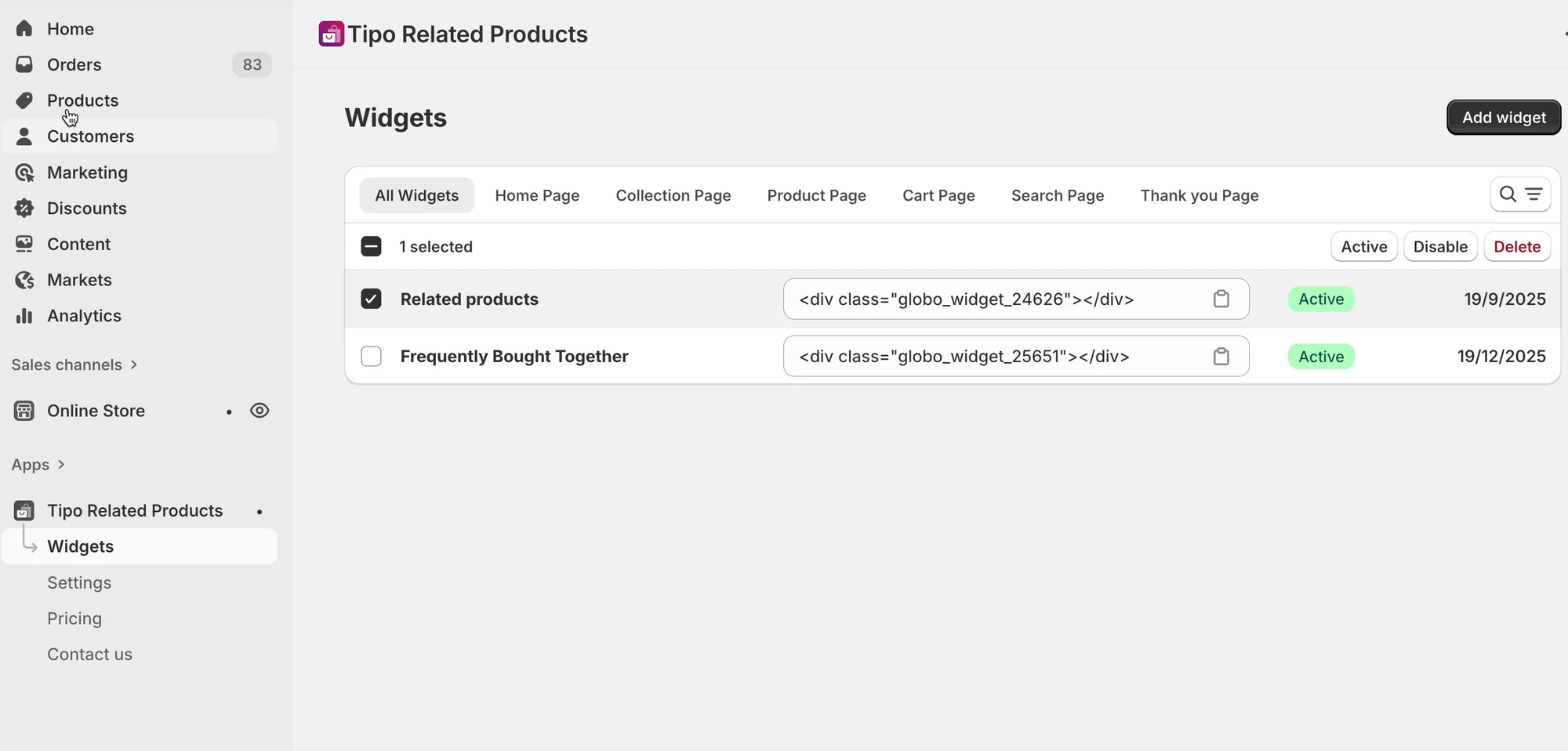
Section titled “🗂️ Manage multiple widgets”You can create multiple widgets for different pages and use cases.
On the Widgets page, you can:
- Create new widgets
- Edit existing widgets
- Duplicate widgets
- Delete widgets
- Enable or disable widgets
💡 Tip: Use clear names like
“Related – Product page” or “Upsell – Cart page” to stay organized.
✅ When a widget shows on your store
Section titled “✅ When a widget shows on your store”A widget will appear on your store when:
- The widget is Active
- The widget’s placement matches the page
- The widget is added to your theme
- App block (Online Store 2.0)
- Shortcode (Vintage themes)
📘 What you’ll learn in this section
Section titled “📘 What you’ll learn in this section”The Manage widgets section includes these guides:
- Create a widget
- Display a widget on your store
- Edit a widget
- Duplicate a widget
- Delete a widget
👉 Start with Create a widget to build your first recommendation.
🙋 Still need support?
If you still need help, please feel free to contact us at hi@tipo.io. We’ll be happy to assist you further.