
Targeting rules (where widget applies)
AI Overview
Targeting rules in Tipo Related Products control which products a widget appears on. You can target all products, specific products, specific tags or specific collections. Targeting decides where the widget shows, not what it recommends, which is set separately.
View moreView less
- Open Widgets, open a widget and find the Target section.
- Select All products, Specific products, Specific tags or Specific collections, choose the items if needed and click Save.
- Targeting does not control the products recommended; use Choose recommended products for that.
- For several widgets on one placement, use different targeting rules and display order.
Summary generated by AI. It can make mistakes, so check the full guide below.
Targeting rules control where your widget will show.
They help you decide if the widget should appear on all products or only on specific products, tags, or collections.
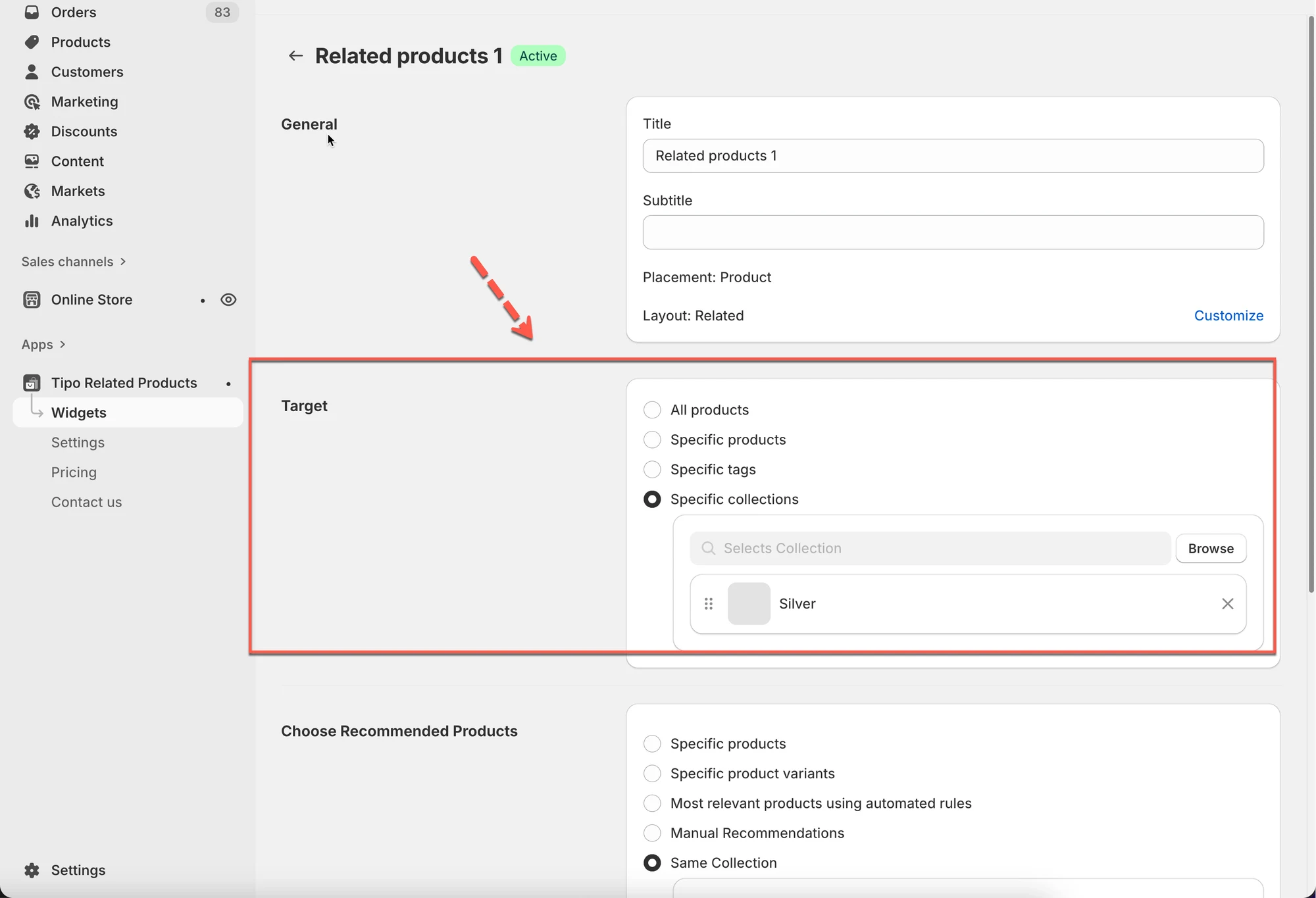
ℹ️ What does “Targeting” mean?
Section titled “ℹ️ What does “Targeting” mean?”Think of targeting as:
“Which products should display this widget?”
For example:
- Show this widget on all products
- Show this widget only on products in the Shoes collection
- Show this widget only on products with the summer tag
ℹ️ Target options explained
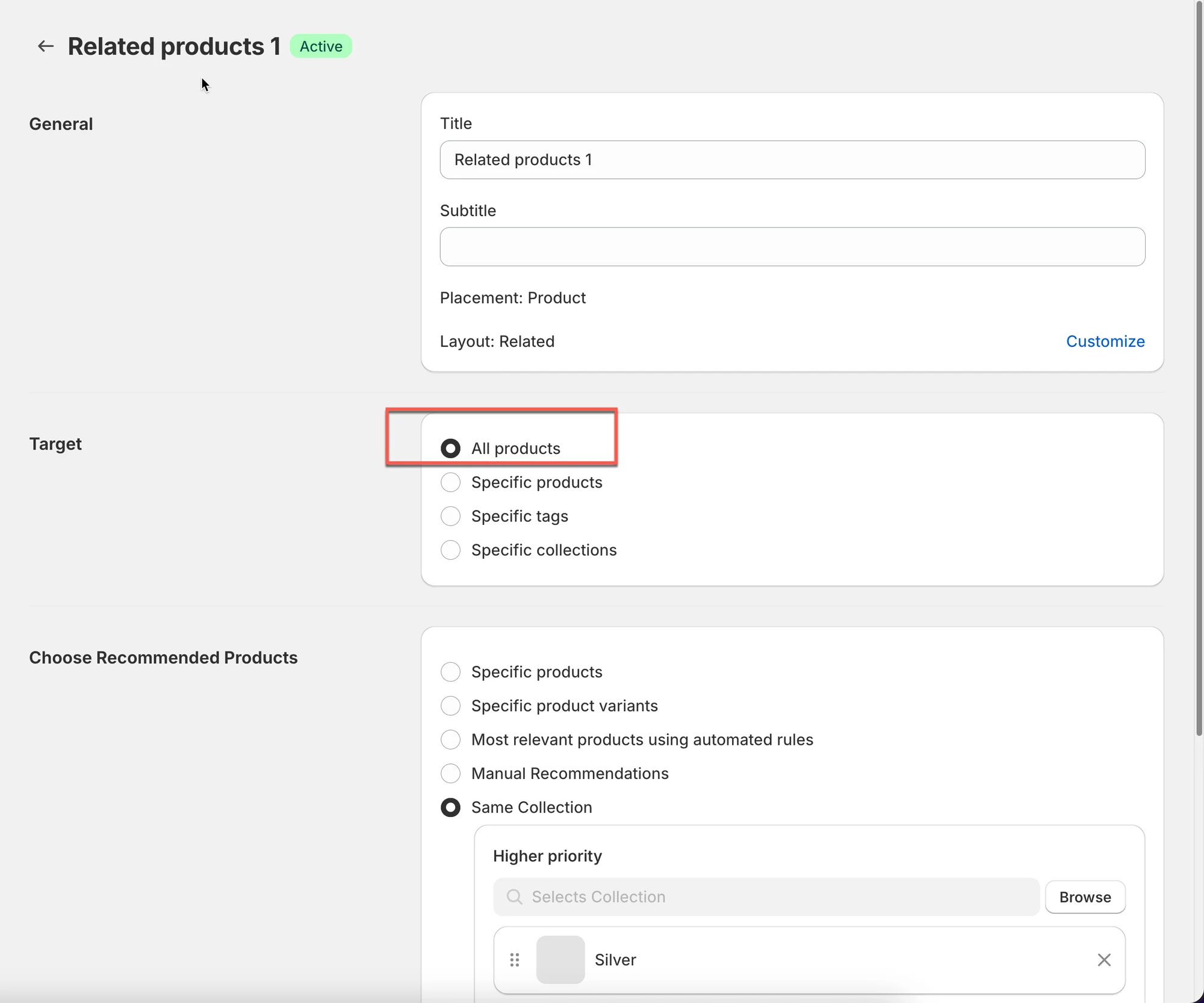
Section titled “ℹ️ Target options explained”All products
Section titled “All products”The widget shows on every product that matches the widget placement.
Best for: stores that want one recommendation widget everywhere.
Specific products
Section titled “Specific products”The widget shows only on products you select.
Best for: high-priority products, bestsellers, or special campaigns.
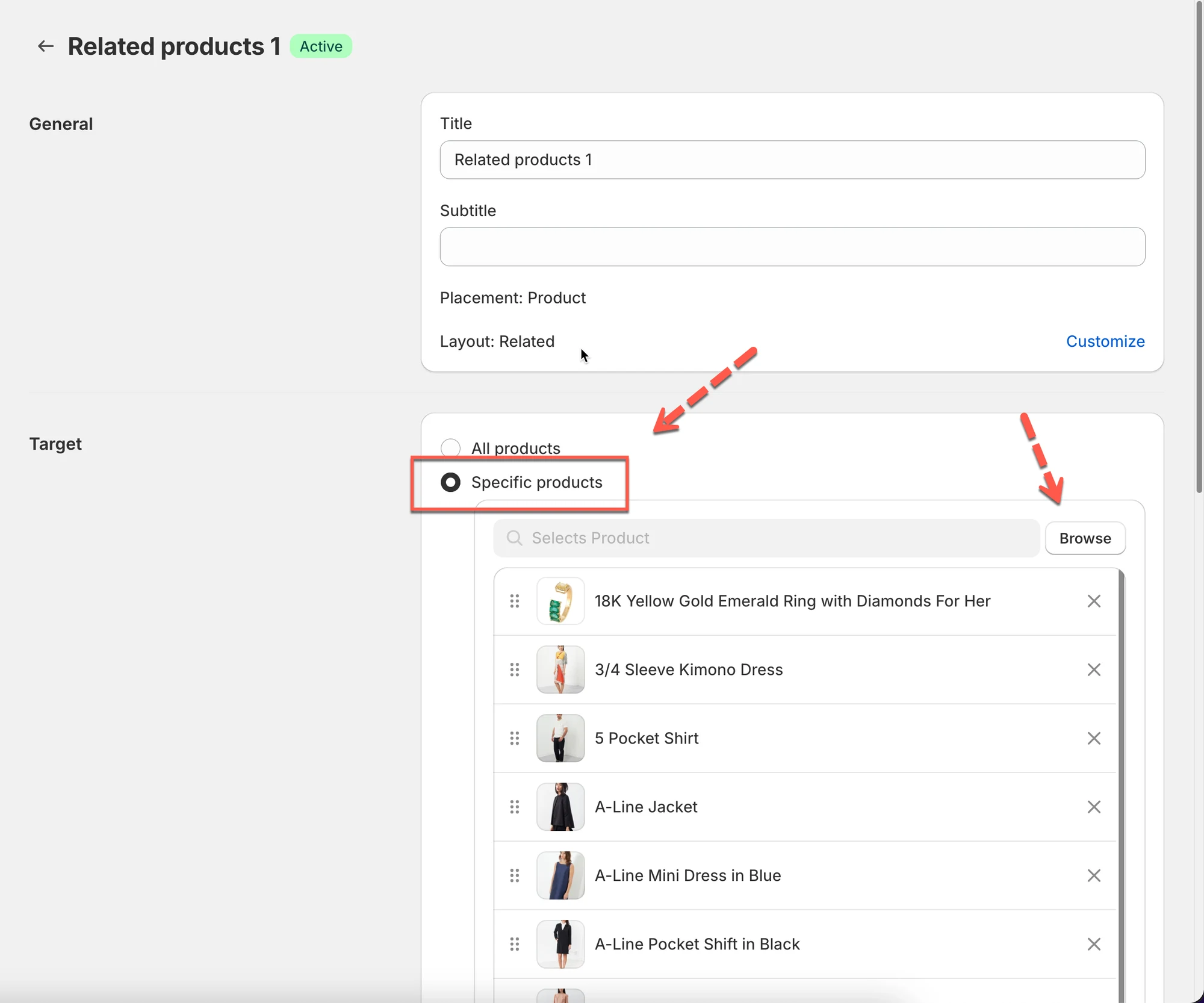
Example
Show “Frequently Bought Together” only for your Top 10 bestsellers.
Specific tags
Section titled “Specific tags”The widget shows only on products that have selected product tags.
Best for: seasonal groups or product categories you manage with tags.
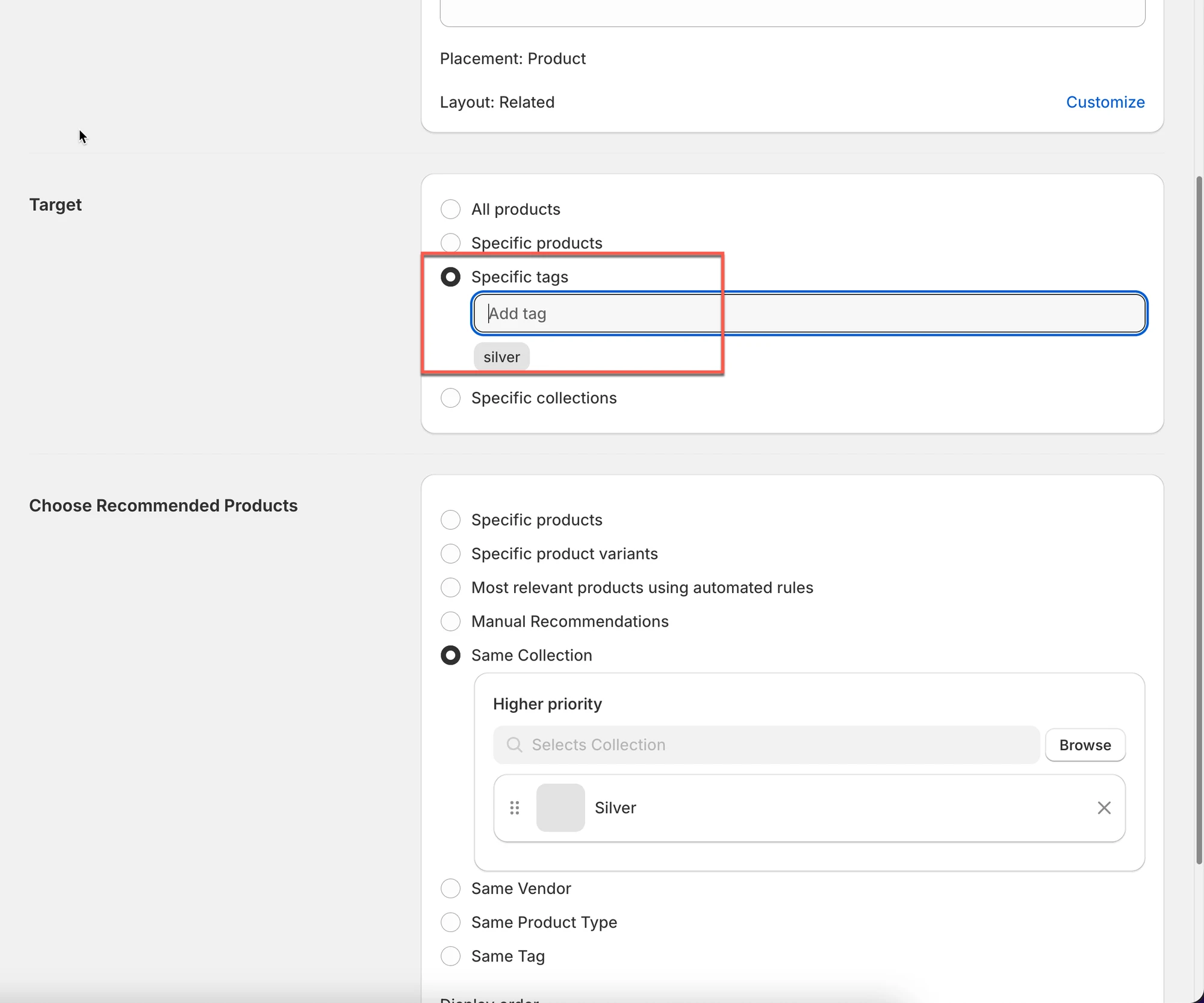
Example
Tag products with silver → show a gift-related widget only on those products.
Specific collections
Section titled “Specific collections”The widget shows only on products inside selected collections.
Best for: category-level control (Shoes, Skincare, Accessories, etc.)
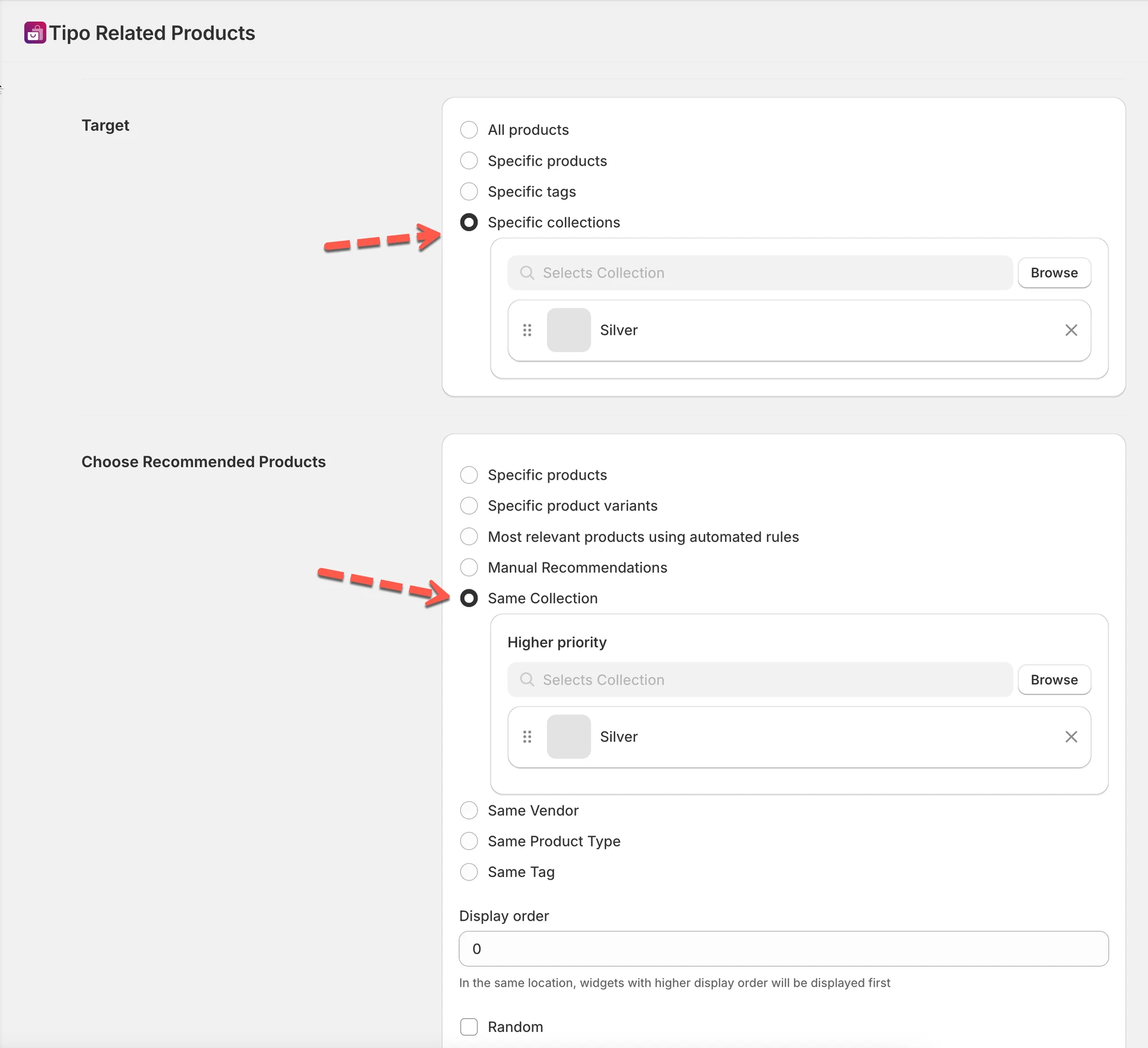
Example
Show “Related products” only in the Silver collection.
🛠️ Step 1: Open targeting settings
Section titled “🛠️ Step 1: Open targeting settings”- Go to the app > click Widgets
- Open the widget you want to configure.
- In the editor, find the Target section
🛠️ Step 2: Choose where the widget applies
Section titled “🛠️ Step 2: Choose where the widget applies”- Select one target option:
- All products
- Specific products
- Specific tags
- Specific collections
- Select the products/tags/collections (if needed).
- Click Save.
⚠️ Important notes
Section titled “⚠️ Important notes”- Targeting controls where the widget appears, not what it recommends.
- If you want to control what products are shown inside, go to:
⇒ Choose recommended products (what to show)
Tip
If you create multiple widgets for the same placement, use:
- different targeting rules
- display order (priority)
🙋 Still need support?
If you still need help, please feel free to contact us at hi@tipo.io. We’ll be happy to assist you further.