
Cart upsell widgets – Design
AI Overview
Explains how to design Cart upsell widgets in Tipo Related Products, which show recommended products inside the cart so customers can add items without leaving it. The four cart views share similar design controls for template, size, position, elements and colors.
View moreView less
- Open the app, then Settings > Design > More views.
- Choose Cart Related, Cart Add on, Cart Inline Offer or Cart Recently viewed products.
- Pick a template (Vertical or List is recommended for carts) and set width and number of products.
- Set Position, elements and colors; inline offers may need a snippet pasted into your cart file.
- Some cart types show limited or no preview, so test in your real cart, then click Save.
Summary generated by AI. It can make mistakes, so check the full guide below.
Cart upsell widgets help you increase order value by showing recommended products directly in the cart.
Customers can add extra items without leaving the cart.
🛠️ Where to find Cart upsell design settings
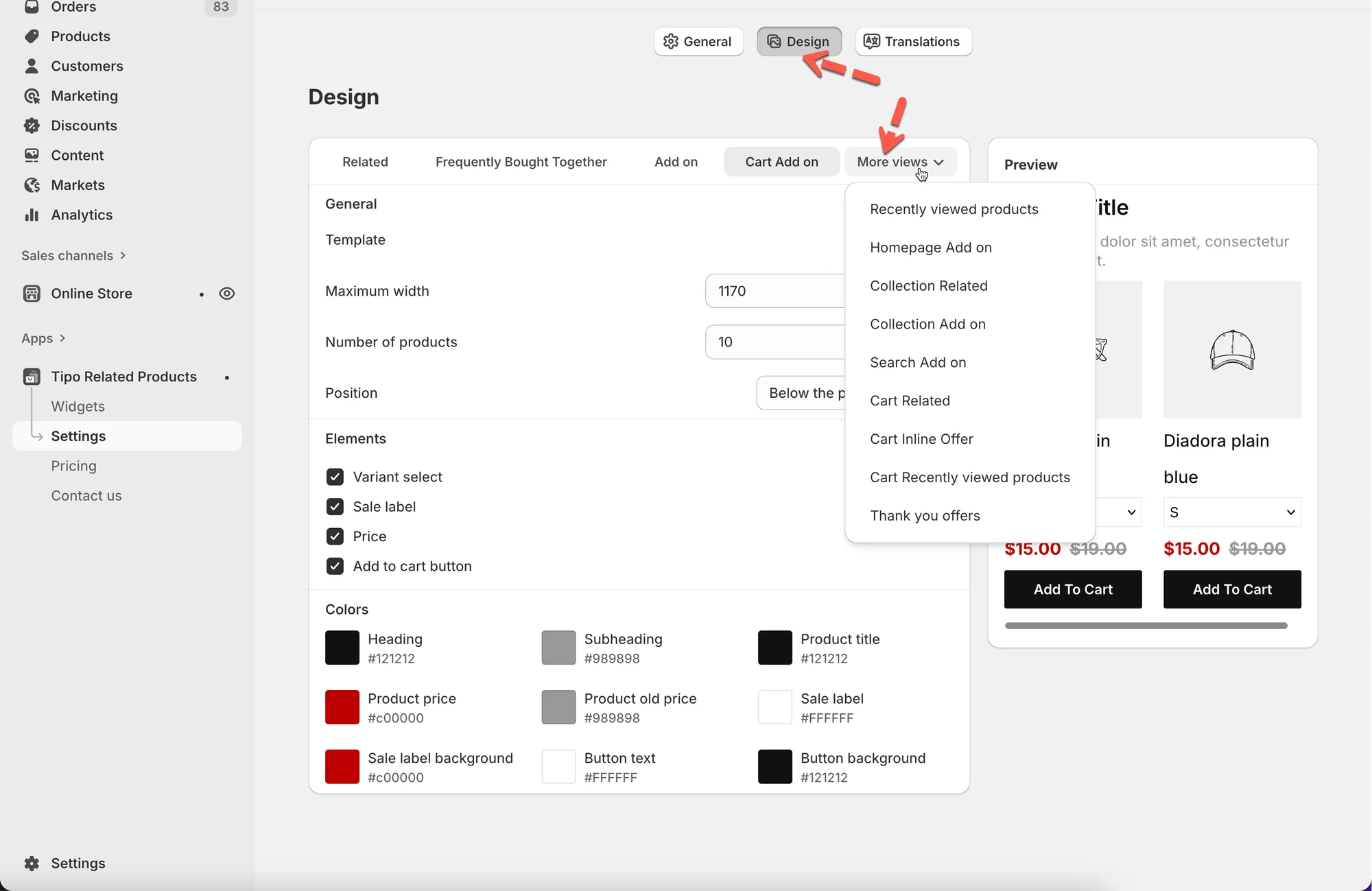
Section titled “🛠️ Where to find Cart upsell design settings”- Go to app > click Settings
- Click Design
- Click More views
- Choose one of the cart upsell options:
- Cart Related
- Cart Add on
- Cart Inline Offer
- Cart Recently viewed products
Each option is designed for a different cart experience, but they share similar design controls.
1) Choose a layout (Template)
Section titled “1) Choose a layout (Template)”The Template controls how upsell products appear inside the cart.
Available templates may include:
- Vertical – stacked cards (best for carts)
- List – compact rows
- Carousel – horizontal scrolling (less common in carts)
Recommended for carts:
Vertical or List, it is easy to scan and mobile-friendly.
2) Control size and quantity
Section titled “2) Control size and quantity”Maximum width
Section titled “Maximum width”Sets how wide the upsell widget can be.
- Example: 1170 for full-width carts
- Smaller values work well for drawer or sidebar carts
Number of products
Section titled “Number of products”Controls how many upsell products are shown.
- Example: 3 → keeps the cart clean and focused
- Too many products may overwhelm customers
Tip: 2–4 products usually perform best in carts.
3) Set widget placement (Position)
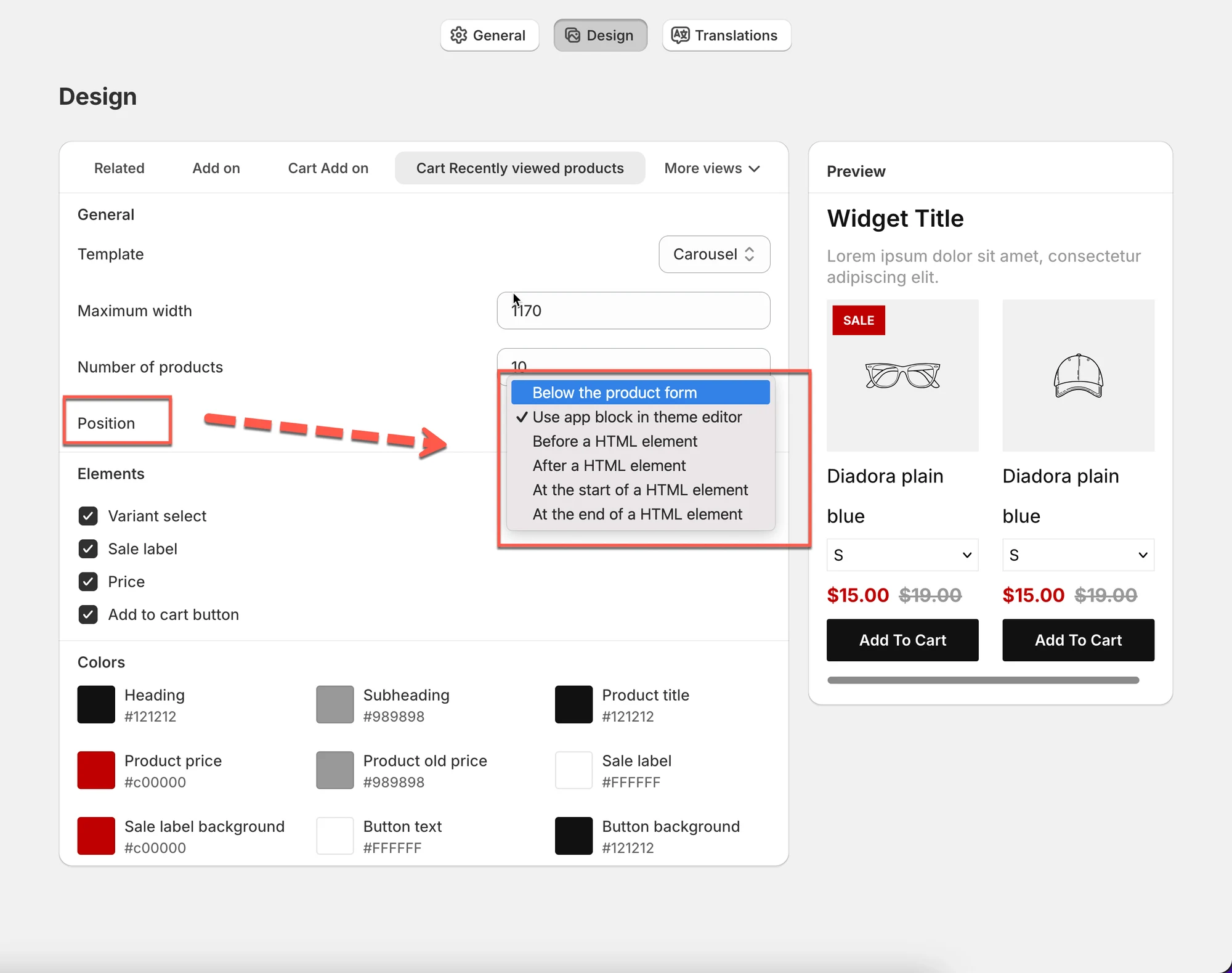
Section titled “3) Set widget placement (Position)”Depending on the cart upsell type, you may see placement options like:
- Use app block in theme editor (recommended)
- After a HTML element
- Inline inside cart items
Inline cart offers
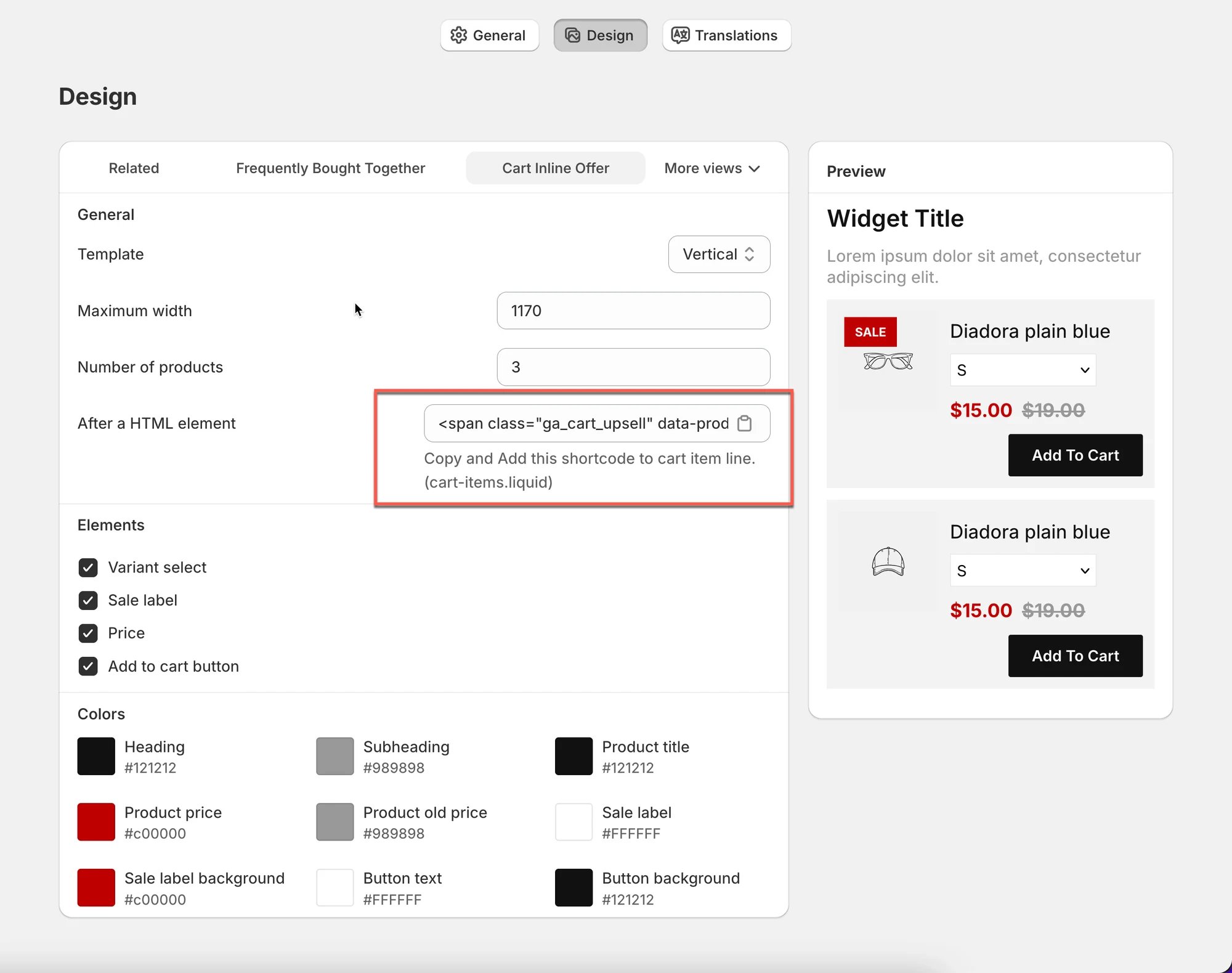
Section titled “Inline cart offers”Some cart widgets provide a shortcode / HTML snippet.
Example:
- Copy the provided snippet
- Paste it into your cart file (e.g.
cart-items.liquid) - This allows upsells to appear between cart items
⚠️ Only required for advanced or inline cart setups.
4) Choose visible elements
Section titled “4) Choose visible elements”Decide what customers see for each upsell product:
- Variant select
- Sale label
- Price
- Add to cart button
Best practice for cart upsells:
Section titled “Best practice for cart upsells:”- Price
- Add to cart button
- Sale label (optional)
- Variant select (optional, keeps cart simpler)
5) Style with colors
Section titled “5) Style with colors”Use the Colors section to match your store design:
- Heading & subheading
- Product title
- Price & old price
- Sale label & background
- Button text & background
Tip: Use the same button color as your main “Checkout” or “Add to cart” button for consistency.
6) Preview your cart upsell
Section titled “6) Preview your cart upsell”The Preview panel shows how the upsell widget will look in the cart.
Use it to check:
- spacing inside the cart
- readability on smaller screens
- button visibility
⚠️ Some cart types may show limited or no preview, this is normal. Always test in your real cart.
🧪Examples of Cart upsell widgets
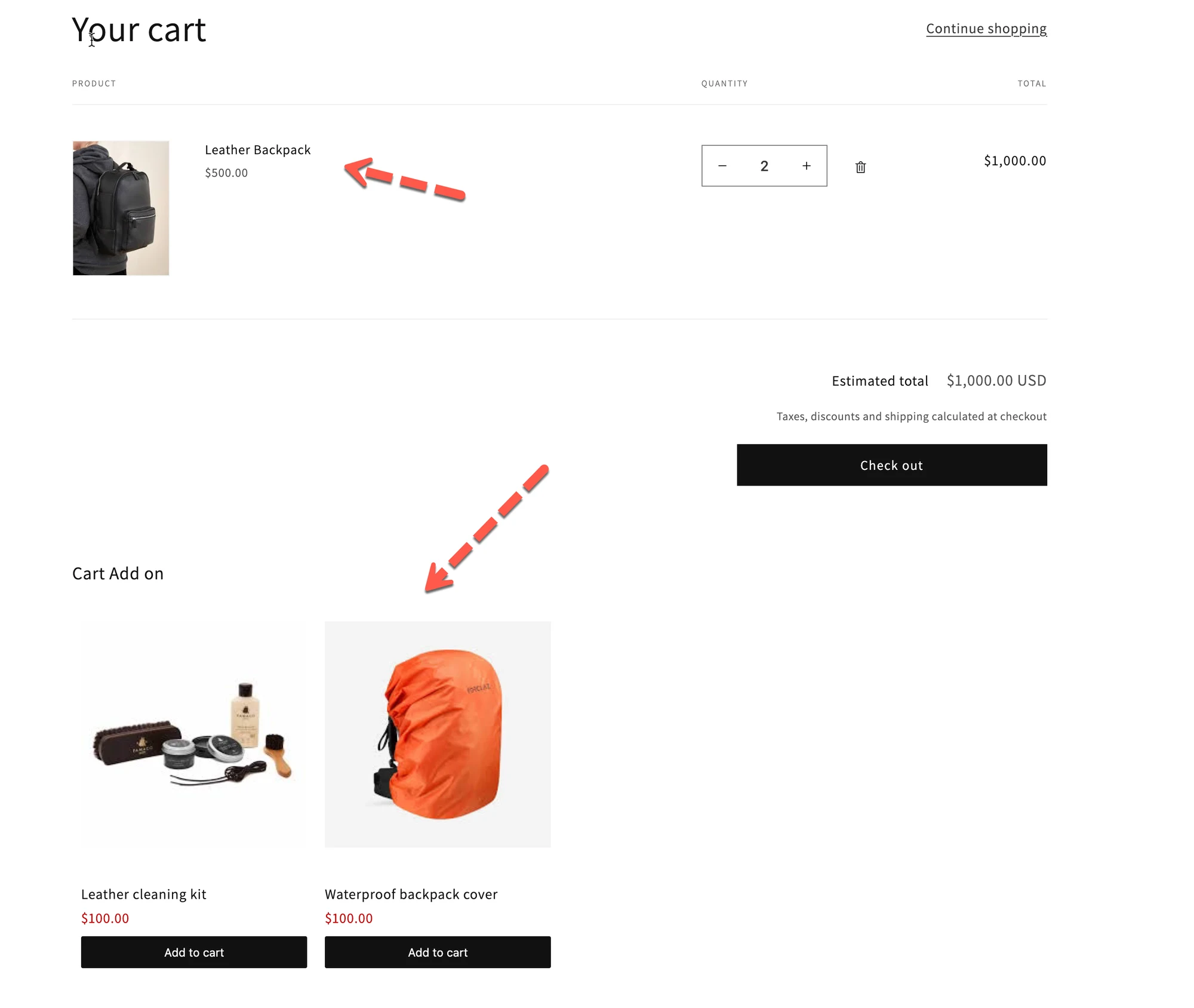
Section titled “🧪Examples of Cart upsell widgets”- Cart Add on:
Small add-ons like warranty, accessories, or extras
- Cart Inline Offer:
Upsell shown between cart items - Cart Recently viewed:
Remind shoppers of items they viewed earlier - Cart Related:
“You may also like” products related to cart items
💾 Save your changes
Section titled “💾 Save your changes”Click Save to apply your design settings.
🙋 Still need support?
If you still need help, please feel free to contact us at hi@tipo.io. We’ll be happy to assist you further.