
Order for the auction winner
AI Overview
Explains how an auction winner in Tipo Product Auction completes their purchase, and what the store admin sees afterward. When an auction ends or is stopped, a winner is selected automatically or manually and gets checkout access at the final winning bid price. The winner can pay through the winning email or from Auction history in their customer account.
View moreView less
- Option 1: the winner opens the winning email, clicks Complete your purchase, and pays at Shopify checkout.
- Winning emails are automatic on Gold and higher plans; Free and Silver plans must send an invoice manually from Shopify Orders.
- Option 2: the winner logs in, opens Auction history, and clicks Pay now.
- After payment, the order appears in Shopify Admin → Orders.
- If Pay now is missing, check the auction has ended, a winner is selected, the right account is logged in, and the payment period hasn't expired.
Summary generated by AI. It can make mistakes, so check the full guide below.
When an auction ends, the winning bidder can complete their purchase through the winning email notification or from the Auction history section in their customer account.
This guide explains how the winner is selected, how they can access checkout, and what happens after they complete their order.
🔄 What Happens When an Auction Ends?
Section titled “🔄 What Happens When an Auction Ends?”When an auction reaches its end time or is manually stopped:
The auction ends, auction widget is hidden on the site.
A winner is selected automatically or manually, depending on your auction settings.
The winning bidder receives access to checkout.
The winner can complete the purchase using the final winning bid price
Example:
- Product: 18-karat Gold Diamond Necklace
- Highest bid: $100
- Winner: Customer A
Customer A wins the auction with a final bid of $100 and can proceed to checkout to purchase the product.
📩 Option 1: Complete the Order from the Winning Email
Section titled “📩 Option 1: Complete the Order from the Winning Email”After the auction ends and a winner is selected, Tipo Auction sends a winning notification to the winner’s email address. Enable the email template in the app.
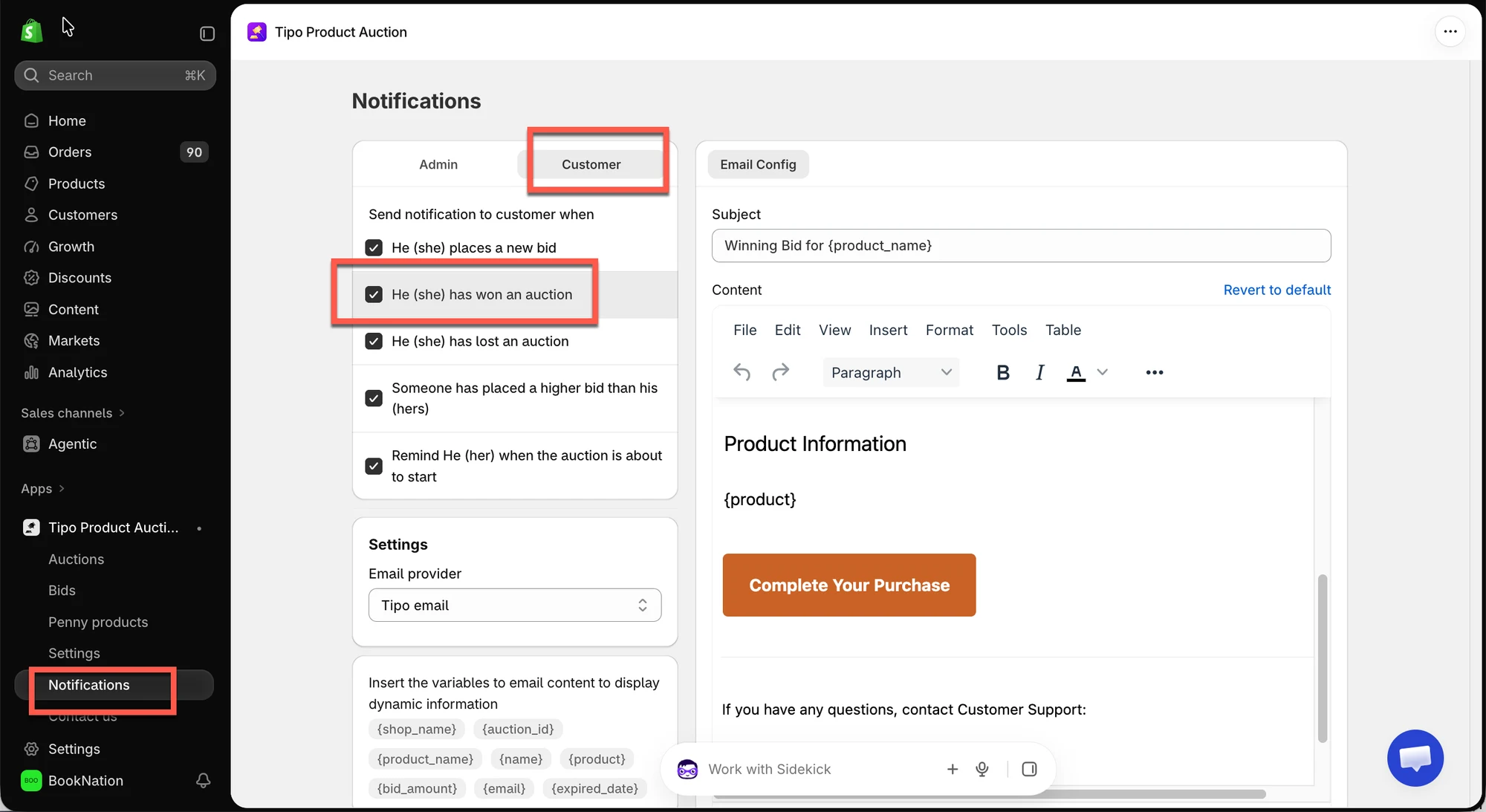
The winner can complete the purchase by following these steps:
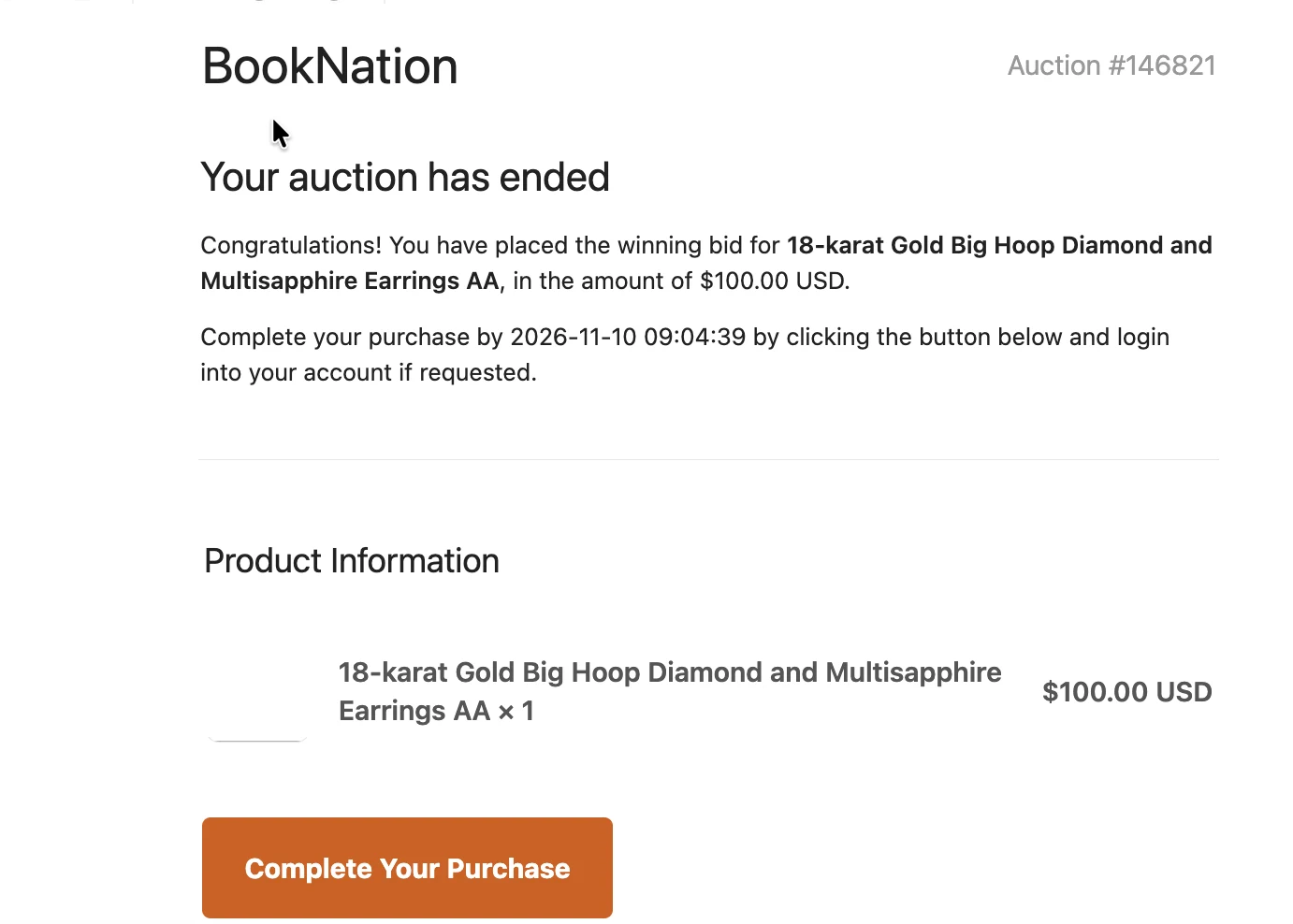
- Open the winning email notification.
- Click Complete your purchase.
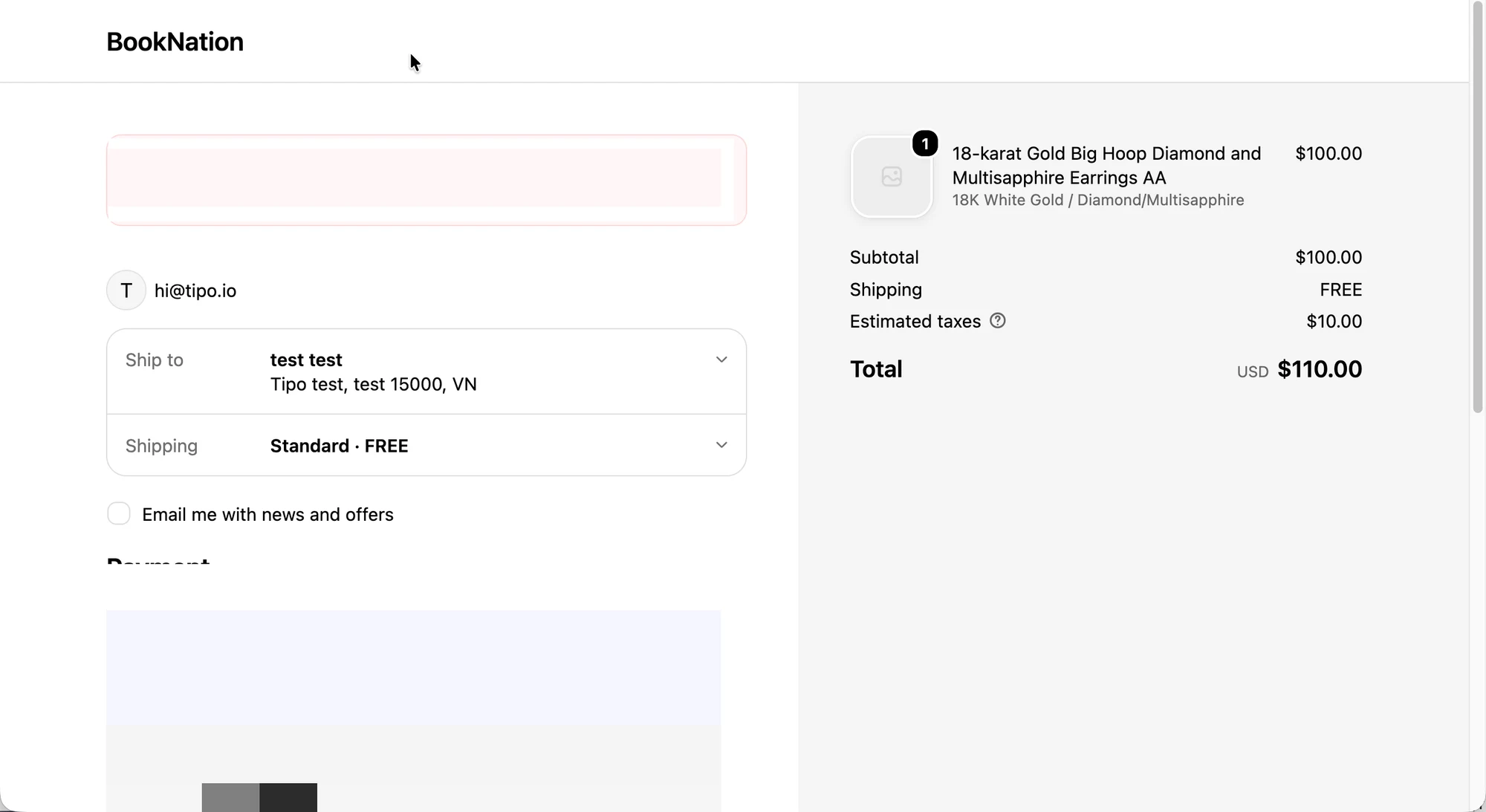
- The store redirects the winner to the Shopify checkout page.
- Review the order details and complete the payment.
👤 Option 2: Complete the Order from Auction History
Section titled “👤 Option 2: Complete the Order from Auction History”The winner can also access checkout directly from their customer account without using the email notification.
Follow these steps:
- Log in to the customer account on your Shopify store.
- Open Auction history.
- Find the auction product you won.
- Click Pay now.
- Continue to Shopify checkout and complete the payment.
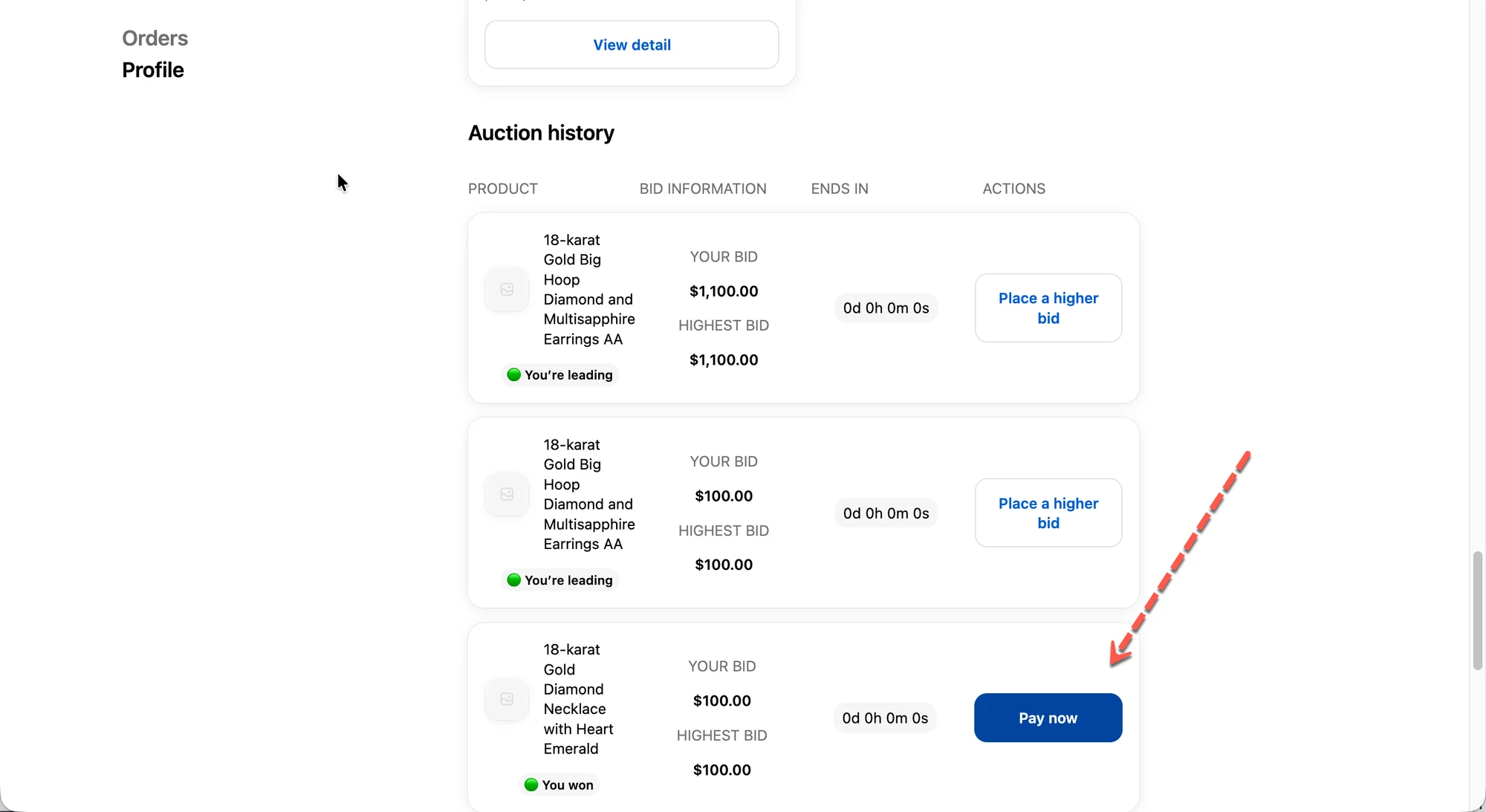
After clicking Pay now in Auction history, the winner is redirected to the Shopify checkout page.
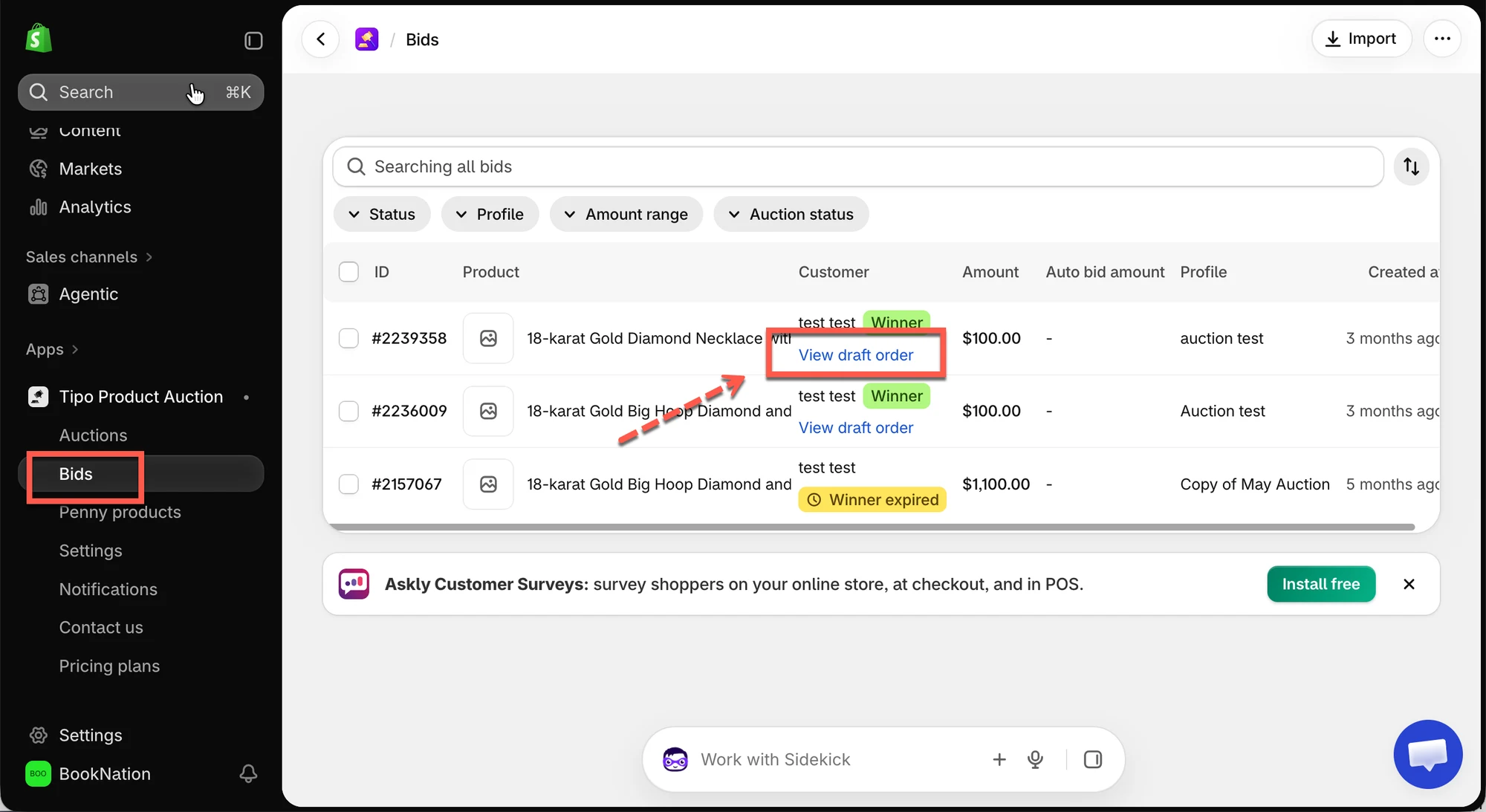
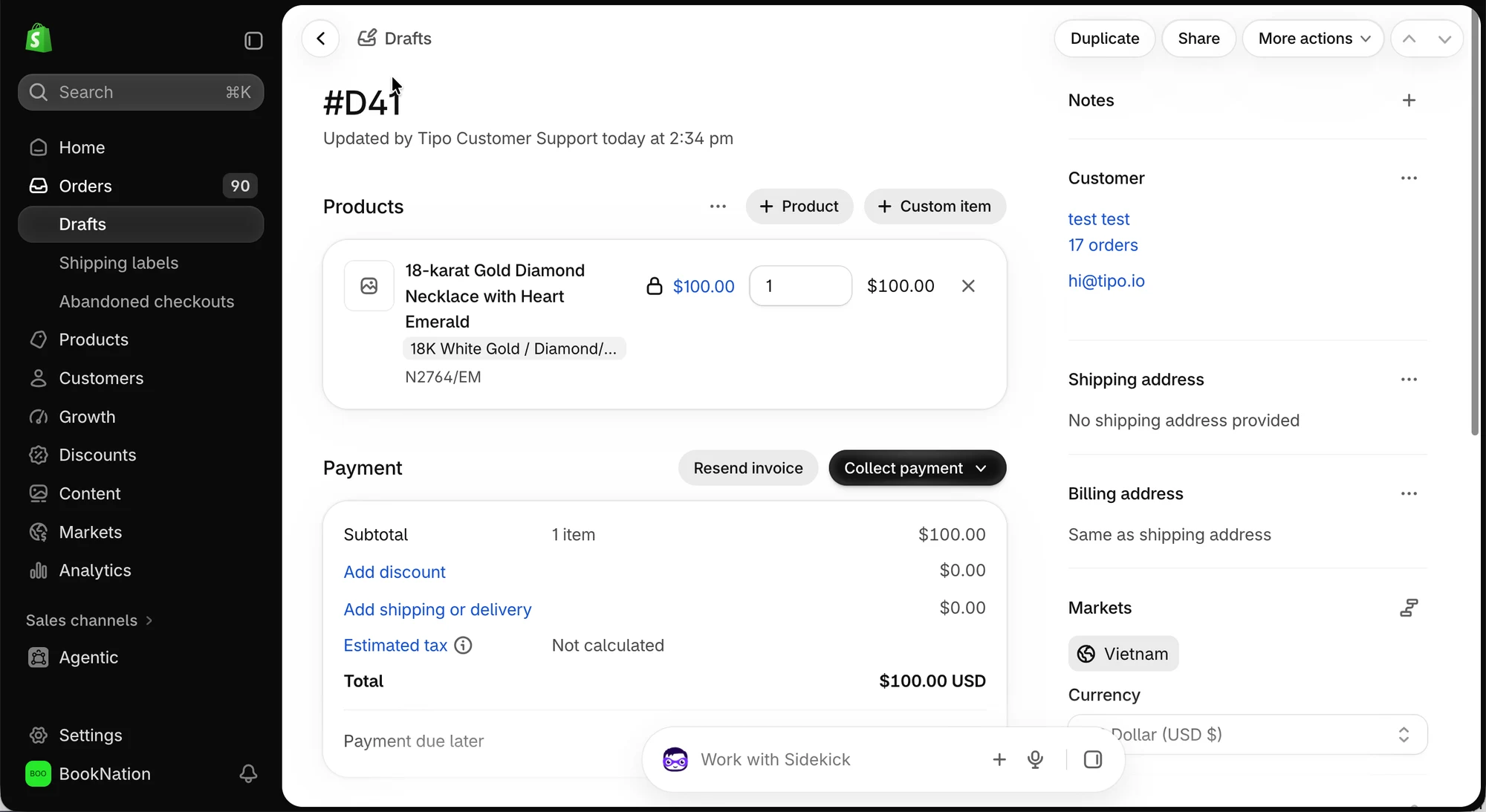
📦 5. What the Store Admin Sees
Section titled “📦 5. What the Store Admin Sees”After the winner completes checkout, the order is available in Shopify Admin → Orders.
The admin can review the order details, including:
- The auction product.
- The order price.
- The winning customer’s information.
- The order and payment status.
You can manage and fulfill the order through Shopify as you would with a regular store order.
❓Troubleshooting
Section titled “❓Troubleshooting”The winner cannot find the Pay now button.
Check that:
- The auction has ended.
- A winner has been selected.
- The customer is logged in to the correct account.
- The winner’s payment period has not expired.
The winner cannot access checkout from the email.
Ask the winner to check their winning notification and try accessing the product through Auction history in their customer account.
The winner cannot complete payment.
Check whether the payment period has expired and whether the store’s Shopify checkout and payment settings are working correctly.
For more details, see Set Payment Time for Winners.