
Admin email notifications
AI Overview
Set up admin email notifications in Tipo Product Auction so store owners and staff are told about new bids and auction winners. Each event can be turned on or off separately. You enter admin email addresses, pick the templates to send, and can edit the subject and content with dynamic variables.
View moreView less
- Open Notifications and go to the Admin tab.
- Enter one or more admin emails, separated by commas.
- Under Send notification to admin when, tick There is a new bid and/or Customer has won an auction.
- Edit the subject and content in the right panel using variables such as {shop_name}, {time_send}, and {list_bid}.
- Optionally set SMTP in Email provider (default is Tipo email), then click Save.
Summary generated by AI. It can make mistakes, so check the full guide below.
Admin email notifications help store owners and staff stay informed about auction activity, such as new bids and auction winners.
✅ What Events Trigger Admin Emails?
Section titled “✅ What Events Trigger Admin Emails?”You can choose to notify admins when:
- A new bid is placed
- A customer wins an auction
Each event can be turned on or off independently.
🛠️ Add admin email to receive notifications
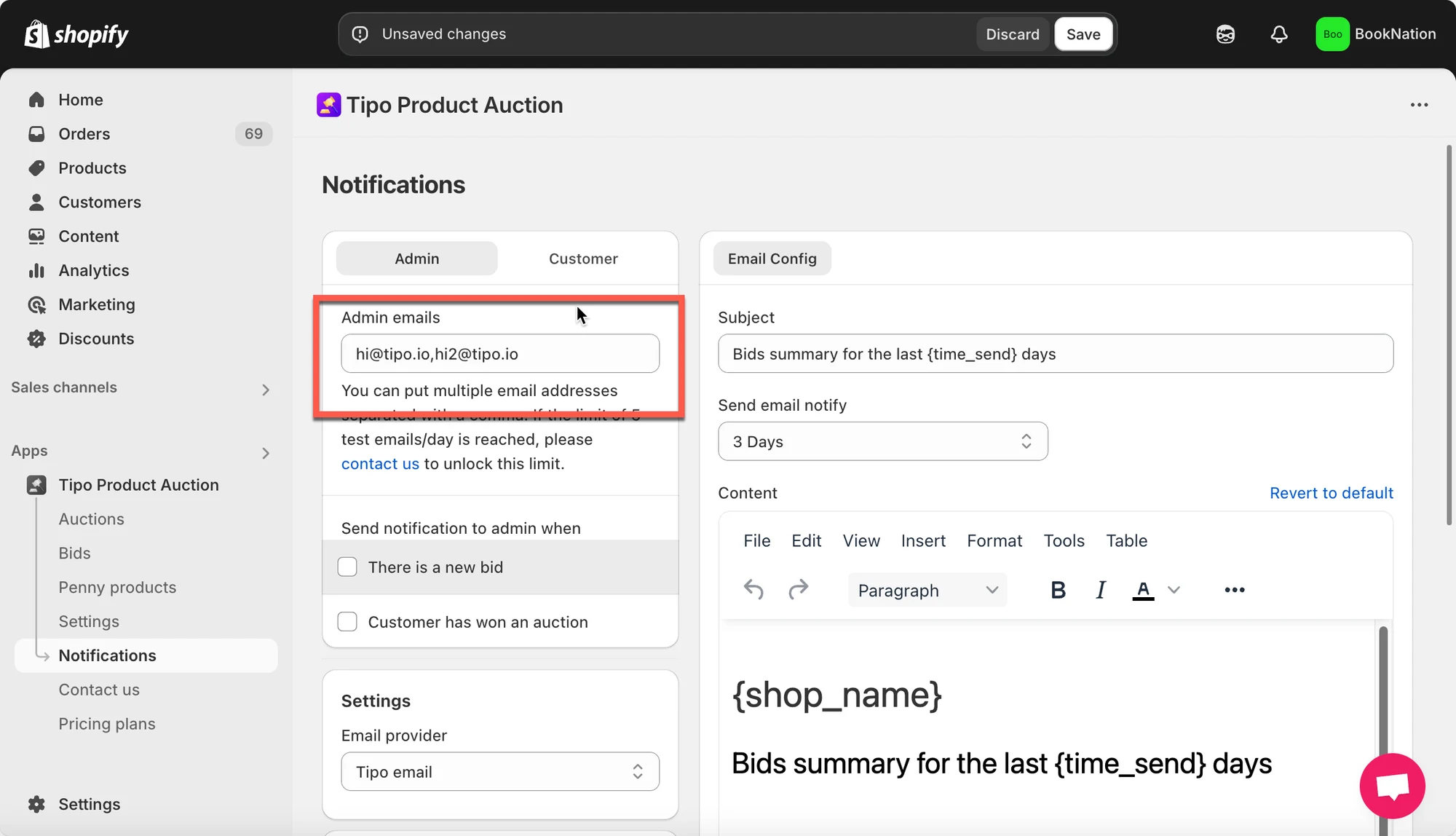
Section titled “🛠️ Add admin email to receive notifications”- Open the app, click Notifications
- Under the Admin tab, enter the email addresses where you want to receive notifications.
- You can add multiple emails, separated by commas.
- Example:
hi@tipo.io,hi2@tipo.io
- Find Send notification to admin when, tick on the checkbox of the email template you want > manually edit the email templates
- There is a new bid
- Customer has won an auction
- On the right panel, you can edit the Admin email template
You can customize:
- Email subject
- Email content
- Layout and wording
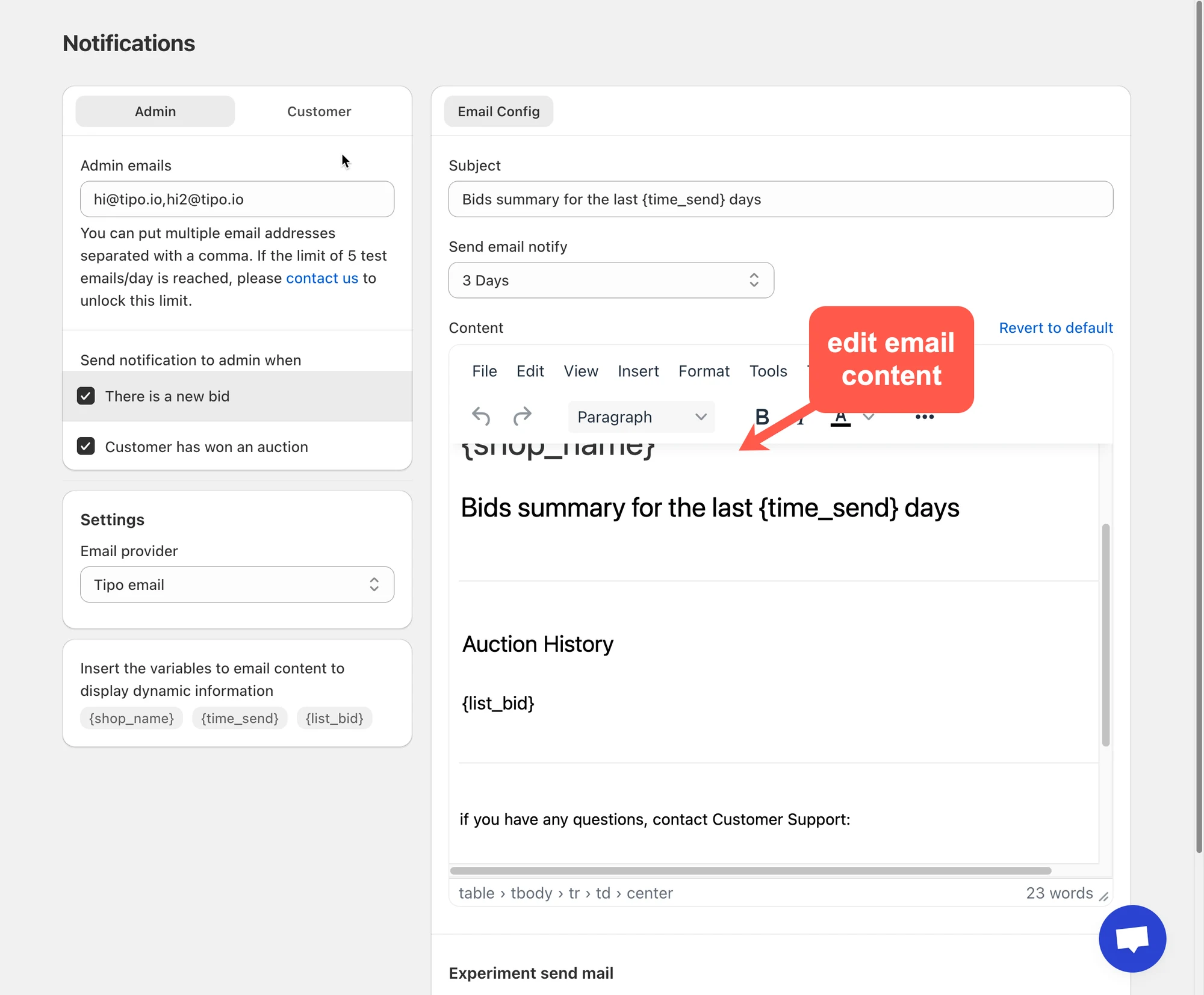
- Optional option: In Email provider, set SMTP as sender email. Or just keep Tipo email as default function. Learn more
- Click Save.
📝 Customize Email Content
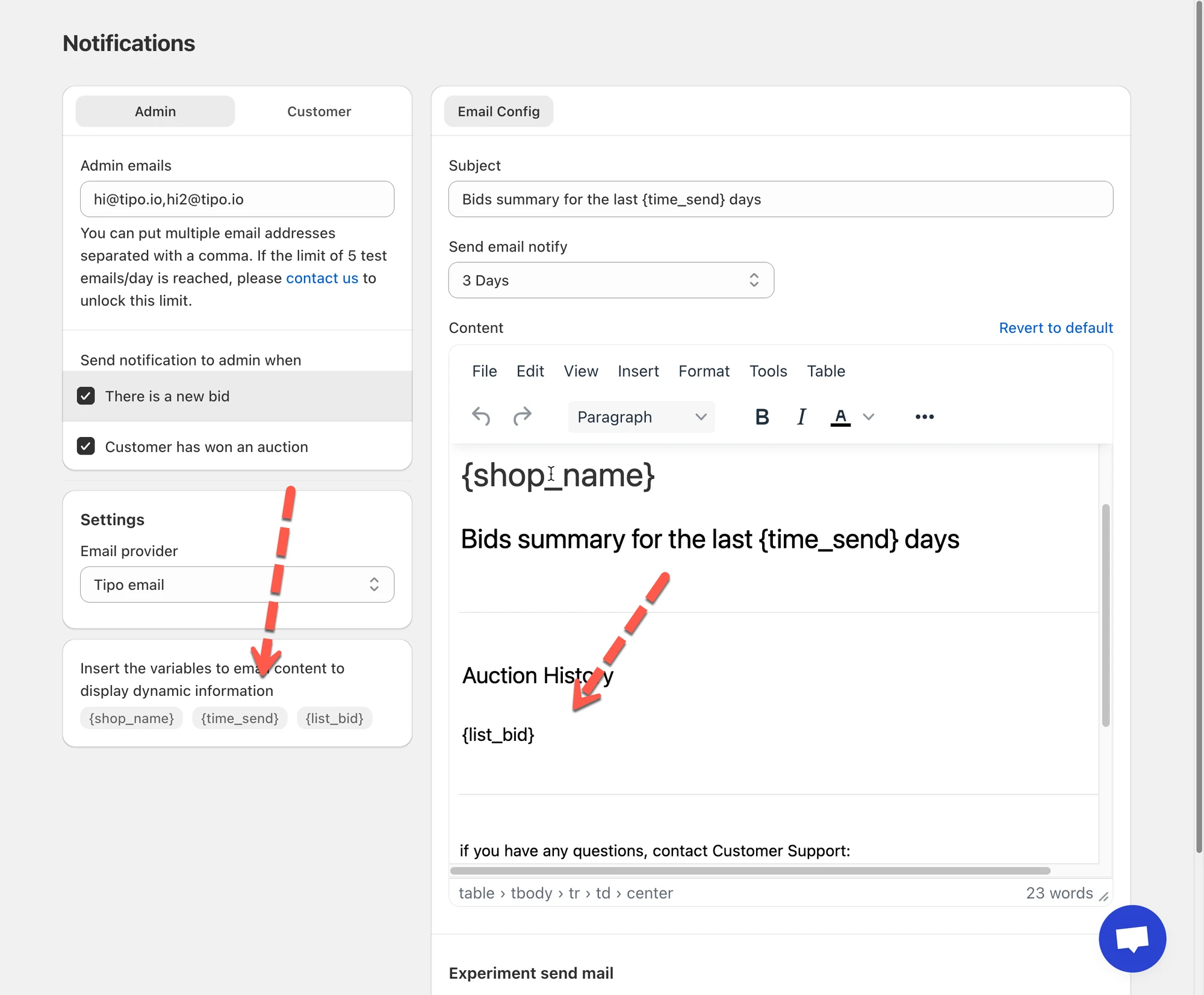
Section titled “📝 Customize Email Content”You can personalize the email content using dynamic variables the app provides. These variables will automatically populate with real data when the email is sent.
| Variable | Description |
|---|---|
{shop_name} | Your store’s name |
{time_send} | Time range for the bid summary |
{list_bid} | List of bids placed during the time period |
- Copy the variables
- Paste in email body
- Click Save after making changes
✅ How Admin Notifications Work
Section titled “✅ How Admin Notifications Work”Scenario:
- A customer places a new bid
- “New bid” notification is enabled
- Admin email is sent automatically with bid details
Admins instantly know what’s happening, no manual checks needed.
🙋 Still need support?
If you still need help, please feel free to contact us at hi@tipo.io. We’ll be happy to assist you further.