
Set up timezone
AI Overview
Set the correct timezone in Tipo Product Auction so auction start and end times and the countdown show correctly on your storefront. A wrong timezone can make auctions start or end earlier or later than expected. Choose the timezone where your business operates or where most customers are.
View moreView less
- Open Settings > General.
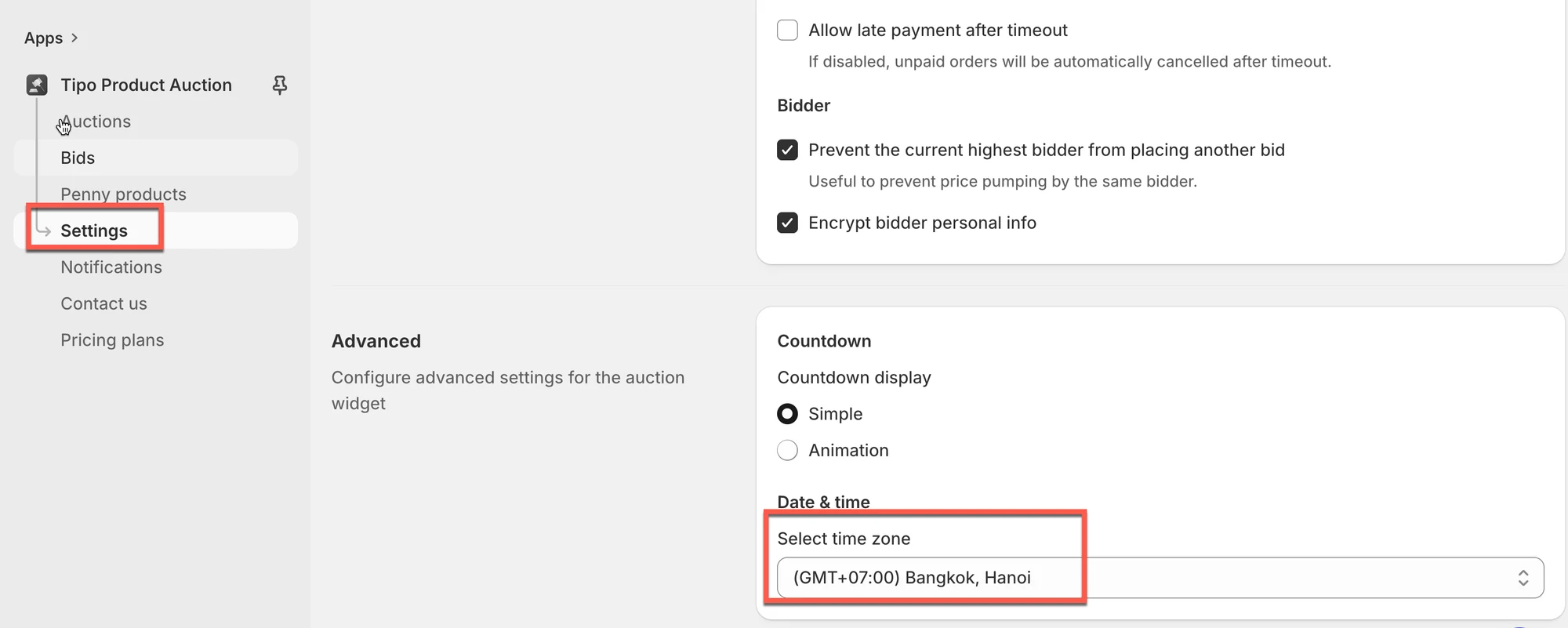
- Find Advanced > Timezone and select a timezone from the dropdown.
- Click Save.
- The timezone applies in the auction detail and on the auction widget on the online store.
Summary generated by AI. It can make mistakes, so check the full guide below.
Timezone settings control when your auctions start and end.
If your timezone is incorrect, your auction timer may show the wrong time on your storefront, and auctions may start/end earlier or later than expected.
This guide shows you how to set the correct timezone for your auctions.
✅ Before you start
Section titled “✅ Before you start”Decide which timezone you want to use:
- Usually the timezone where your business operates
- Or the timezone where most of your customers are
🧭 Step-by-step: Set your timezone
Section titled “🧭 Step-by-step: Set your timezone”Steps to manage
- Open the app > click Settings > General
- Find Advanced > Timezone > select a timezone in the dropdown
- Click Save to update the changes
The timezone in the auction detail and on the auction widget on the online store.
🙋 Still need support?
If you still need help, please feel free to contact us at hi@tipo.io. We’ll be happy to assist you further.