
Charge per bid (Penny Bidding)
AI Overview
Charge per bid (penny bidding) in Tipo Product Auction makes customers buy non-refundable Penny products that give them bidding turns, with each bid using one turn. It helps prevent fake bids and earns revenue from bidding fees plus the winning bid. You create the products in Shopify, link them in the app, and turn on the option.
View moreView less
- Create the penny products in Shopify Products.
- In the app, open Penny products > Create new penny, enter Name and Number of bid, link the Shopify product, and click Save.
- Open an auction and turn on Charge per bid in Additional options, then click Save.
- Customers without turns see a popup of Penny products to buy.
- Each Place bid uses one turn; at zero they must buy more.
Summary generated by AI. It can make mistakes, so check the full guide below.
ℹ️ How it works?
Section titled “ℹ️ How it works?”A Penny product (also known as bidding fee) is a non-refundable product that customers must purchase in order to place bids in a penny auction.
Instead of bidding for free, customers use bidding turns.
Each bid consumes one turn.
Simply put:
- Customers buy Penny products
- Penny products give them a number of bidding turns
- Each bid = 1 turn
- When turns run out, customers must buy more to continue bidding
Why use Penny products?
Section titled “Why use Penny products?”Using Penny products helps you:
- Prevent fake or spam bids
- Ensure bidders are serious and committed
- Earn revenue from:
- bidding fees and
- the final winning bid
In many cases, the total revenue from bidding fees + winning bid can exceed the product’s original price.
🛠️ Admin: Set up Penny products
Section titled “🛠️ Admin: Set up Penny products”Step 1: Create Penny products in Shopify Products
Section titled “Step 1: Create Penny products in Shopify Products”Create penny products in Shopify Products
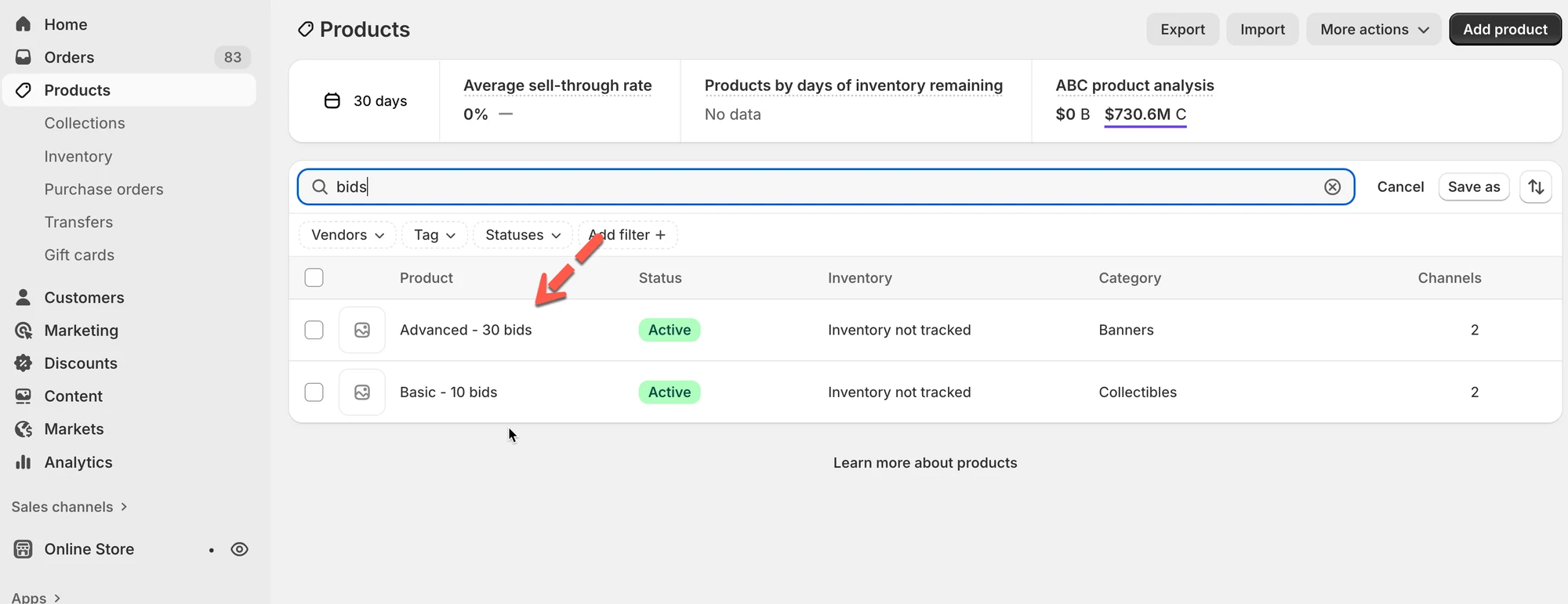
Example:
| Penny product | Bids included | Price |
|---|---|---|
| Basic | 10 bids | $5 |
| Advanced | 30 bids | $10 |
Step 2: Add penny products in Tipo app
Section titled “Step 2: Add penny products in Tipo app ”- Go to the app > click Penny products > click Create new penny button
- Enter product detail
In General session, enter the penny product Name and Number of bid
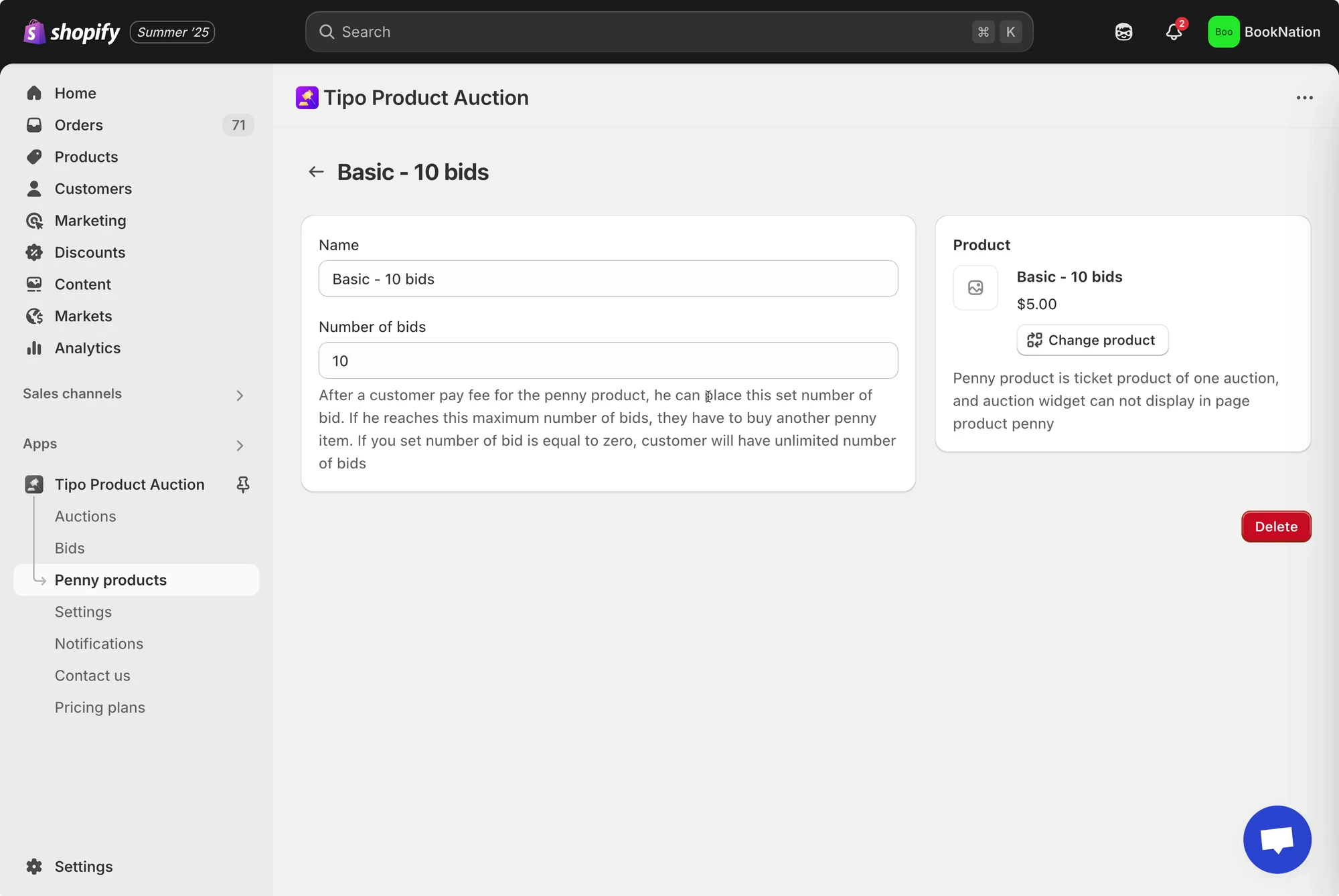
- In Product session, click Select product to link button to link to the penny product created in the step
For example: link the penny products “Basic - 10 bids” with Shopify product “Basic - 10 bids”
- Click Save
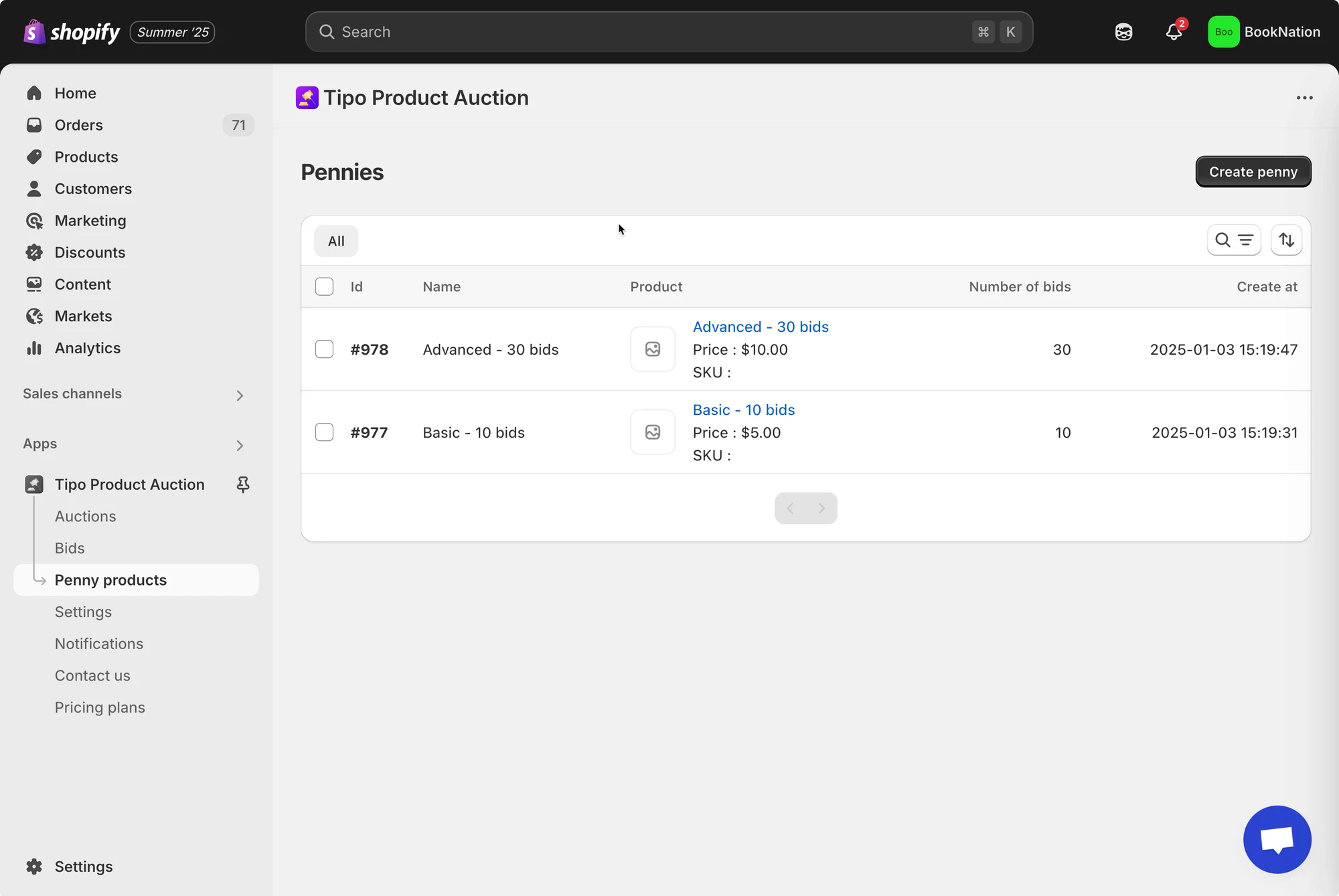
Admin can create multiple penny products and each one costs a certain amount of money and a certain number of bidding turn.
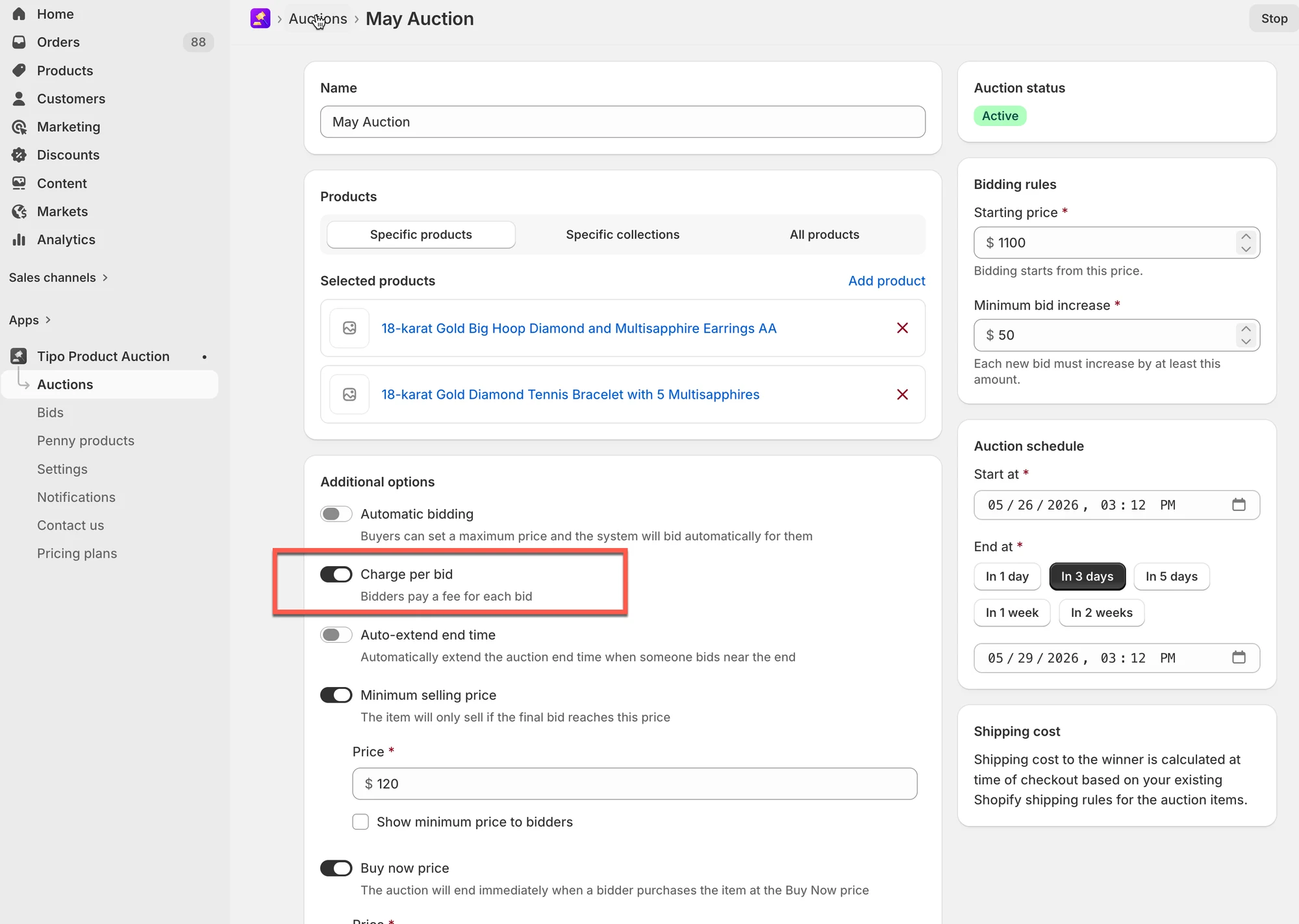
Step 3: Turn on “Charge per bid” option
Section titled “Step 3: Turn on “Charge per bid” option”- Go to the app > click Auctions > open an auction you want to set up
- Find Additional options > turn on Charge per bid option
- Click Save
✅ How penny products work?
Section titled “✅ How penny products work? ”When a customer tries to bid without enough turns:
- A message appears asking them to buy Penny products
- A popup shows available Penny product options
- Customer selects a product and clicks Buyout
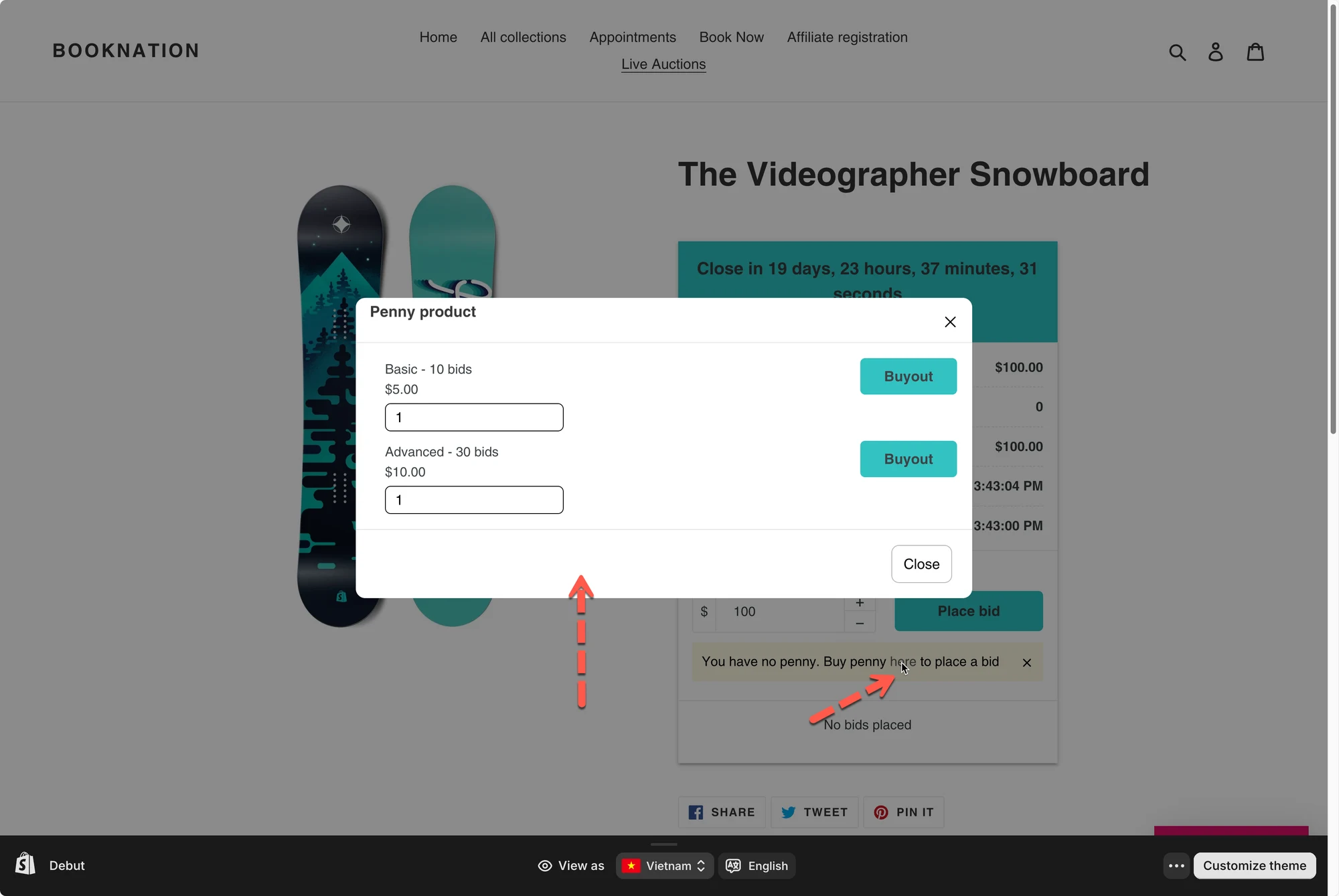
Example:
Scenario:
- Customer buys Basic – 5 bids – $5
What happens:
- Customer now has 5 bidding turns
- Each time they click Place bid, 1 turn is used
- After 5 bids → turns = 0
- Customer must buy another Penny product to continue bidding
🙋 Still need support?
If you still need help, please feel free to contact us at hi@tipo.io. We’ll be happy to assist you further.