# Charge per bid (Penny Bidding)
### ℹ️ How it works?
A **Penny product** (also known as **bidding fee**) is a non-refundable product that customers must purchase in order to place bids in a penny auction.
Instead of bidding for free, customers use bidding turns.\
Each bid consumes one turn.
Simply put:
* Customers buy Penny products
* Penny products give them a number of bidding turns
* Each bid = 1 turn
* When turns run out, customers must buy more to continue bidding
#### Why use Penny products?
Using Penny products helps you:
* Prevent fake or spam bids
* Ensure bidders are serious and committed
* Earn revenue from:
* bidding fees and
* the final winning bid
In many cases, the total revenue from bidding fees + winning bid can exceed the product’s original price.
***
### 🛠️ Admin: Set up Penny products
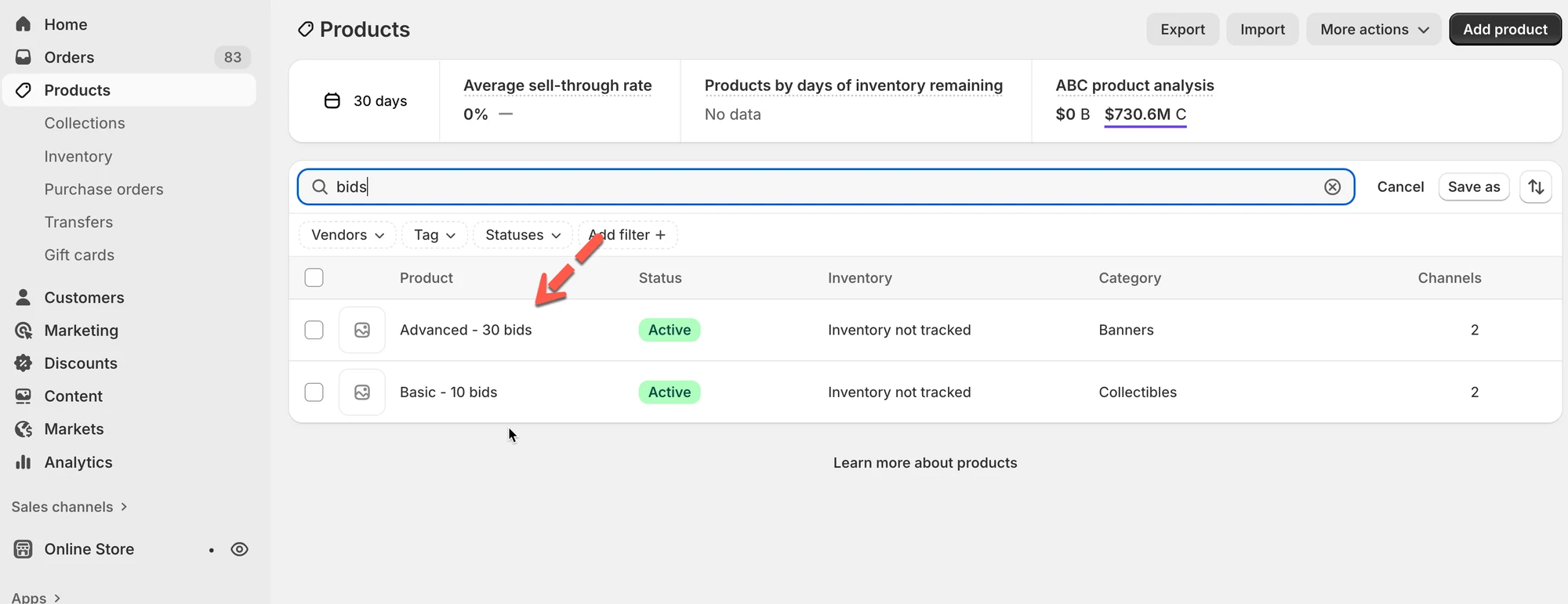
#### Step 1: Create Penny products in Shopify Products
Create penny products in Shopify **Products**
Example:
Penny product
Bids included
Price
Basic
10 bids
$5
Advanced
30 bids
$10
#### Step 2: Add penny products in Tipo app
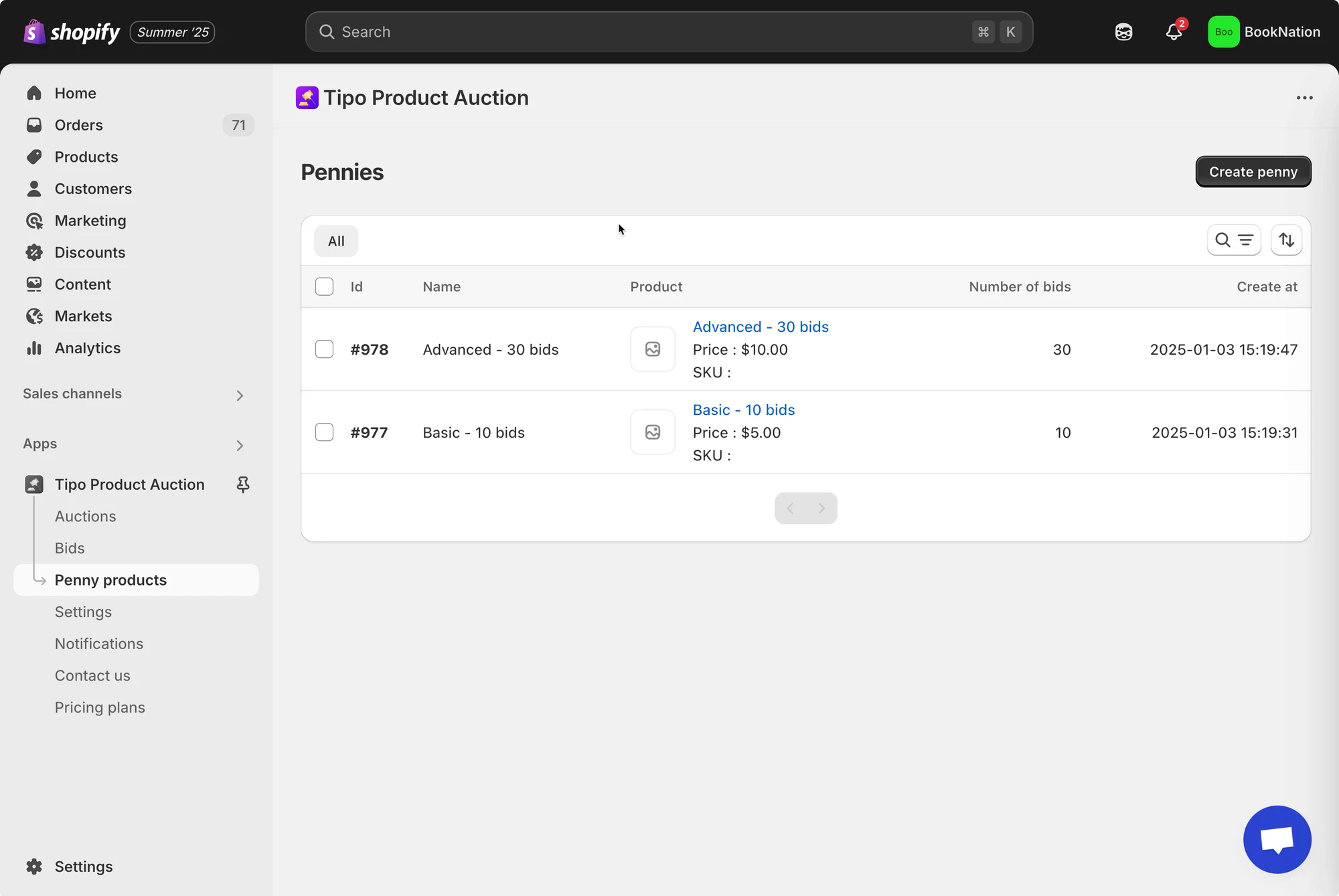
1. Go to the app > click **Penny products** > click **Create new penny** button
2. Enter product detail
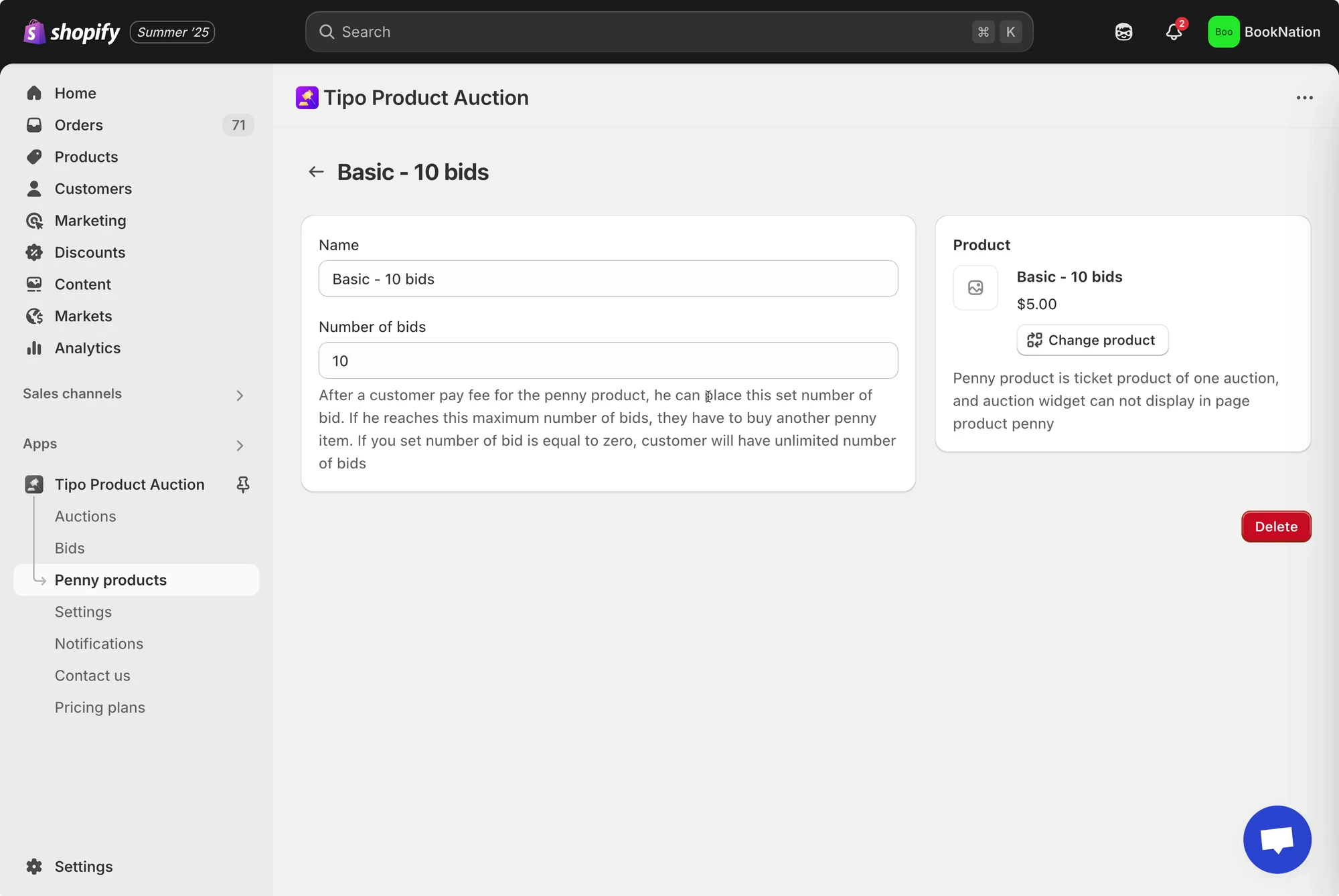
In **General** session, enter the penny product **Name** and **Number of bid**
3. In **Product** session, click **Select product to link button** to link to the penny product created in the step
For example: link the penny products "Basic - 10 bids" with Shopify product "Basic - 10 bids"
4. Click **Save**
Admin can create multiple penny products and each one costs a certain amount of money and a certain number of bidding turn.
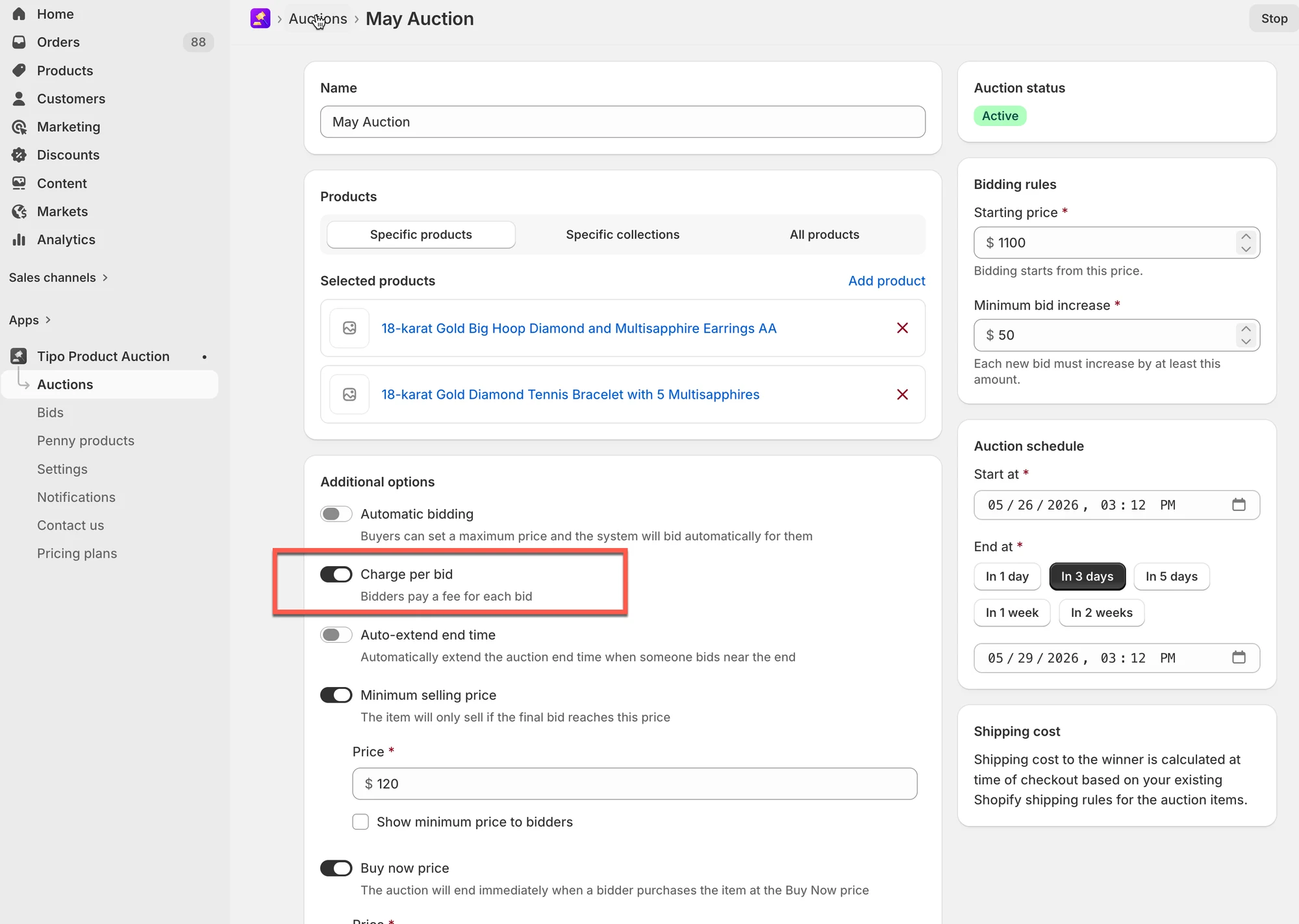
#### Step 3: Turn on "**Charge per bid" option**
1. Go to the app > click **Auctions** > open an auction you want to set up
2. Find **Additional** **options** > turn on **Charge per bid** option
3. Click **Save**
***
### ✅ **How penny products work?**
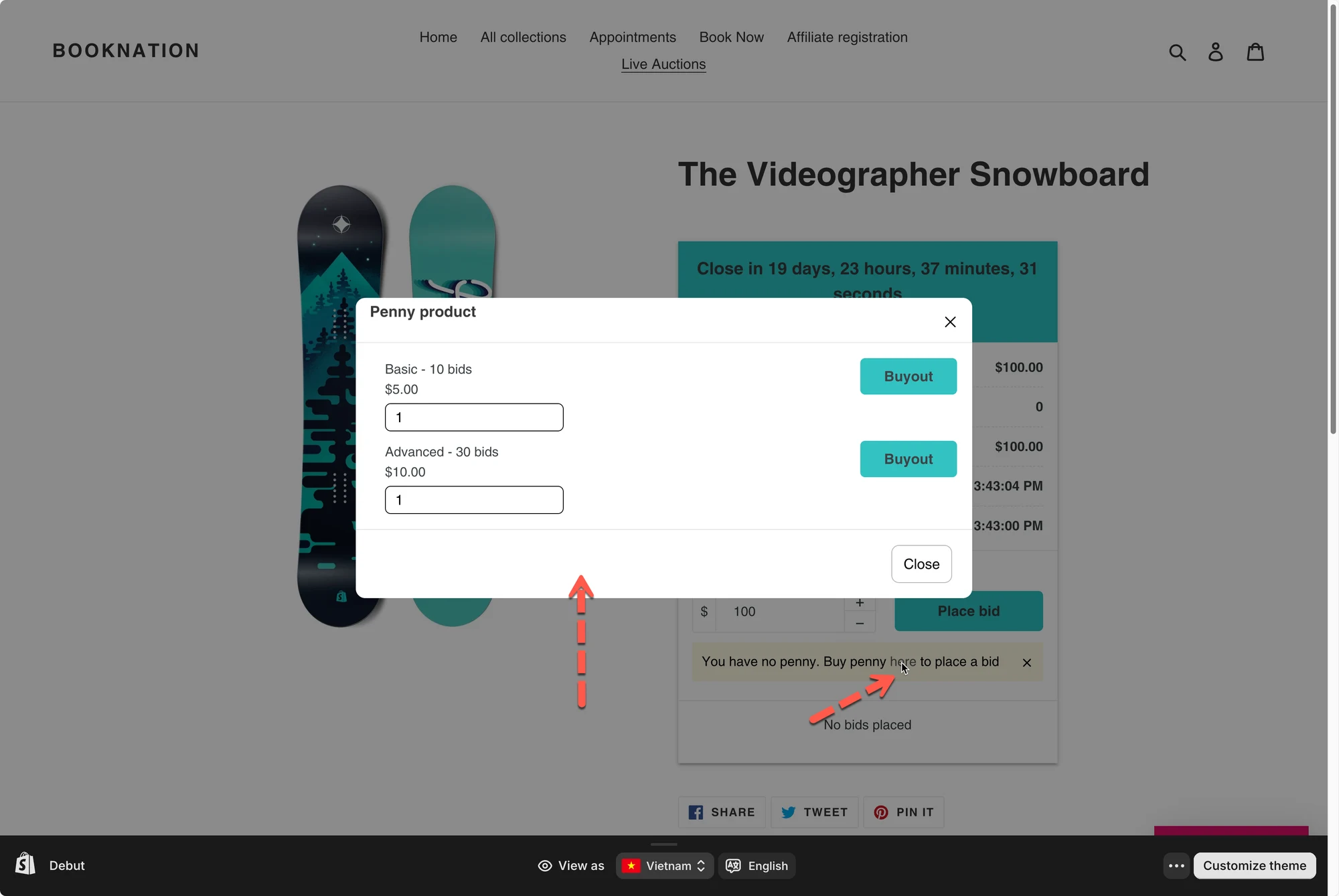
When a customer tries to bid without enough turns:
* A message appears asking them to buy Penny products
* A popup shows available Penny product options
* Customer selects a product and clicks **Buyout**
Example:
**Scenario:**
* Customer buys **Basic – 5 bids – $5**
**What happens:**
* Customer now has **5 bidding turns**
* Each time they click **Place bid**, 1 turn is used
* After 5 bids → turns = 0
* Customer must buy another Penny product to continue bidding
***
**🙋 Still need support?**
If you still need help, please feel free to contact us at . We’ll be happy to assist you further.