
Create & Update Products
AI 概覽
說明 Create & Update 商品同步模式,這是大多數商店的建議選項。Tipo Sync 會建立 Destination store 中缺少的商品、更新已存在的商品,並自動同步 Source 的新商品。它會比對識別碼來判斷:Handle、SKU 或 Barcode。
查看更多收合
- 開啟 Destination store,點選 Stores,然後點選 Connect store(或開啟現有連線的詳細資料)。
- 在 General > Matching & Imports 下,選擇 Create & Update。
- 選擇唯一識別碼:Handle(建議)、SKU 或 Barcode;每個款式的 SKU 與條碼必須是唯一的。
- 若是新連線,請啟用 Product sync 並選擇商品;點選 Save。
- 找到相符的商品代表更新;沒有相符商品則代表建立。
由 AI 產生的摘要,可能有錯誤,請參閱下方的完整指南。
⚙️ 如何啟用 Create & Update
Section titled “⚙️ 如何啟用 Create & Update”Create & Update 選項可讓商品在您的 Source store 與 Destination store 之間保持同步。
啟用後,Tipo Sync 會:
✅ 建立 Destination store 中尚未存在的商品
✅ 更新 Destination store 中已存在的商品
✅ 自動同步新增到 Source store 的新商品
這是大多數商店的建議選項。
⚙️ 如何啟用 Create & Update
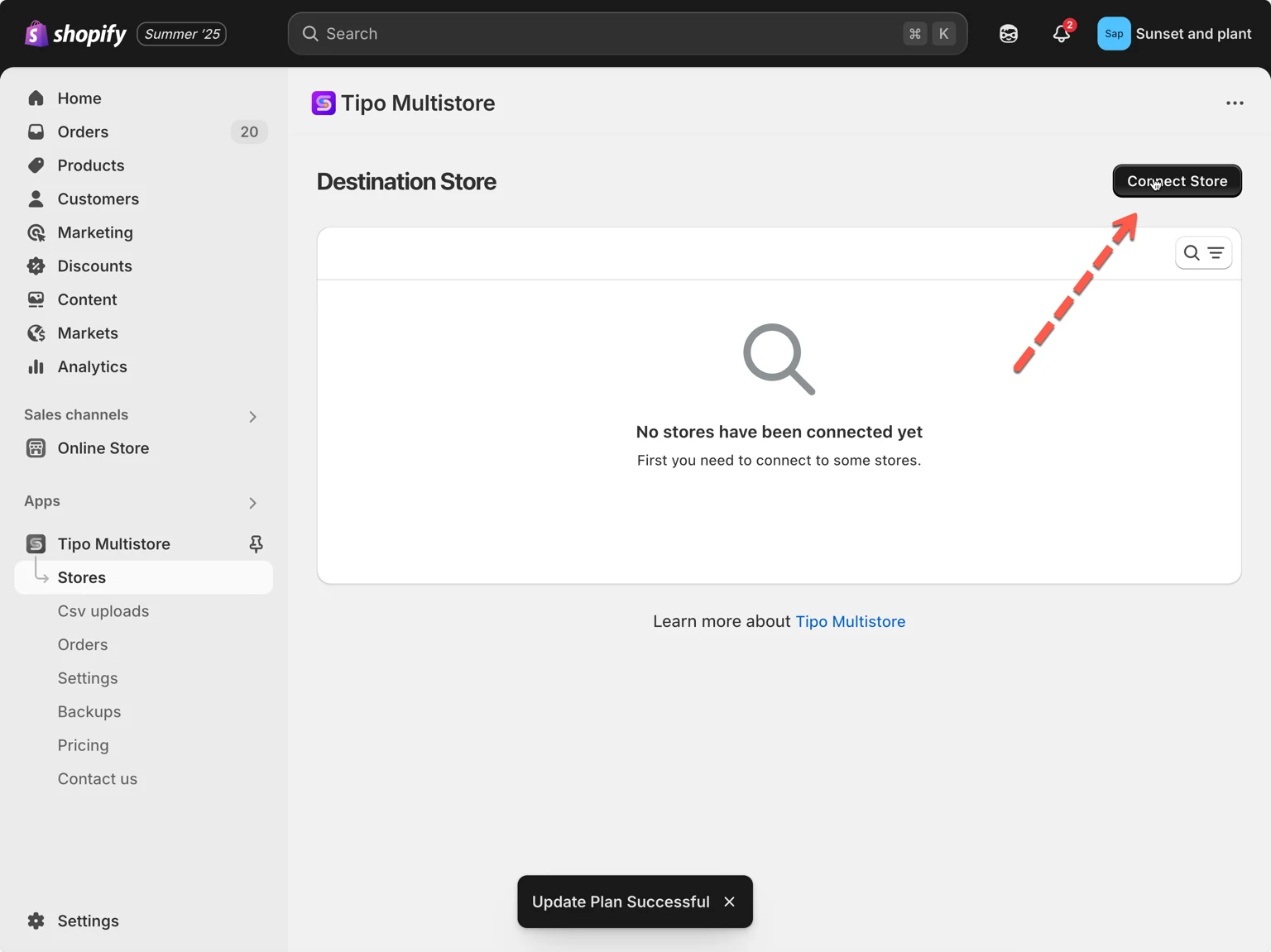
Section titled “⚙️ 如何啟用 Create & Update”- 在 Destination store 中開啟應用程式 > 點選 Stores > 點選 Connect store 按鈕
- 輸入從 Source Store 取得的 Connection Code(位於 Source Store 應用程式的 Settings 之下)。
- 在 General 區段中,找到 Matching & Imports > 選擇 Create & Update
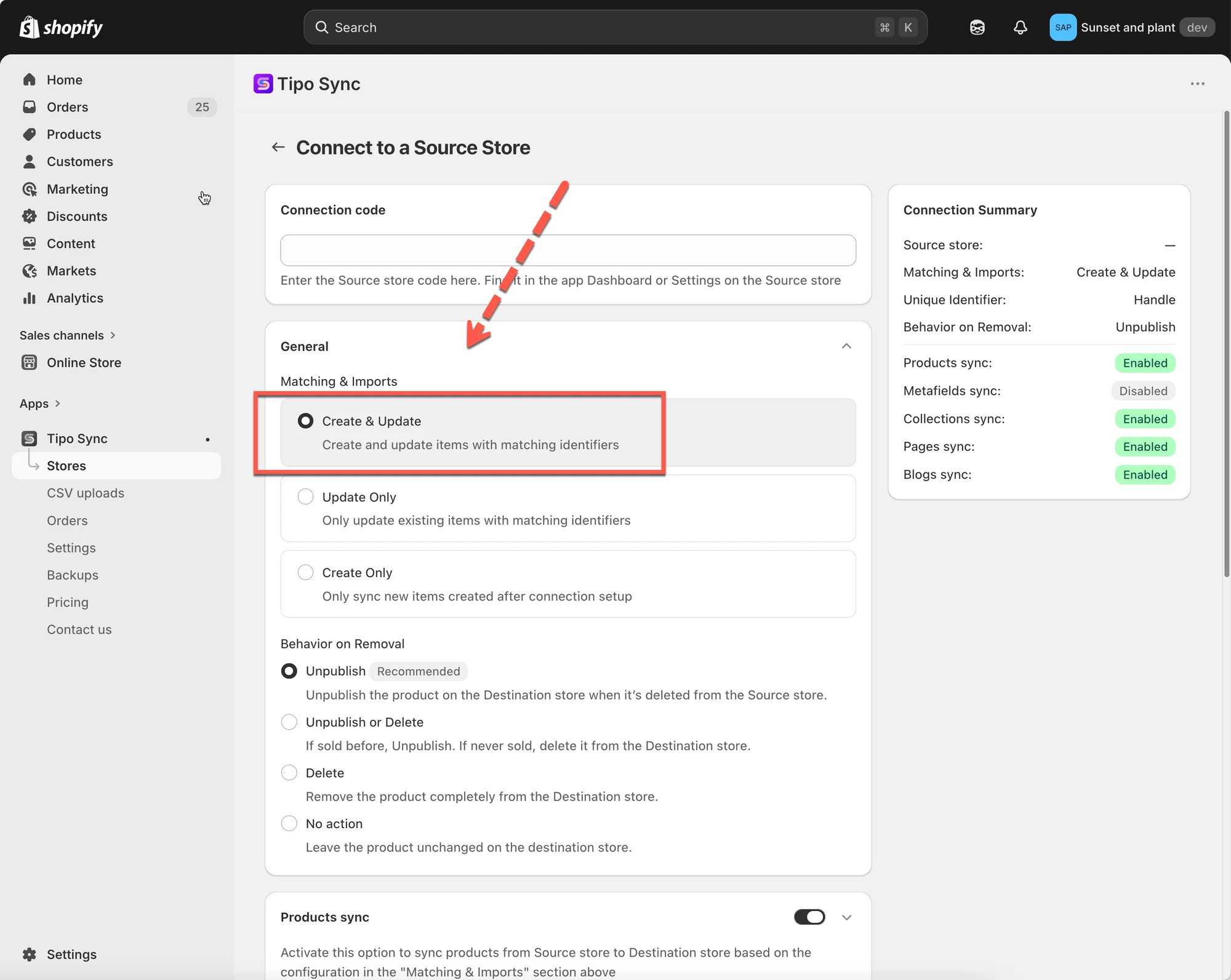
- 選擇您偏好的 Unique Identifier:
Handle(建議)
SKU(請確保所有款式都有唯一的 SKU)
Barcode(請確保所有款式都有唯一的條碼) 5. 啟用 Product sync 設定 > 選取您要同步的商品 6. 完成連線並點選 Save
已在運作中的連線
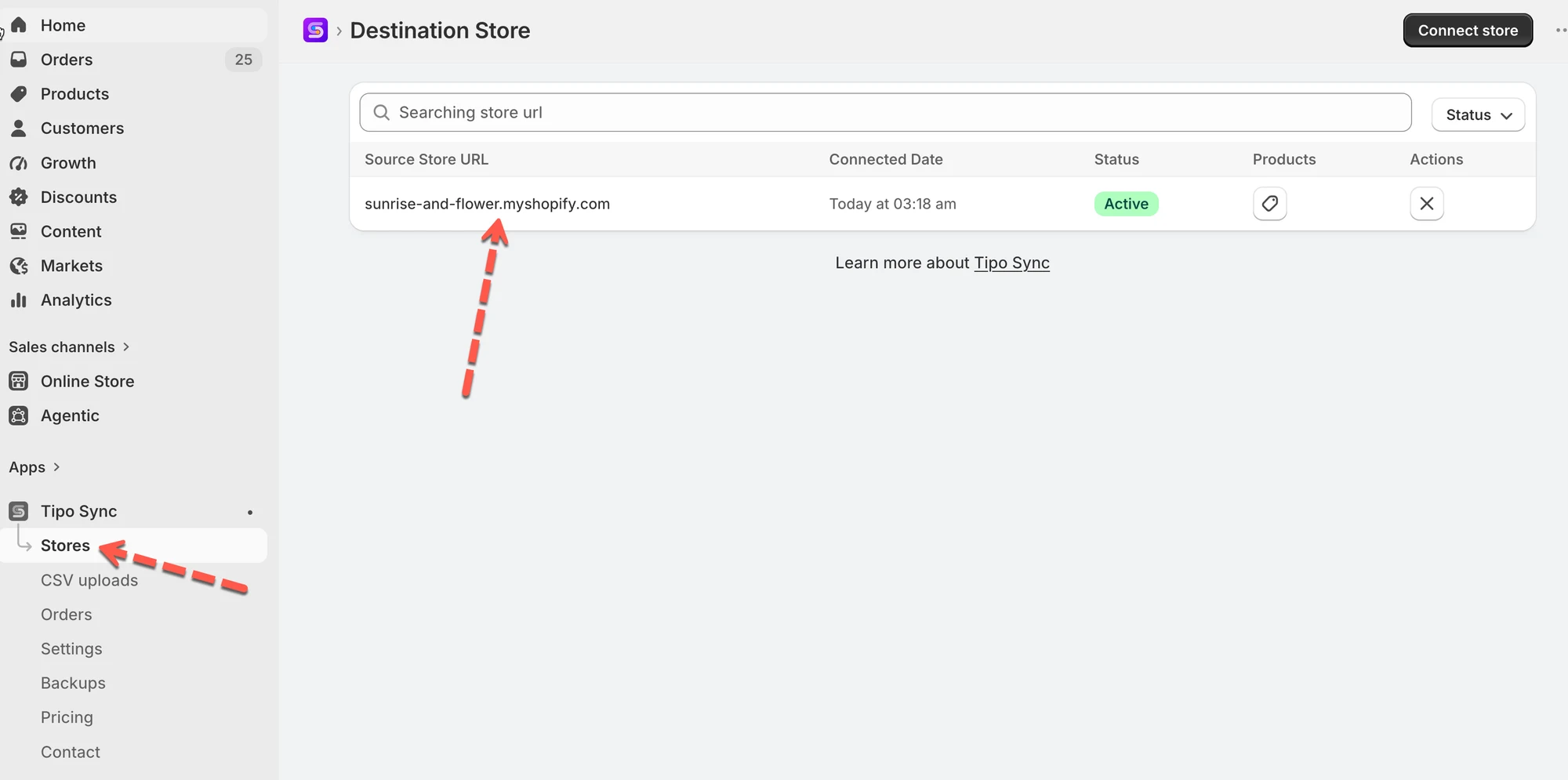
Section titled “已在運作中的連線”1. 前往 Destinations 商店 > 點選 Stores > 點選 Source store 的商店網址,以檢視連線詳細資料
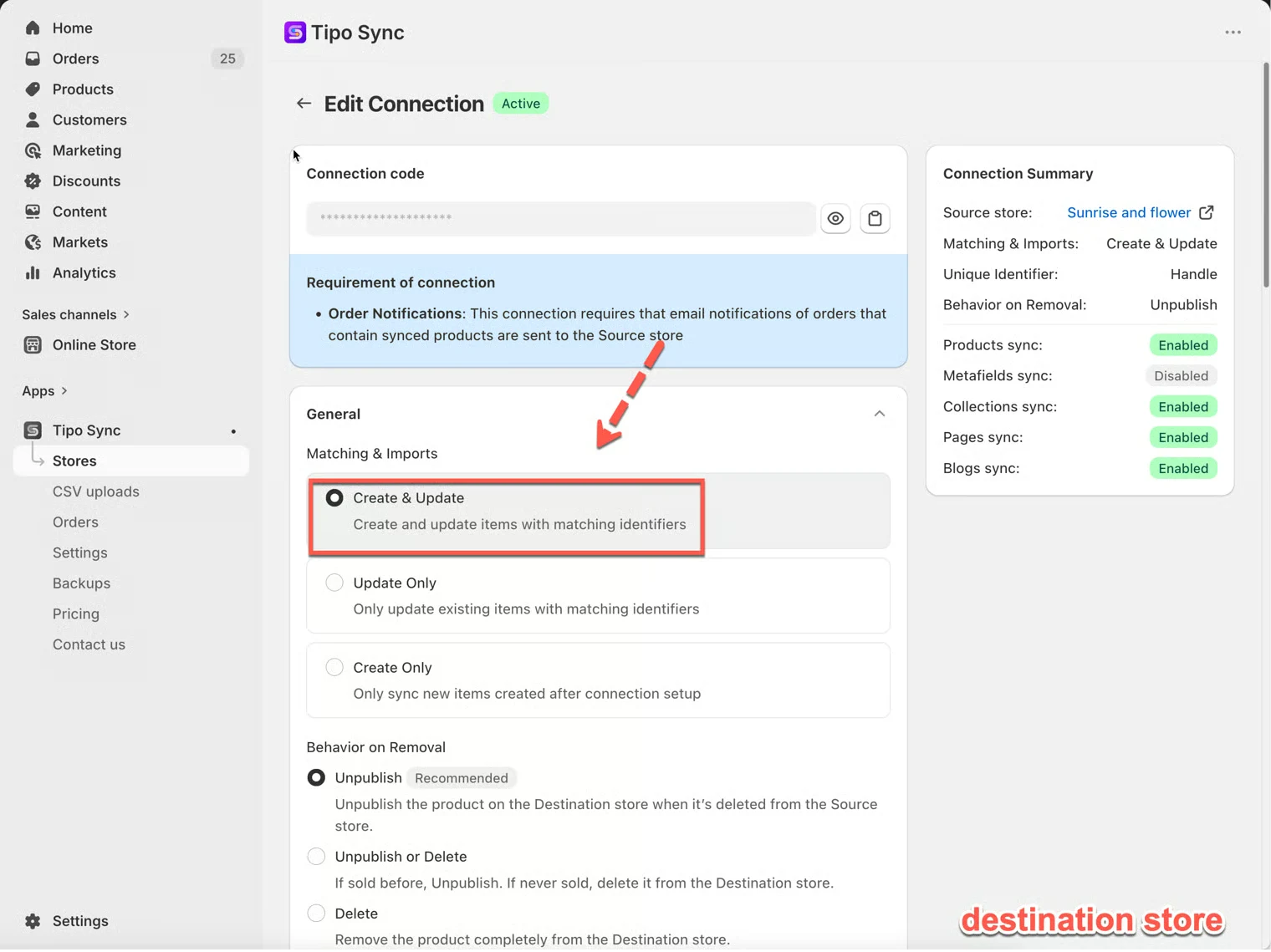
- 在 General > Matching & Imports 區塊 > 選擇 Create & Update
- 點選 Save 以套用變更。
重要注意事項: 應用程式會依據所選的其中一種 Identifiers 來同步商品:Handle、SKU 與 Barcode
🔗 Tipo Sync 如何比對商品
Section titled “🔗 Tipo Sync 如何比對商品”在建立或更新商品之前,Tipo Sync 會先檢查該商品是否已存在於 Destination store。
為此,應用程式會使用 Matching Identifier 來比較商品。
Matching Identifier 是用來判斷兩間商店中的兩個商品是否為同一個商品的值。
可用的 Matching Identifiers
Section titled “可用的 Matching Identifiers”| 識別碼 | 說明 | 範例 |
|---|---|---|
| Handle(建議) | 商品網址中的唯一部分 | /kimono-dress-coral |
| SKU | 指派給商品款式的唯一代碼 | SKU-12345-CORAL |
| Barcode | 全球通用的庫存代碼 | 8850123456789 |
🔄 Create & Update 的運作方式
Section titled “🔄 Create & Update 的運作方式”同步商品時,Tipo Sync 會先檢查所選的 Matching Identifier。
| 結果 | 動作 |
|---|---|
| 找到相符的商品 | 更新現有商品 |
| 找不到相符的商品 | 建立新商品 |
🛍 範例 1:找到相符的商品
Section titled “🛍 範例 1:找到相符的商品”Source Store
| 商品 | Handle |
|---|---|
| Kimono Dress Coral | kimono-dress-coral |
Destination Store
Section titled “Destination Store”| 商品 | Handle |
|---|---|
| Kimono Dress Coral | kimono-dress-coral |
由於兩個商品具有相同的 Handle,Tipo Sync 會將它們視為同一個商品。
結果
✅ 商品已更新
✅ 不會建立重複的商品
🛍 範例 2:找不到相符的商品
Section titled “🛍 範例 2:找不到相符的商品”Source Store
| 商品 | Handle |
|---|---|
| Linen Shirt Beige | linen-shirt-beige |
Destination Store
Section titled “Destination Store”| 商品 | Handle |
|---|---|
| Summer Dress Blue | summer-dress-blue |
找不到相符的 Handle。
結果
✅ 在 Destination store 中建立新商品
🛍 範例 3:Create & Update 實際運作
Section titled “🛍 範例 3:Create & Update 實際運作”Source Store
| 商品 |
|---|
| A |
| B |
| C |
Destination Store
| 商品 |
|---|
| B |
| C |
同步後的結果
| 商品 | 動作 |
|---|---|
| A | 已建立 |
| B | 已更新 |
| C | 已更新 |
商品 A 不存在於 Destination store,因此會被建立。
商品 B 和 C 已存在,因此會被更新。
🛍 範例 4:自動同步新商品
Section titled “🛍 範例 4:自動同步新商品”初始設定
Source Store 包含:
- 商品 A
- 商品 B
- 商品 C
Destination Store 包含:
- 商品 A
- 商品 B
- 商品 C
連線已設定為 Create & Update。
之後
您新增:
- 商品 D
- 商品 E
- 商品 F
到 Source store。
結果
Tipo Sync 會自動建立:
- 商品 D
- 商品 E
- 商品 F
到 Destination store。
如果這些商品之後在 Source store 被更新,這些變更也會一併同步。
⚖️ 比較同步選項
Section titled “⚖️ 比較同步選項”| 選項 | 建立新商品 | 更新現有商品 | 最適合 |
|---|---|---|---|
| Create & Update | ✅ 是 | ✅ 是 | 完整同步 |
| Update Only | ❌ 否 | ✅ 是 | 更新已存在的商品 |
| Create Only | ✅ 是 | ❌ 否 | 僅匯入新商品 |
🙋 還需要協助嗎?
如果您仍需要協助,歡迎隨時寄信至 hi@tipo.io 與我們聯繫,我們很樂意為您提供進一步的協助。