
Manually stop an auction
AI Overview
Stop an auction early in Tipo Product Auction, for example after a pricing mistake or to pause bidding. The auction must be Running or Pending. Once stopped, its status becomes Stopped, customers can no longer bid, and the auction widget on the product page is hidden.
View moreView less
- The auction must be Running or Pending (scheduled).
- Open Auctions, tick the auction's checkbox, and click Stop auction.
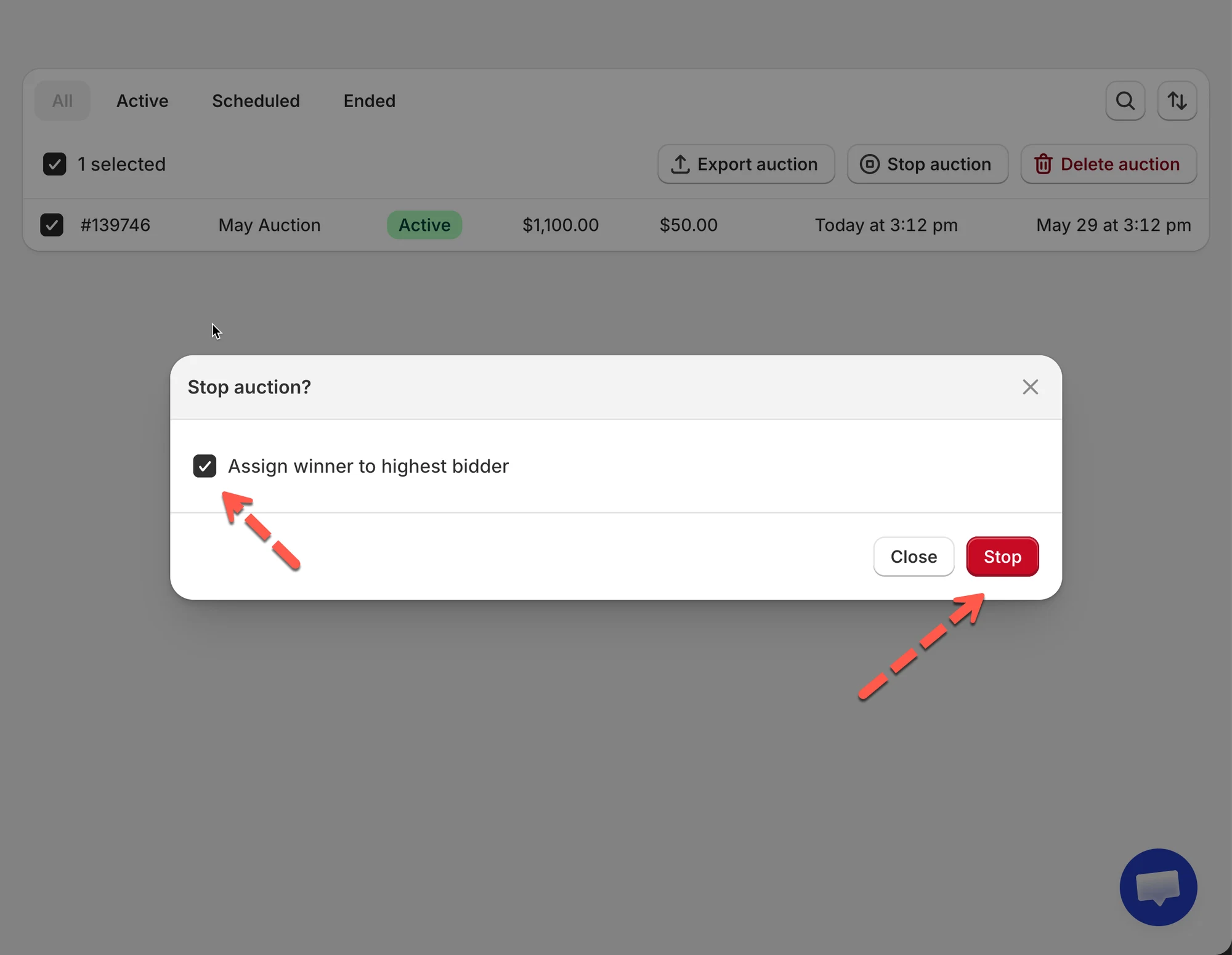
- In the confirmation popup, optionally tick Also select a winner, then click Yes, Stop it anyway.
- Afterward the status is Stopped, bidding ends, and the widget is hidden.
Summary generated by AI. It can make mistakes, so check the full guide below.
Normally, an auction ends automatically at the scheduled end time.
But sometimes you may want to stop an auction early. For example, if there’s a pricing mistake or you want to pause bidding.
This guide shows you how to manually stop an auction and what happens after you stop it.
Before you start
- You must have at least one auction created
- The auction should be Running or Pending (scheduled)
🛠️ Steps to stop an auction
Section titled “🛠️ Steps to stop an auction”1. Open the app > click Auctions
2. Tick to checkbox of the auction you want to delete
3. Click Stop auction
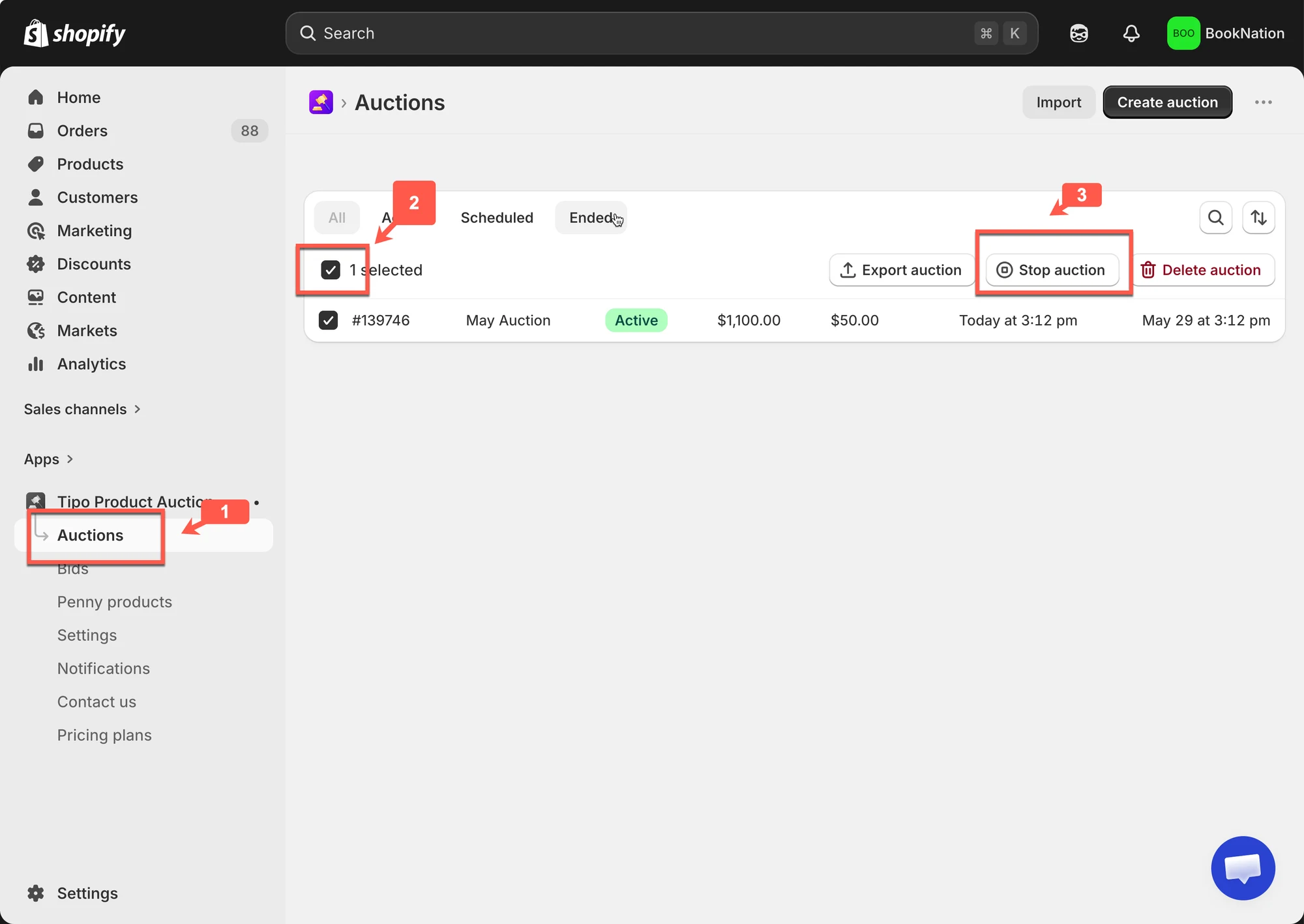
4. On the confirmation popup, you can tick to Also select a winner checkbox to choose a winner right away and click Yes, Stop it anyway button
✅ What happens after you stop an auction?
Section titled “✅ What happens after you stop an auction?”When you manually stop an auction:
- The auction status becomes Stopped
- Customers can no longer place bids
- The auction widget on the product page is hidden
▶️ Tutorial video
Section titled “▶️ Tutorial video ”🙋 Still need support?
If you still need help, please feel free to contact us at hi@tipo.io. We’ll be happy to assist you further.