# Manually stop an auction
Normally, an auction ends automatically at the scheduled end time.\
But sometimes you may want to stop an auction early. For example, if there’s a pricing mistake or you want to pause bidding.
This guide shows you how to manually stop an auction and what happens after you stop it.
Before you start
* You must have at least one auction created
* The auction should be **Running** or **Pending** (scheduled)
### 🛠️ **Steps to s**top an auction
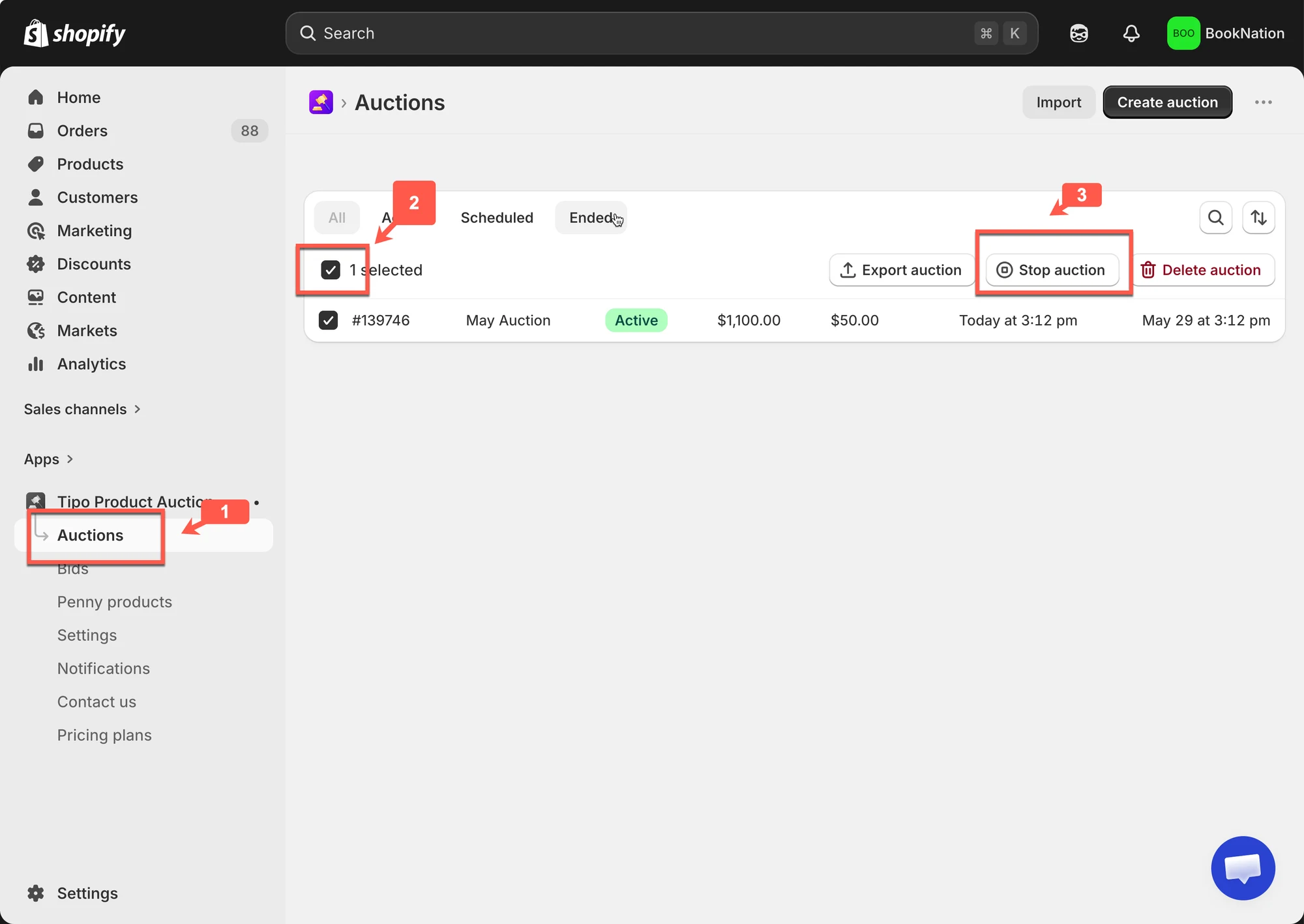
1\. Open the app > click **Auctions**
2\. Tick to checkbox of the auction you want to delete
3\. Click **Stop auction**
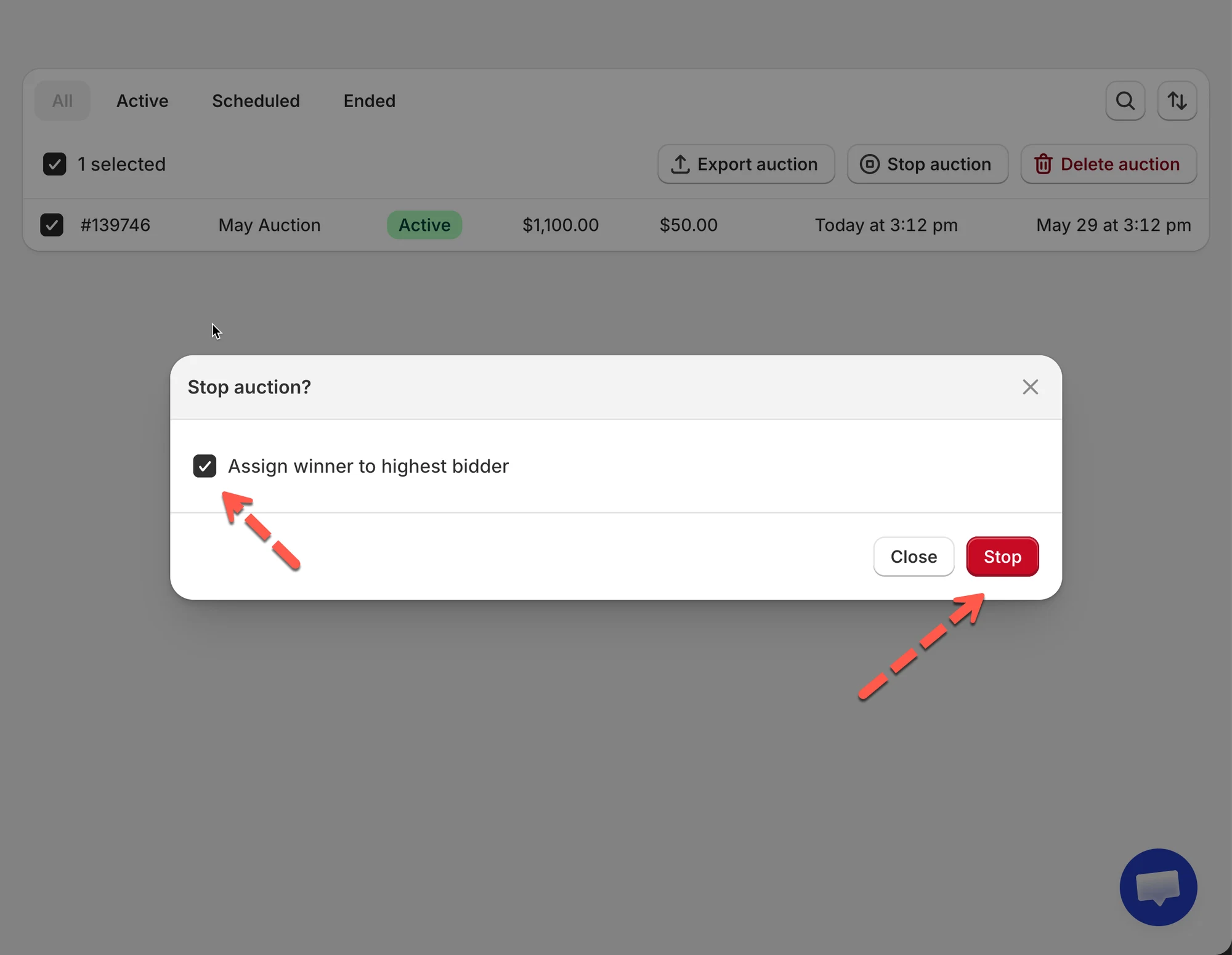
4\. On the confirmation popup, you can tick to **Also select a winner** checkbox to choose a winner right away and click **Yes, Stop it anyway button**
***
### ✅ What happens after you stop an auction?
When you manually stop an auction:
* The auction status becomes **Stopped**
* Customers can no longer place bids
* The auction widget on the product page is hidden
***
### ▶️ Tutorial video
***
**🙋 Still need support?**
If you still need help, please feel free to contact us at . We’ll be happy to assist you further.