
Export & Import auctions
AI Overview
Use Export & Import in Tipo Product Auction to back up auctions, move them between stores, or create many auctions in bulk from a file. You export auctions to a JSON file, optionally edit it, and import it back. Only JSON files exported from the app can be imported.
View moreView less
- Only the JSON file exported from the app can be imported.
- To export, open Auctions, tick the auctions, and click Export auction to get a JSON file.
- When editing the file, do not change column names, keep required fields filled, and follow the original format.
- To import, click Import at the right corner, upload the file, then click Import.
- Imported auctions then appear in your auction list.
Summary generated by AI. It can make mistakes, so check the full guide below.
The Export & Import feature lets you quickly back up auctions, move auctions between stores, or create multiple auctions in bulk using a file.
This is useful when you want to reuse auction settings or manage many auctions at once.
With this feature, you can:
- Export existing auctions to a file
- Edit auction settings in bulk
- Import auctions back into the app
- Duplicate auctions without re-creating them manually
⬆️ Export auctions
Section titled “⬆️ Export auctions”Exporting allows you to download your auction data as a file.
Steps to export auctions
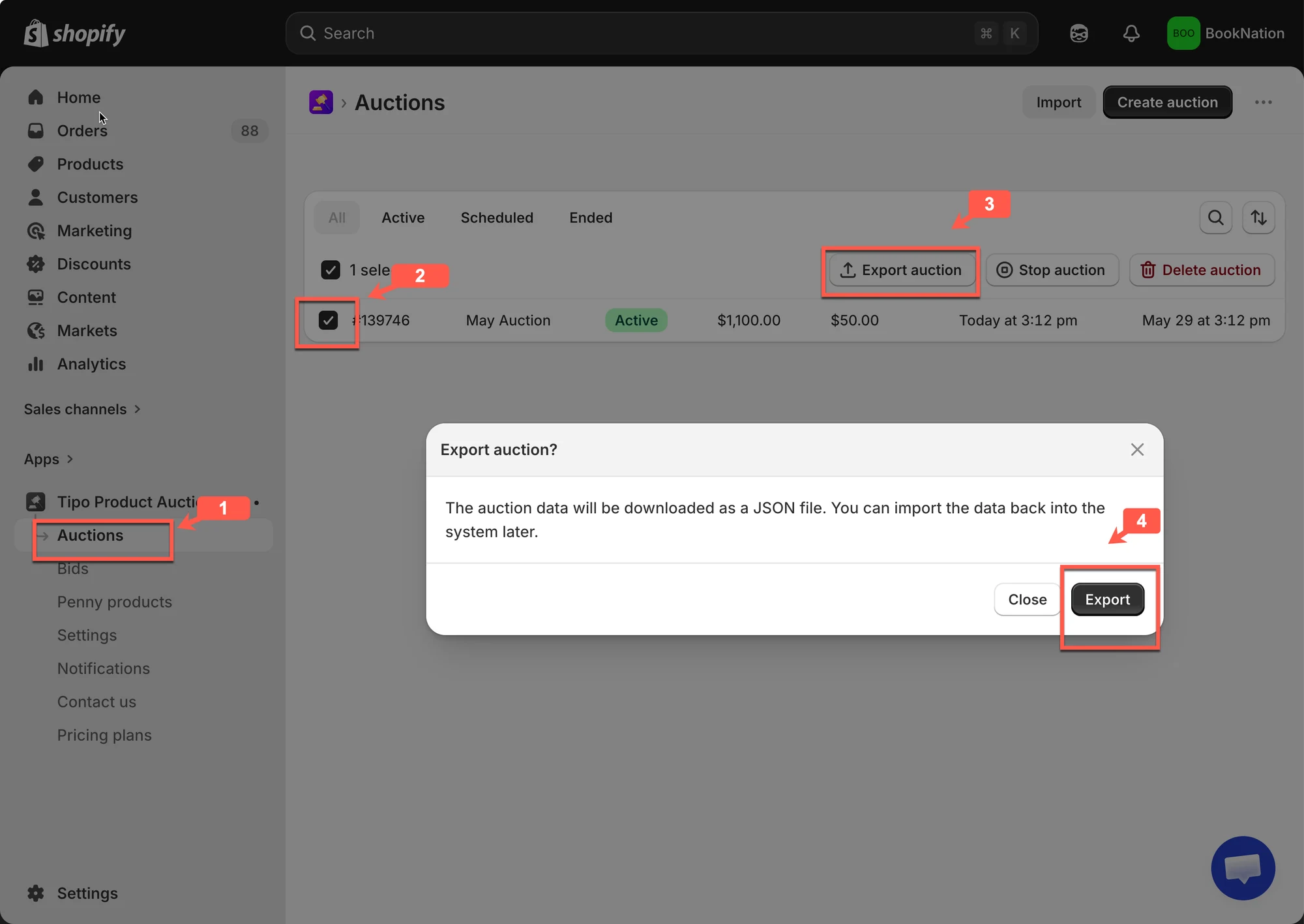
Section titled “Steps to export auctions”1. Open the app > click Auctions
2. Tick to auction you want to delete
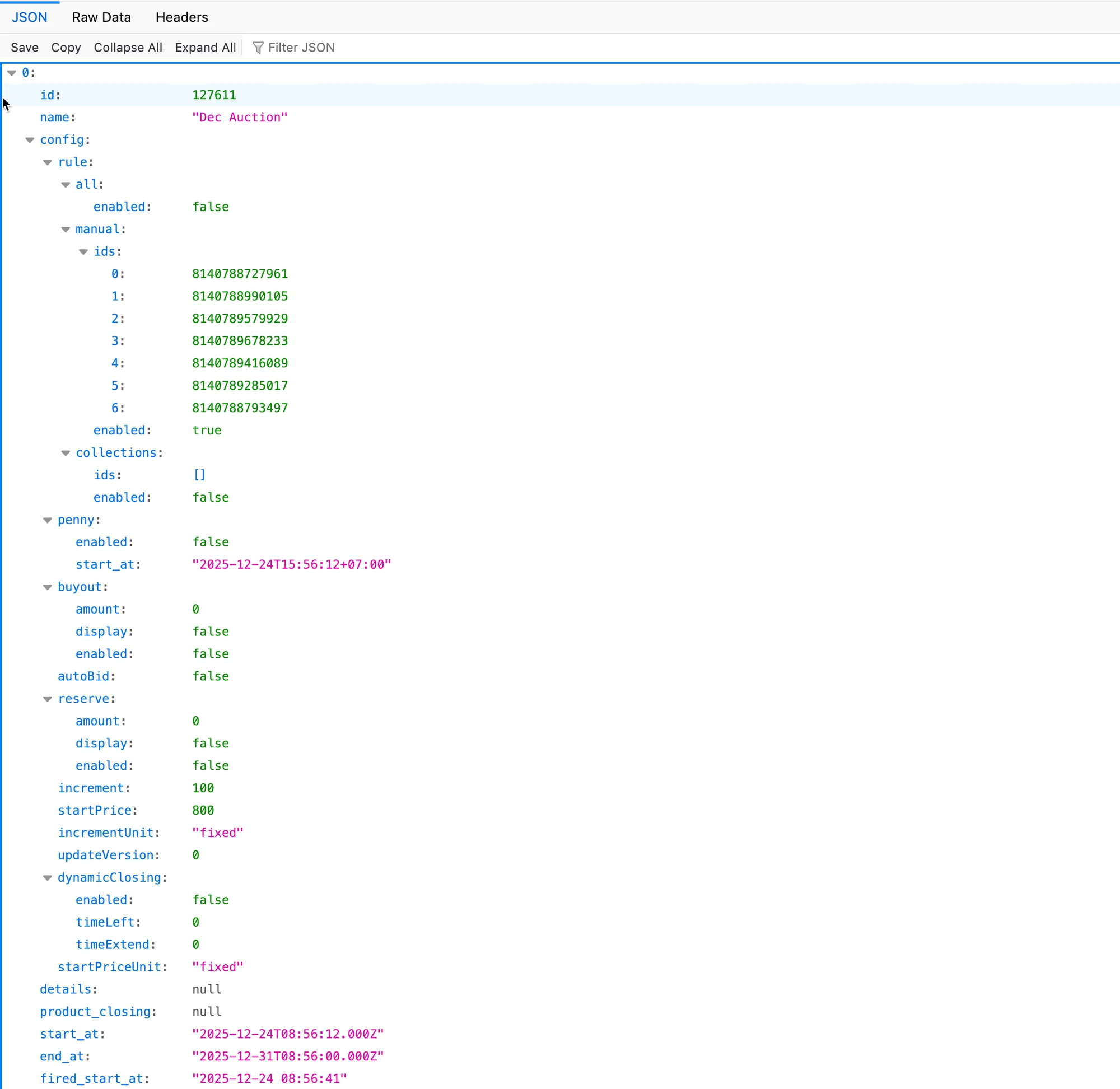
3. Click Export auction button > The auction will be immediately export to json file
Edit the export file (optional)
Section titled “Edit the export file (optional)”After exporting, you can open the file to make changes.
Common use cases:
- Update auction start or end times
- Adjust starting prices or bid increments
- Duplicate auctions by copying rows
- Prepare auctions for future campaigns
⚠️ Important:
- Do not change column names
- Keep required fields filled
- Follow the original format exactly
⬇️ Import auctions
Section titled “⬇️ Import auctions”Importing lets you upload auctions from a file into Tipo Auction.
Steps to import auctions
Section titled “Steps to import auctions”1. Open the app > click Auctions
2. Click Import at the right corner > a popup will show up and let you add the auction JSON file
3. After uploading the file, click Import button
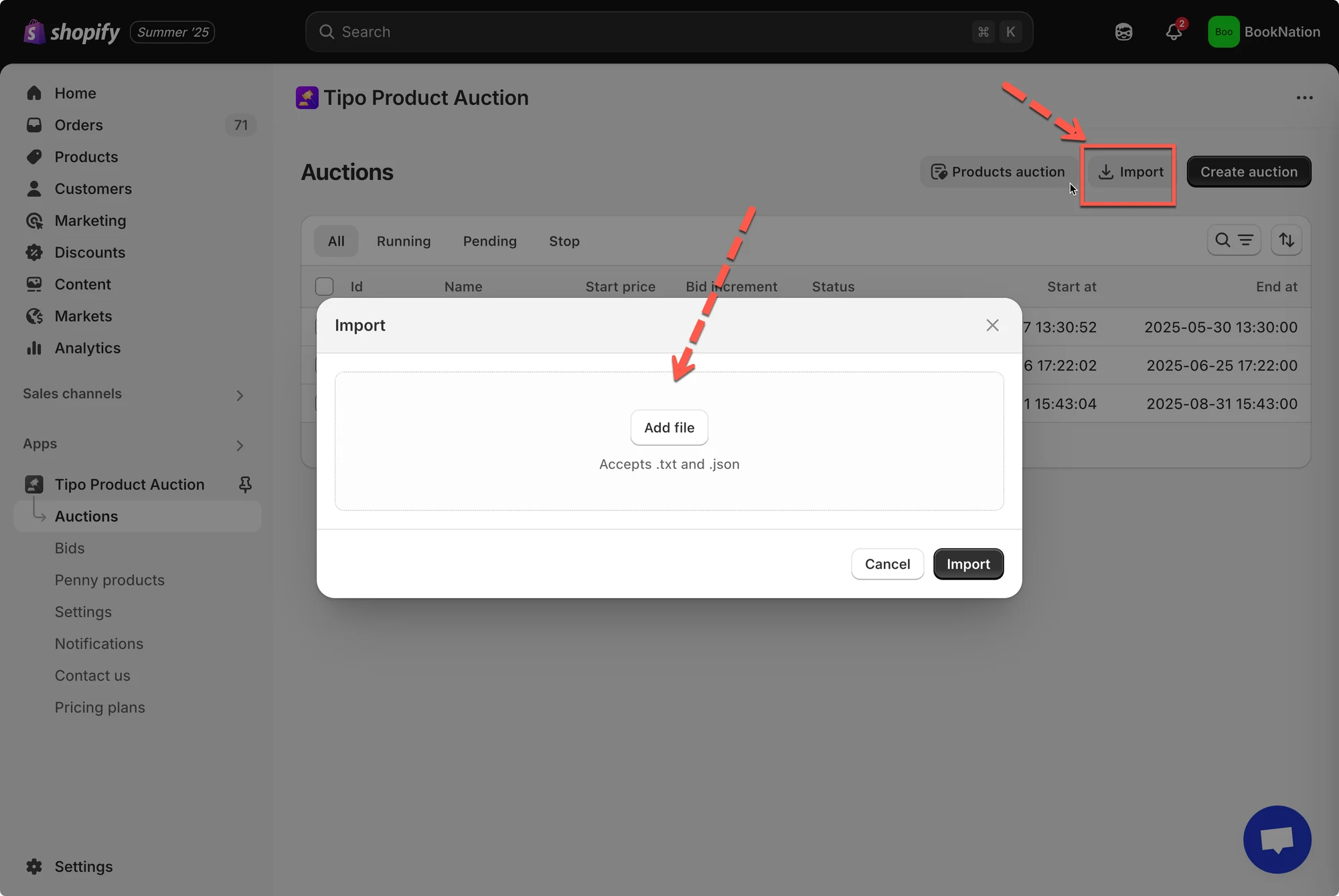
Please note that only the json file exported from our app is allowed to be added here
Once completed, the auctions will appear in your auction list.
🙋 Still need support?
If you still need help, please feel free to contact us at hi@tipo.io. We’ll be happy to assist you further.