
Create a widget
AI Overview
Create a widget in Tipo Related Products to show product recommendations on your store. You choose a placement and layout, set targeting and recommended products, optionally customize the design, then activate and save. The widget becomes visible only after you add it to your theme.
View moreView less
- Click Widgets > Add widget and choose a placement such as Product page or Cart page.
- Choose a layout: Related products, Frequently Bought Together, Add-ons or Recently viewed.
- Set targeting (all products, specific products, collections or product tags) and pick products manually or automatically.
- Optionally click Customize to adjust design in Settings.
- Set the status to Active, click Save, then display the widget on your store.
Summary generated by AI. It can make mistakes, so check the full guide below.
Follow these general steps to create a widget and show product recommendations on your store.
🛠️ Step 1: Open the Widgets page
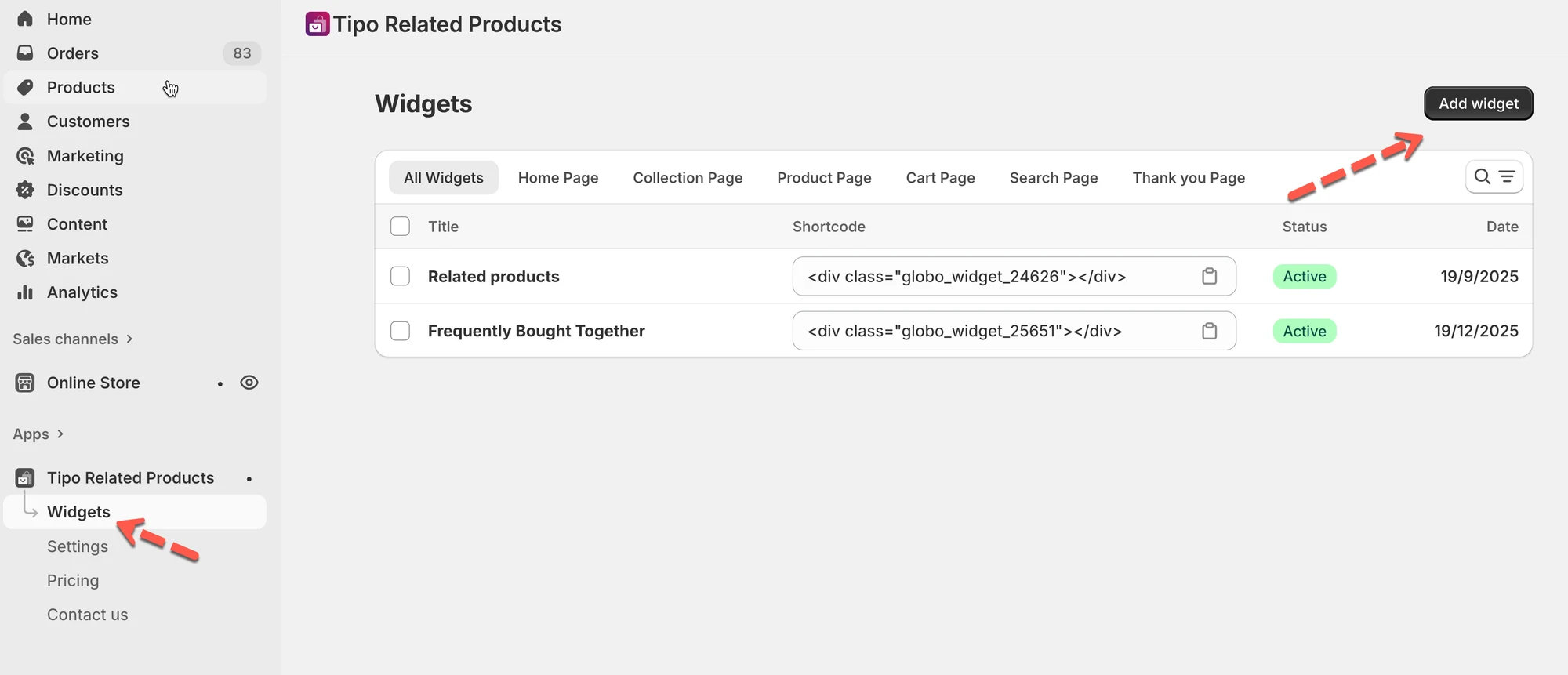
Section titled “🛠️ Step 1: Open the Widgets page”- Open the app > click Widgets
- Click Add widget button
🛠️ Step 2: Choose widget placement
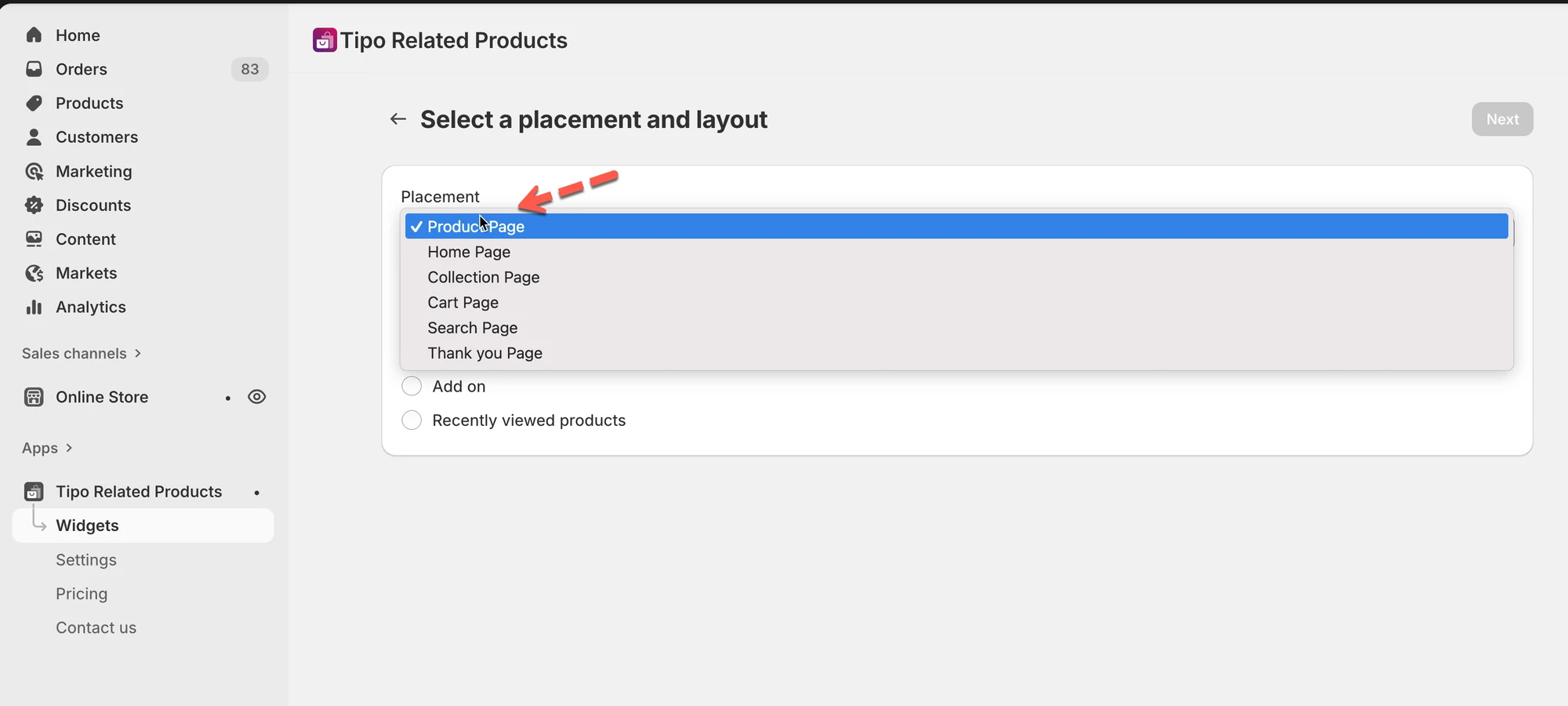
Section titled “🛠️ Step 2: Choose widget placement”Placement decides where the widget will appear on your store.
- Select a placement:
- Product page
- Collection page
- Home page
- Cart page
- Search page
- Thank you page
- Click Next.
Example
Choose Product page to show recommendations on product pages.
🛠️ Step 3: Choose widget layout
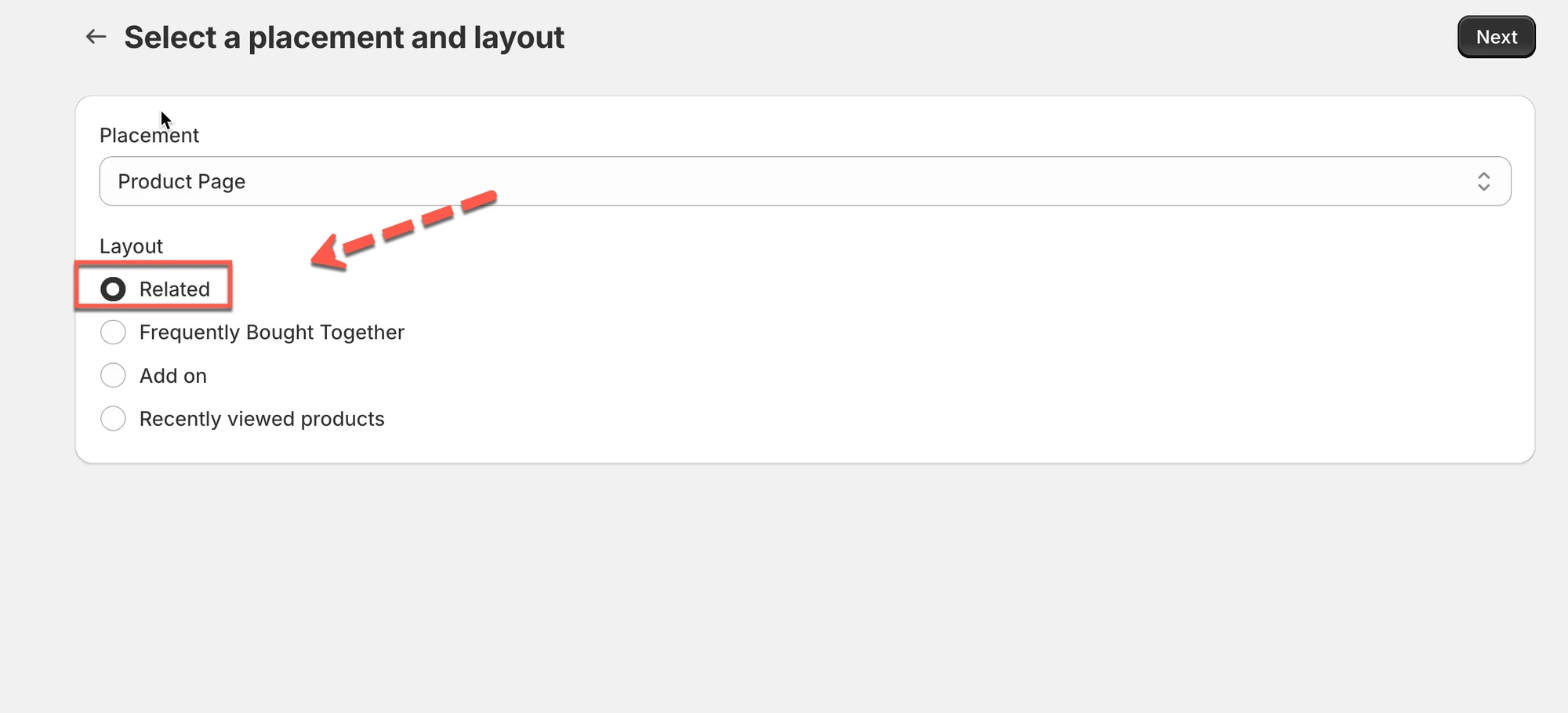
Section titled “🛠️ Step 3: Choose widget layout”Layout decides how the widget looks and works.
- Select a layout:
- Related products
- Frequently Bought Together
- Add-ons
- Recently viewed
- Click Next.
🛠️ Step 4: Configure widget settings
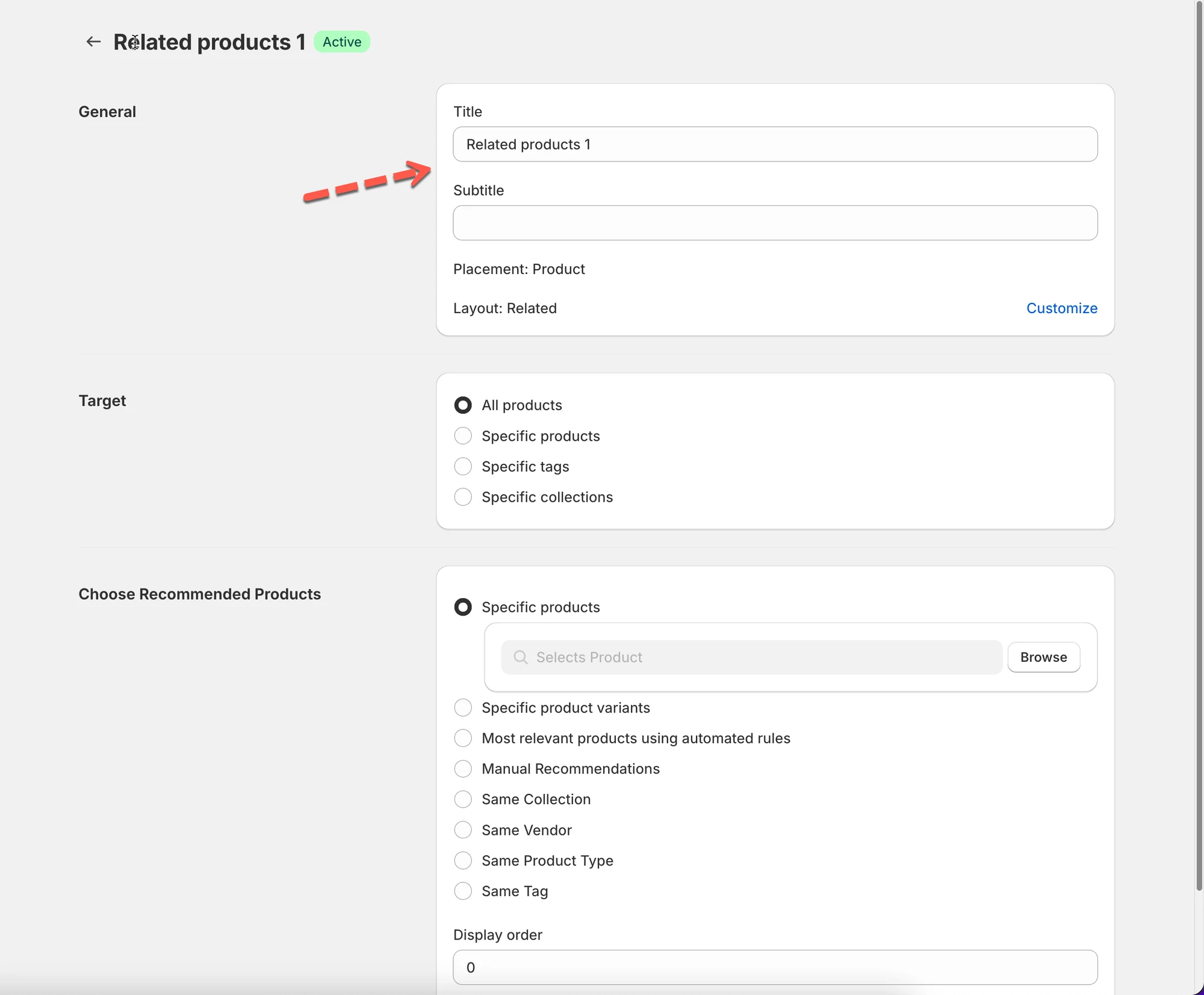
Section titled “🛠️ Step 4: Configure widget settings”Now you’ll see the widget editor.
- Enter a widget title (optional)
- Choose where this widget applies (targeting)
- Choose which products to recommend
- Adjust basic settings if needed.
🛠️ Step 5: Set targeting rules
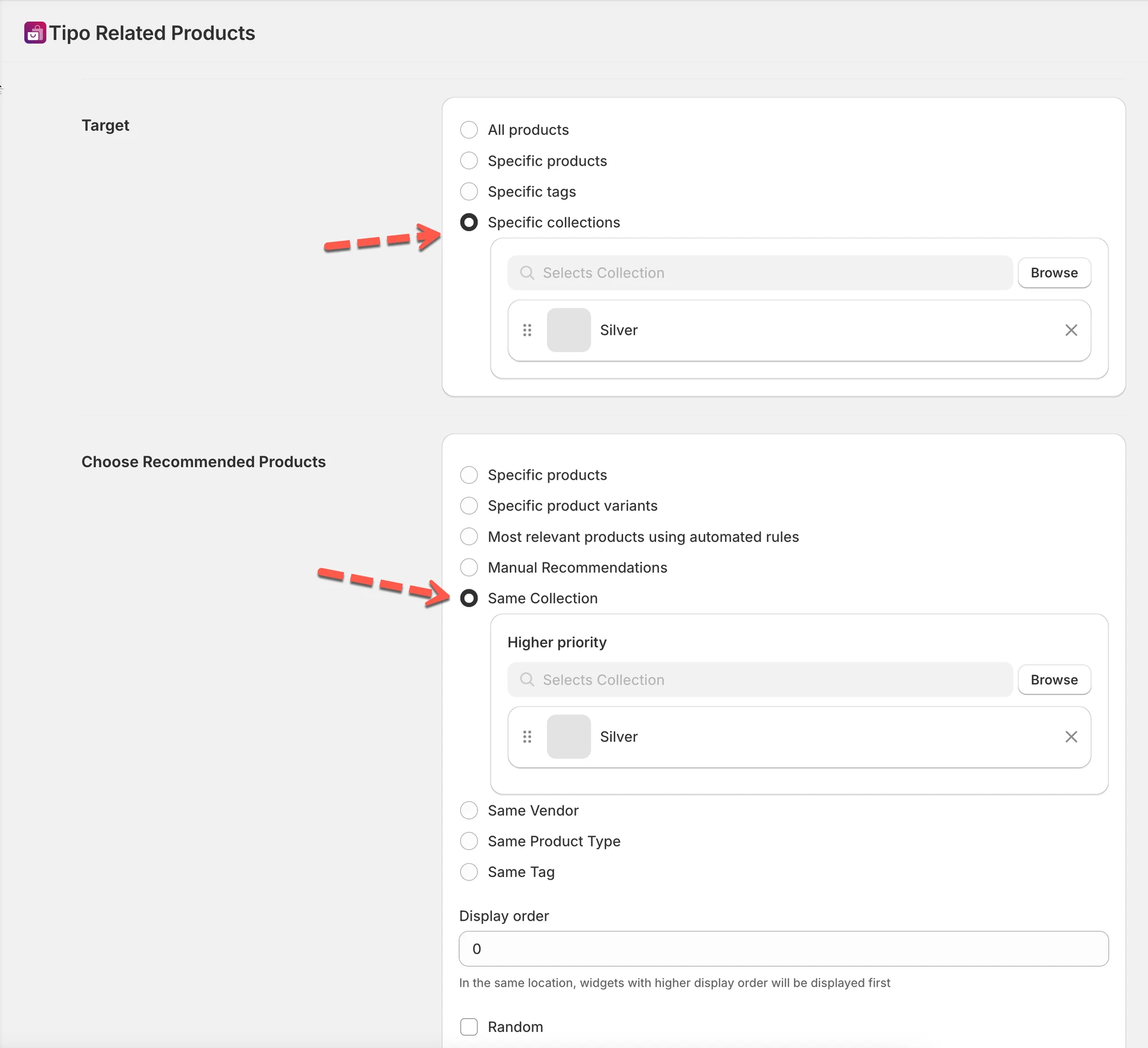
Section titled “🛠️ Step 5: Set targeting rules”Targeting controls which products or pages this widget applies to.
- Choose one option:
- All products
- Specific products
- Collections
- Product tags
- Save your selection
Example
Show this widget only for products in the “Silver” collection.
🛠️ Step 6: Choose recommended products
Section titled “🛠️ Step 6: Choose recommended products”Decide what products appear inside the widget.
- Choose how products are selected:
- Manual (pick specific products)
- Automatic (same collection, tag, vendor, product type)
- Save the widget
Example
Automatically recommend products from the same collection.
🛠️Step 7: Customize the design (optional)
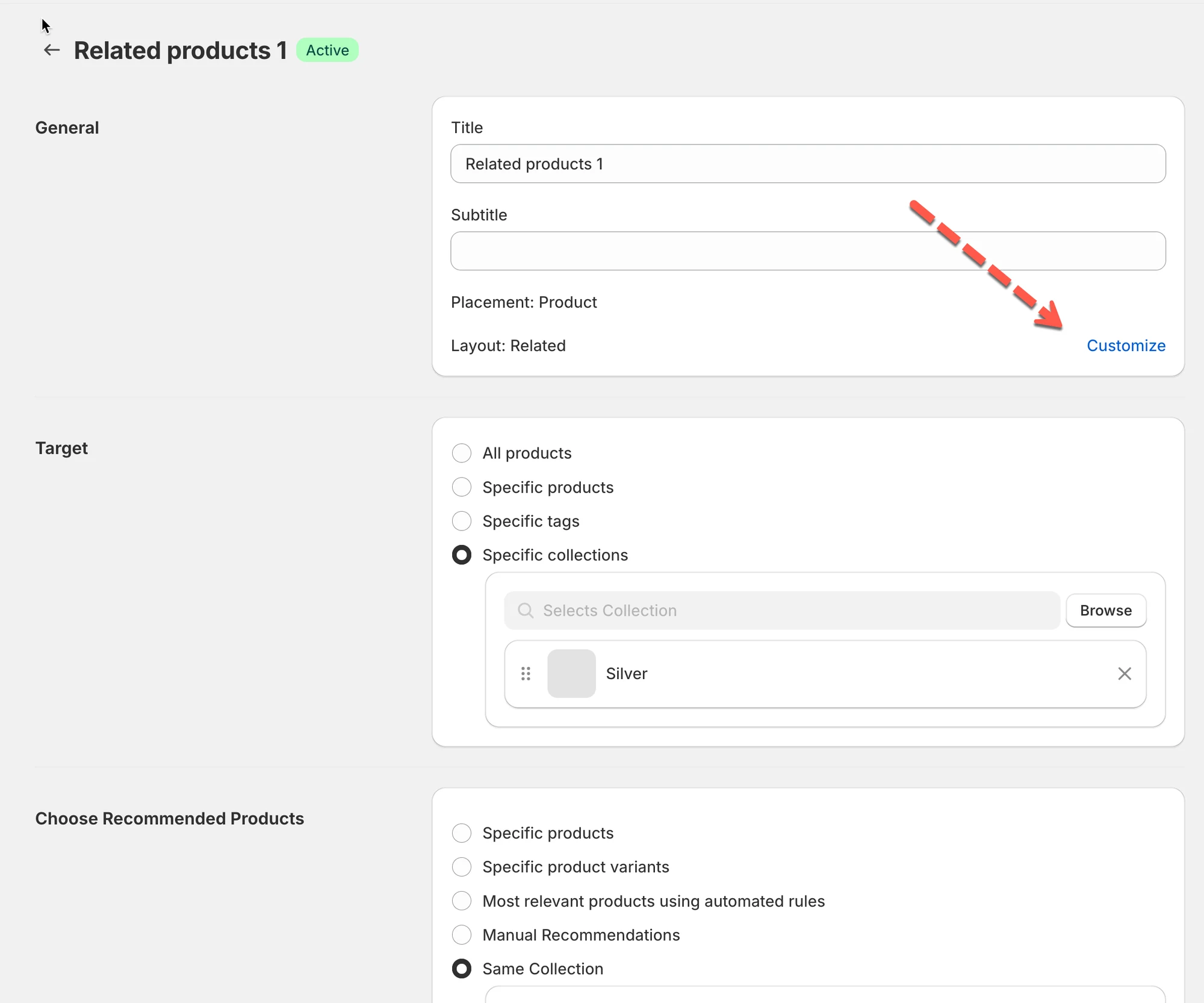
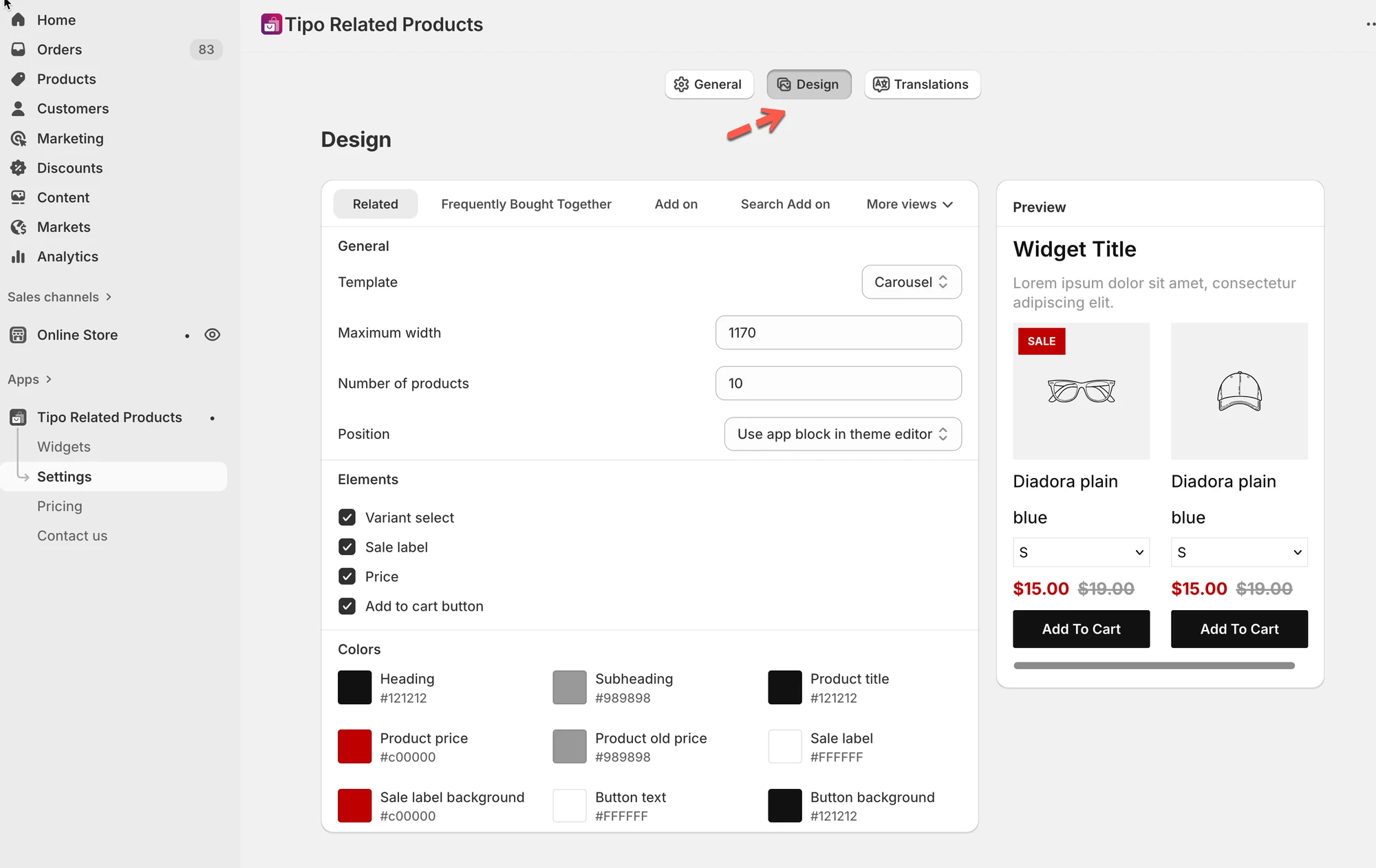
Section titled “🛠️Step 7: Customize the design (optional)”- Click Customize > it directs you to the app Settings
- Adjust layout, number of products, buttons, and colors
- Save changes
🛠️ Step 8: Activate and save
Section titled “🛠️ Step 8: Activate and save”- Set the widget status to Active
- Click Save
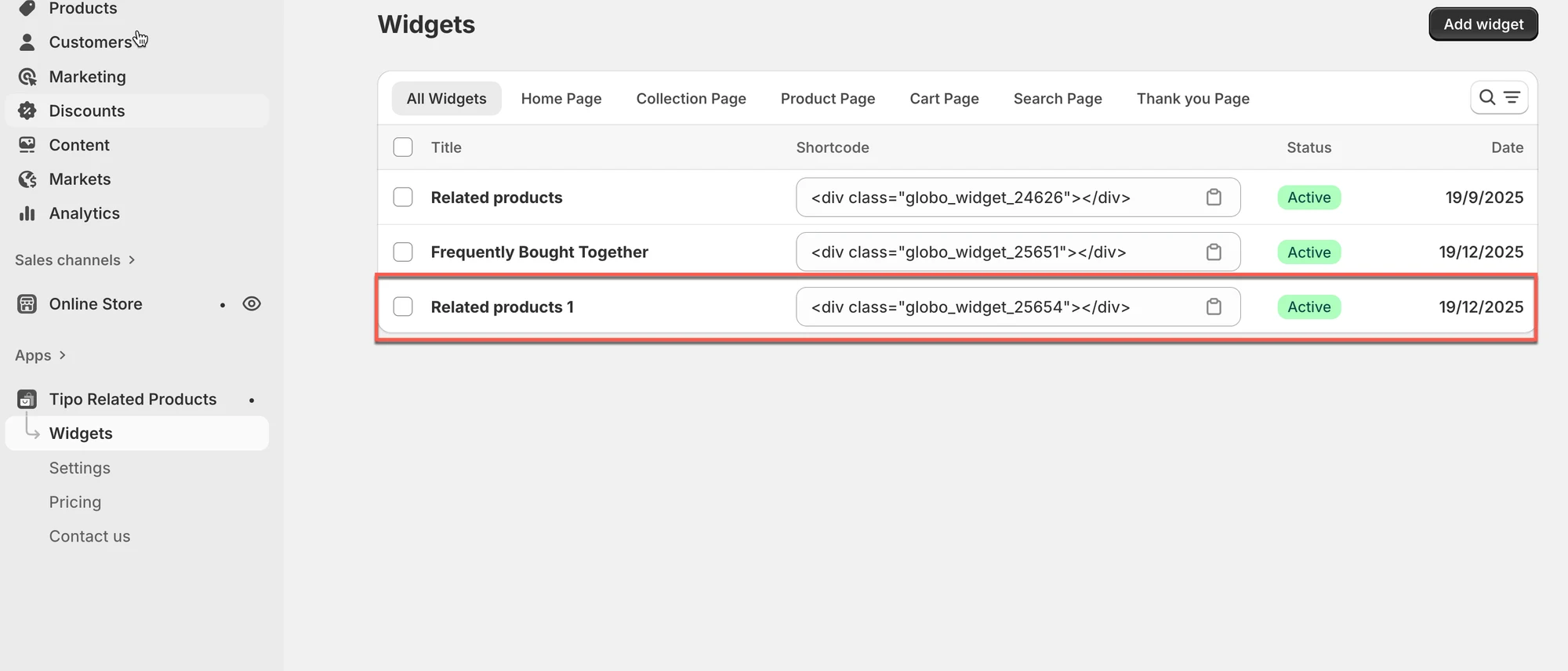
🎉 Your widget is now created.
▶️ A Tutorial video
Section titled “▶️ A Tutorial video ”👉 Next step
Section titled “👉 Next step”To make the widget visible on your store, continue to Display a widget.