
Choosing recommended products
AI Overview
Choose which products appear inside a Tipo Related Products widget, either manually or automatically by rules. Options include specific products or variants, manual recommendations, same collection, tag, vendor or product type, and automated most relevant products. You can also set display order and random display.
View moreView less
- Each widget recommends products manually (you pick them) or automatically (rules); you can change this at any time.
- Open a widget and scroll to Choose Recommended Products.
- Manual: select Specific products and click Browse, or use variants or Manual Recommendations.
- Automatic: same collection, tag, vendor or product type, or Most relevant products with a Related or Complementary intent.
- Display order sets priority between widgets; Random shuffles product order.
Summary generated by AI. It can make mistakes, so check the full guide below.
This step decides which products appear inside your widget.
👉 If targeting answers “Where does the widget show?”,
then recommendations answer “What products do customers see?”
✅ How product recommendations work
Section titled “✅ How product recommendations work”Each widget can recommend products in one main way:
- Manual – you pick the products
- Automatic – the app selects products based on rules
You can change this at any time.
🛠️ Step 1: Open recommendation settings
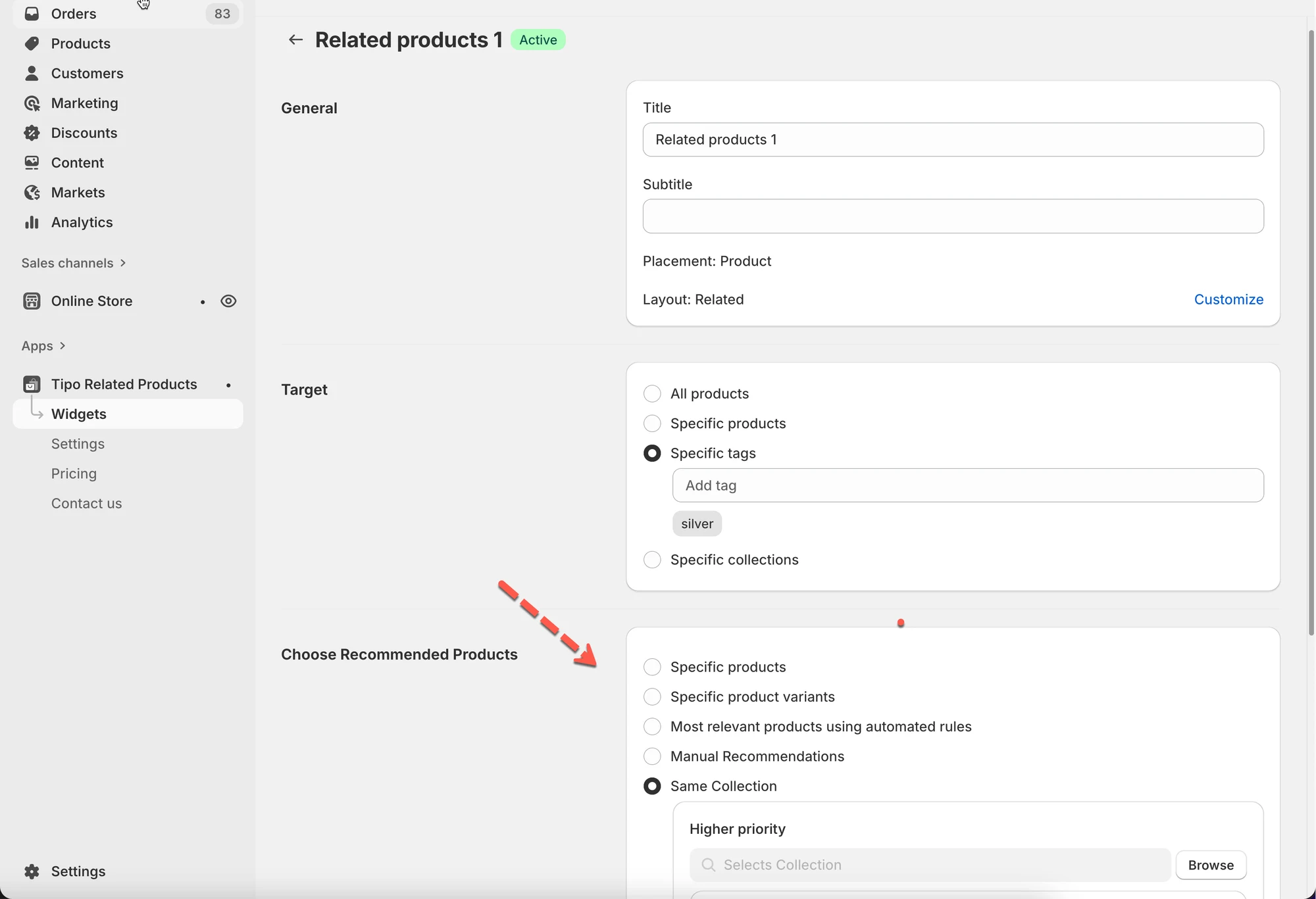
Section titled “🛠️ Step 1: Open recommendation settings”- Go to the app > click Widgets
- Open the widget you want to edit
- Scroll to Choose Recommended Products.
⚙️ Option 1: Specific products (manual)
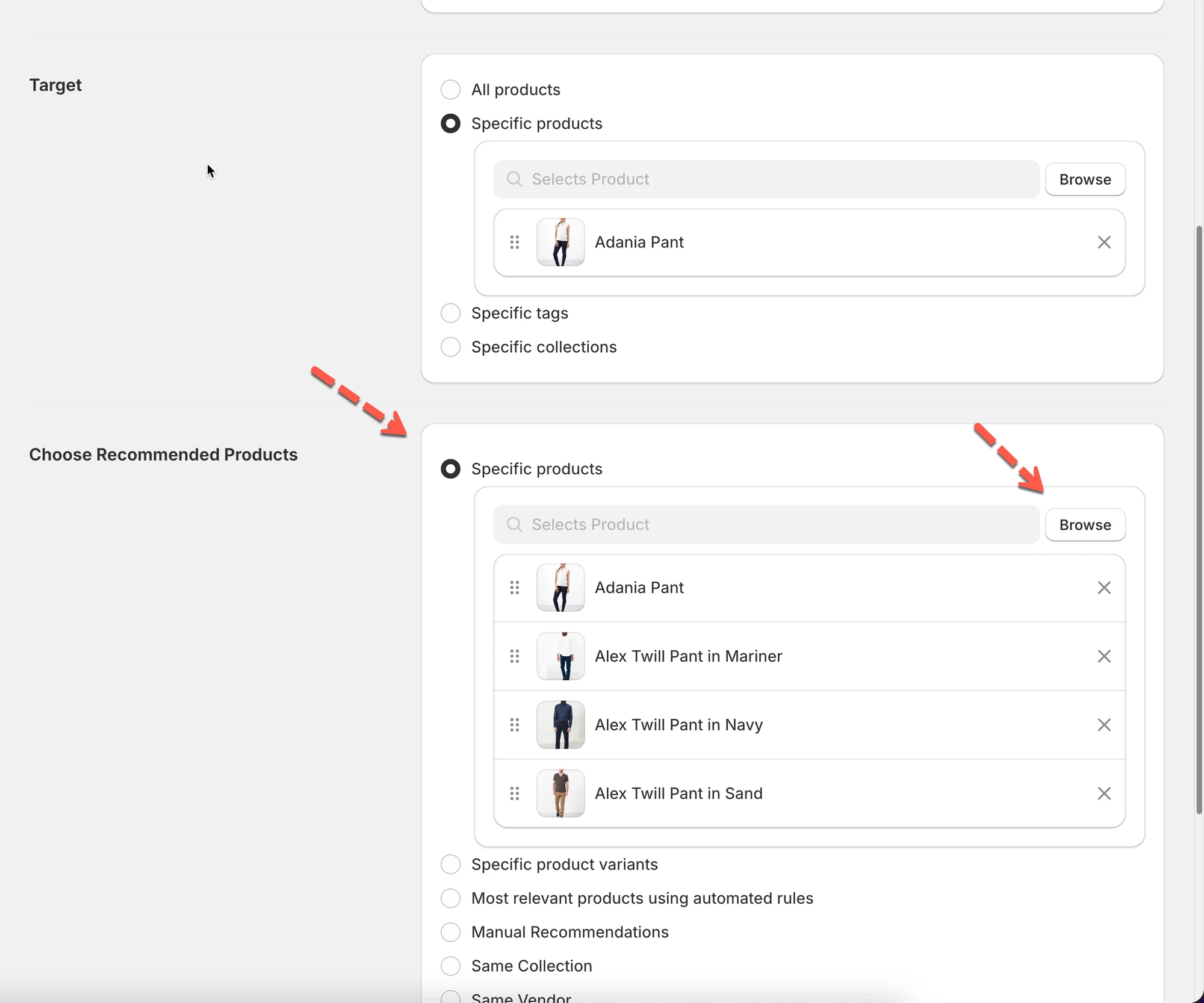
Section titled “⚙️ Option 1: Specific products (manual)”You manually choose exactly which products to show.
How it works
Section titled “How it works”- Select Specific products
- Click Browse
- Choose one or more products
- Save.
✅ Best for:
- High-priority products
- Custom bundles
- Marketing campaigns
Example
For a camera product, manually select:
- Camera bag
- Tripod
- Memory card
⚙️ Option 2: Specific product variants
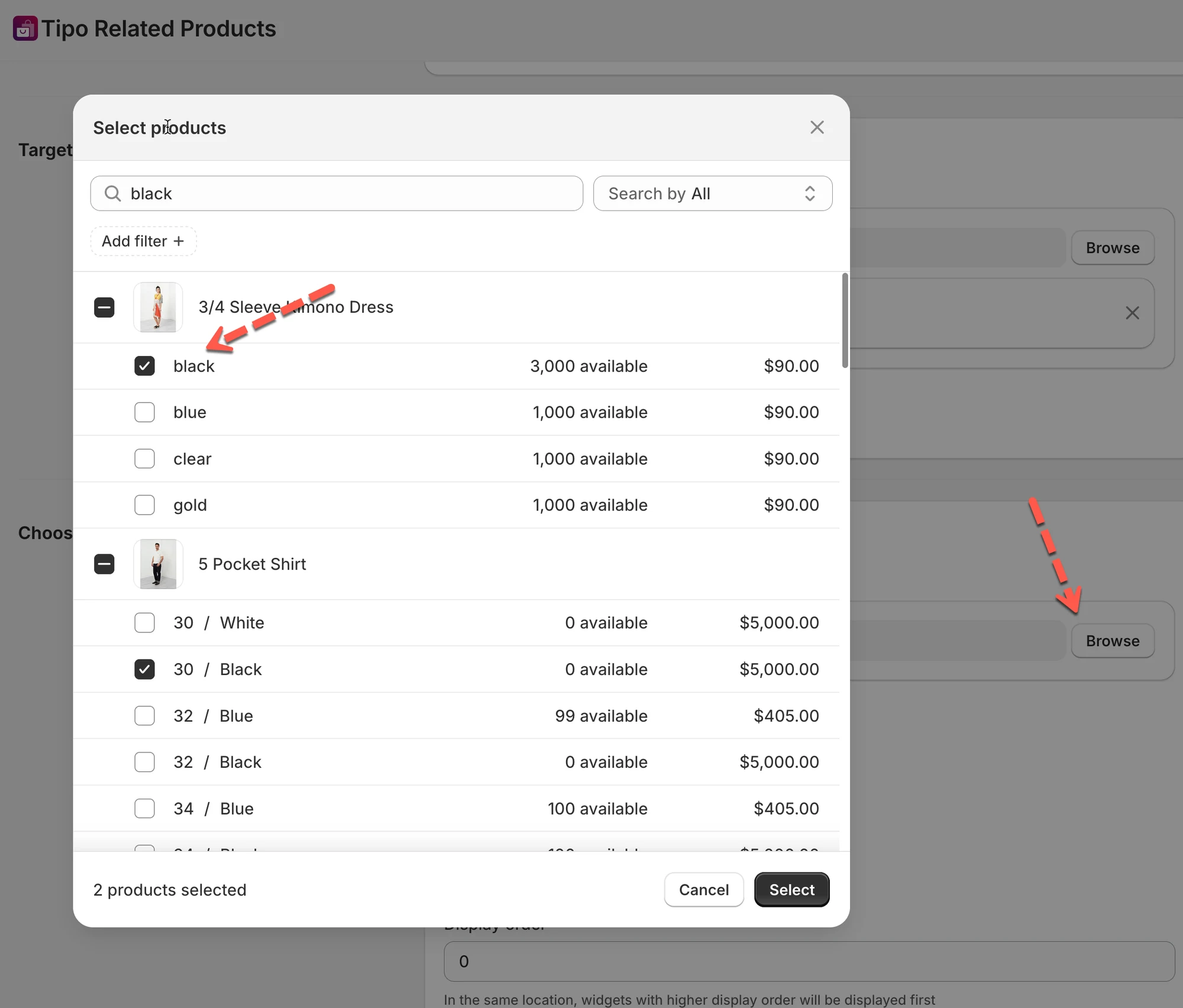
Section titled “⚙️ Option 2: Specific product variants”Similar to manual products, but lets you recommend specific variants.
Best for:
- Size or color-based upsells
- Variant-specific recommendations
⚙️ Option 3: Manual Recommendations
Section titled “⚙️ Option 3: Manual Recommendations”Manual Recommendations let you decide exactly which products appear together, instead of letting the app choose automatically.
- manually select target products
- manually select recommended products
⚙️ Option 4: Automatic recommendations (rules-based)
Section titled “⚙️ Option 4: Automatic recommendations (rules-based)”Let the app choose products automatically using rules.
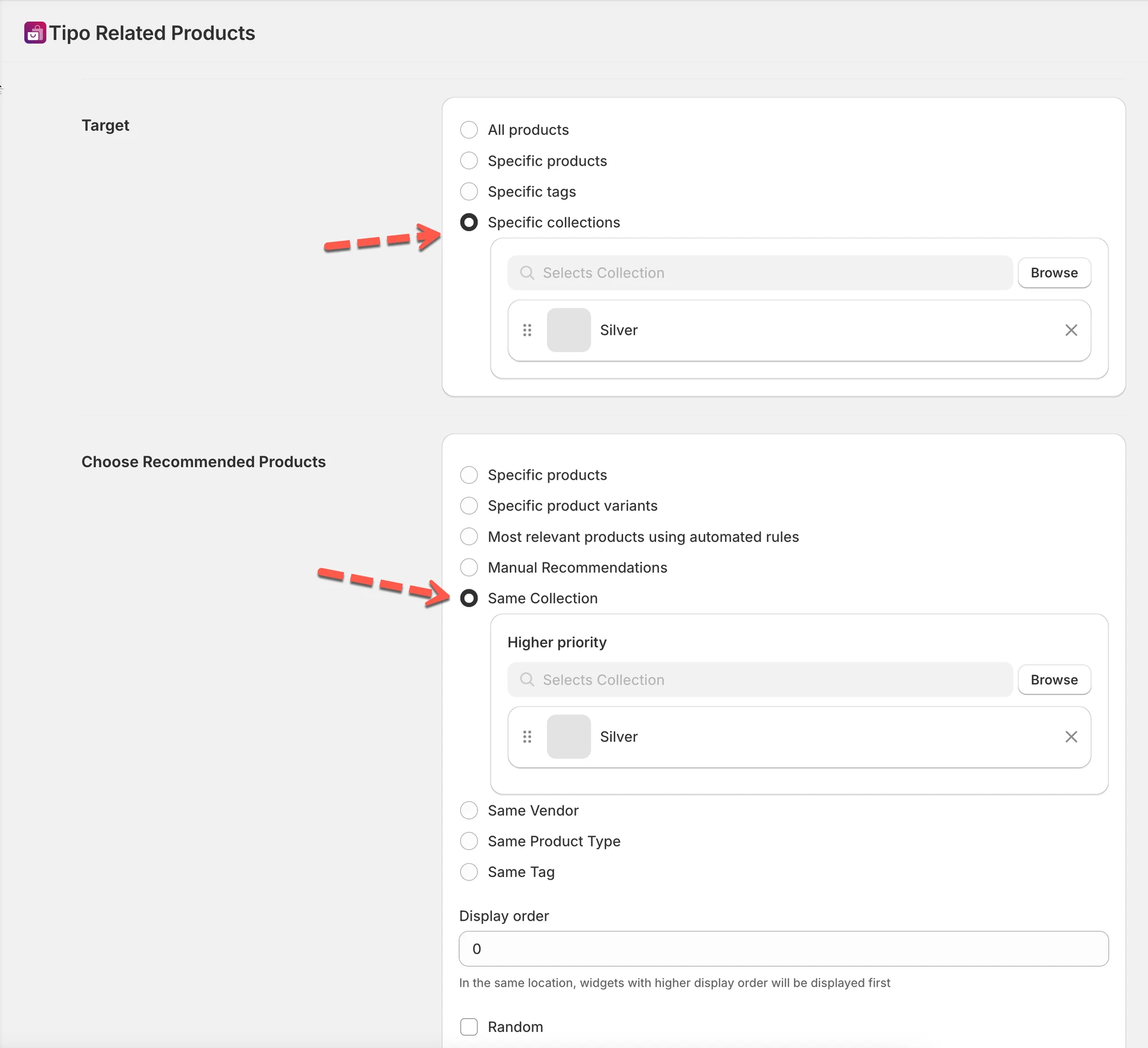
Same collection
Section titled “Same collection”Shows products from the same collection as the current product.
Best for:
- Category-based recommendations
Example
All products from the Silver collection.
Same tag
Section titled “Same tag”Shows products that share at least one tag.
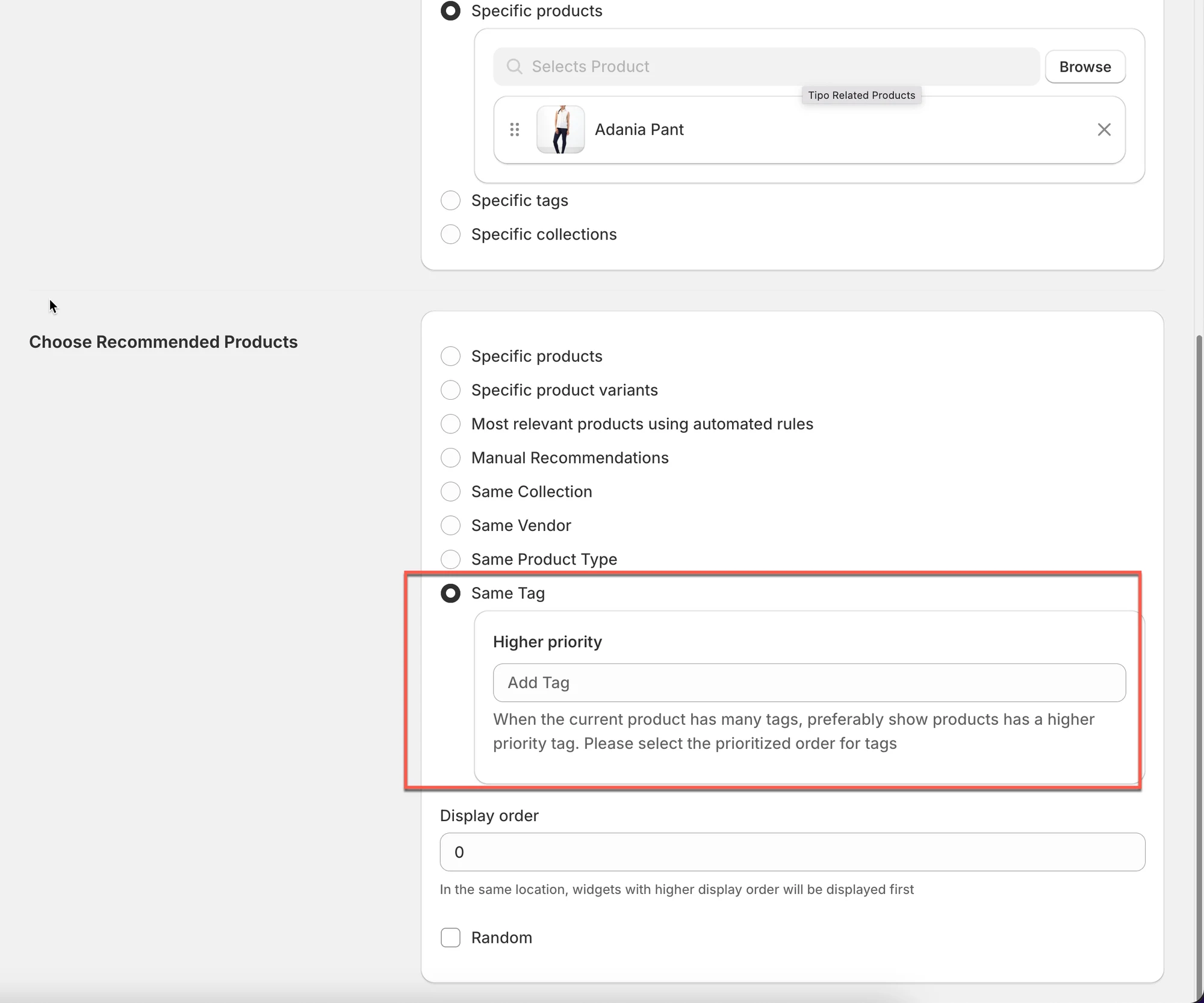
Best for:
- Seasonal or themed products
Example
Products tagged with winter.
Same vendor
Section titled “Same vendor”Shows products from the same vendor/brand.
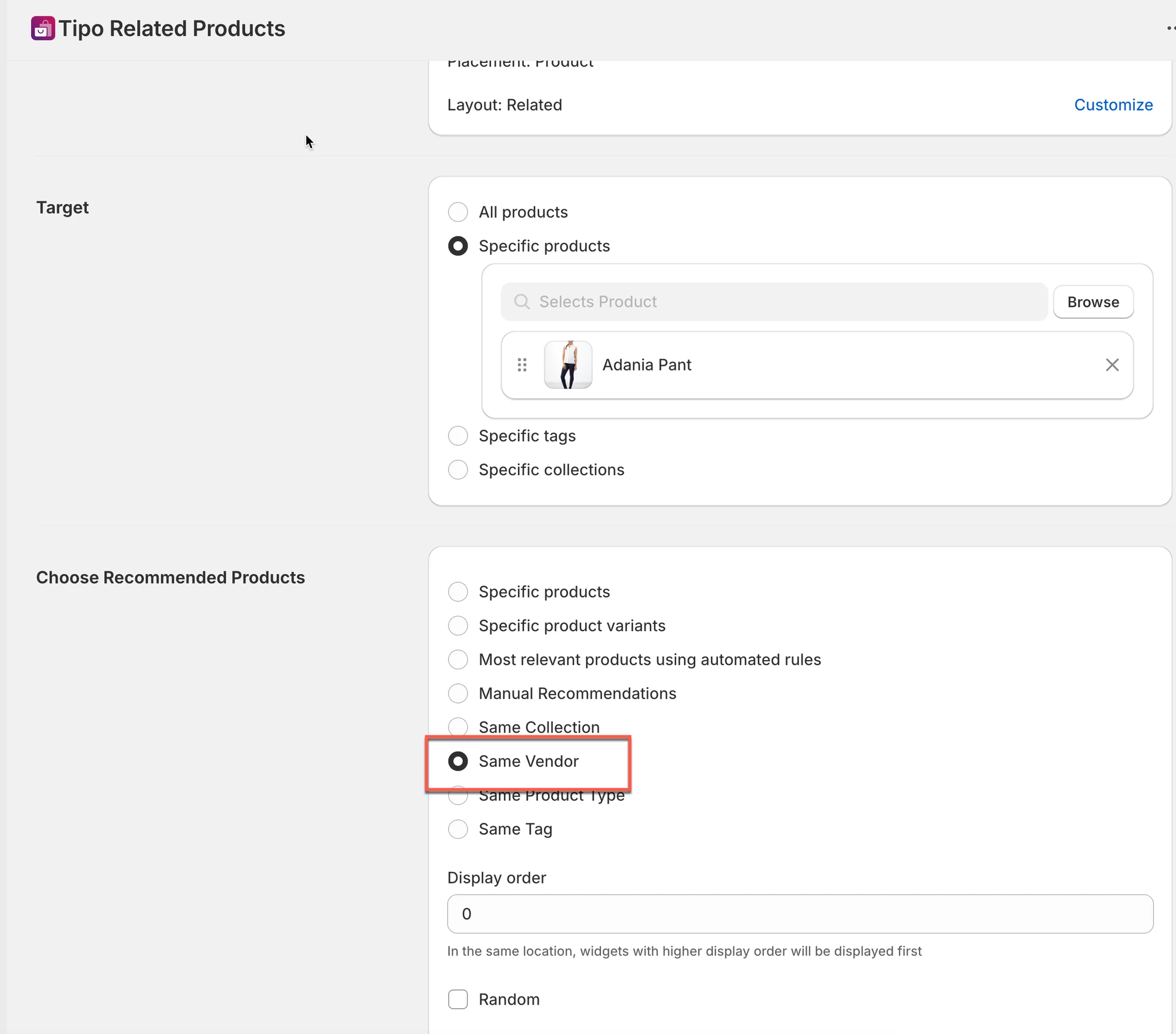
Best for:
- Brand-focused stores
Same product type
Section titled “Same product type”Shows products with the same product type.
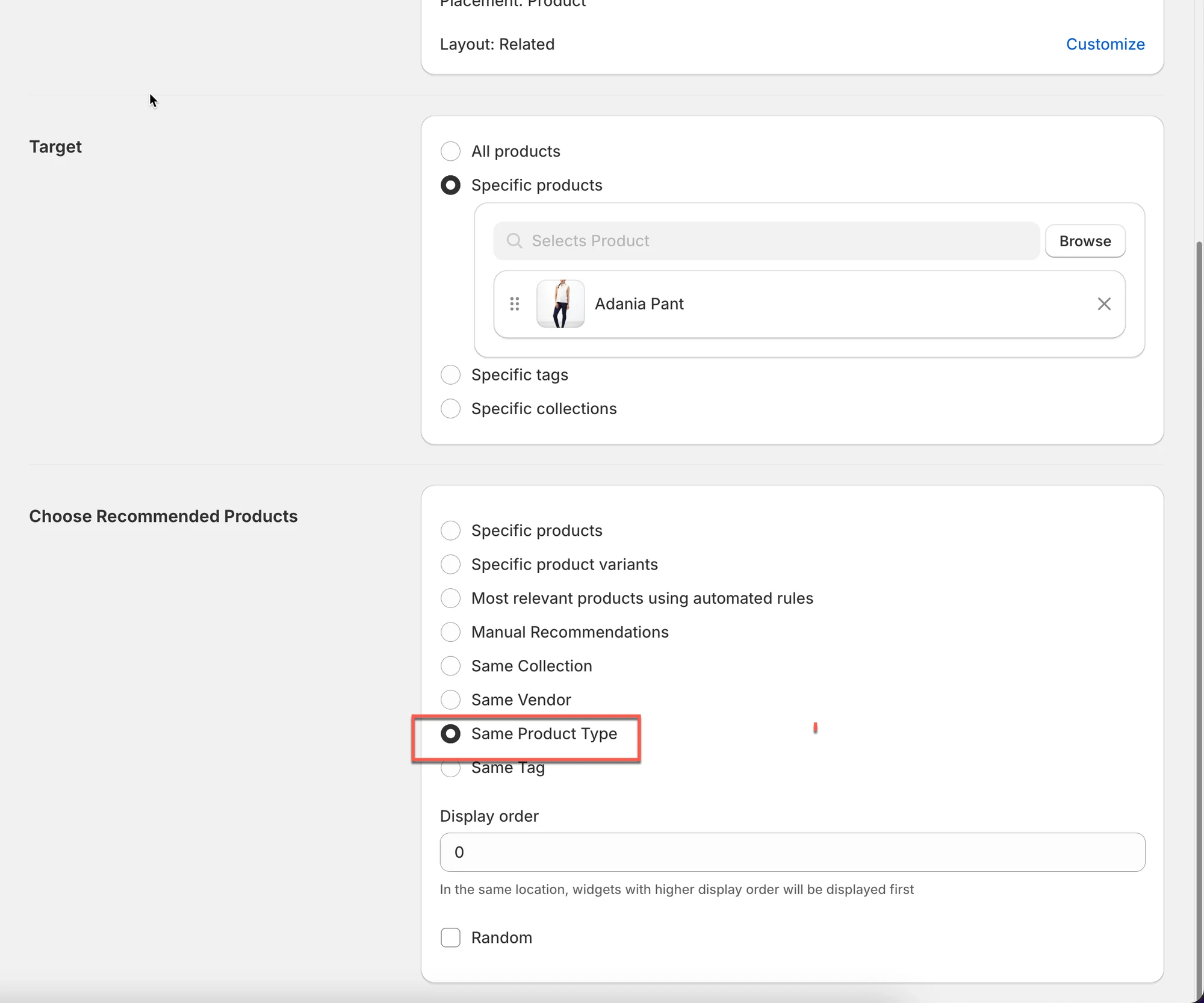
Best for:
- Structured catalogs
Most relevant products (automated)
Section titled “Most relevant products (automated)”This option lets Tipo automatically choose products to recommend.
You don’t need to select products manually.
The app decides what to show based on the current product and the recommendation intent you choose.
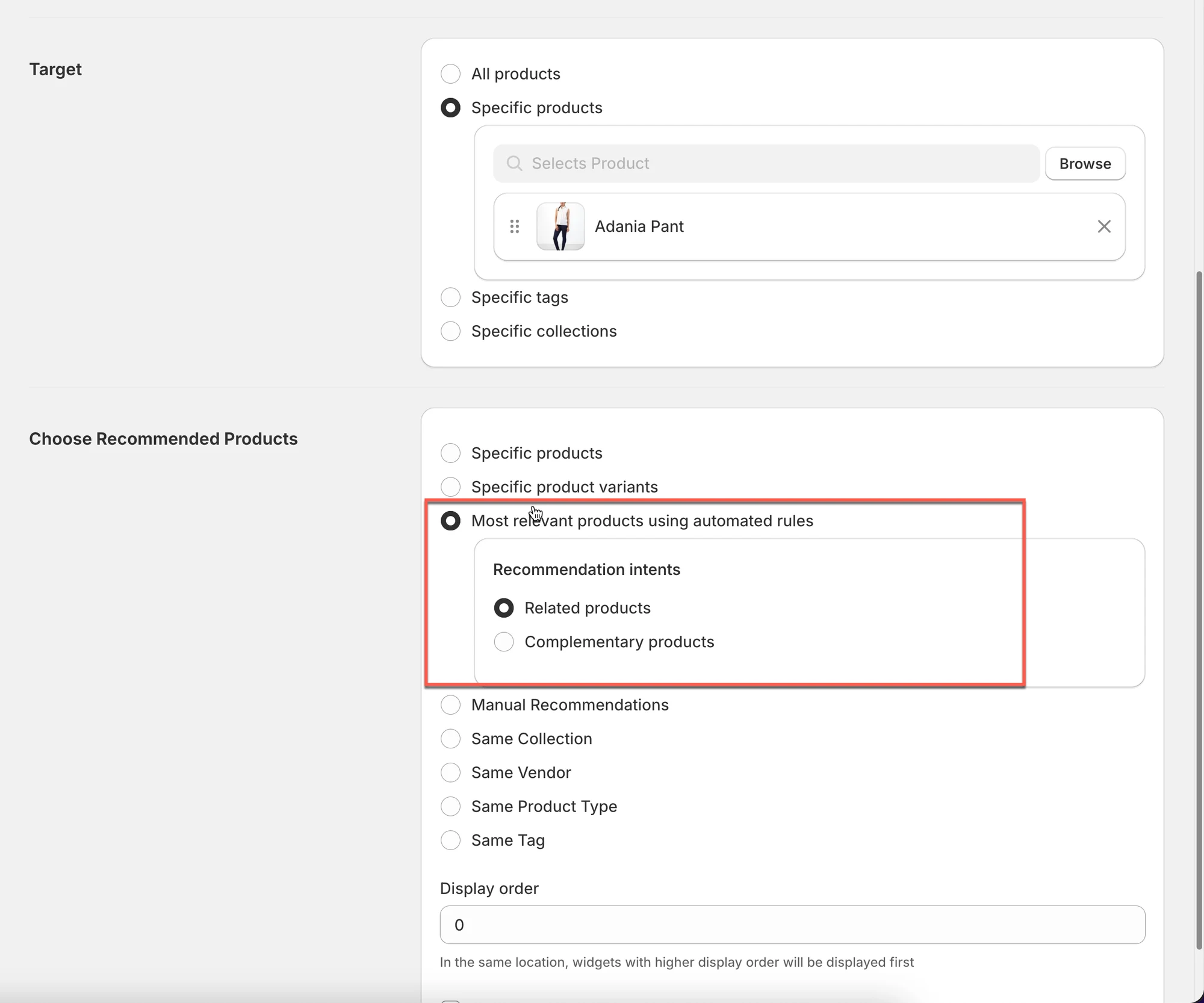
Best for:
- Large catalogs
- Hands-off setup
When a customer views a product:
- Tipo looks at the current product
- It finds other products that are most relevant
- It shows them based on your selected recommendation intent
You only need to choose one intent.
🎯 Recommendation intents explained
1) Related products
Shows products that are similar to the current product.
Tipo uses product data such as:
- Collection
- Product type
- Tags
- Vendor
Best for:
- “You may also like”
- Browsing and discovery
Example
Customer is viewing a blue shirt →
Widget shows other shirts from the same collection.
2) Complementary products
Shows products that are usually bought together with the current product.
Tipo focuses on upsells and cross-sells.
Best for:
- Accessories
- Add-ons
- Bundles
Example
Customer is viewing a camera →
Widget shows memory card, tripod, camera bag.
🛠️ Step 2: Set display order & random option
Section titled “🛠️ Step 2: Set display order & random option”Display order
Section titled “Display order”Display order controls the priority of widgets when multiple widgets appear in the same location (same page and position).
- Widgets with a higher number are shown first
- Widgets with a lower number are shown later
- If there is only one widget, display order does not matter
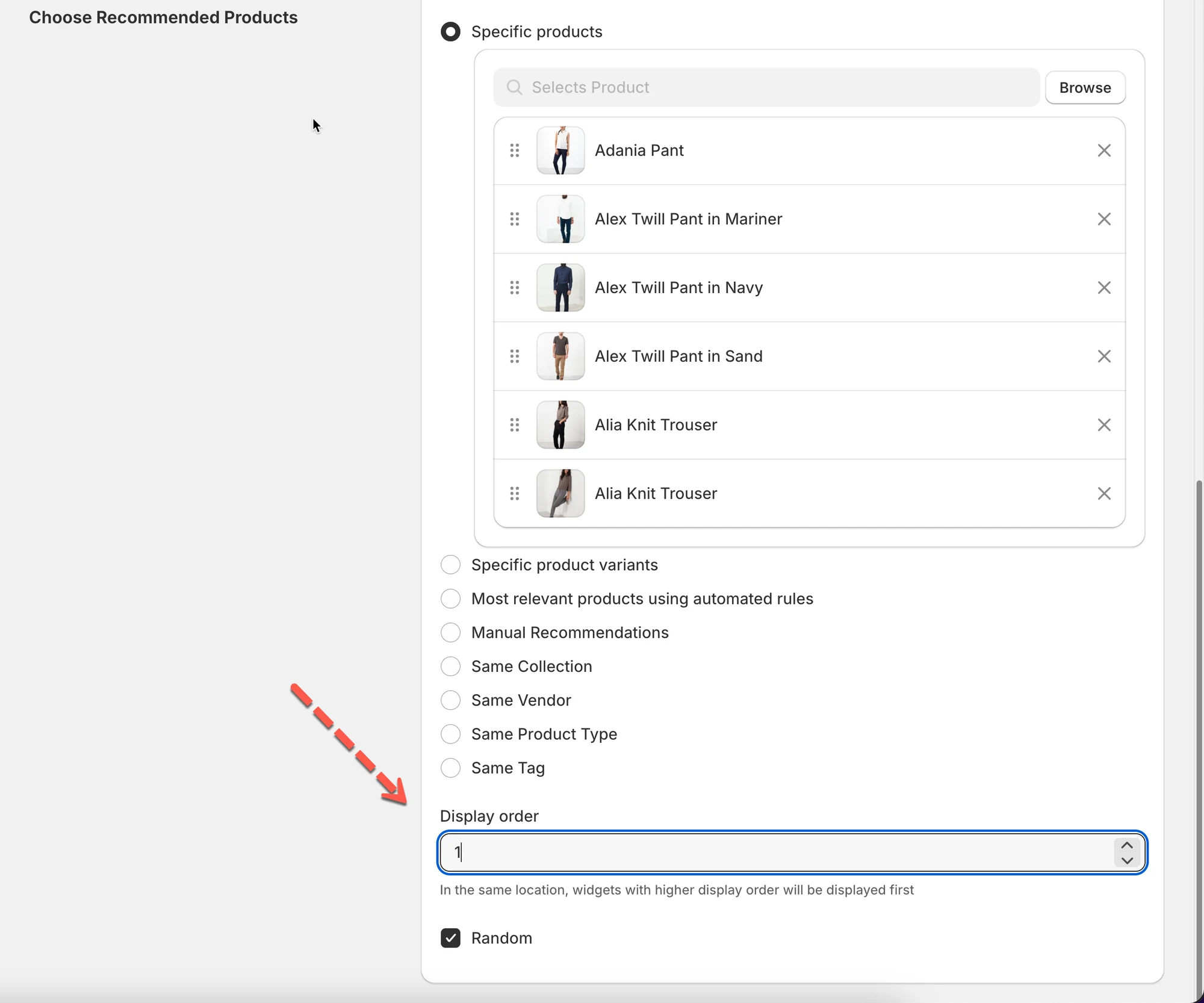
Example
You have 2 widgets on the Product page, both showing below the product form.
Widget A
- Name: Related products
- Display order: 10
Widget B
- Name: Frequently Bought Together
- Display order: 5
✅ Result on the store
- Related products (10) → shown first
- Frequently Bought Together (5) → shown below
Random display (optional)
Section titled “Random display (optional)”- Randomizes product order each time the page loads
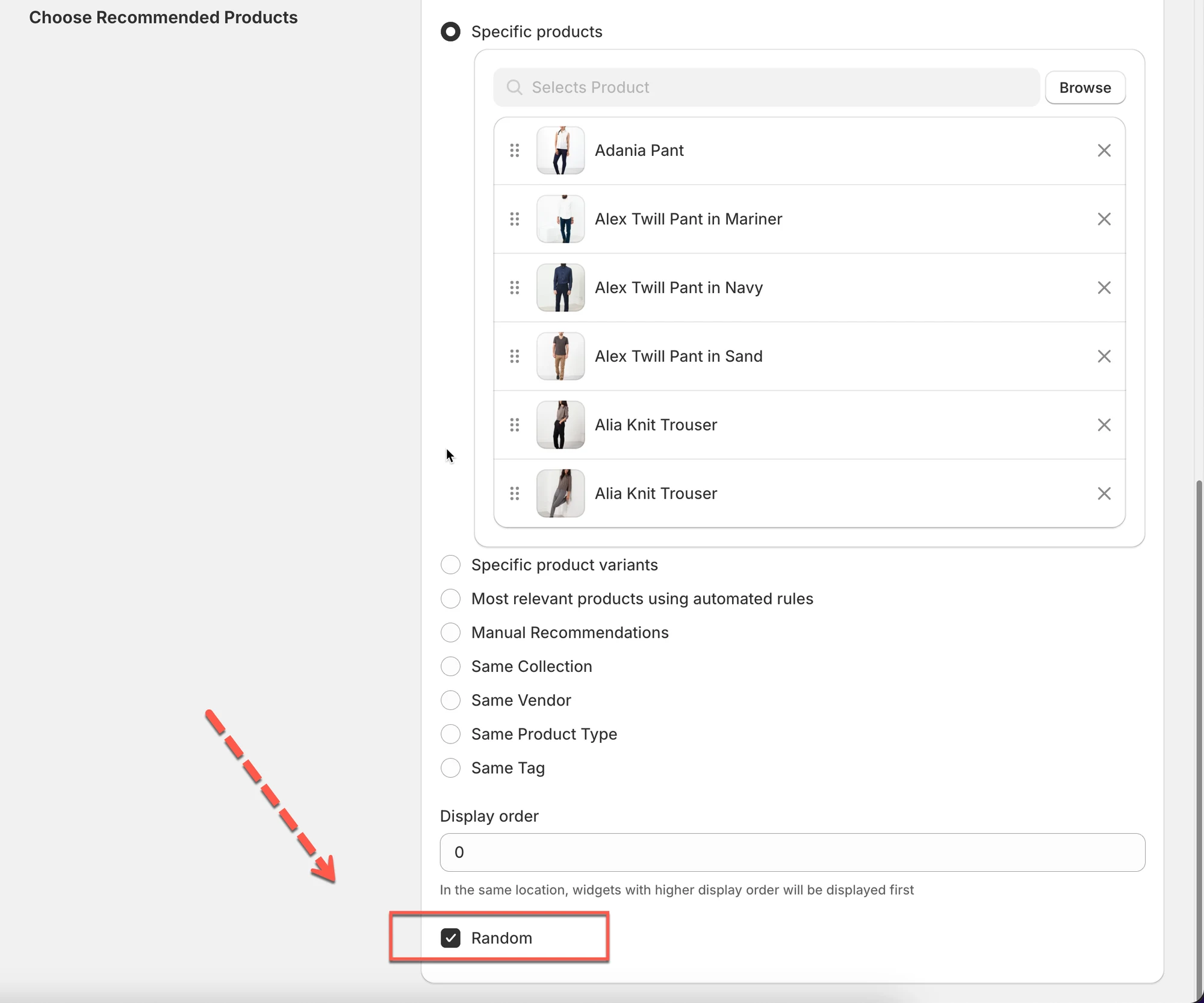
Best for:
- Showing variety
- Avoiding repetitive recommendations
⚠️ Important notes
Section titled “⚠️ Important notes”- Recommendation rules control what is shown, not where
- If no products appear:
- Check product availability
- Check collection/tag rules
- Sold-out products follow your Product display settings
👉 What’s next?
After choosing recommended products, you can:
- Adjust Display order & priority
- Customize Design & appearance
- Set the widget Active
🙋 Still need support?
If you still need help, please feel free to contact us at hi@tipo.io. We’ll be happy to assist you further.