
Choose placement & layout
AI Overview
Placement and layout decide where a Tipo Related Products widget appears and how it behaves, and they are the first step when configuring a widget. Choose one page placement, then a layout such as Related products or Frequently Bought Together. Some layouts only work with certain placements.
View moreView less
- Each widget has one placement: Product, Collection, Home, Cart, Search or Thank you page.
- In Placement, select the page and click Next (or Save when editing).
- Choose a layout: Related products, Frequently Bought Together, Add-ons or Recently viewed.
- If a layout is unavailable, it is not supported for that placement.
- Product page with Related products is the most common setup.
Summary generated by AI. It can make mistakes, so check the full guide below.
Placement and layout decide where your widget appears and how it looks on your store.
This is the first and most important step when configuring a widget.
ℹ️ What is placement?
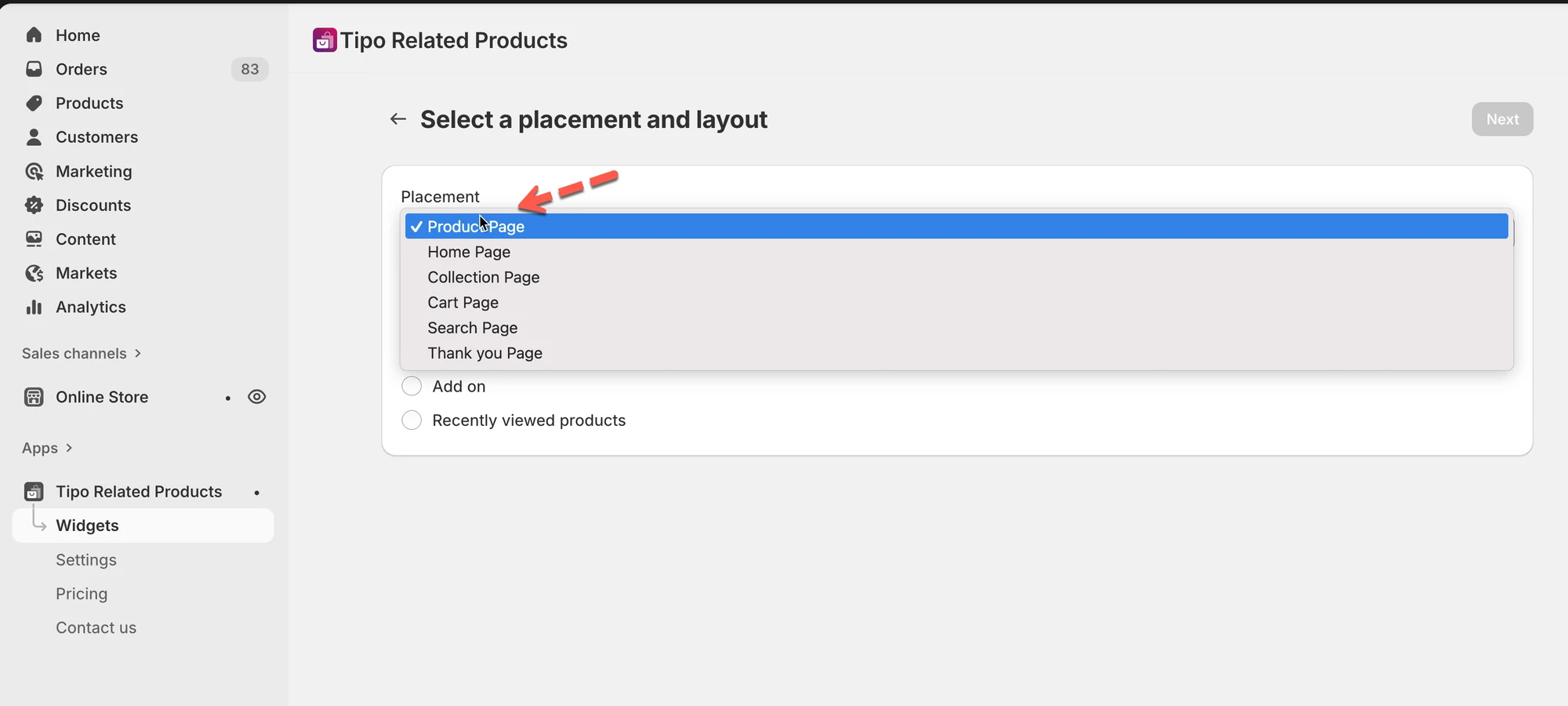
Section titled “ℹ️ What is placement?”Placement decides which page the widget will appear on.
Each widget can have one placement only.
Available placements:
- Product page
- Collection page
- Home page
- Cart page
- Search page
- Thank you page
ℹ️ What is layout?
Section titled “ℹ️ What is layout?”Layout decides how the widget behaves and looks.
Layouts control:
- Product grouping
- Buying behavior (upsell, cross-sell, bundle)
🛠️ Step 1: Choose widget placement
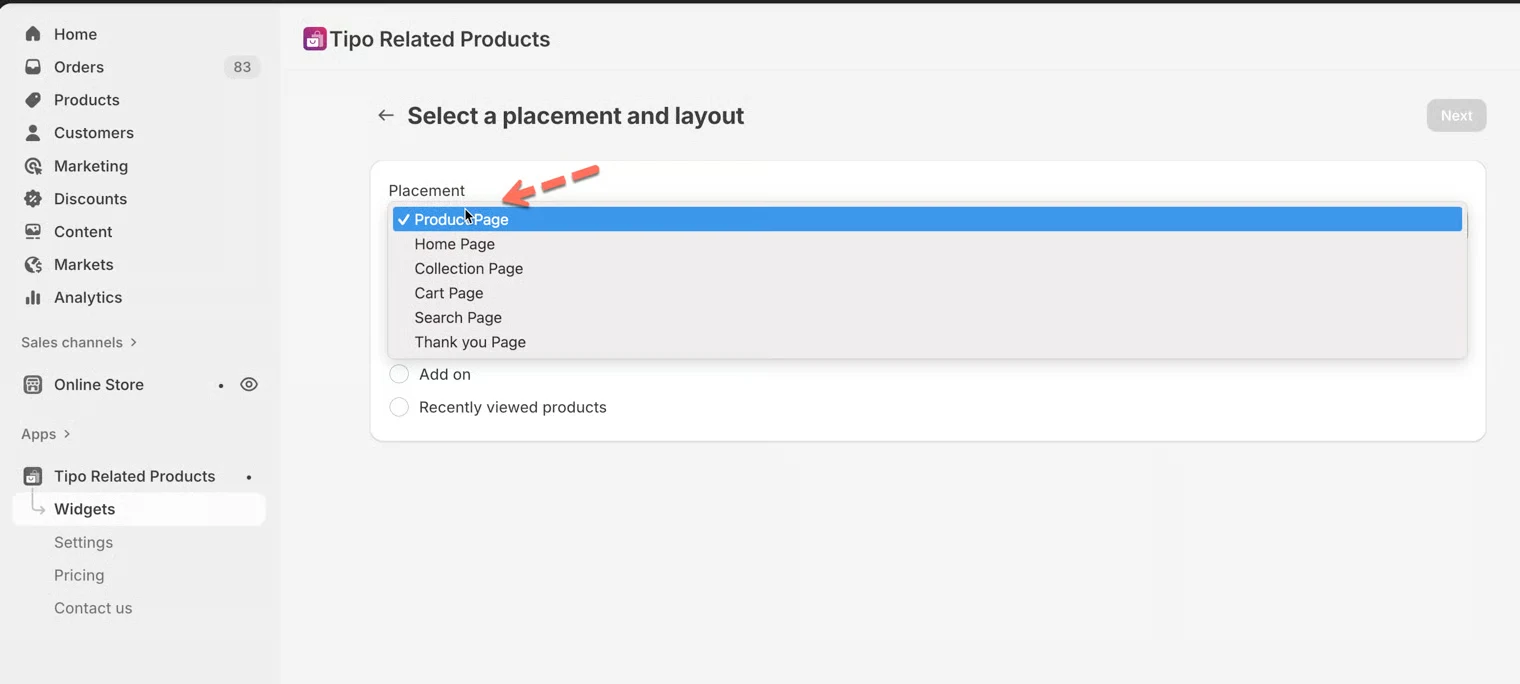
Section titled “🛠️ Step 1: Choose widget placement”- When creating or editing a widget, go to Placement
- Select the page where you want the widget to appear
- Click Next (or Save if editing)
Common examples
Section titled “Common examples”- Product page → Show related items
- Cart page → Upsell before checkout
- Thank you page → Post-purchase offers
🛠️ Step 2: Choose widget layout
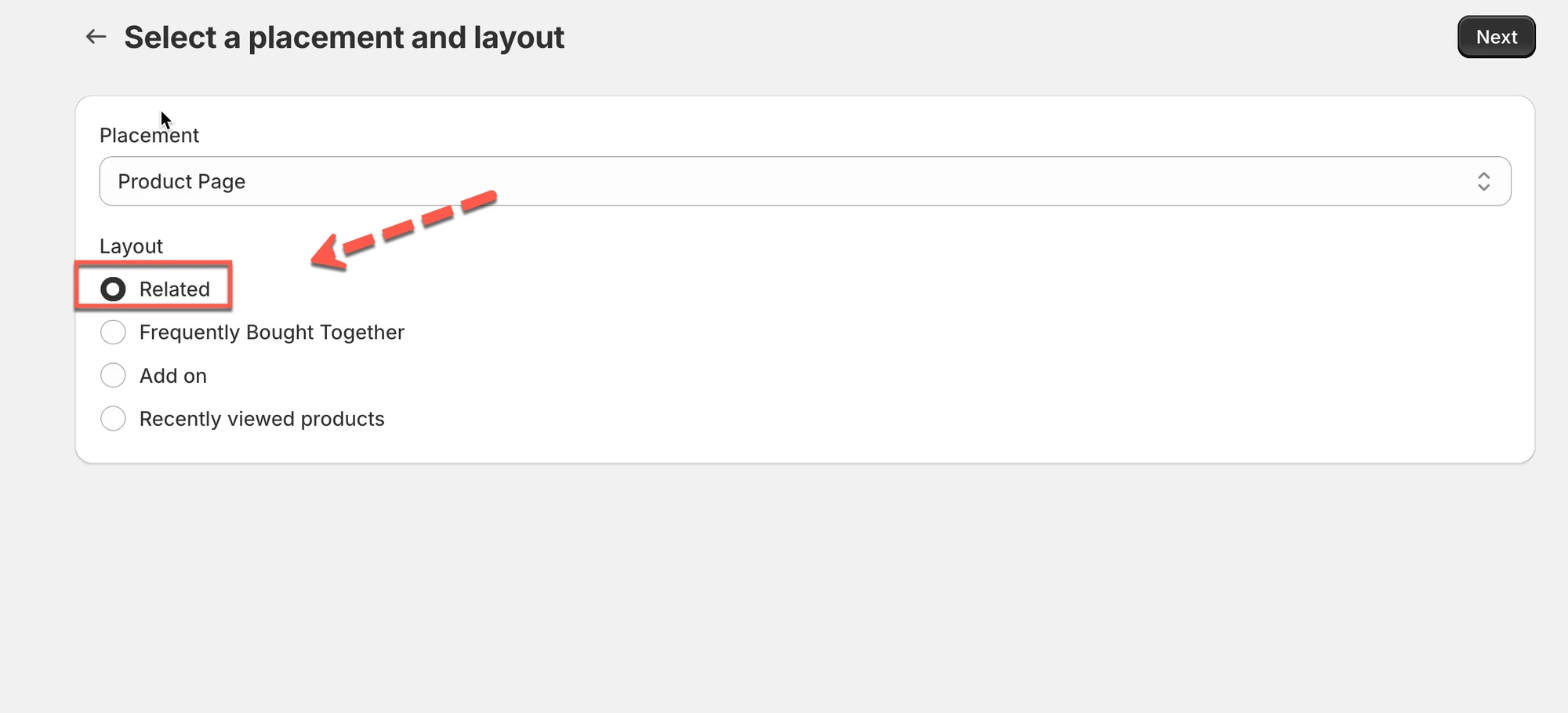
Section titled “🛠️ Step 2: Choose widget layout”After selecting placement, choose a layout.
Available layouts include:
Related products
Section titled “Related products”- Shows similar or complementary products
- Best for product pages
Example:
“You may also like”
Frequently Bought Together
Section titled “Frequently Bought Together”- Shows bundle-style recommendations
- Encourages multiple-item purchases
Example:
Camera + Lens + Bag
Add-ons
Section titled “Add-ons”- Suggests accessories or upgrades
- Simple upsell layout
Example:
Phone → Phone case
Recently viewed
Section titled “Recently viewed”- Shows products the customer viewed recently
- Helps shoppers continue browsing
💡 Placement & layout rules
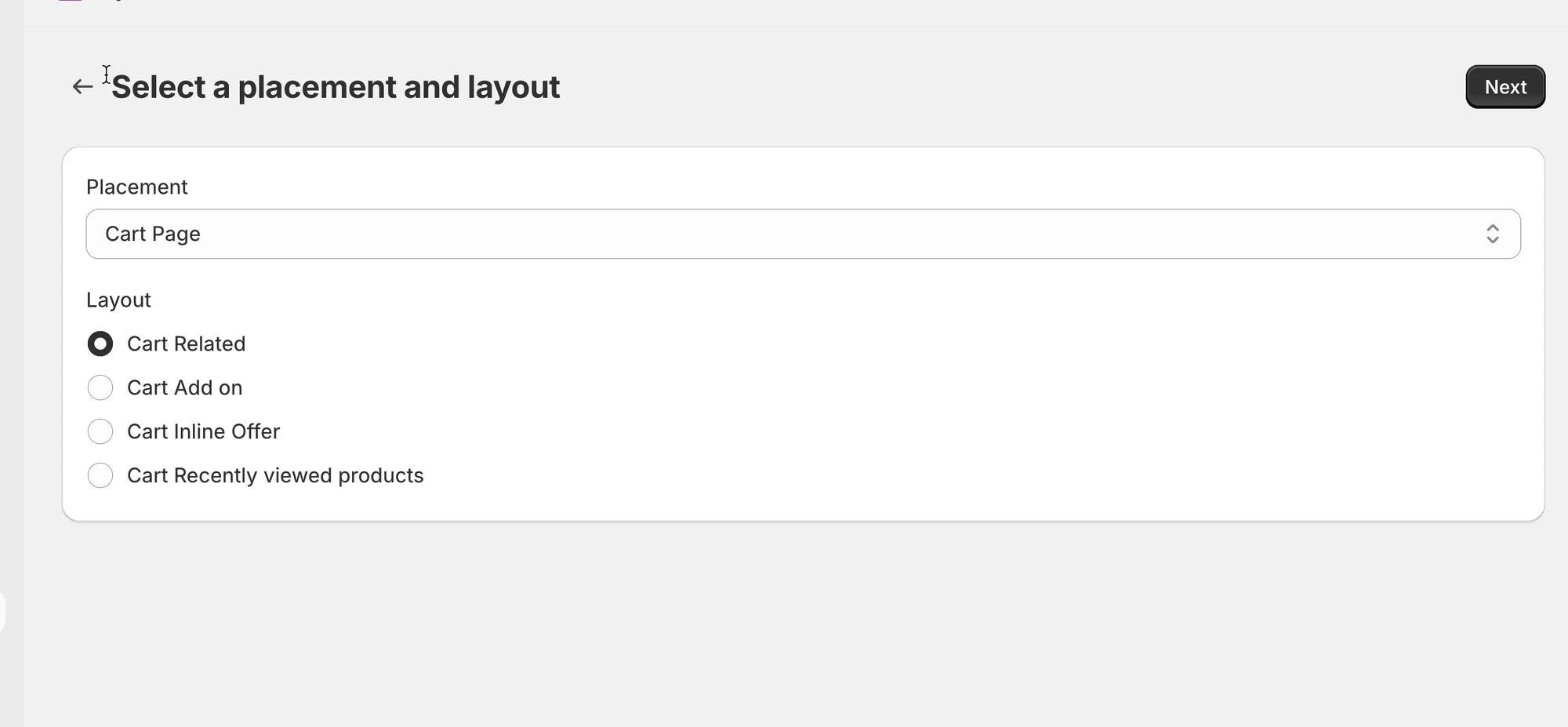
Section titled “💡 Placement & layout rules”- Some layouts are only available for certain placements
- Example:
- Frequently Bought Together → Product page
- Add-ons → Product or Cart page
Tip
If a layout is not available, it means it is not supported for that placement.
🧪 Example setup
Section titled “🧪 Example setup ”Goal: Show related products on product pages
- Placement: Product page
- Layout: Related products
This is the most common and easiest setup.
🙋 Still need support?
If you still need help, please feel free to contact us at hi@tipo.io. We’ll be happy to assist you further.