
Customer email notifications
AI Overview
Set up customer email notifications in Tipo Product Auction so bidders are automatically informed about their auction activity: bids, wins, losses, being outbid, and reminders before an auction starts. Each notification type can be enabled or disabled independently, and each template can be customized with dynamic variables.
View moreView less
- Open Notifications and use the Customer tab.
- Tick the events to notify: new bid, won, lost, someone placed a higher bid, or reminder when the auction is about to start.
- Edit the subject and content in the right panel; variables include {shop_name}, {auction_id}, {product_name}, and {bid_amount}.
- Click Save.
- Example: an outbid customer automatically gets an email encouraging them to bid again.
Summary generated by AI. It can make mistakes, so check the full guide below.
Customer email notifications automatically keep bidders informed about their auction activity, such as bids, wins, losses, and reminders.
Customer notifications are automatic emails sent to bidders based on what happens in an auction.
✅ When Are Customer Emails Sent?
Section titled “✅ When Are Customer Emails Sent?”You can send customer notifications when:
- A customer places a new bid
- A customer wins an auction
- A customer loses an auction
- Someone places a higher bid than them
- An auction is about to start (reminder email)
Each notification type can be enabled or disabled independently.
🛠️ Steps to set up
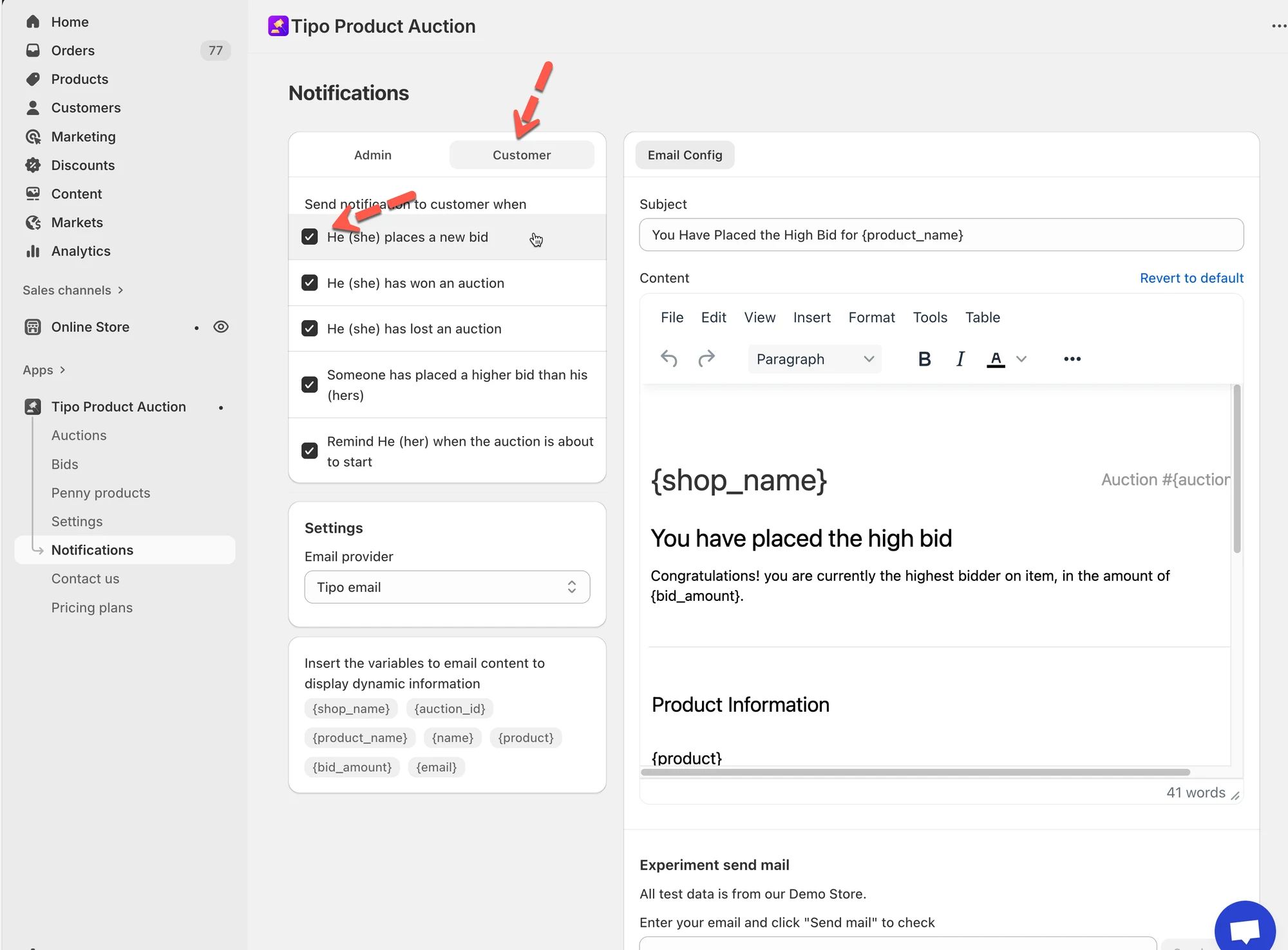
Section titled “🛠️ Steps to set up”- Open Tipo Product Auction app > Notifications
- Check the boxes for the events you want customers to be notified about:ch to the Customer tab
- He (she) places a new bid
- He (she) has won an auction
- He (she) has lost an auction
- Someone has placed a higher bid than his (hers)
- Remind He (her) when the auction is about to start
These triggers ensure customers stay informed throughout the auction process.
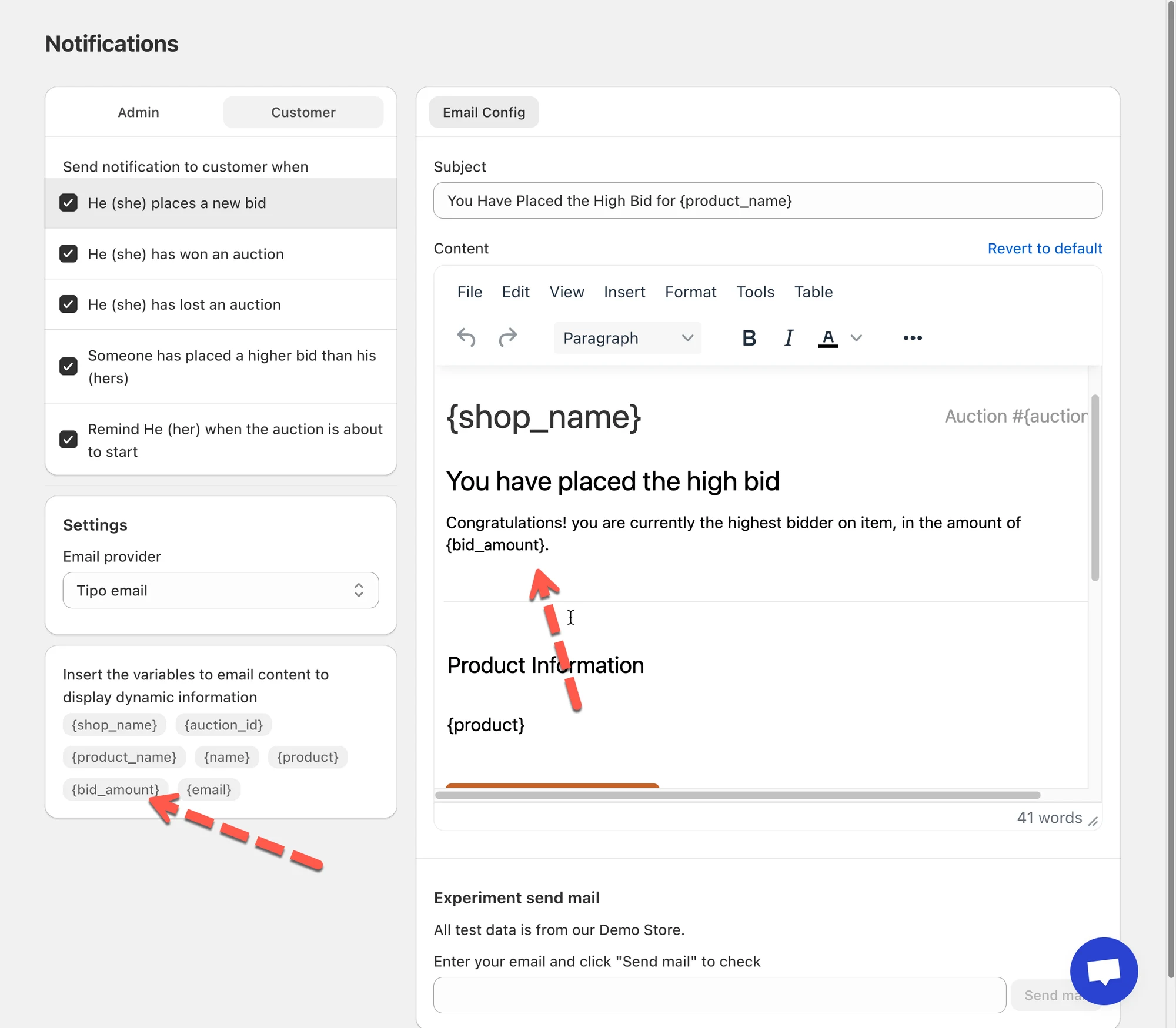
- Customize the email subject and body
On the right panel, you can edit the Customer email template for each notification type.
You can customize:
- Email subject
- Email content
- Text formatting and layout
The template supports dynamic variables, such as:
{shop_name}{auction_id}{product_name}{bid_amount}{email}{product}
📌 These variables automatically display real auction and customer data in the email.
- Click Save.
✅ How Customer Notifications Work
Section titled “✅ How Customer Notifications Work”Scenario:
- A customer places a bid on an auction
- Another bidder places a higher bid
- The “Someone placed a higher bid” notification is enabled
⇒ The first customer automatically receives an email telling them they’ve been outbid, encouraging them to bid again.
🙋 Still need support?
If you still need help, please feel free to contact us at hi@tipo.io. We’ll be happy to assist you further.