Theme integration
AI Overview
Theme integration lets Tipo Product Auction work with your Shopify theme by enabling the app embed. Without it, the auction widget may not show on the storefront, and display settings such as hide price or hide buttons won't work. You turn it on from the app dashboard's App status section.
View moreView less
- Open the app Dashboard and find App status.
- Click Turn on to go to the theme editor, activate the Tipo Product Auction app embed, and click Save.
- After enabling, widgets appear on auction product pages and display settings take effect.
- To disable, click Turn off, deactivate the app embed in the theme editor, and click Save.
Summary generated by AI. It can make mistakes, so check the full guide below.
Theme integration allows Tipo Product Auction to work correctly with your Shopify theme.
It ensures the auction widget appears on product pages and that display settings (hide price, hide buttons, etc.) work as expected.
If theme integration is not enabled, the auction widget may not show on the storefront.
🛠️ Enable theme integration
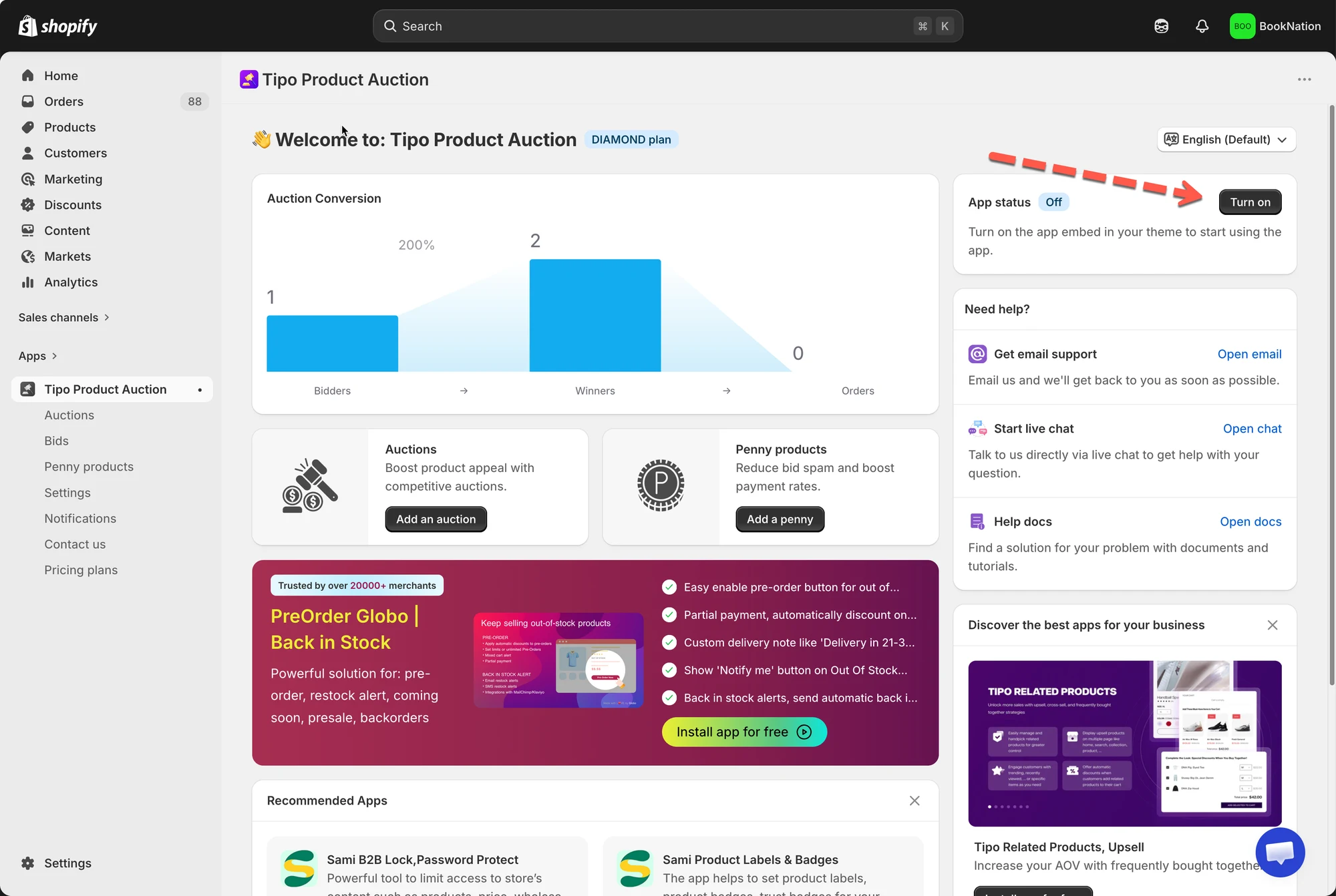
Section titled “🛠️ Enable theme integration”- Open the app Dashboard > find App status
- Click Turn on button > it directs to the theme editor
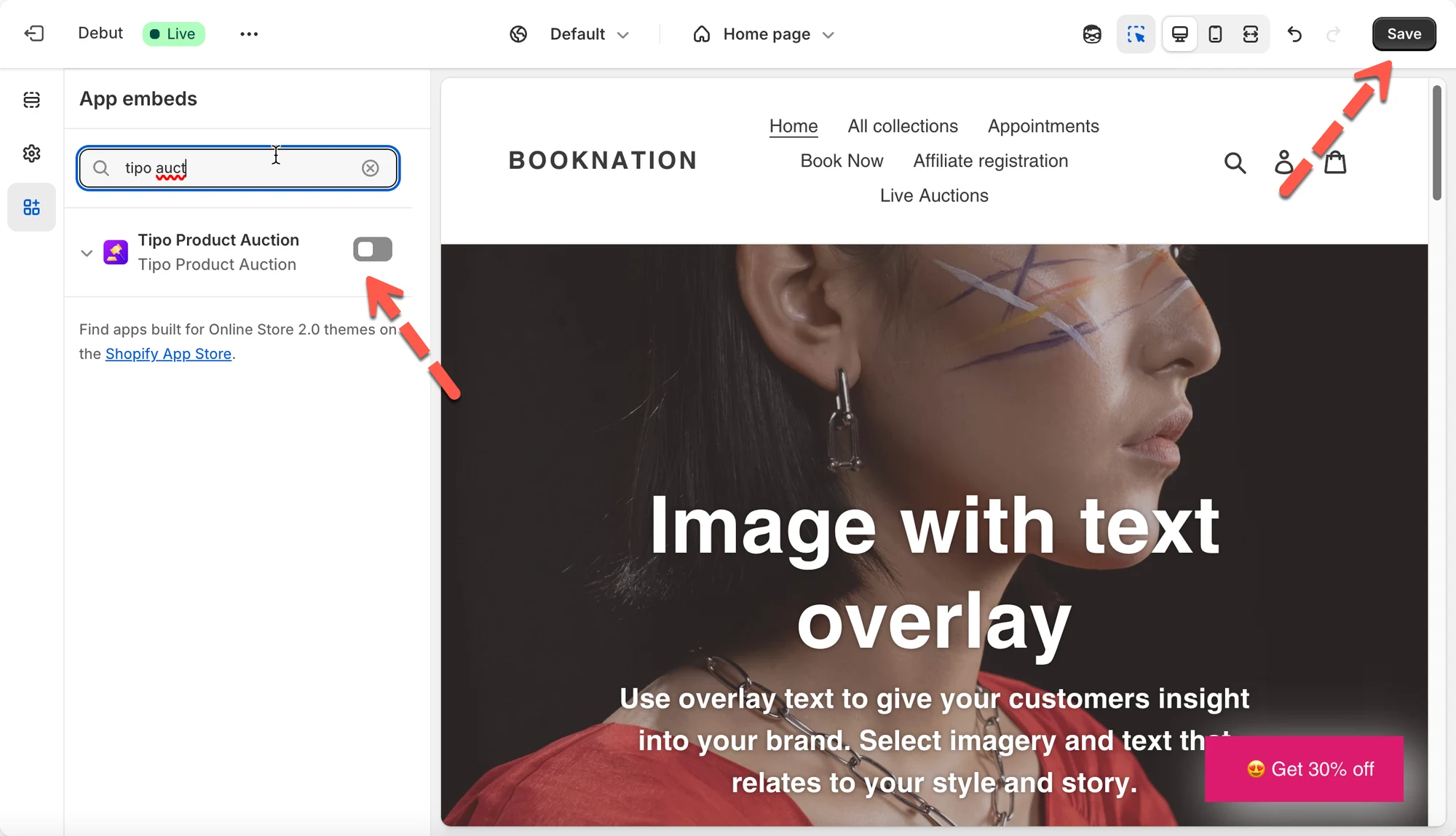
- In theme editor, activate the app embed of Tipo Product Auction app
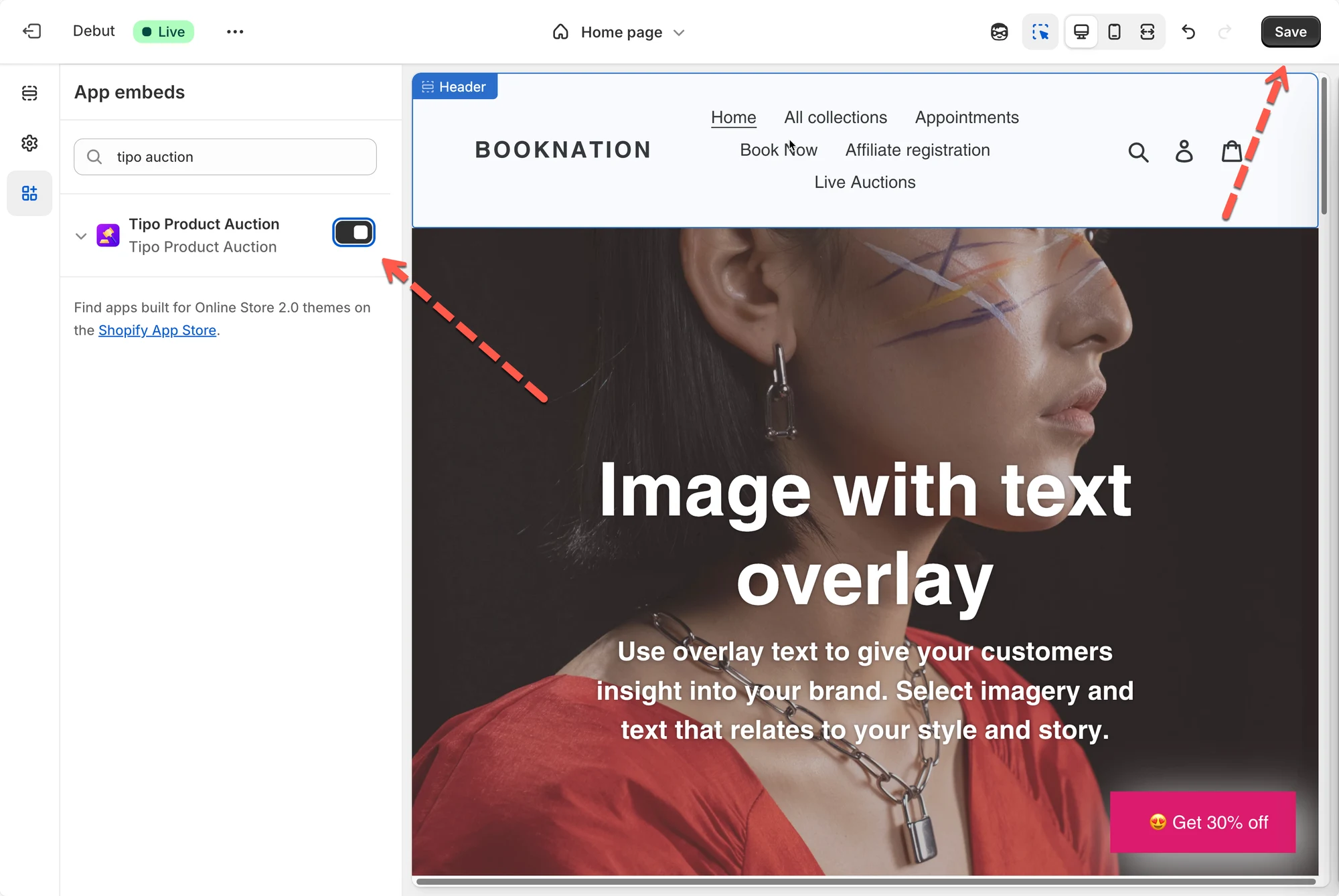
3. Click Save to update the changes.
What happens after enabling?
Section titled “What happens after enabling?”After theme integration is enabled:
- Auction widgets appear on auction product pages
- Display settings (hide price, hide buttons) start working
- Customers can interact with the auction normally
🚫 Disable the app embed on the theme
Section titled “🚫 Disable the app embed on the theme”- Open the app Dashboard > find App status
- Click on Turn off button > it directs to the theme editor
- In theme editor, deactivate the app embed of Tipo Product Auction app
- Click Save to update the changes.