
Delete a bid
AI Overview
Remove a bid in Tipo Product Auction, for example one placed by mistake, a test bid, or a suspicious bid. Find the bid on the Bids page, select it, and delete it. The bid is removed both in the app and in the Bid History on the front store, and the current bid or winner may change.
View moreView less
- Open Bids and filter by status, auction profile, product, amount range, or auction status.
- Tick the checkbox next to the bid.
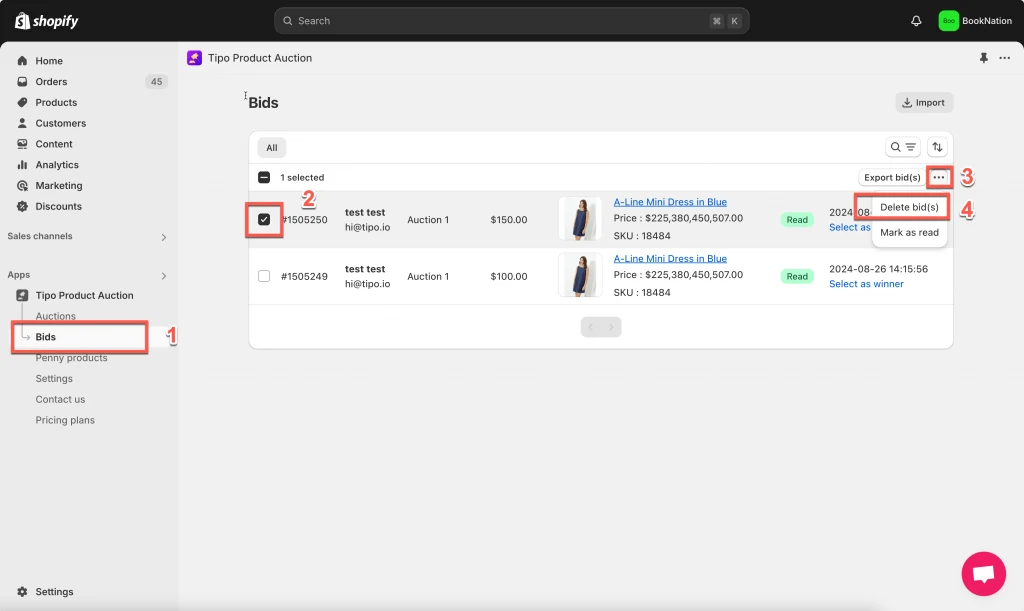
- Click More actions > Delete bid(s) > Yes, delete it anyway.
- If the deleted bid was the highest, the system falls back to the next valid bid, and the winner may change if the auction has ended.
Summary generated by AI. It can make mistakes, so check the full guide below.
Sometimes you may need to remove a bid. For example, if it was placed by mistake, a test bid, or a suspicious bid.
This guide shows you how to find a bid and delete it safely.
Step-by-step: Delete a bid
Section titled “Step-by-step: Delete a bid”- Open the app > click Bids
- Filter by:
- Status
- Auction profile
- Product
- Amount range
- Auction status
- Find the bid you want to remove > Click the checkbox next to the bid
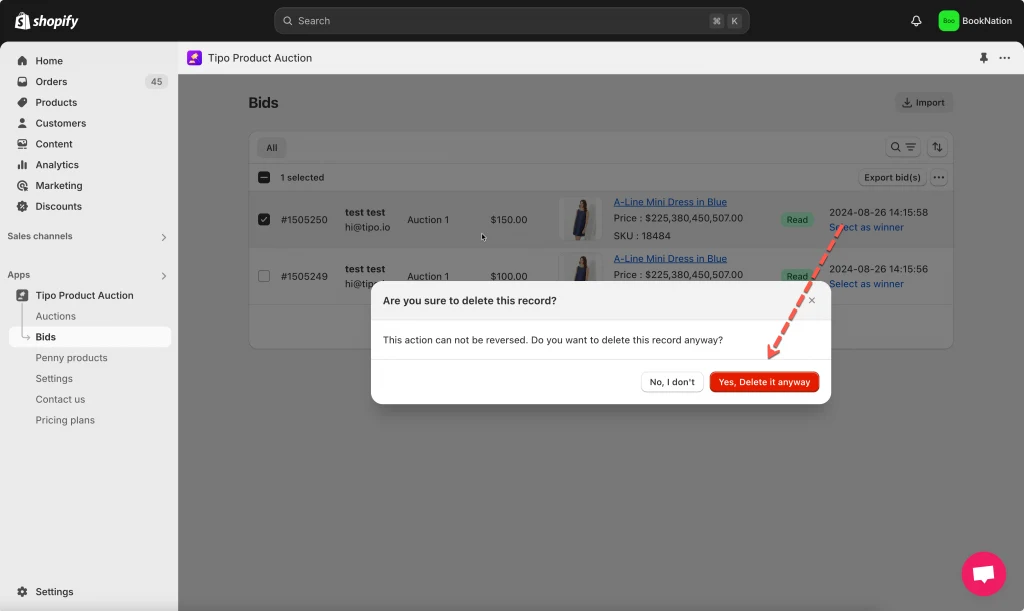
- Click More actions > Delete bid(s)> Yes, delete it anyway
And the bid(s) will be deleted both in the app and in the Bid History on the font store.
After deletion
Section titled “After deletion”- The bid is removed from the list
- The current bid may update automatically
- The winner may change if the auction has ended
If the deleted bid was the highest, the system will fall back to the next valid bid.
🙋 Still need support?
If you still need help, please feel free to contact us at hi@tipo.io. We’ll be happy to assist you further.