
Getting started with Multi-store sync
AI 概覽
逐步說明如何設定 Multi-store sync,在兩間或更多 Shopify 商店之間同步資料。一間 Source store 管理商品與庫存,一間或多間 Destination store 接收更新。您必須在兩間商店都安裝 Tipo Sync,選擇 Multi Store 模式與正確的商店角色,接著將它們連線並監控同步狀況。
查看更多收合
- 在 Source store 與 Destination store 兩邊都安裝此應用程式。
- 選擇 Multi Store 模式,然後選擇 Source store 或 Destination store 角色。
- 在每間商店中開啟 Settings,確認要同步哪些資料。
- 將 Destination store 連線到 Source store,並選擇要同步的商品。
- 定期檢查同步記錄,確認商品與資訊如預期傳輸。
由 AI 產生的摘要,可能有錯誤,請參閱下方的完整指南。
🚀 開始使用 Multi-store sync
Section titled “🚀 開始使用 Multi-store sync”歡迎使用 Inventory Sync, Multi store TP(Multi-store mode),這是在兩間或多間 Shopify 商店之間同步資料的簡單方式。
Multi-store sync 特別適合以下情況:
- 您經營多間區域商店(US / EU / AU)
- 您將 B2C 與 B2B 商店分開
- 您希望由一間「主要商店」管理商品與庫存,其他商店接收更新
🔑 主要功能
Section titled “🔑 主要功能”- Connect stores:將一間 Source store 連結到一間或多間 Destination stores
- Inventory sync:在商店之間同步庫存(單向或雙向)
- Product sync:匯入新商品並讓商品資料保持更新(標題、圖片、款式、中繼欄位等)
- Order sync:當訂單在 Destination store 建立時,也可以在 Source store 建立
- Flexible sync options:選擇您想同步的內容(商品、價格、中繼欄位、庫存等)
- CSV Import:需要時可使用 CSV 匯入商品/庫存
🛠️ 開始使用
Section titled “🛠️ 開始使用”1) 安裝應用程式並選擇 Multi-store mode
Section titled “1) 安裝應用程式並選擇 Multi-store mode”在此安裝
重要:您必須在兩間商店都安裝 Tipo Sync:
- 安裝在您的 Source store
- 安裝在您的 Destination store
選擇您需要的其中一種商店模式:
- Single Store:單一商店設定,用於讓同一間商店內的商品保持同步。了解更多
- Multi Store:管理多間商店的多商店模式。
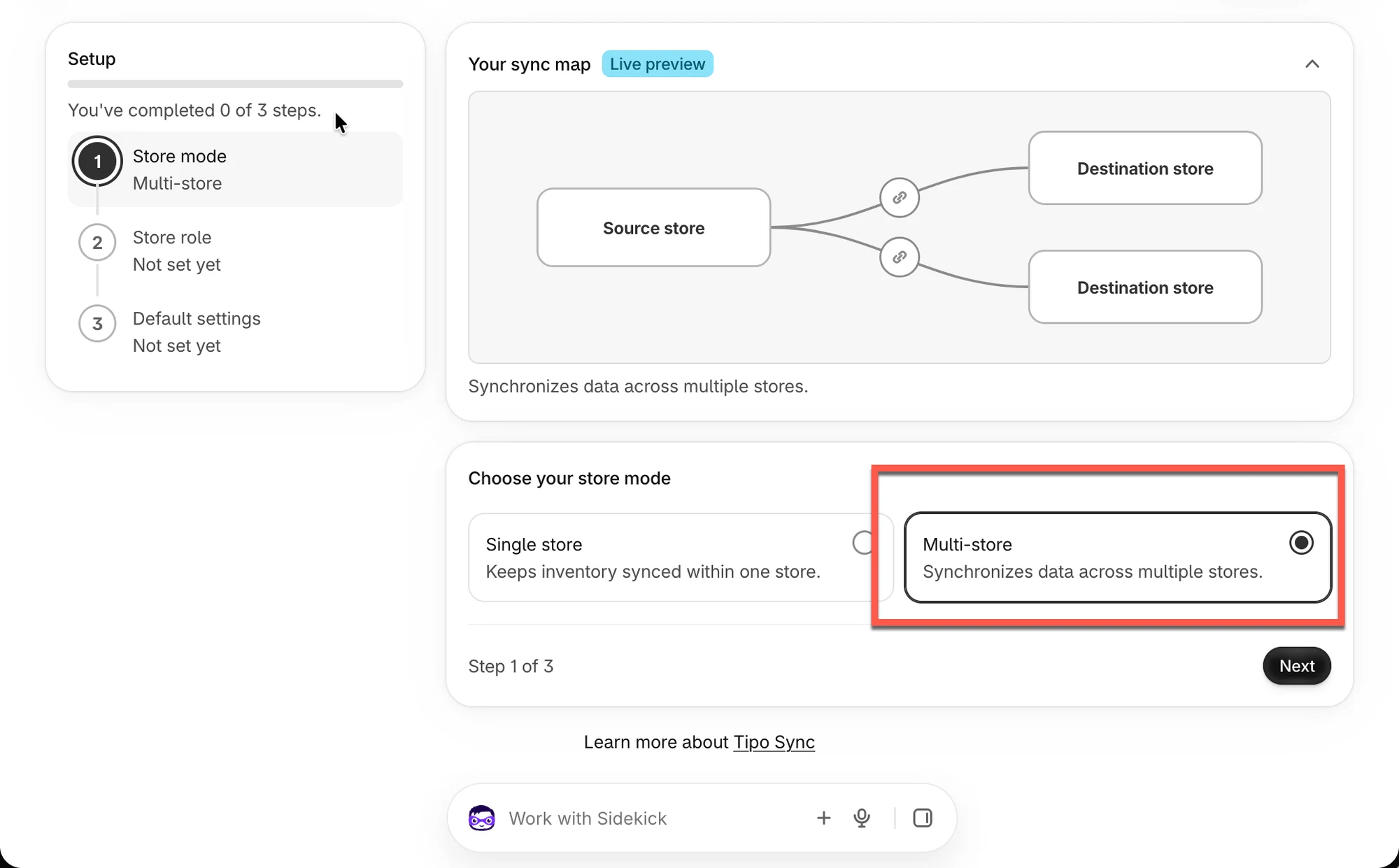
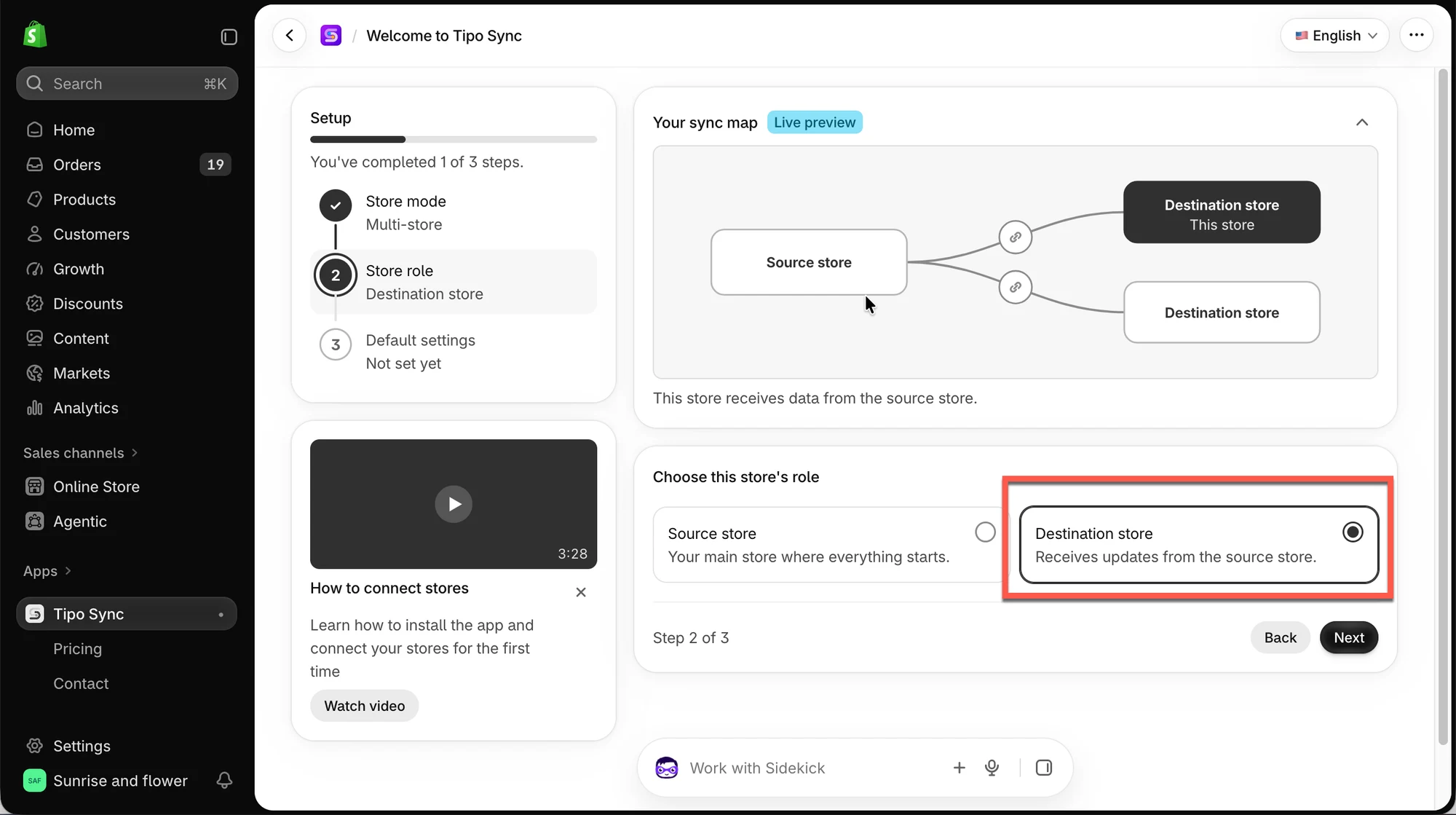
選擇正確的商店角色:
- Source store:您管理商品與庫存的「主要」商店
- Destination store:接收同步更新的商店
2) 設定應用程式設定(兩間商店)
Section titled “2) 設定應用程式設定(兩間商店)”安裝完成後,請在每間商店中開啟 Settings,並確認您的同步偏好設定。
在 Source store
- 決定您想同步哪些資料(商品、頁面、商品系列等)
在 Destination store
- 決定您想同步哪些商品資料(例如:標題、圖片、價格、中繼欄位等)
3) 將 Destination store 連接到 Source store
Section titled “3) 將 Destination store 連接到 Source store”選取您想同步的商品,並在連線詳細資料中完成設定。瞭解更多
4. 監控同步
Section titled “4. 監控同步”在 Source 與 Destination 之間建立連線後,請定期檢查同步紀錄,確認所有商品與資訊都如預期傳輸。
📚 其他資源
Section titled “📚 其他資源”- 連接商店的一般步驟
- 選擇要同步的商品
- 僅同步商品庫存
- 透過電子郵件 hi@tipo.io 聯絡支援團隊