
Display a widget
AI Overview
After creating a widget in Tipo Related Products, add it to your store so customers can see it. You can paste its shortcode in the theme editor for full control over placement, or choose a position in Design settings and let the widget appear automatically without editing the theme.
View moreView less
- Shortcode: set the app block Position in Design, copy the shortcode and paste it into the Tipo Related Products block.
- No shortcode: choose a Position, such as Below the product form (default and recommended), and click Save.
- Make sure the widget status is Active.
- If nothing shows, check the app embed, the widget status and the placement.
Summary generated by AI. It can make mistakes, so check the full guide below.
After creating a widget, you need to add it to your store so customers can see it.
Inventory Sync, Multi store TP offers two ways to display a widget.
Option 1: Add widget by shortcode
Option 2: Select position to show (no shortcode)
⚙️ Option 1: Add widget by shortcode
Section titled “⚙️ Option 1: Add widget by shortcode”Use this option if you want full control over where the widget appears
Step 1: Enable shortcode position in Design settings
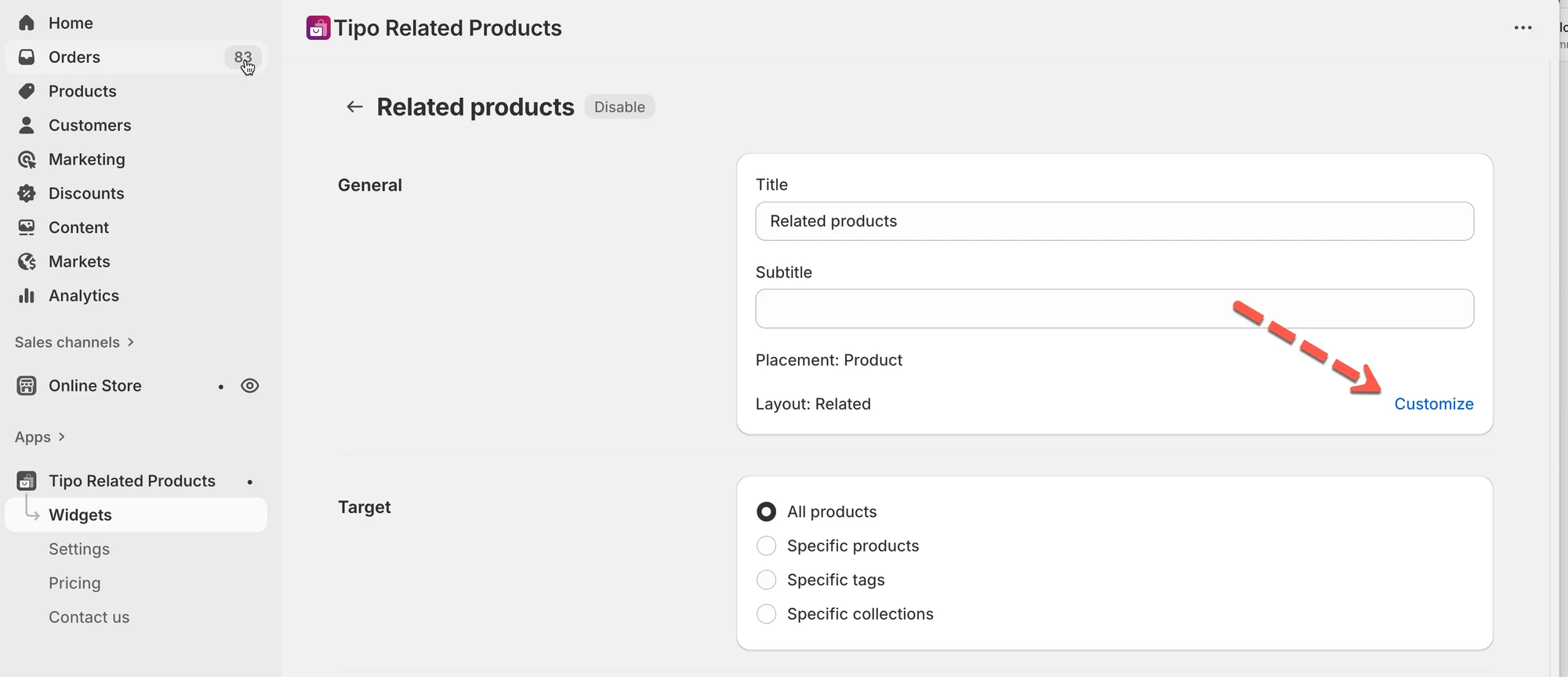
Section titled “Step 1: Enable shortcode position in Design settings”- Go to the app > click Widgets
- Find the widget you want to display or created a new one > open the widget detail
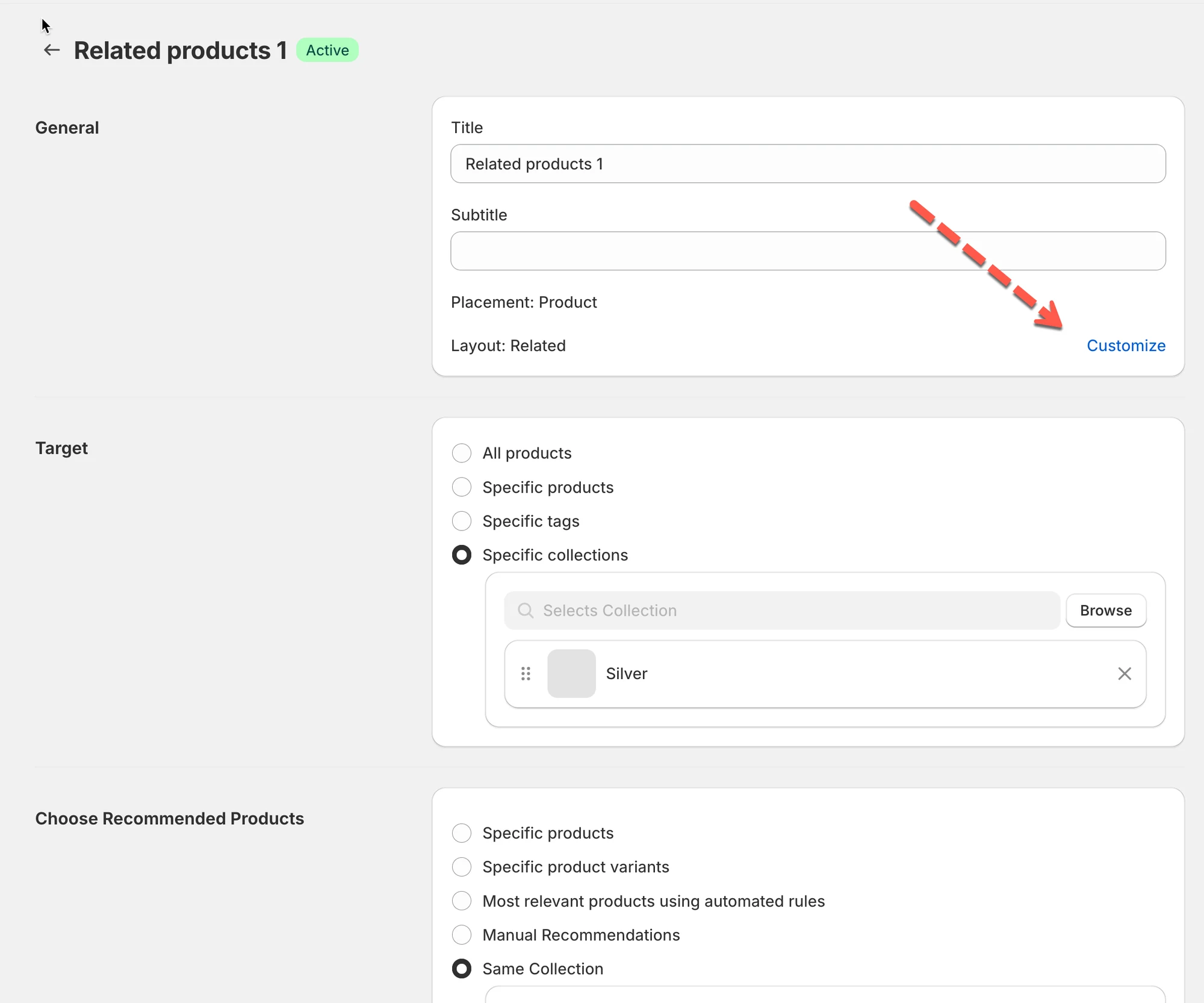
- Click Customize > it directs to the app Settings > Design
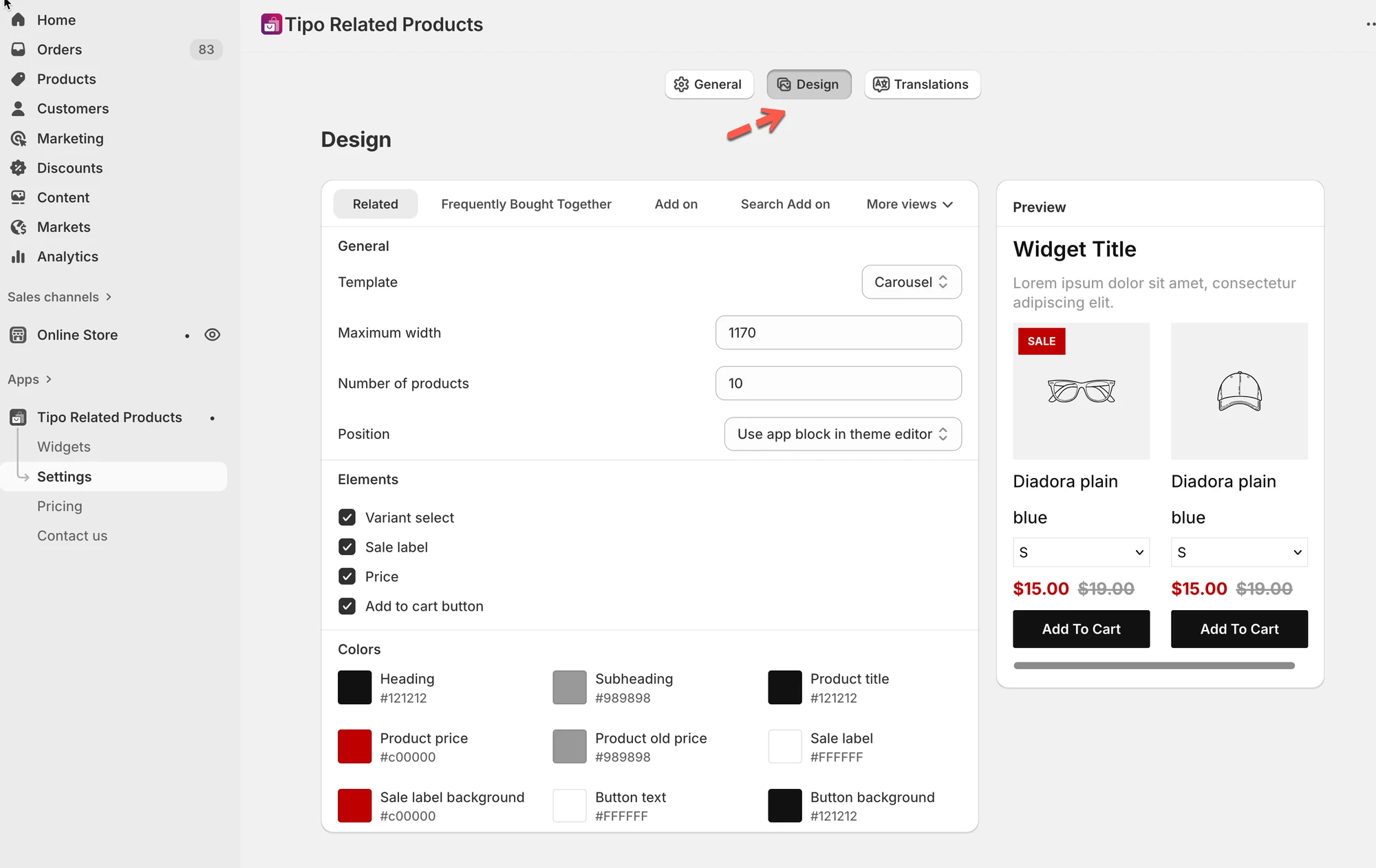
- Find Position setting > choose User app block in theme editor
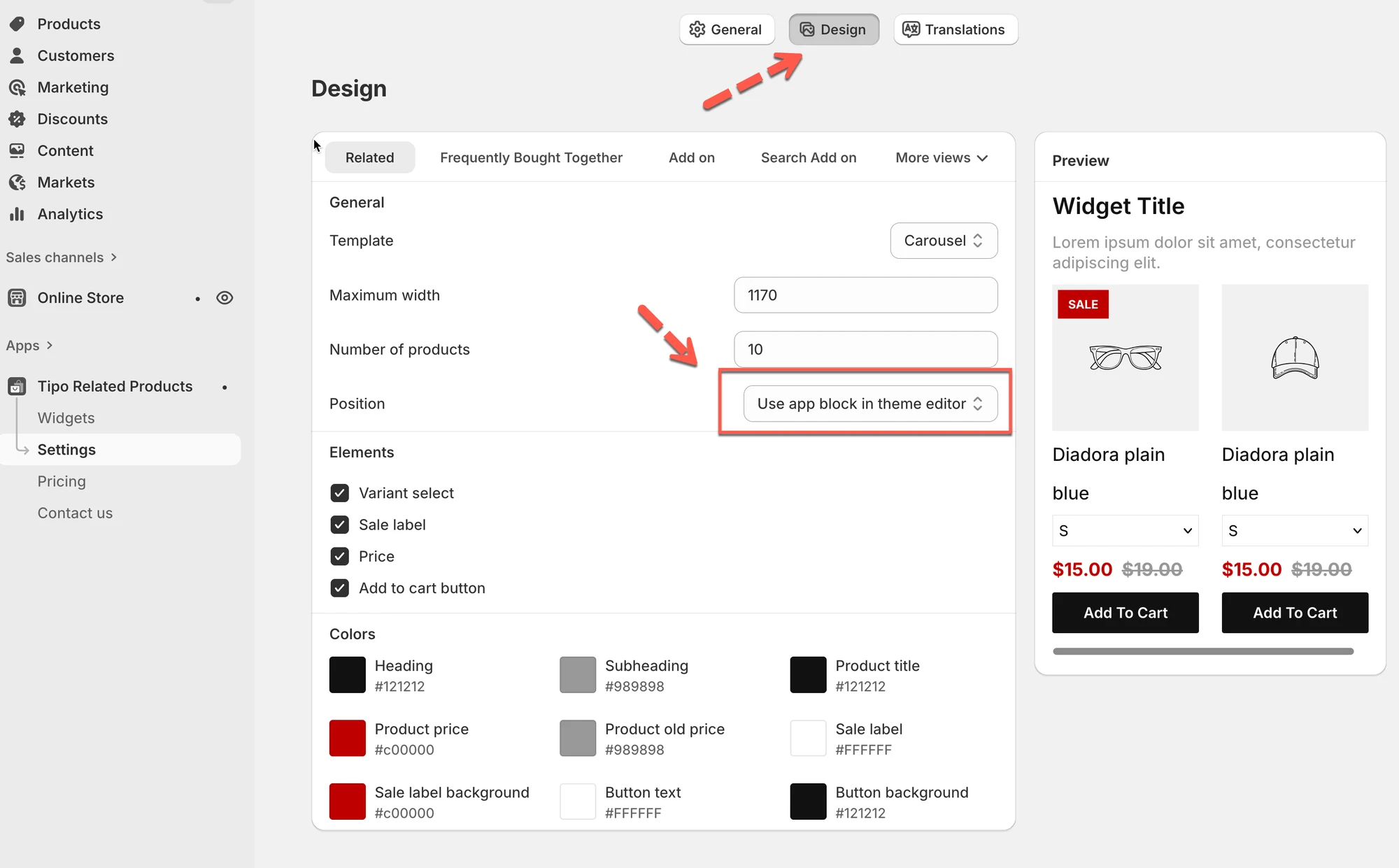
- Click Save
Step 2: Copy the widget shortcode
Section titled “Step 2: Copy the widget shortcode”- Go to the app > click Widgets
- Find the widget you want to display.
- Copy the Shortcode
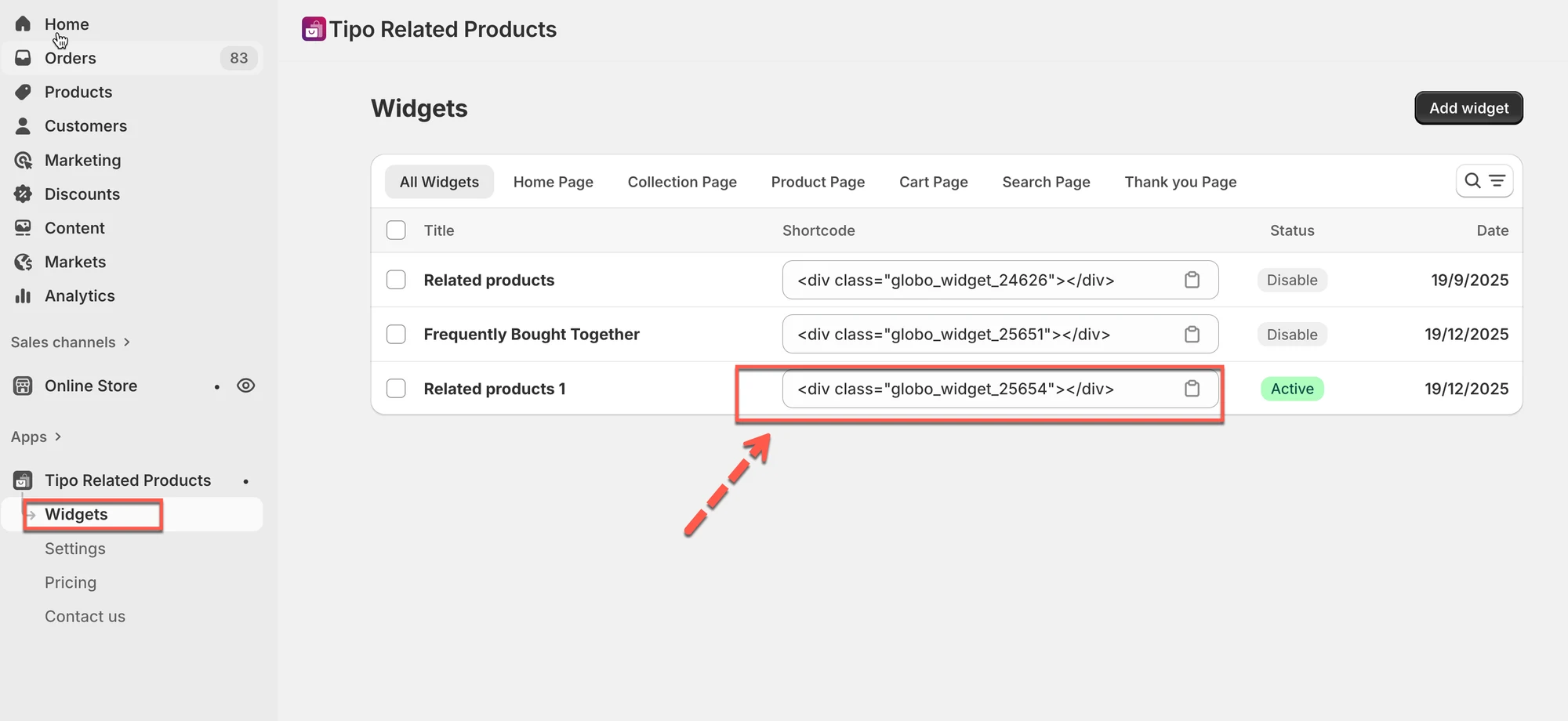
Example shortcode
<div class="globo_widget_25654"></div>Step 3: Open Theme Editor
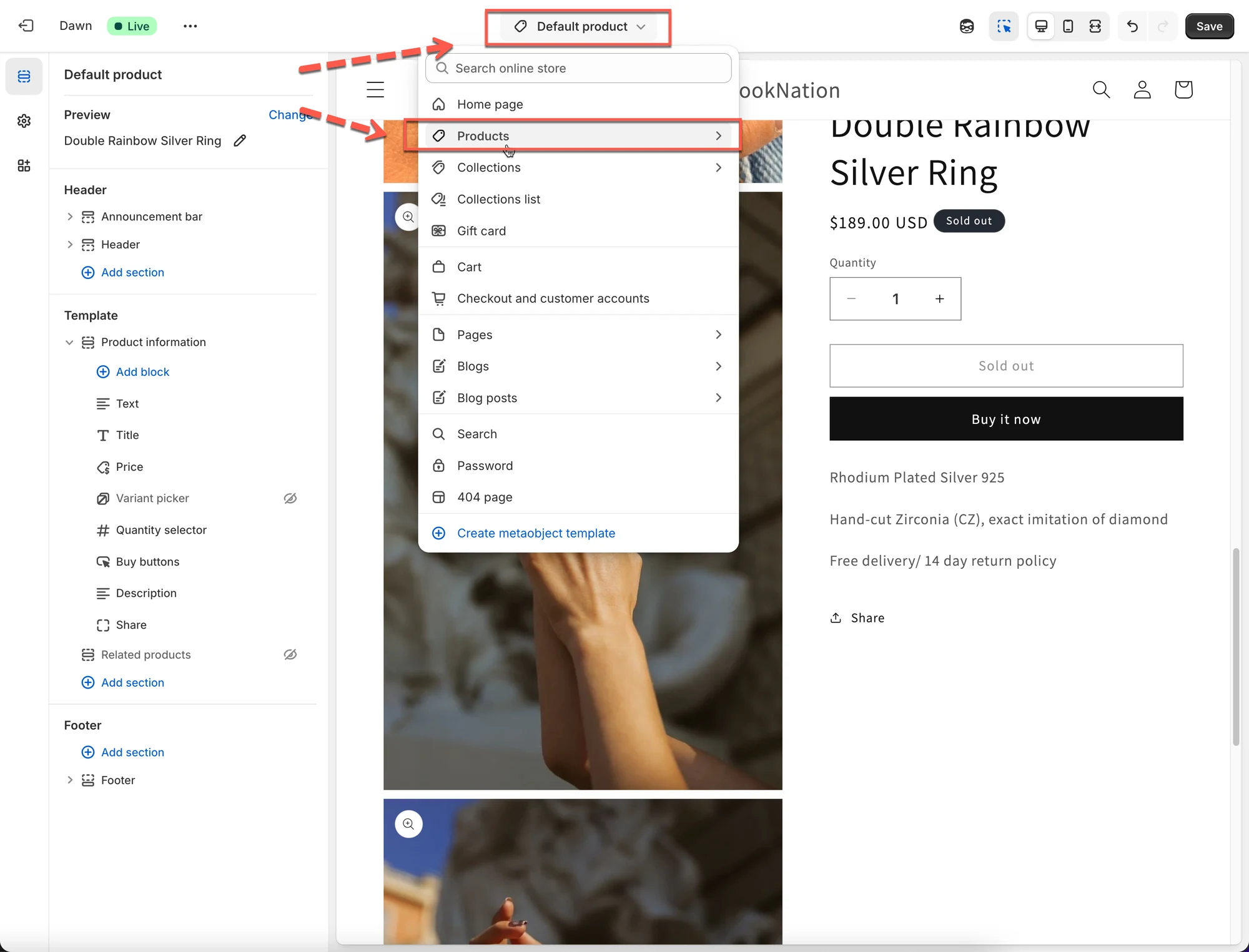
Section titled “Step 3: Open Theme Editor”- Go to Online Store > Themes > Edit theme
- Open the page where you want to show the widget
(example: Product page template).
Step 4: Add the shortcode block
Section titled “Step 4: Add the shortcode block”- Click Add section or Add block
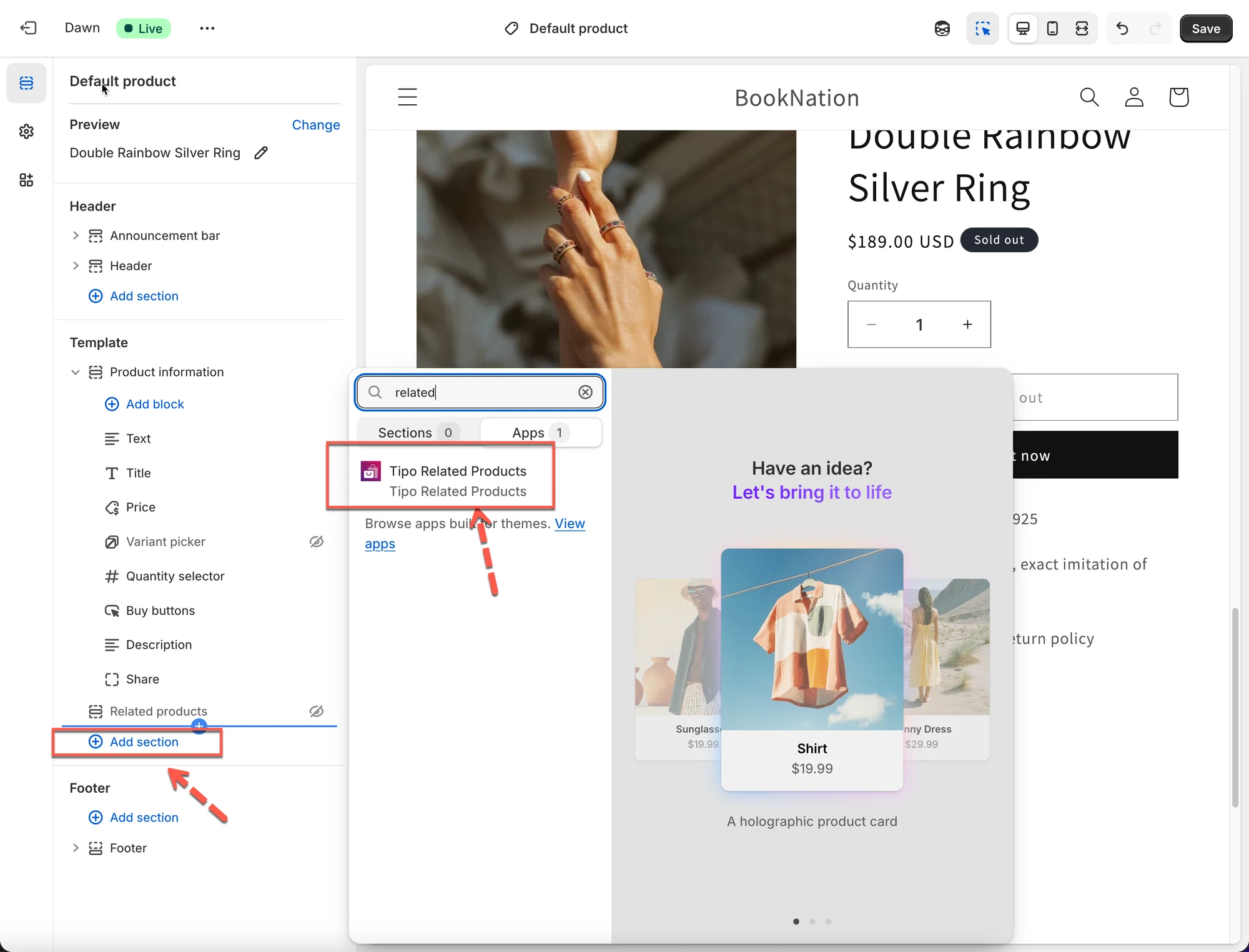
- Choose Tipo Related Products app
- Paste the shortcode you copied
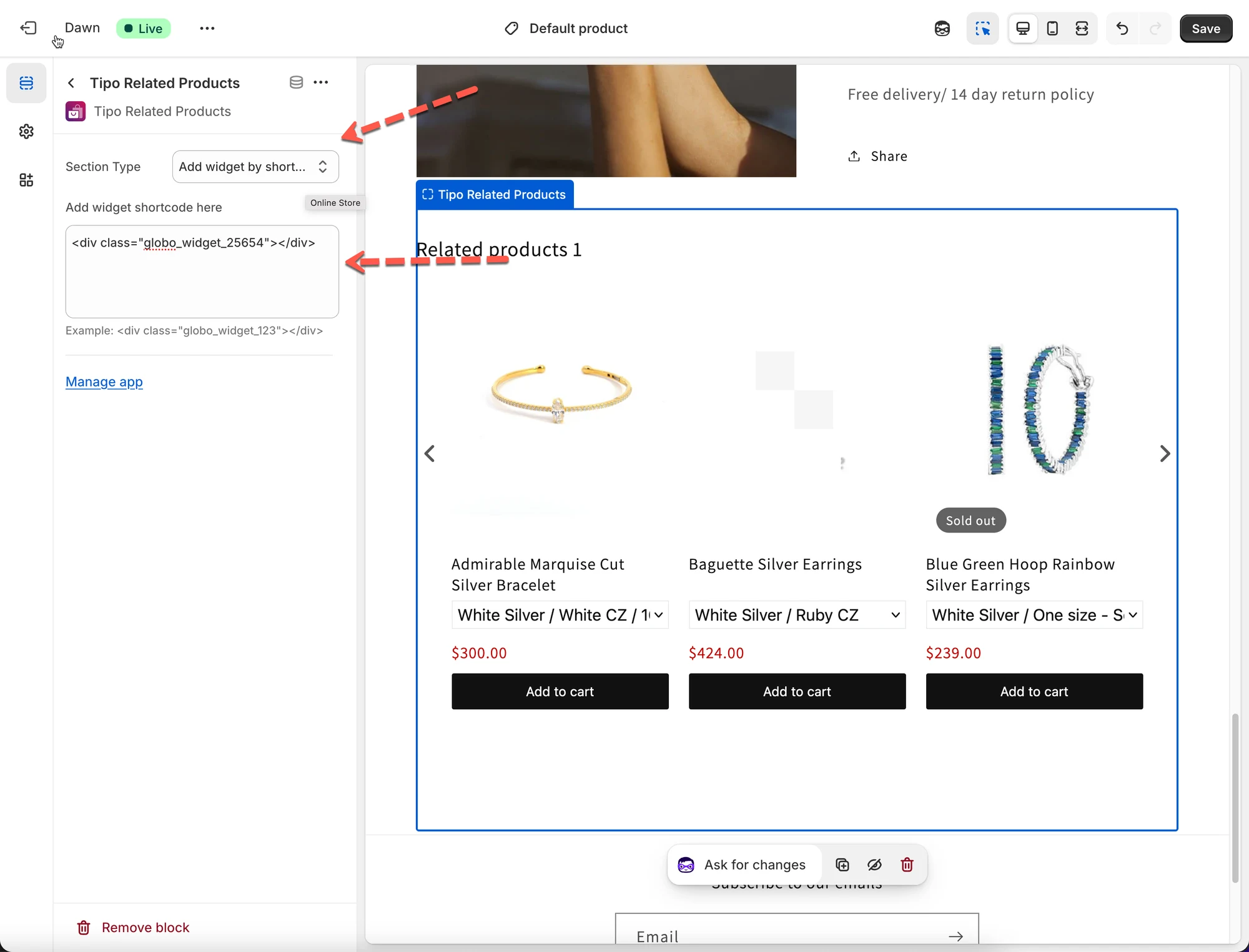
- Click Save
✅ Result
The widget will now appear exactly where you placed the shortcode.
⚙️ Option 2: Display widget automatically (no shortcode)
Section titled “⚙️ Option 2: Display widget automatically (no shortcode)”
You do not need to edit the theme or add any shortcode. Just select the position option to show the widget based on HTML element or add to cart in the theme.
Step 1: Open widget Design settings
Section titled “Step 1: Open widget Design settings”- Go to the app > click Widgets
- Open the widget you want to display
- Click Customize > it directs to the app Settings > Design
Step 2: Select widget position
Section titled “Step 2: Select widget position”In Position, choose where the widget should appear:
- Below the product form (default & recommended)
- Use app block in theme editor
- Before a HTML element
- After a HTML element
- At the start of a HTML element
- At the end of a HTML element
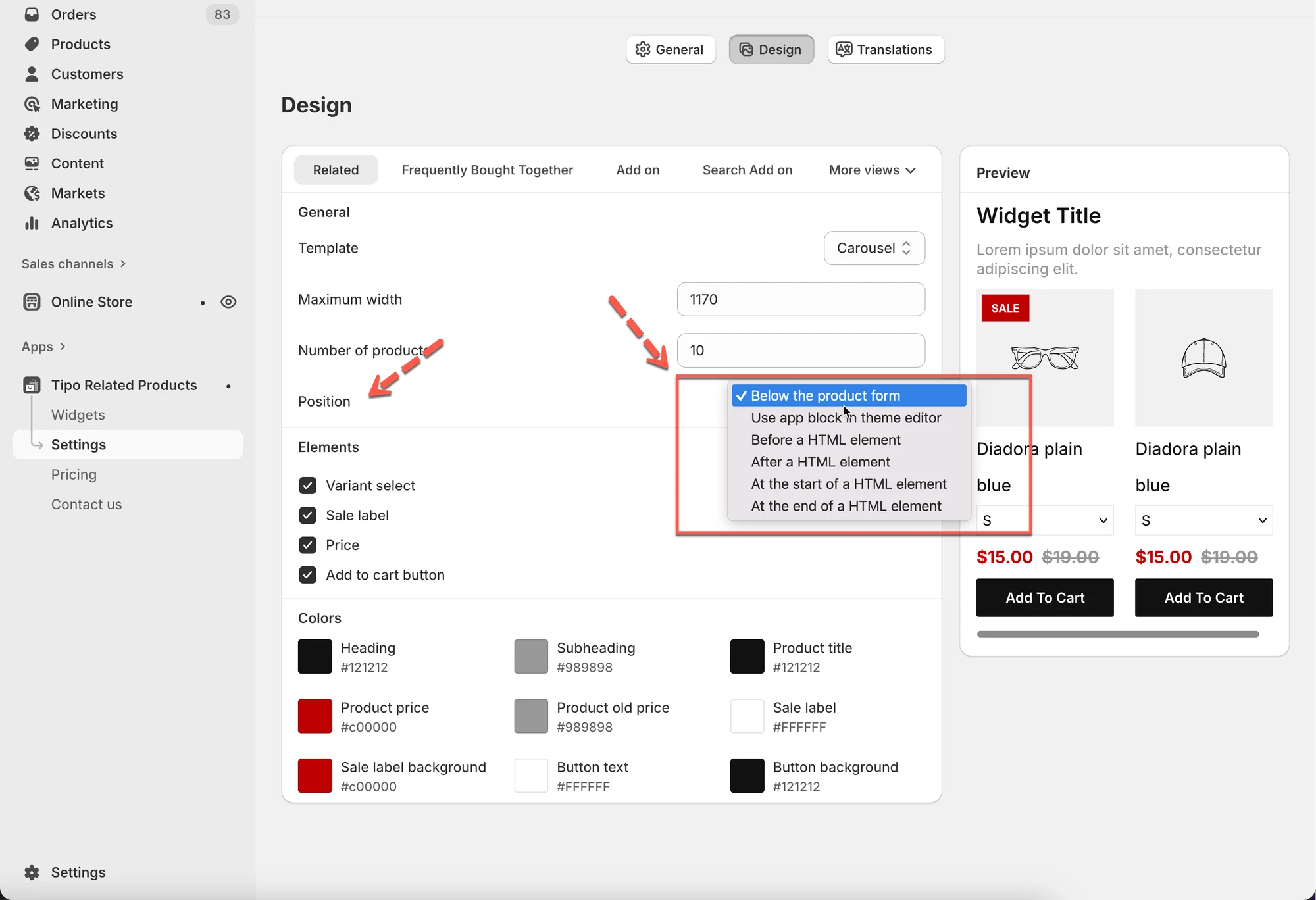
✅ Recommended
- Below the product form
→ Works automatically on product pages
→ No shortcode needed
Step 3: Save and activate
Section titled “Step 3: Save and activate”- Click Save1
- Make sure the widget status is Active
🎉 The widget will automatically appear on your store.
✅ Quick checklist if widget is not showing
Section titled “✅ Quick checklist if widget is not showing”- App embed is enabled on the theme
- Widget status is Active
- Placement matches the page you’re testing
- If using shortcode:
- Shortcode is added correctly
- Theme is saved
- If using automatic position:
- Position is set correctly (e.g. Below product form)
▶️ A tutorial video
Section titled “▶️ A tutorial video ”🙋 Still need support?
If you still need help, please feel free to contact us at hi@tipo.io. We’ll be happy to assist you further.