
Change widget status
AI Overview
Widget status in Tipo Related Products controls whether a widget appears on your store. Active widgets can show on the storefront, while Draft widgets are hidden but keep all their settings. You change status from the Widgets page.
View moreView less
- Active shows the widget, provided placement and theme setup are correct; Draft hides it.
- To activate: on Widgets, tick the widget's checkbox and click Active.
- To hide: select the widget and click Disable; settings stay saved.
- Use Draft to pause a widget, test different widgets or edit later.
Summary generated by AI. It can make mistakes, so check the full guide below.
Widget status controls whether the widget appears on your store.
- Active → Widget can show on your storefront
- Draft → Widget is hidden and will not show
🛠️ Set a widget to Active
Section titled “🛠️ Set a widget to Active”- Go to the app > click Widgets
- Tick on the checkbox of the widget you want to publish
- Click Active (top-right).
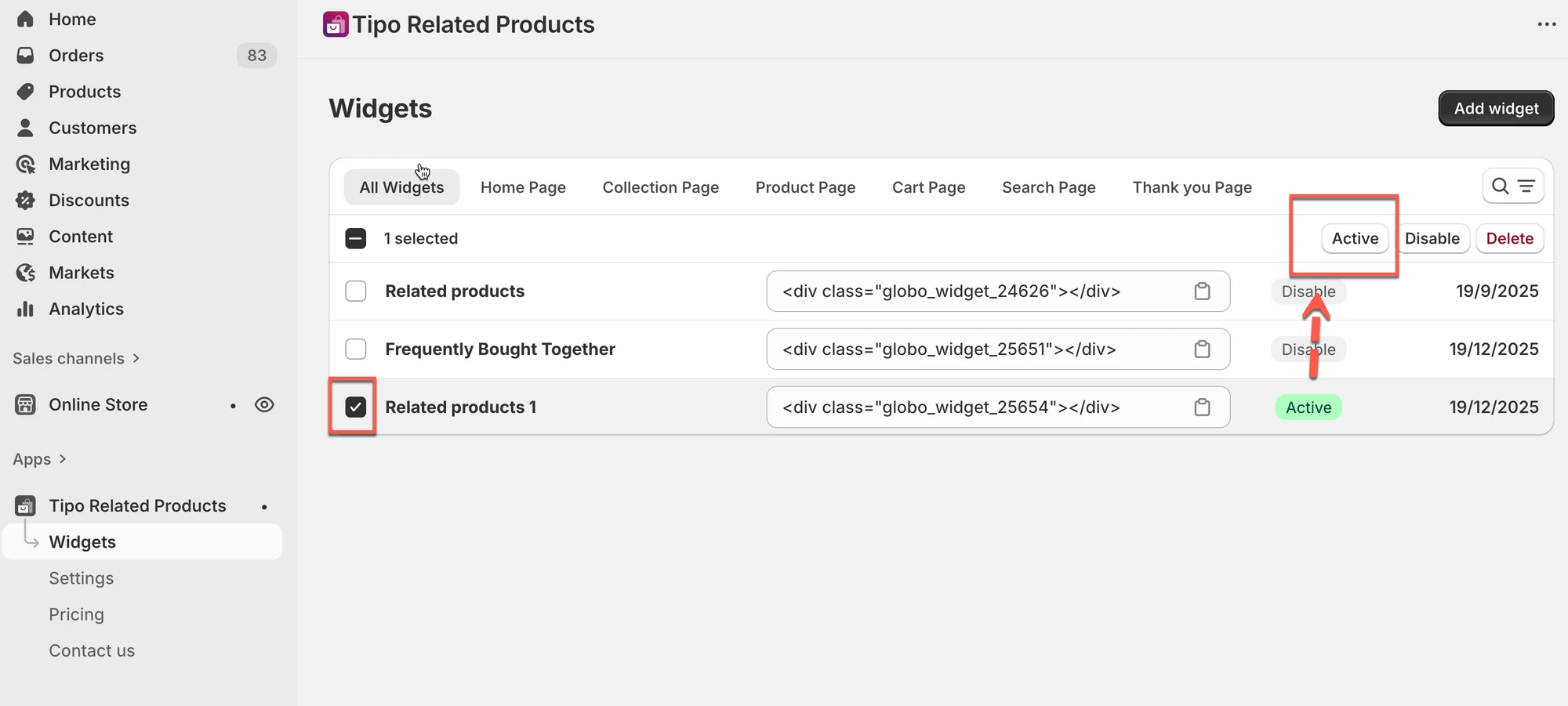
✅ Result
The widget is now live (as long as placement and theme setup are correct).
🛠️ Set a widget to Draft
Section titled “🛠️ Set a widget to Draft”- Go to Widgets.
- Select the widget you want to hide.
- Click Disable.
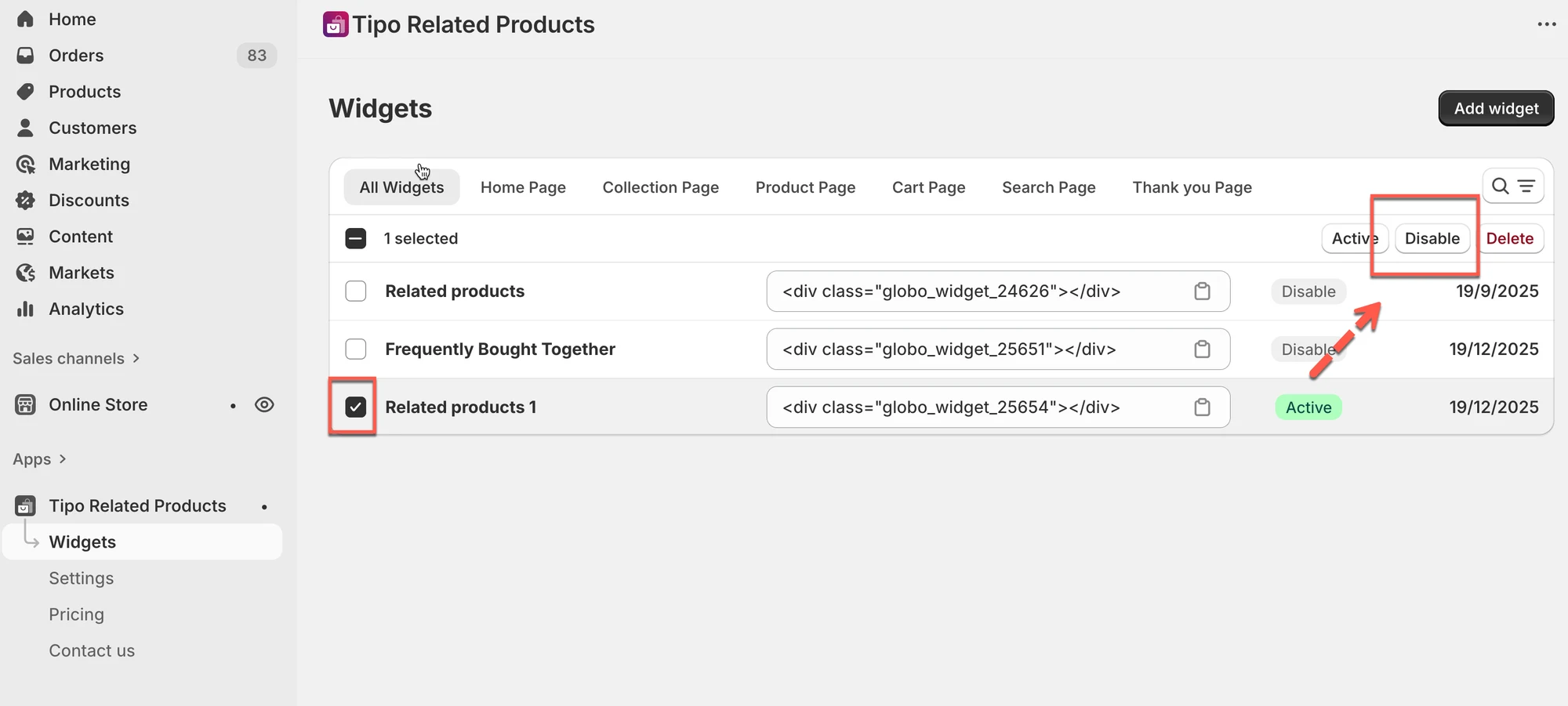
✅ Result
The widget will no longer appear on your store, but all settings are saved.
💡 Tip
Use Draft when:
- You want to pause a widget temporarily
- You are testing different widgets
- You plan to edit it later
🙋 Still need support?
If you still need help, please feel free to contact us at hi@tipo.io. We’ll be happy to assist you further.